Managing Your Subscription
Last updated on October 10, 2025
Would you like to manage your WPChat subscription, including cancelling auto-renewal or updating your payment method?
In this guide, we’ll explain what an auto-renew subscription is, how to cancel it and how to update the payment method you use for it.
An auto-renewal license subscription is created for each item in a purchase. You can cancel it anytime within your WPChat user account after the purchase has been made. Do this if you prefer not to have a subscription payment in place for an item.
“Auto-renew” subscriptions are created so you don’t have to come back each year to manually renew a license. They are managed within the WPChat user account under which the purchase was made.
Keeping your subscription active has these benefits.
- Continued access to the paid features of the product.
- Ongoing protection against changes in social media platforms or WordPress through regular plugin updates, plus access to our support team.
- No need to go through the manual renewal purchase process each year.
Subscriptions are automatically created when you purchase a product, renew an existing license, or upgrade to another plan.
Cancelling the auto-renew subscription does not cancel or invalidate your current license term. It only cancels the automatic renewal payment that would otherwise be charged when your license expires. The license will remain active until its expiration date.
Here is what we will cover.
- How to Cancel Your WPChat Auto-Renewal Subscription
- Updating Your Payment Method for WPChat
- Updating a Credit Card Payment Method
- Changing PayPal Subscription Card Information
How to Cancel Your WPChat Auto-Renewal Subscription
If you need to cancel your WPChat subscription, follow these steps to stop the auto-renewal.
Cancellation Steps
- Visit the WPChat website and log in using your account credentials.
- After logging in, click the Billing tab at the top of the page.
- Scroll down to the Active Subscriptions section. Then click the Cancel link next to the subscription you wish to cancel.
- You’ll see pop-up messages with information about the benefits of maintaining your subscription and the impact of cancelling. To proceed, check the boxes in the second pop-up screen to confirm your understanding and decision.
- Once you’ve completed the cancellation process, WPChat shows a message that your subscription has been cancelled. Your account then shows the subscription status as Cancelled under the subscription status column.
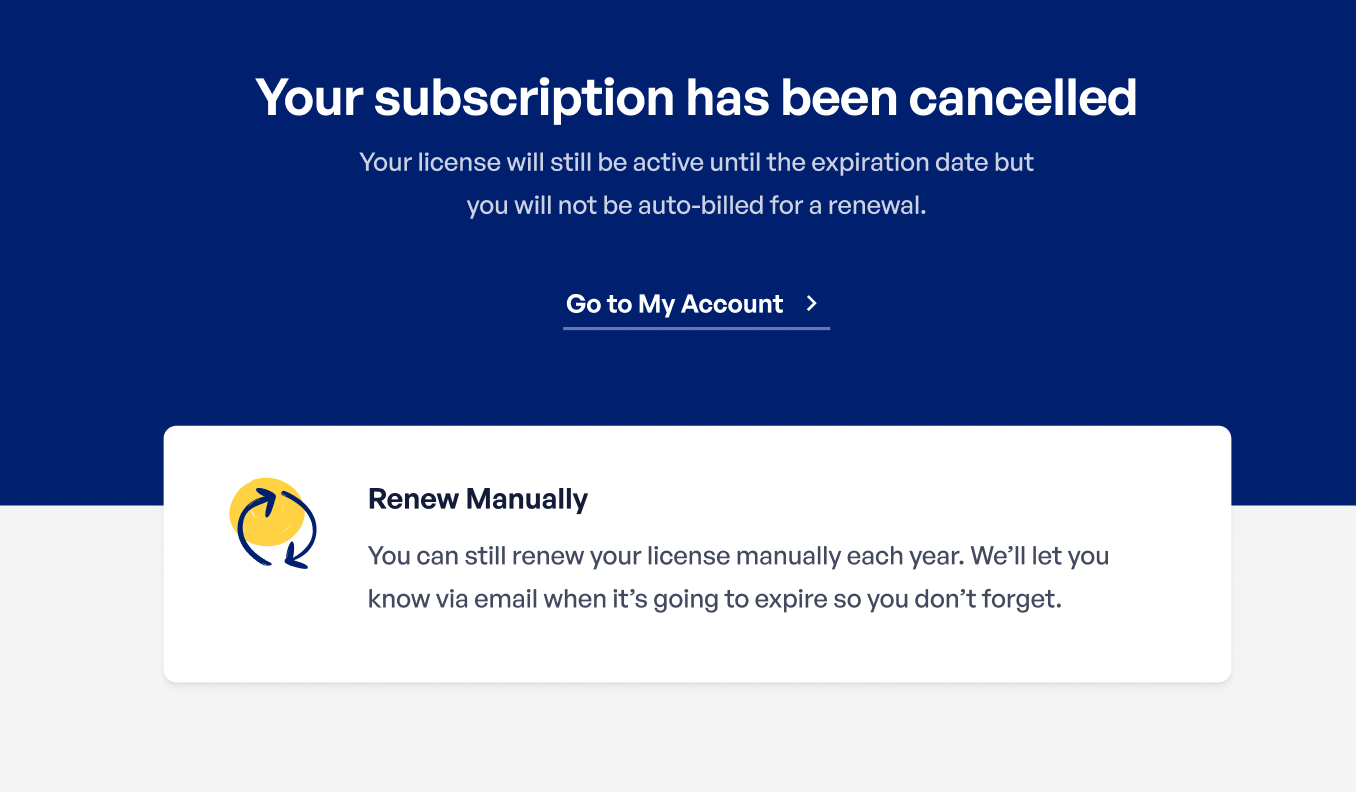
Note: Your license will remain active until its expiration date, so you can continue to use all the WPChat features until then.
Updating Your Payment Method for WPChat
Managing your payment methods for WPChat is simple, whether you’re updating a credit card or changing a PayPal-linked payment. Follow the steps below to keep your payment information up to date.
Updating a Credit Card Payment Method
If you’re using a credit card for your WPChat subscription, you can update your payment information with these steps.
- Log in to your WPChat account.
- Click the Billing tab at the top of the page.
- Scroll to the Active Subscriptions section. Then click Update Payment next to the subscription you wish to update.
- On the Update Payment Method page, enter your updated card and billing information.
- Click the Update Payment Method button.
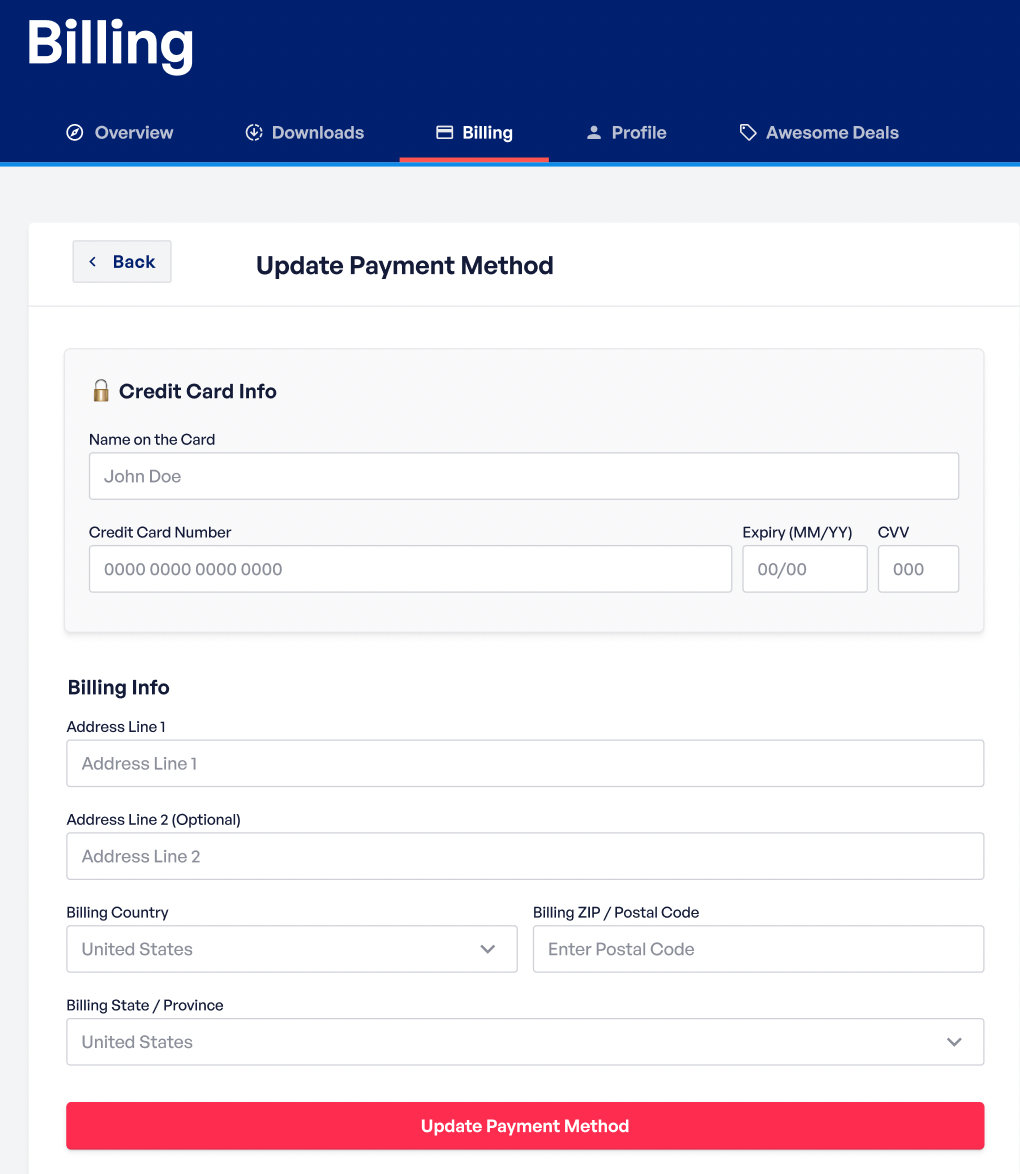
Note: If there is no active subscription yet, you don’t need to update at this time. When you renew your license manually, enter the new card information, which will be used for future auto-renewal payments.
Changing PayPal Subscription Card Information
Unlike credit cards, PayPal doesn’t let WPChat update your payment information for you. Therefore, you need to log in to your PayPal account directly to make any updates. For help, see PayPal’s guide to managing payment methods.
That’s it! You now know how to cancel auto-renewal and keep your payment method up to date. If you want to review what you have paid, check out our guide to finding your invoices.