Since I started using WordPress, I’ve noticed how often site owners pick a live chat tool because the free tier looks generous, then hit a feature it doesn’t cover.
With WPChat vs Crisp, that feature is often WhatsApp, and it’s worth looking into.
A lot of people start with Crisp because the widget looks clean and the free plan is genuinely useful. But if WhatsApp is part of your support flow, it’s worth knowing up front which plan actually unlocks it, because the two tools handle that very differently.
Below, I’ll compare WPChat and Crisp on WhatsApp, setup, and team features. Both are solid tools, and the right pick depends on your site and how your support runs.
WPChat vs Crisp: Which Is Better for WordPress?
The Short Answer: WPChat is the better alternative for WordPress if you want WhatsApp, plus Messenger, Telegram, and Instagram, without moving up to Crisp’s $95 per month Essentials plan. WPChat includes WhatsApp on its free Lite version and every paid tier.
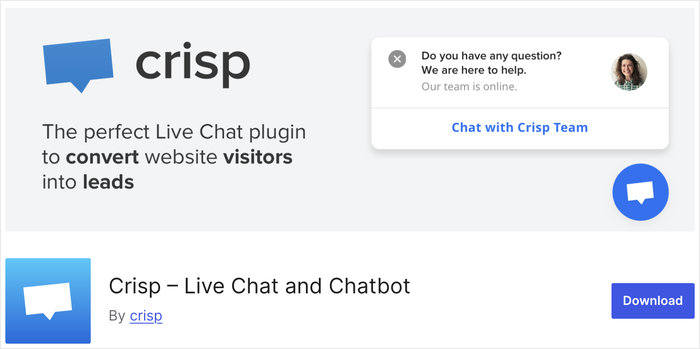
If you run a WordPress site and want live chat, Crisp is a fair place to start. It earns its spot on “best chat plugin” lists for good reason: a genuinely useful free plan, a clean widget, and more than 20,000 active installs on WordPress.org.
So in a WPChat vs Crisp comparison, this isn’t about one tool being bad.
The difference shows up later. If WhatsApp is part of how you talk to customers, Crisp handles it differently than WPChat, and that difference can add up on your monthly bill.
For most small WordPress teams whose support runs through WhatsApp, WPChat wins on cost and simplicity.
What Each Plugin Does
Crisp is a cloud-hosted customer messaging platform. You add a live chat widget to your WordPress site through its plugin, which has more than 20,000 active installs on WordPress.org.
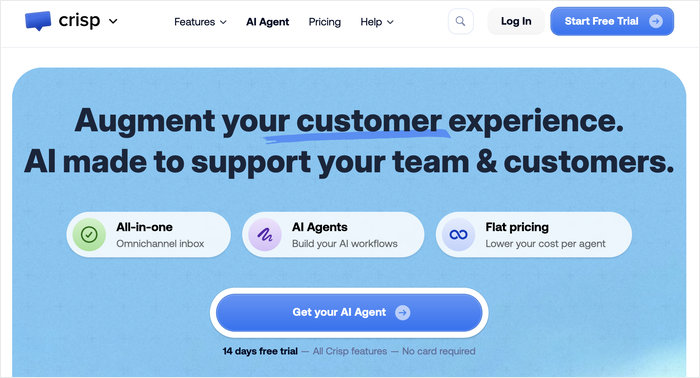
The conversations don’t stay on your site, though. They live in Crisp’s own inbox, tied to your subscription. That hosted setup is what powers Crisp’s shared inbox and team collaboration.
WPChat is a WordPress-native chat plugin that works differently. Instead of keeping conversations on your site, it routes them to WhatsApp, Messenger, Telegram, or Instagram.
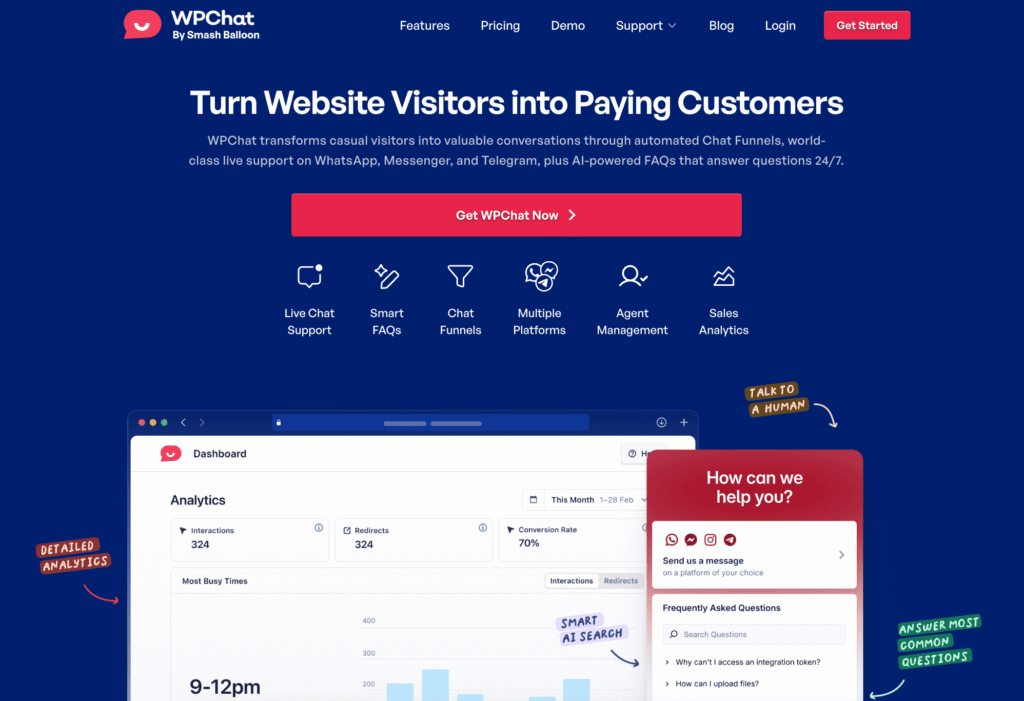
So when a visitor starts a chat and then leaves your site, the conversation continues on their phone in the app they already use. You reply from those same apps rather than a separate inbox.
That’s the core contrast: where your conversations live. Crisp keeps them in its own hosted inbox, which is also what makes its team features strong. WPChat hands them off to the messaging apps your customers already have open.
Feature Comparison: WPChat vs Crisp
| Feature | WPChat | Crisp |
|---|---|---|
| WhatsApp integration | Yes, on the free Lite version and every paid tier | Yes, but only on the Essentials plan ($95/mo) and up |
| Other channels (Messenger, Telegram, Instagram) | Yes, all included from the free Lite version | Omnichannel inbox starts on Essentials ($95/mo) |
| Live chat widget | Yes | Yes |
| Shared team inbox | Multiple agent profiles with even chat distribution; conversations happen in the messaging apps | Yes, a collaborative hosted inbox, and this is where Crisp is strong |
| Co-browsing & video chat | No | Yes, on Essentials tier and above |
| AI answers | Yes, AI smart FAQs / smart search | Yes, omnichannel AI chatbot (Hugo), starts on Essentials ($95/mo), credit-metered |
| WordPress-native vs cloud-hosted | WordPress-native | Cloud-hosted platform |
| Branding removal | Plus plan, $99/yr ($8.25/mo) | Plus plan, $295/mo |
| Setup complexity | Connect your messaging accounts, no external inbox to manage | Add the plugin, then manage conversations in Crisp’s hosted dashboard |
Crisp does offer WhatsApp and the other messaging channels, but they unlock on its Essentials plan at $95 per month, per Crisp’s pricing page. WPChat includes them from the free Lite version.
If WhatsApp is part of how you talk to customers, that’s the row worth looking at. WPChat gives it to you at every level, including free, while Crisp keeps it behind a $95 per month plan.
That one difference is the deciding factor for a lot of small WordPress teams.
Pricing Breakdown
This is where the two tools split most clearly, so let’s put the numbers side by side. (Prices are as of July 2026; check each vendor’s page for current pricing.)
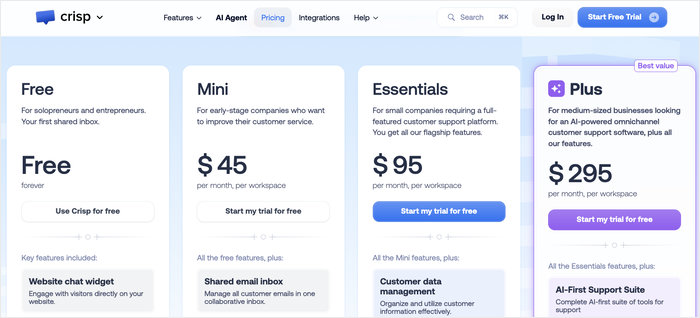
Crisp bills per workspace, per month. Here’s how its plans break down, per Crisp’s pricing page:
- Free: $0/mo. 2 seats, 100 profiles, no WhatsApp.
- Mini: $45/mo. 4 seats, still no WhatsApp.
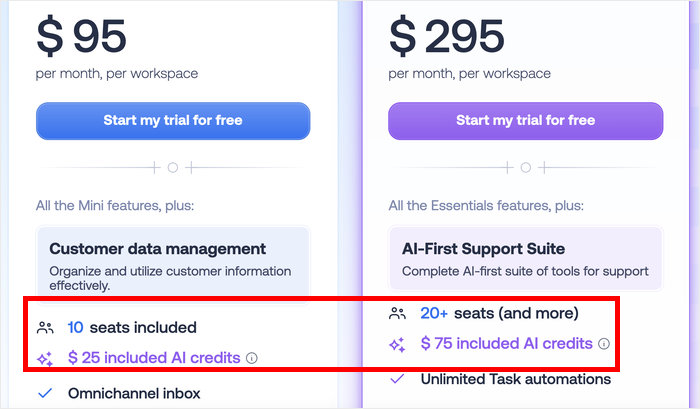
- Essentials: $95/mo. 10 seats. This is the first plan with WhatsApp, the omnichannel inbox, and the AI chatbot, and it includes about $25 in AI credits.
- Plus: $295/mo. 20 or more seats, branding removal, and ticketing.
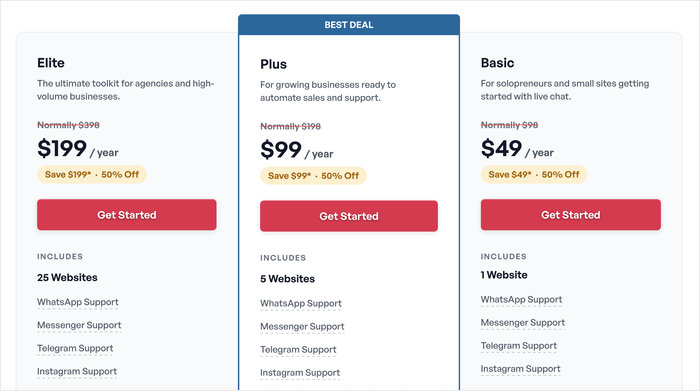
WPChat bills a flat annual rate. Here’s how its tiers break down, per WPChat’s pricing page:
- Lite: Free. Includes WhatsApp, Messenger, Telegram, Instagram, and up to 10 FAQs.
- Basic: $49/yr.
- Plus: $99/yr. Removes branding, up to 10 agents.
- Elite: $199/yr. Unlimited agents.
WhatsApp is on every WPChat tier, including the free one.
Now the part that matters. On Crisp, the plan that unlocks WhatsApp is Essentials at $95 per month. That’s $1,140 a year. On WPChat, WhatsApp costs you nothing on the free Lite version, or $49 to $99 a year if you want a paid tier.
The agents comparison makes the gap concrete. Crisp’s 10-seat plan (Essentials) is $1,140/yr, while WPChat’s up-to-10-agent plan (Plus) is $99/yr.
One thing to watch on Crisp: its AI is credit-metered. Essentials includes roughly $25 in credits, and if your usage runs high, you may find yourself needing the $295 Plus plan.
Just remember that WPChat’s paid prices are introductory and renew at the regular rate, so factor that into year two.
Where WPChat Wins
If your support runs through WhatsApp, WPChat has three clear advantages for a WordPress site:
- WhatsApp on every tier, including free, with no jump to a monthly platform fee
- A WordPress-native setup you install and manage from inside your own site
- Simpler setup for a small team
Start with WhatsApp, because that’s the one that shows up on your bill. WPChat includes WhatsApp, Messenger, Telegram, and Instagram on the free Lite version and on every paid tier, per WPChat’s pricing page.
Next is how each tool fits into WordPress. WPChat is a WordPress-native plugin, so you set it up and manage it from inside your own site rather than a separate platform.
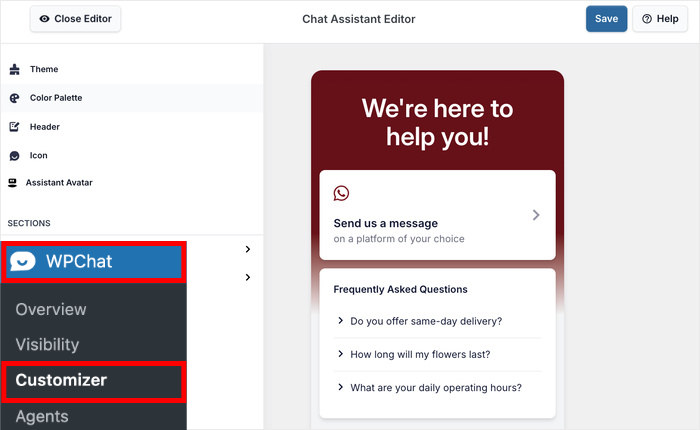
The conversations themselves route to WhatsApp, Messenger, Telegram, or Instagram, so they live in the messaging apps you and your customers already use.
Crisp is a cloud-hosted platform, so conversations and settings live in Crisp’s inbox, tied to your subscription.
There’s a maintenance angle here too. As of July 2026, the Crisp plugin’s WordPress.org listing shows its last update was about a year ago.
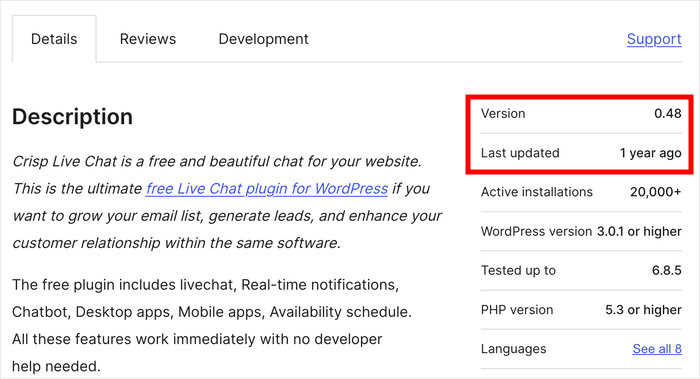
WPChat’s native plugin was last updated about two weeks ago. If keeping current with WordPress matters to you, those two dates are worth a look.
Last is setup. With WPChat, you connect the messaging accounts you already use, and you’re done, with no separate inbox to learn or manage. For a small team without a dedicated support person, that’s less to set up and less to keep track of day to day.
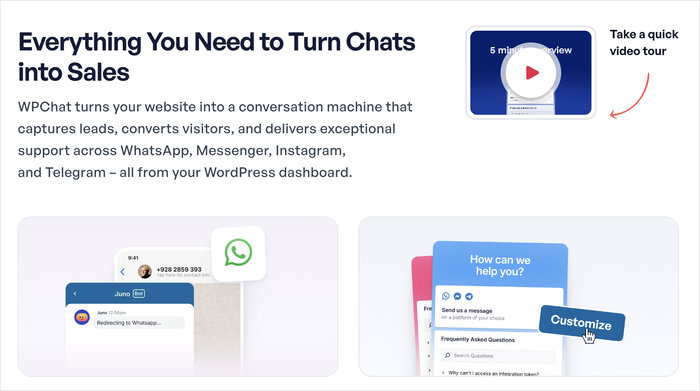
None of this makes Crisp a bad tool. It just means that for a small WordPress team built around WhatsApp, WPChat gets you there for less money and with fewer moving parts.
Where Crisp Wins
Crisp isn’t the runner-up in every way. If you’re running a larger, more enterprise-style support operation, or you care most about the on-site chat experience, Crisp has real strengths that WPChat doesn’t match.
Three stand out:
- A more polished chat widget. Crisp’s visitor-facing chat looks and feels more refined out of the box.
- A shared team inbox. Because conversations live in Crisp’s hosted inbox, a support team can work them together in one place.
- Co-browsing and video chat. These come on Crisp’s higher tiers, and WPChat doesn’t offer them at all.
Start with the widget. To my eye, Crisp gives visitors a clean, familiar chat experience on your site, and that first impression counts if live chat is your main support channel.
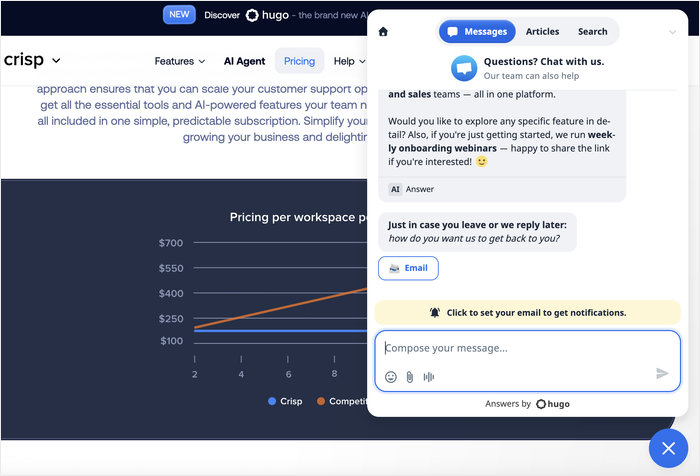
Next is the shared inbox. This is where Crisp’s hosted setup pays off. All your conversations land in one collaborative inbox, so a team can assign, reply, and hand off without stepping on each other.
For a larger support team, that shared view is genuinely useful.
Then there’s co-browsing and video chat, which unlock on Crisp’s higher plans. If you help customers through complex steps and want to see their screen or talk face to face, Crisp offers that on the Essentials tier.
Here’s my honest take: if you need co-browsing, video chat, or a shared inbox for a real support team, Crisp is the right call. But if you use WhatsApp or other social platforms for support, then WPChat has the advantage there.

Which One Should You Choose?
The right pick comes down to two questions: Is WhatsApp central to your support, and how big is your team?
Here’s a quick way to see it side by side.
| Choose WPChat if… | Choose Crisp if… |
|---|---|
| WhatsApp, Messenger, Telegram, or Instagram is core to your support | You want the most polished visitor chat widget |
| You want those channels without a $95/mo plan | You need co-browsing or video chat |
| You’re a small team that wants a tool one person can run | You have a larger team leaning on a shared inbox |
| You prefer everything native to WordPress | WhatsApp isn’t essential, or you’re fine paying for Essentials to get it |
Choose WPChat if messaging apps are how you talk to customers. It includes WhatsApp, Messenger, Telegram, and Instagram on the free Lite version and every paid tier, per WPChat’s pricing page, with no jump to a monthly platform fee.
It also handles multiple agents through distribution profiles, so a growing team isn’t locked out, but a small team that wants a WordPress-native tool they run from their own site is where it fits best.
For that team, this is the stronger fit, and a solid Crisp alternative for WordPress owners looking to switch.
Choose Crisp if the on-site chat experience matters most. Its widget is more polished, and its hosted shared inbox suits a larger support team working conversations together.
Crisp also offers co-browsing and video chat on the Essentials plan ($95/mo) and up, which WPChat doesn’t have. Just know that WhatsApp and the omnichannel inbox start on that same Essentials plan at $95 per month, per Crisp’s pricing page.
The deciding factor is almost always whether WhatsApp is core to your support and how big your team is. If it is, and your team is small, WPChat wins. If it isn’t, and you’re running a larger support operation, Crisp earns its price.
FAQ
Where do my conversations live with each tool?
They live in different places. Crisp is a cloud-hosted platform, so conversations sit in Crisp’s own inbox tied to your subscription, which is what makes its shared team inbox work.
WPChat routes conversations to WhatsApp, Messenger, Telegram, or Instagram, so they land in the messaging apps you and your customers already use rather than a separate inbox you have to log into.
Can I use WPChat as a Crisp alternative?
Yes, WPChat works as a Crisp alternative for most small-team WordPress sites, especially if your support runs through WhatsApp. It includes WhatsApp, Messenger, Telegram, and Instagram on every tier, per WPChat’s pricing page.
It’s not a straight swap if you rely on Crisp’s co-browsing, video chat, or a shared inbox for a larger team, since WPChat doesn’t offer those.
Which is easier to set up on WordPress?
WPChat is easier to set up on WordPress because it’s a WordPress-native plugin, so you install and manage it from inside your own dashboard with no separate platform to configure.
Crisp needs a Crisp account plus the plugin to embed the widget, so setup happens in two places. For a small team without a dedicated support person, I’d point to the native route as the simpler one.
The Bottom Line
If WhatsApp is part of your support and you’re a small WordPress team, WPChat gives you the channels without the jump to Crisp’s higher tier plan.
If you want the most polished widget, or you need co-browsing and a shared inbox for a larger team, Crisp could be a better fit. While it can be pricier, it’s also a more full-featured platform that makes more sense for larger support teams.
Get started with WPChat and connect with site visitors today!
The deciding factor is almost always whether WhatsApp is core to how you talk to customers, and if you’re still weighing channels, our guide on WhatsApp vs live chat can help you decide.
Whichever you pick, remember that support isn’t only reactive chat. A lot of questions never need to be asked if visitors trust you before they reach for the chat window. For more on that, see our roundup of ways to offer instant support with WPChat.
If you’re still comparing tools before you commit, our Tawk.to alternative guide is a good next read.