Looking at successful WhatsApp marketing examples is the best way to skip the blank page and start seeing results.
But finding the right words to text your customers is often the hardest part of launching a new campaign.
I completely understand the fear of sounding too pushy or accidentally annoying your most valuable contacts. When I first tested direct messaging for our projects, I constantly worried about saying the wrong thing.
To make this step easier, having a proven set of message templates takes all the guesswork out of the process.
I have put together a collection of real, highly effective messages you can simply copy and paste to boost your sales.
- What Is WhatsApp Marketing? (And Why It Works So Well)
- Quick Answer: 5 WhatsApp Marketing Templates You Can Use Today
- WhatsApp Abandoned Cart Templates
- WhatsApp Post-Purchase Message Templates
- WhatsApp Appointment Booking & Reminder Templates
- WhatsApp Promotional Message Templates (Offers, Sales & Launches)
- WhatsApp Re-engagement Templates (Win Back Inactive Customers)
- WhatsApp Marketing Best Practices (Before You Hit Send)
- Best WhatsApp Marketing Tools for WordPress Users
- Frequently Asked Questions About WhatsApp Marketing
- Next Steps: Start Sending Your First WhatsApp Campaign Today
What Is WhatsApp Marketing? (And Why It Works So Well)
WhatsApp marketing means using the platform to communicate directly with customers. Think promotions, order updates, appointment reminders, or follow-ups.
You’ve got two main options for marketing on WhatsApp:
- Free WhatsApp Business App: Ideal for small businesses handling chats themselves
- WhatsApp Business API: Built for larger companies needing automation and bulk messages.
In plain terms, it’s a direct line to your customer’s phone and it works remarkably well.
Here’s why the numbers are hard to ignore:
- 2+ billion active users use WhatsApp globally as of 2024 (Meta Business Blog), making it the world’s most popular messaging app.
- 98% open rate means WhatsApp messages are opened nearly 5x more often than the average email open rate of around 20% (Statista).
- Click-through rates of 45–60% compared to just 2–5% for email marketing (according to industry benchmarks from Meta’s Business resources).
Those numbers aren’t a fluke. When a message lands in someone’s WhatsApp inbox, it feels actually personal compared to a newsletter buried in a promotions tab.
Most people check WhatsApp multiple times a day, which means your message gets seen almost immediately.
That speed and intimacy are what make WhatsApp marketing such a powerful channel for small businesses and WooCommerce store owners.
Quick Answer: 5 WhatsApp Marketing Templates You Can Use Today
If you need a message to send right now, this section is for you. Below are five ready-to-copy WhatsApp templates covering the most common business scenarios.
Each one includes a name placeholder, a clear call-to-action, and a sign-off with your business name.
| Use Case | Ready-to-Copy Template |
|---|---|
| 🛍️ Promotional Offer | Hi [First Name]! We’re running a special offer just for you — get 20% off your next order with code SAVE20. Shop now: [Link]. This offer expires in 48 hours, so don’t miss out! — [Business Name] |
| 🛒 Abandoned Cart Reminder | Hey [First Name], you left something behind! Your cart is saved and ready for you: [Cart Link]. Complete your order today before your items sell out. Need help? Just reply here. — [Business Name] |
| 📞 Follow-Up Message | Hi [First Name], I just wanted to follow up on your recent inquiry. I’d love to help you find the right solution — are you free for a quick chat this week? Reply here anytime. — [Business Name] |
| 📅 Appointment Reminder | Hi [First Name]! Just a reminder that your appointment is confirmed for [Date] at [Time] at [Location/Video Link]. Please reply if you need to reschedule. See you soon! — [Business Name] |
| 💛 Post-Purchase Thank You | Hi [First Name], thank you so much for your order! We’re getting it ready for you now and will send a shipping update soon. We really appreciate your support! — [Business Name] |
Keep reading for full template vaults for each use case below, including multiple variations and customization tips.
WhatsApp Abandoned Cart Templates
An abandoned cart is when a shopper adds products to your online store cart but leaves before completing the purchase.
On average, 70% of online shopping carts are abandoned (Baymard Institute) — which means for every 10 people who show interest in your products, 7 walk away without buying.
The good news is that WhatsApp abandoned cart messages are one of the most effective ways to recover those lost sales. Here’s the 3-message sequence we recommend before diving into the templates:
- Message 1 — Sent 1 hour after abandonment: A gentle reminder with no pressure. Just let them know their cart is waiting.
- Message 2 — Sent 24 hours later: Address the most likely reason they didn’t buy (price, shipping, trust).
- Message 3 — Sent 48–72 hours later: Create a sense of urgency or offer a small incentive to close the sale.
This sequence works because it mirrors how a helpful salesperson would follow up in real life — first a friendly nudge, then a problem-solver, then a closer.
Abandoned Cart Reminder — Message 1 (The Gentle Reminder)
Message 1 has one job: remind the customer their cart exists, with zero pressure. You’re not trying to sell here, you’re just making it easy for them to come back.
Version 1: The Basic Reminder
Hi [First Name]! It looks like you left something in your cart. Your [Product Name] is still saved and ready for you: [Cart Link]. Whenever you’re ready, we’re here! — [Business Name]
Why This Works: A simple, low-friction reminder triggers memory recall — the customer may have genuinely forgotten, and this is all they need to complete the purchase.
Version 2: The Visual Reminder
Hey [First Name]! Don’t forget — your [Product Name] is waiting in your cart. Here’s a quick look: [Product Image/Link]. Ready to complete your order? Tap here: [Cart Link]. — [Business Name]
Why This Works: Including a product image or link reconnects the customer with the item they wanted, reigniting the desire they felt when they first added it to their cart.
Version 3: The Social Proof Reminder
Hi [First Name]! Just a heads-up — your [Product Name] is still in your cart. You’re not alone in loving this one — it’s been flying off our shelves lately! Complete your order here: [Cart Link]. — [Business Name]
Why This Works: Social proof (“flying off our shelves”) uses the bandwagon effect to reassure the customer that others have already made this decision — making it easier for them to do the same.
Abandoned Cart Reminder — Message 2 (The Objection Handler)
If the customer didn’t respond to Message 1, there’s usually a reason — and Message 2’s job is to remove that barrier.
The three most common objections are price, shipping cost, and trust. Pick the template that best matches your business and customer base.
Version 1: The Price/Value Objection
Hi [First Name]! We noticed you were checking out [Product Name]. We completely understand — it’s an investment! Just so you know, [Product Name] includes [Key Benefit 1] and [Key Benefit 2], which our customers say makes it absolutely worth it. Still have questions? Just reply here and I’ll help. — [Business Name]
Why This Works: Restating the value of a product directly addresses price hesitation by shifting the customer’s focus from cost to benefit — a classic value reframing technique.
Version 2: The Shipping Cost Objection
Hey [First Name]! Still thinking about [Product Name]? Here’s some good news — we offer [free shipping / flat-rate shipping] on all orders over [Amount]. Your cart qualifies! Complete your order here: [Cart Link]. — [Business Name]
Why This Works: Shipping costs are the #1 reason for cart abandonment. Proactively addressing this removes the single biggest friction point between your customer and their purchase.
Version 3: The Trust/Returns Objection
Hi [First Name], we just wanted to let you know — shopping with us is completely risk-free. We offer a [X-day] return policy, and our support team is always here if you need us. Your [Product Name] is still waiting: [Cart Link]. — [Business Name]
Why This Works: This message uses risk reversal — by removing the fear of making the wrong decision, it gives hesitant customers the confidence they need to buy.
Abandoned Cart Reminder — Message 3 (The Urgency Close)
⚠️ Important: Only send a discount or urgency message if you can genuinely honor it. Fake urgency (e.g., “Only 1 left!” when it isn’t true) violates consumer trust and may breach WhatsApp’s Terms of Service. Always be honest with your customers.
Message 3 is your final push — and it should only go out if the customer still hasn’t responded after Messages 1 and 2. Use honest urgency tactics that you can actually back up.
Version 1: The Low Stock Warning
Hi [First Name]! Quick heads-up — we only have a few [Product Name] units left in stock. Once they’re gone, we can’t guarantee when they’ll be back. Grab yours before it sells out: [Cart Link]. — [Business Name]
Version 2: The Sale Ending Soon
Hey [First Name]! Just a reminder that our current sale ends tonight at midnight. Your [Product Name] is still in your cart — complete your order now to lock in the sale price: [Cart Link]. — [Business Name]
Version 3: The Coupon Expiry
Hi [First Name]! We’d love to help you complete your order. Here’s a little something to make it easier — use code COMEBACK10 for 10% off your cart. This code expires in 24 hours: [Cart Link]. See you soon! — [Business Name]
💡 Pro Tip: If you run a WooCommerce store, you can automate this entire 3-message sequence using a WhatsApp integration plugin. Check out our guide on [Best WhatsApp Plugins for WooCommerce (Reviewed and Compared)] to find the right tool for your store.
WhatsApp Post-Purchase Message Templates
Most businesses think of WhatsApp marketing as a tool for getting new sales — but some of the highest-value messages you’ll ever send happen after the purchase is complete.
Post-purchase messaging actually serves two distinct goals, and most articles only talk about one of them:
- Goal 1: Reduce buyer’s remorse and build confidence. These are transactional messages that reassure the customer they made a great decision and keep them informed every step of the way.
- Goal 2: Build long-term loyalty and increase lifetime value. These are relationship messages that turn a one-time buyer into a repeat customer and brand advocate.
Both goals matter equally. According to Bain & Company, increasing customer retention by just 5% can increase profits by 25–95%.
So, the messages you send after a sale are just as important as the ones you send before it.
Order Confirmation & Shipping Update Templates
These are the messages your customers expect most and missing them is a genuine trust failure. When someone places an order, they immediately want reassurance that everything went through correctly.
Template 1: Order Confirmed
Hi [First Name]! 🎉 Your order has been confirmed — thank you so much for shopping with us! Here are your order details:
📦 Order Number: [Order Number]
🛍️ Items: [Product Name(s)]
📍 Shipping to: [Delivery Address]
We’ll send you a shipping update as soon as your order is on its way. — [Business Name]
Template 2: Order Shipped
Hi [First Name]! Great news — your order is on its way! 🚚
📦 Order Number: [Order Number]
🔍 Track your package here: [Tracking Link]
📅 Estimated Delivery: [Date Range]
If you have any questions about your delivery, just reply here and we’ll help right away. — [Business Name]
Template 3: Out for Delivery
Hi [First Name]! Your order is out for delivery today — keep an eye out! 📬
📦 Order Number: [Order Number]
📍 Delivering to: [Delivery Address]
If you won’t be home, please make sure someone is available to receive it. Questions? Just reply here. — [Business Name]
Post-Purchase Thank You & Review Request Templates
Timing is everything with these messages. Here’s the simple guide to follow:
- Thank-you message: Send immediately after the order is confirmed or delivered.
- Review request: Send 3–7 days after delivery, once the customer has had time to use the product and form an opinion.
Research shows that personalized review requests generate 4x more responses than generic automated emails (Podium, 2023). A WhatsApp message feels personal by nature — which gives you a built-in advantage.
Thank You Template 1:
Hi [First Name]! Thank you so much for your order — it truly means the world to us. We put a lot of care into every [product/order], and we hope you absolutely love it. If there’s anything we can help with, we’re always just a message away. — [Business Name]
Thank You Template 2:
Hey [First Name]! 💛 Your order is confirmed and we’re so grateful for your support. We’re a small business and every order makes a real difference to us. Thank you for choosing [Business Name] — we can’t wait for you to receive it!
Review Request Template 1:
Hi [First Name]! We hope you’re enjoying your [Product Name]. 😊 If you have a spare moment, we’d be so grateful if you could share your experience — honest reviews help other customers and mean a lot to our small team.
Leave a quick review here: [Google Review Link / Trustpilot Link]
Thank you so much! — [Business Name]
Review Request Template 2:
Hey [First Name]! It’s been a few days since your [Product Name] arrived — we’d love to know what you think! Your feedback helps us improve and helps other shoppers make confident decisions.
It only takes 60 seconds: [Review Link]
Thank you for being a [Business Name] customer! 🌟
Post-Purchase Upsell & Cross-Sell Templates
The moment right after a purchase is when customer goodwill is at its absolute peak. The customer just trusted you with their money, they’re excited about their order, and they’re open to hearing more from you.
That’s the perfect moment to introduce a complementary product, an upgrade, or a loyalty program.
Template 1: The Cross-Sell (Complementary Product)
Hi [First Name]! We’re so glad you ordered [Product Name]. 😊 A lot of our customers who love [Product Name] also pair it with [Related Product] — it’s a perfect combination. Here’s a quick look: [Product Link].
Use code THANKYOU10 for 10% off if you’d like to add it to your collection! — [Business Name]
Why This Works: Pairing a relevant product recommendation with a thank-you discount uses reciprocity to make the upsell feel like a reward, not a sales pitch.
Template 2: The Upsell (Subscription or Upgrade)
Hey [First Name]! Enjoying your [Product Name]? If you’d like to get even more out of it, our [Premium Plan / Subscription] gives you [Key Benefit 1] and [Key Benefit 2] — and it’s only [Price] per month.
Learn more here: [Upgrade Link]. Feel free to reply with any questions! — [Business Name]
Why This Works: Timing an upgrade offer right after a positive purchase experience means the customer is already in a “yes” mindset — making them far more receptive than a cold pitch would ever be.
Template 3: The Loyalty/VIP Program Invitation
Hi [First Name]! As a thank-you for your order, we’d love to invite you to our exclusive [Business Name] VIP Club. 🌟
As a VIP member, you’ll get:
✅ Early access to new products
✅ Members-only discounts
✅ Priority customer supportJoin for free here: [VIP Link]. We’d love to have you! — [Business Name]
Why This Works: Framing a loyalty program as an exclusive invitation (rather than a sign-up form) makes the customer feel valued, which dramatically increases the chance they’ll keep coming back.
WhatsApp Appointment Booking & Reminder Templates
If you run a service-based business, like a salon, a clinic, a coaching practice, a photography studio, this section is built for you.
An appointment reminder is a WhatsApp message sent before a scheduled booking to reduce no-shows and confirm attendance.
Studies show that automated reminders can reduce no-show rates by up to 29%. This means fewer empty slots, less wasted time, and more revenue for your business.
Appointment Booking Confirmation Templates
Before you send a booking confirmation, make sure your message includes all the essential information your customer needs. Here’s a quick checklist to run through every time:
- ✅ Date and time of the appointment
- ✅ Location address or video call link
- ✅ What to bring or prepare beforehand
- ✅ Your cancellation or rescheduling policy link
- ✅ Your business contact number
Having all of these in one message eliminates the back-and-forth questions that slow down your day and cause confusion for your customers.
Here are three templates tailored to different service types:
Template 1: Medical / Clinical
Hi [First Name]! Your appointment at [Clinic Name] is confirmed. Here are your details:
📅 Date: [Date]
⏰ Time: [Time]
📍 Location: [Address]🩺 Please bring: [ID / Insurance Card / Referral Letter]
Need to reschedule? Please let us know at least 24 hours in advance: [Reschedule Link]
Questions? Call us at [Phone Number]. See you soon! — [Business Name]
Template 2: Beauty / Wellness
Hi [First Name]! 💅 We’re so excited to see you! Your booking is confirmed — here’s everything you need to know:
📅 Date: [Date]
⏰ Time: [Time]
📍 Location: [Salon/Studio Address]💡 Tip: Arrive 5 minutes early so we can get started on time!
Need to make any changes? You can reschedule here: [Link]
Questions? Just reply to this message. — [Business Name]
Template 3: Coaching / Consulting
Hi [First Name]! Your session with [Coach/Consultant Name] is confirmed. Here are your details:
📅 Date: [Date]
⏰ Time: [Time]
💻 Join here: [Video Call Link]
To make the most of our time together, please come prepared with [any notes / questions / materials].
Need to reschedule? Please do so at least 24 hours in advance: [Reschedule Link]. Looking forward to our session! — [Business Name]
Appointment Reminder Templates (24 Hours Before)
We recommend a simple 2-reminder sequence for every appointment:
- Reminder 1: Sent 24 hours before the appointment. This one reduces anxiety for the customer — it reassures them that everything is confirmed and gives them time to prepare.
- Reminder 2: Sent 1–2 hours before the appointment. This one reduces no-shows for your business — it catches people in the middle of their day and keeps the appointment top of mind.
Keep both short and friendly — under 100 words is the sweet spot.
24-Hour Reminder — Template 1:
Hi [First Name]! Just a friendly reminder that your appointment with [Business Name] is tomorrow.
📅 [Date] at [Time]
📍 [Location / Video Link]
If you need to reschedule, please let us know today: [Link]. Otherwise, we’ll see you tomorrow! — [Business Name]
24-Hour Reminder — Template 2:
Hey [First Name]! We’re looking forward to seeing you tomorrow at [Time]. 😊 Just a quick reminder to bring [any required items] and arrive a few minutes early if you can.
Questions? Reply here anytime. See you soon! — [Business Name]
1–2 Hour Reminder — Template 1:
Hi [First Name]! Your appointment is coming up in about an hour — we’ll see you at [Time] at [Location / Video Link]. Safe travels! — [Business Name]
1–2 Hour Reminder — Template 2:
Hey [First Name]! Just a quick heads-up — your session with [Business Name] starts in [X] minutes. Here’s your link to join: [Video Call Link]. See you shortly! — [Business Name]
Appointment Rescheduling & Cancellation Templates
This is one section you won’t find in most WhatsApp marketing guides, but these templates are some of the most valuable ones in this entire article.
Knowing exactly what to say when an appointment needs to move, when a customer cancels, or when someone simply doesn’t show up can save a relationship and keep the door open for future business.
Template 1: Business-Initiated Rescheduling
Use this when you need to move the appointment. Be upfront, apologetic, and make it as easy as possible for the customer to rebook.
Hi [First Name], I’m so sorry for the short notice — we need to reschedule your appointment on [Original Date] due to [brief reason, e.g., an unexpected scheduling conflict].
I’d love to find a new time that works for you. Here are a few options:
📅 Option 1: [Date & Time]
📅 Option 2: [Date & Time]
📅 Option 3: [Date & Time]Or you can book a time that suits you here: [Booking Link]. Again, I sincerely apologize for any inconvenience. — [Business Name]
Template 2: Responding to a Customer Cancellation
When a customer cancels, your goal is simple: keep the relationship warm and leave the door wide open for rebooking.
Hi [First Name], no problem at all — thank you for letting us know! We’ve cancelled your appointment on [Date] as requested.
Whenever you’re ready to rebook, we’d love to have you back. You can schedule a new appointment here anytime: [Booking Link].
Take care, and don’t hesitate to reach out if there’s anything we can help with! — [Business Name]
Template 3: No-Show Follow-Up
This one requires a delicate touch. The goal is to recover the relationship without making the customer feel accused or embarrassed.
Hi [First Name], we missed you at your appointment today at [Time]! We hope everything is okay. 😊
If something came up, no worries at all — these things happen. We’d love to find a new time that works better for you: [Booking Link].
Feel free to reply here if you have any questions or need any help. — [Business Name]
💡 Pro Tip: If you want to make booking and rescheduling even easier for your customers, you can add a full appointment booking system directly to your WordPress website. Check out our guide on [How to Add an Appointment Booking System to WordPress] to get set up.
WhatsApp Promotional Message Templates (Offers, Sales & Launches)
Before diving into the templates, there’s one important rule to follow: every recipient on your list must have explicitly opted in to receive marketing messages from your business.
You can review the full guidelines on the WhatsApp Business Policy page before sending your first campaign.
With that covered, let’s get into the templates.
Flash Sale & Limited-Time Offer Templates
These templates use four different psychological urgency triggers to motivate customers to act immediately.
Each one taps into a specific emotion and understanding why it works will help you adapt it to your own business with confidence.
Template 1: Time-Limited Offer
Hi [First Name]! ⏰ Our biggest sale of the season is happening RIGHT NOW — and it ends in just 24 hours.
Get [X]% off everything in our store today only. Shop here before it’s too late: [Link]
Use code: FLASH24 at checkout. — [Business Name]
Psychological Trigger: FOMO (Fear of Missing Out). A hard deadline forces a decision. When customers know an offer disappears at a specific time, they’re far less likely to put it off until later.
Template 2: Quantity-Limited Offer
Hey [First Name]! We only have 10 units of [Product Name] left in stock — and they’re going fast. 🔥
Once they’re gone, they’re gone. Grab yours now before someone else does: [Product Link]
— [Business Name]
Psychological Trigger: Scarcity. Limited quantity creates a sense of competition — customers don’t want to miss out on something others might get first. This works especially well for popular or handmade products.
Template 3: Exclusive WhatsApp Subscriber Access
Hi [First Name]! 🎉 As one of our valued WhatsApp subscribers, you’re getting first access to our new [Sale/Collection/Offer] — before we open it to everyone else.
This exclusive deal is only available to our WhatsApp community for the next 48 hours: [Link]
Thank you for being part of our inner circle! — [Business Name]
Psychological Trigger: Exclusivity. People love feeling like insiders. Framing your WhatsApp list as a VIP community makes subscribers feel valued — and gives them a real reason to stay opted in for future messages.
Template 4: Early Bird Offer
Hey [First Name]! 🐦 Early bird gets the deal — the first 50 orders placed today will receive free shipping automatically. No code needed!
Don’t miss your spot: [Shop Link]
This offer is first come, first served — act fast! — [Business Name]
Psychological Trigger: Reward for Speed. Early bird offers motivate immediate action by rewarding customers who move quickly. This is particularly effective for product launches and seasonal campaigns where excitement is already high.
New Product / Service Launch Templates
A product launch is not a single message — it’s a story. The most effective launches build anticipation before the big day, celebrate the moment of release, and then use social proof to close out stragglers in the days that follow.
Here’s the 3-message launch sequence we recommend, with one template per stage:
Stage 1: The Teaser (3 Days Before Launch)
Hi [First Name]! 👀 We’ve been working on something really exciting behind the scenes — and we think you’re going to love it.
We’re not quite ready to share all the details yet, but stay tuned — the big reveal is coming in just 3 days.
We promise it’ll be worth the wait. 😊 — [Business Name]
Stage 2: Launch Day Announcement
Hi [First Name]! 🎉 The wait is over — [New Product/Service Name] is officially HERE!
[One sentence describing what it does and the key benefit it delivers.]
We’re so proud of this one and we can’t wait to hear what you think. Be one of the first to get yours: [Launch Link]
— [Business Name]
Stage 3: Last Chance / Social Proof (3 Days After Launch)
Hey [First Name]! In case you missed it — [New Product/Service Name] launched a few days ago and the response has been incredible. 🙌
Here’s what some of our first customers are saying:
⭐ “[Short customer quote]” — [Customer First Name]
⭐ “[Short customer quote]” — [Customer First Name]There are still a few spots/units available — grab yours here: [Link]
— [Business Name]
Holiday & Seasonal Campaign Templates
According to McKinsey & Company, personalized messaging can increase conversion rates by 20% or more. That’s why every template below includes a name placeholder as a minimum starting point.
Here are ready-to-use templates for the top five commercial holidays:
| Holiday | Ready-to-Copy Template |
| 🖤 Black Friday | Hi [First Name]! Black Friday is HERE and we’ve saved our biggest deal of the year just for you. Get [X]% off sitewide — today only. Shop now: [Link]. Use code: BLACKFRIDAY. — [Business Name] |
| 🎄 Christmas / New Year | Hi [First Name]! Wishing you a wonderful holiday season! 🎁 As a thank-you for your support this year, enjoy [X]% off your next order with code HOLIDAY[Year]. Valid through [Date]. — [Business Name] |
| 💕 Valentine’s Day | Hey [First Name]! Love is in the air — and so are great deals. 💝 Find the perfect gift for someone special (or treat yourself!) with [X]% off this Valentine’s Day. Shop here: [Link]. Offer ends [Date]. — [Business Name] |
| 💐 Mother’s Day | Hi [First Name]! Mother’s Day is just around the corner — make it one she’ll never forget. 💐 Browse our gift collection and get free gift wrapping on all orders this week: [Link]. — [Business Name] |
| 🛍️ Seasonal Sale | Hi [First Name]! Our [Season] sale is officially on — and we’ve picked out some things we think you’ll love based on your past orders. Check out your personalized picks here: [Link]. — [Business Name] |
💡 Pro Tip: For holiday campaigns, try sending your message 3–5 days before the holiday rather than on the day itself. Most people plan their purchases in advance, and early messages face less competition in your customers’ inboxes.
WhatsApp Re-engagement Templates (Win Back Inactive Customers)
A re-engagement message is sent to customers who haven’t purchased from or interacted with your business in 60–90+ days. The goal is to remind them you exist, offer new value, and invite them back without being pushy.
The tone of these messages needs to feel warm, personal, and genuinely human, and the more specific you can be about the customer’s history with your brand, the better.
Here are three templates at varying levels of personalization:
Template 1: The Simple Check-In (Low Personalization)
Hi [First Name]! It’s been a while since we’ve seen you, and we just wanted to say — we miss you! 💛
We’ve added some exciting new products and offers since your last visit. Come see what’s new: [Link]
We’d love to have you back. — [Business Name]
Template 2: The Category-Based Message (Medium Personalization)
Hey [First Name]! We noticed it’s been a while since you last explored our [Product Category, e.g., skincare / home décor / coaching sessions] collection — and we’ve been busy adding some amazing new arrivals we think you’ll love.
Here’s a hand-picked selection based on what you liked before: [Link]
No pressure — just wanted to make sure you didn’t miss out. 😊 — [Business Name]
Template 3: The Personal Touch (High Personalization)
Hi [First Name]! We were just thinking about you — it’s been a few months since your last order of [Product Name / Product Category], and we wanted to check in.
We’ve got some new arrivals and updates we think you’ll genuinely enjoy. Want us to send you a few hand-picked recommendations?
Just reply ‘YES’ and we’ll put something together for you! — [Business Name]
Why This Works: Asking for a micro-commitment (“reply YES”) is a powerful engagement technique. It’s a tiny, low-effort action that gets the customer back into a conversation — and once the dialogue is open, the path to a purchase becomes much shorter.
Re-engagement With a Special Offer Template
Here’s an important strategic note before sending an incentive to inactive customers:
💡 Advisory: Reserve your best discount for customers who haven’t bought in 90+ days since these are your most at-risk relationships and deserve your strongest offer. For customers who have been inactive for around 60 days, try leading with a value-add first (a useful resource, a helpful tip, or new content) before going straight to a discount.
Template 1: The Special Discount Offer (90+ Days Inactive)
Hi [First Name]! We haven’t seen you in a while and we truly miss having you as a customer. 💛
As a small thank-you for your past support, we’d like to offer you an exclusive welcome-back discount — [X]% off your next order, just for you.
Use code: WELCOMEBACK at checkout: [Shop Link]
This code is valid for the next 7 days. We hope to see you soon! — [Business Name]
Template 2: The Value-Add Approach (60 Days Inactive)
Hey [First Name]! It’s been a little while and we wanted to reach out with something we think you’ll find genuinely useful.
We just published a [free guide / blog post / video] on [Topic Relevant to Their Past Purchase or Interest] — and it’s packed with practical tips you can use right away: [Link]
No strings attached — just something we thought you’d appreciate. 😊 We’d love to hear what you think!
— [Business Name]
Why This Works: Leading with genuine value — rather than a discount — builds trust and goodwill without training your customers to wait for sales before buying. When a customer feels like you care about helping them, not just selling to them, they’re far more likely to come back on their own terms.
WhatsApp Marketing Best Practices (Before You Hit Send)
Now that you have a full library of templates to work with, let’s talk about how to use them responsibly and effectively.
Think of this as the checklist you run through before sending any WhatsApp marketing message, no matter how good the template is.
Here are the 8 essential best practices every WhatsApp marketer should follow:
- Always get explicit opt-in consent. Every person on your list must have actively agreed to receive WhatsApp messages from your business. This is a legal requirement and a WhatsApp policy rule.
- Personalize with the recipient’s name. A message that starts with “Hi [First Name]!” immediately feels more human than one that starts with “Dear Customer.”
- Keep messages under 160 words. WhatsApp messages are read on mobile screens. Long messages get skimmed or ignored. Short, focused messages get read more easily.

- Always include a clear opt-out option. Add a line like “Reply STOP to unsubscribe” at the end of your promotional messages. This follows messaging regulations and builds trust.
- Test your message on your own phone. Always send yourself a test message first. Check that every link works, placeholders are filled in correctly, and the message reads naturally.
- Send at the right time. Avoid early mornings (before 8 AM) and late nights (after 9 PM). Mid-morning and early evening tend to get the best engagement.
- Use a WhatsApp Business account. This gives you access to business features like automated replies, business profiles, and message labels.
- Track your links. Add UTM parameters to your links (e.g., ?utm_source=whatsapp&utm_medium=message) so you can track clicks in Google Analytics.
How to Get Opt-In Consent for WhatsApp Marketing
Getting opt-in consent is not just a best practice — it’s a legal requirement in many countries, including all EU member states under GDPR. Here are the three most practical methods for collecting WhatsApp opt-ins:
Method 1: Website Form with WhatsApp Checkbox
Add a clearly labeled checkbox to your contact form, checkout page, or lead capture form. Here’s a copy-paste consent disclaimer you can use on your website form:
“By checking this box, you agree to receive WhatsApp messages from [Business Name] including promotions, updates, and announcements. You can unsubscribe at any time by replying STOP.”
You can add this kind of checkbox to your WordPress contact forms easily.
In case you need help building a form, check out this list of the best contact form plugins.
Method 2: QR Code at Point of Sale
If you have a physical location — a shop, salon, clinic, or market stall — place a printed QR code at your checkout counter or reception desk.

When scanned, the QR code opens a pre-written WhatsApp message that the customer sends to your business number, automatically opting themselves in.
Method 3: Keyword Opt-In
Promote a simple keyword opt-in across your marketing channels. For example: “Text JOIN to [Your WhatsApp Number] to receive exclusive deals and updates.” You can promote this on your social media profiles, email newsletters, receipts, and packaging.
For full details on WhatsApp’s opt-in requirements, refer to the official WhatsApp Business Policy page.
Best WhatsApp Marketing Tools for WordPress Users
If you’re managing more than a handful of WhatsApp conversations manually, it’s time to bring in a dedicated tool.
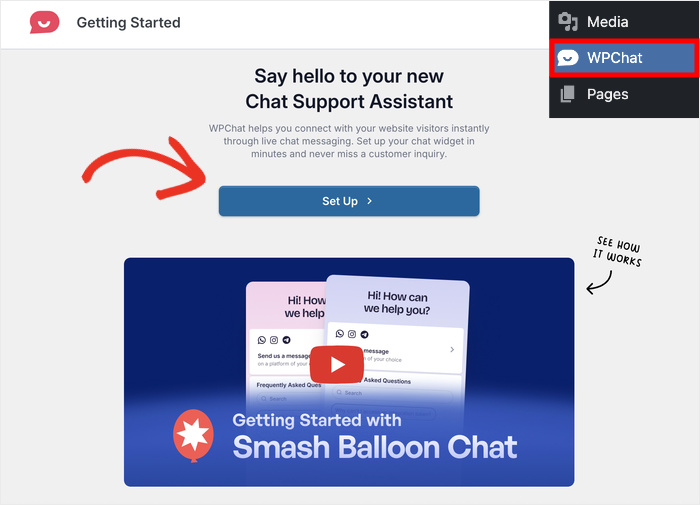
When it comes to WhatsApp marketing for WordPress users specifically, I recommend WPChat.

WPChat is designed to connect your website visitors directly to your WhatsApp Business account, so your customers can reach you on the world’s most trusted messaging app — right from your website.
Here’s what makes WPChat stand out for WordPress users:
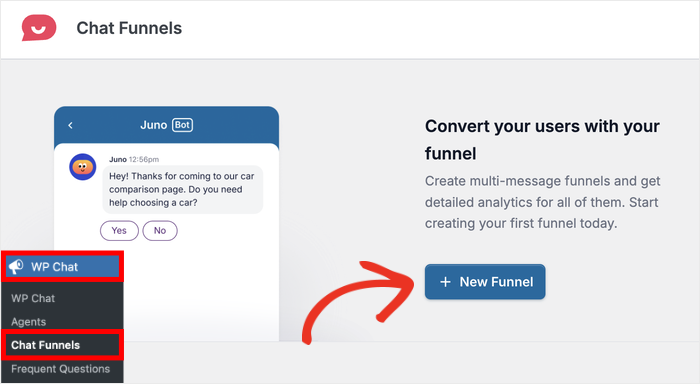
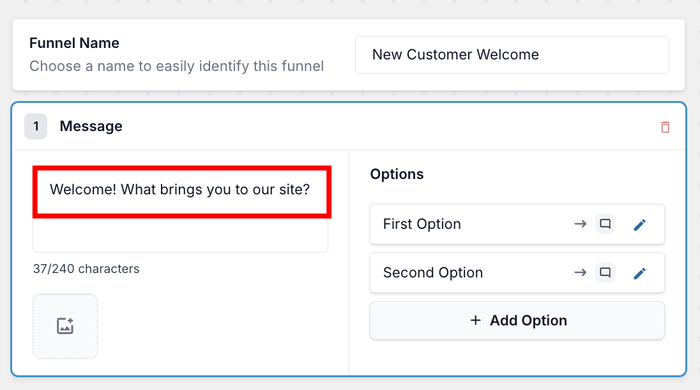
- Chat Funnels: Build intelligent, multi-step chat flows that qualify leads, answer pre-sales questions, and route customers to the right person automatically.
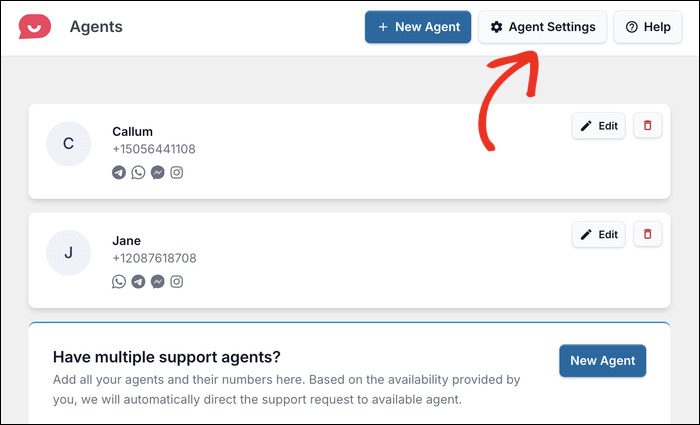
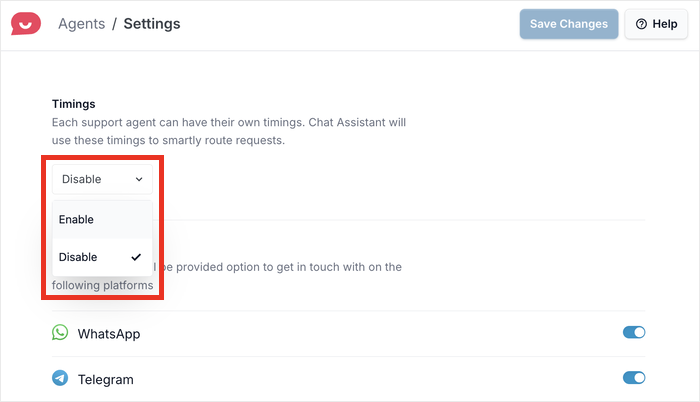
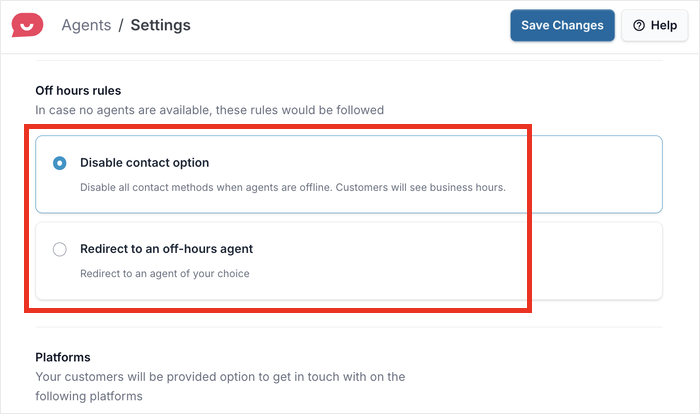
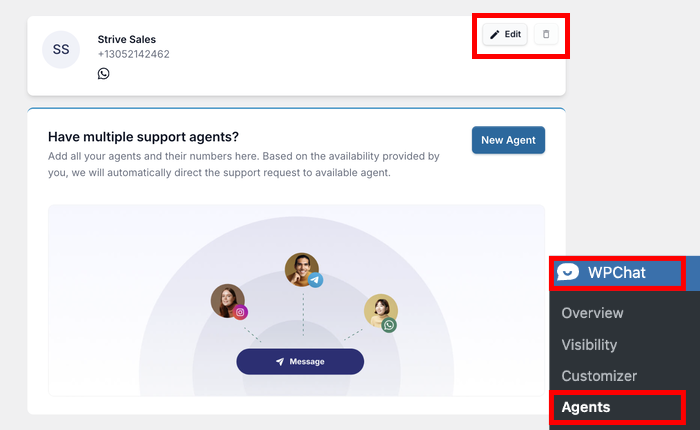
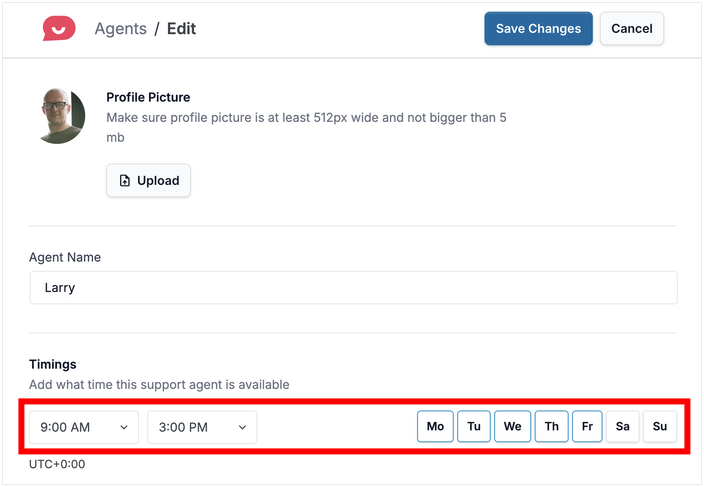
- Multiple Support Agents: Add multiple support executives and use smart routing to direct customers to the most available agent, so no one gets left waiting.
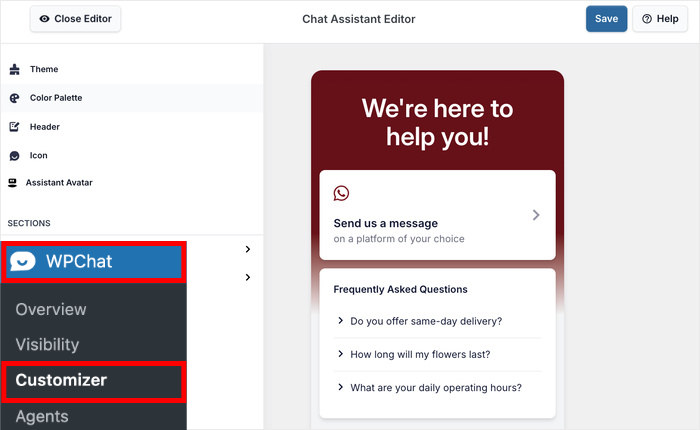
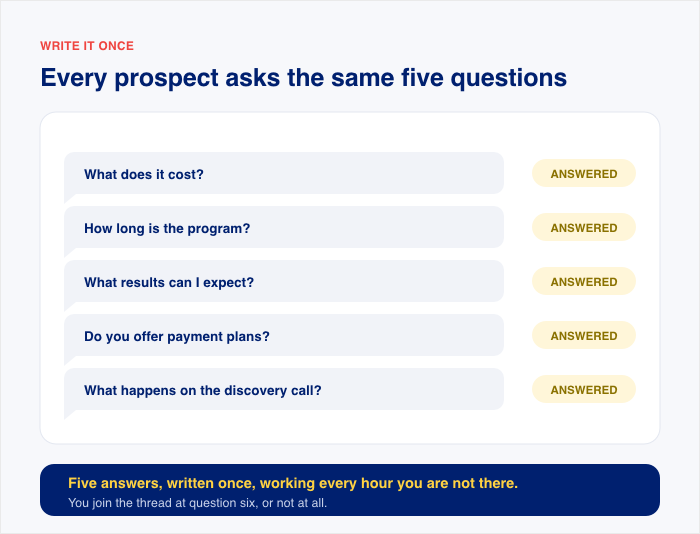
- Automated FAQs: Build a helpful FAQ system inside your chat assistant so customers get instant answers to common questions without needing a live agent.

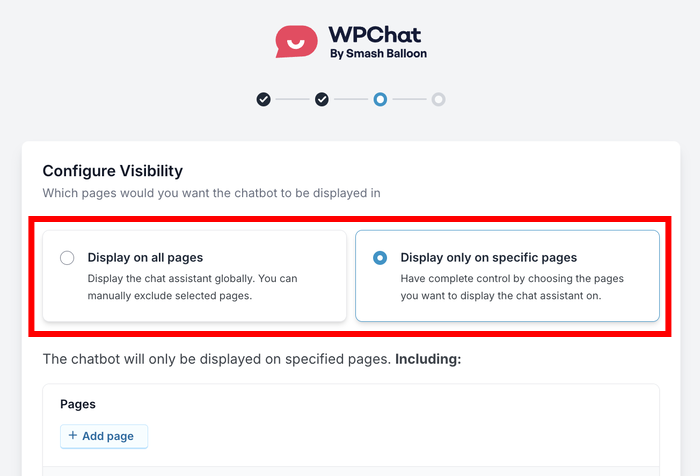
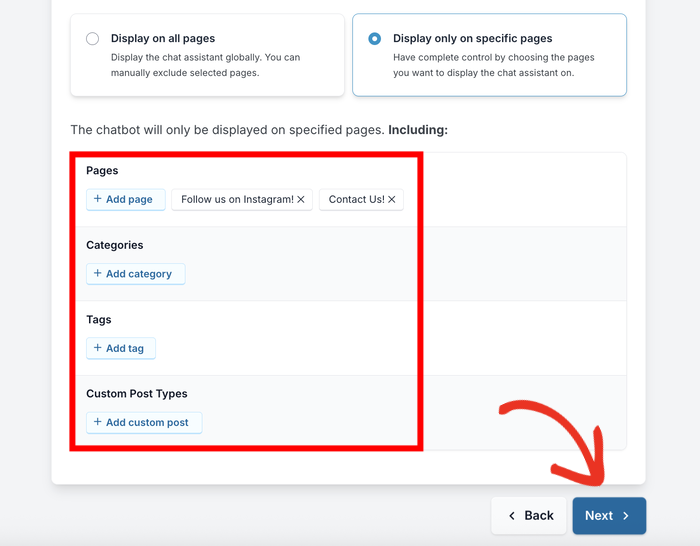
- Powerful Visibility Controls: Choose exactly which pages your chat assistant appears on, so you show it to the right visitors at the right moment.
- Actionable Analytics: Track response times, customer satisfaction, and chat performance from a clean dashboard built right into WordPress.
- One-Click Themes and Visual Customizer: Match your chat assistant to your brand in minutes with no coding required.

As you can see, WPChat works as a fantastic all-in-one live chat plugin for WordPress sites.
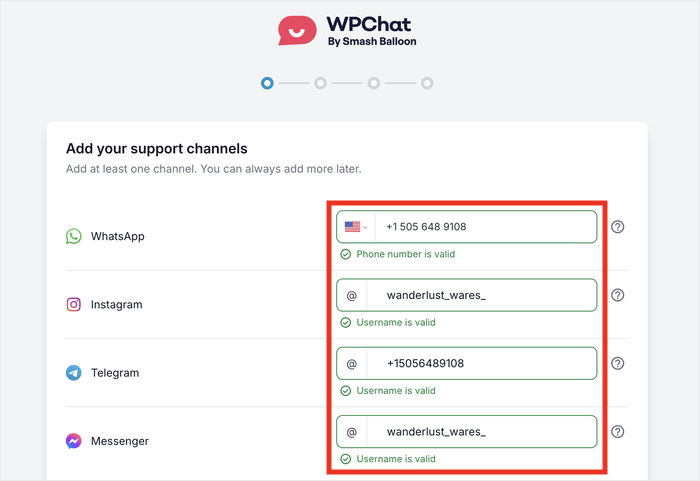
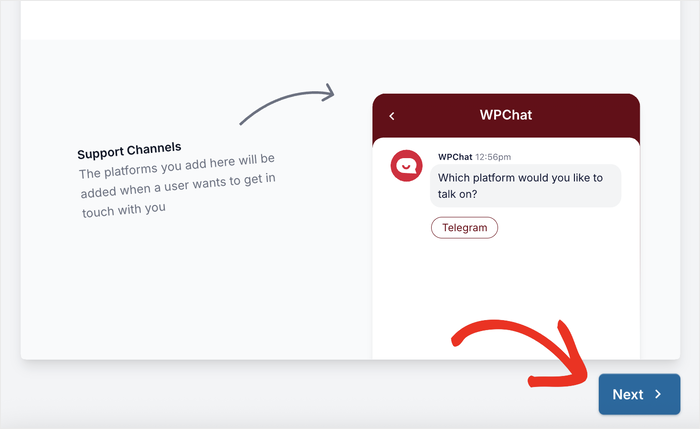
What’s more, it supports the biggest chat platforms out there: WhatsApp, Instagram, Messenger, and Telegram. This lets you connect with customers on their trusted platforms and build trust.
Ready to connect with people using WhatsApp? Get started with WPChat today!
To learn more, check out this step-by-step guide on how to add WhatsApp chat to your website.
Frequently Asked Questions About WhatsApp Marketing
Is WhatsApp marketing legal?
Yes, WhatsApp marketing is legal, but remember to comply with regulations so everything is done correctly.
You must have explicit opt-in consent from every contact on your list, comply with GDPR regulations if you have customers in the EU, and follow WhatsApp’s own Business Policy at all times.
What is the best time to send WhatsApp marketing messages?
The best times to send WhatsApp marketing messages are generally Tuesday through Thursday, between 10 AM–12 PM and 6 PM–8 PM in your customers’ local time zone.
That said, peak engagement windows vary by industry and audience. A B2B audience may respond better during work hours, while a consumer audience may engage more in the evenings.
How many WhatsApp marketing messages should I send per month?
For most businesses, sending 4–8 WhatsApp marketing messages per month is the sweet spot. Sending more than 2 promotional messages per week significantly increases the risk of unsubscribes and spam reports.
The quality and relevance of each message matter far more than how often you send. One genuinely helpful, well-timed message will always outperform five generic blasts.
Can I use WhatsApp marketing for a small business with a tight budget?
Absolutely — WhatsApp marketing is one of the most budget-friendly channels available to small businesses.
The WhatsApp Business App is completely free to download and use, and for small businesses, manually messaging a segmented contact list using the free app is a fully viable starting strategy.
What’s the difference between the WhatsApp Business App and the WhatsApp Business API?
The WhatsApp Business App and the WhatsApp Business API are two very different tools designed for different stages of business growth. Here’s a simple breakdown:
| WhatsApp Business App | WhatsApp Business API | |
|---|---|---|
| Cost | Free | Paid (via third-party provider) |
| Best For | Small businesses, manual messaging | Larger businesses, automation & bulk sending |
| Daily Message Limit | Best for under 50 messages/day | Scales to thousands of messages/day |
| Automation | Basic (away messages, quick replies) | Full automation, chatbots, sequences |
| Requires Third-Party Provider? | No | Yes (e.g., WATI, Twilio) |
If you’re just getting started, the free WhatsApp Business App is the right place to begin. You can always migrate to the API later when your business is ready to scale.
Will WhatsApp marketing messages look spammy to customers?
Don’t worry — your messages won’t feel spammy if you follow the best practices covered in this guide.
The three biggest factors that separate a welcome message from an annoying one are simple: the customer chose to hear from you, the message is personalized, and you’re not sending too frequently.
Every template in this article has been designed specifically to feel helpful, warm, and personal.
Next Steps: Start Sending Your First WhatsApp Campaign Today
You now have everything you need to launch your first WhatsApp marketing campaign, so let’s make it happen today. Follow this simple recipe, step by step:
- Download the WhatsApp Business App from the App Store or Google Play. It takes less than 5 minutes to install and set up on your phone.
- Set up your Business Profile with business name, logo, description, website URL, and opening hours. A complete profile builds instant trust when customers receive your first message.
- Build your opt-in list using the methods above. Add a WhatsApp consent checkbox to your website contact form, set up a QR code, or promote it on your social media profiles.
- Pick one template from this guide. Don’t try to launch five campaigns at once. Choose the single template that matches your most pressing business need right now and start there.
- Send your chosen template to a small group of 5 trusted customers. Check how it reads on a real phone, make sure every link works, and gather any early feedback before the full campaign.
You just need the right message, sent to the right person, at the right time. And now you have hundreds of them.
To get the most out of your marketing campaigns and convert website visitors, you can use the WPChat plugin.
With this amazing tool, you can qualify leads, automate your FAQs, and route customers straight to your WhatsApp Business account, where they already feel comfortable talking.
Ready to add WhatsApp chat to your site? Grab a copy of WPChat for your site here!
💡 Looking for more ways to reach your customers directly? Check out these related guides: