![[NEW] Add Formatted Text and Clickable Links to Your WPChat Funnels and FAQ Answers](https://wpchat.com/wp-content/uploads/2026/06/new-Add-Formatted-Text-and-Clickable-Links-to-Your-WPChat-Funnels-and-FAQ-Answers.png)
WPChat by Smash Balloon connects your WordPress site to WhatsApp, Messenger, Telegram, or Instagram with a single button.
Visitors tap it, and within seconds they’re in a real conversation on the messaging app they already use, no inbox to manage, no extra platform to staff.
Chat Funnels take that a step further. Before the conversation starts, a funnel walks visitors through a short structured sequence, a greeting, a question or two, a set of options, so the right people get to the right conversation, faster.
WPChat v1.4.2 gives those Chat Funnels and FAQ answers a formatting upgrade.
Chat Funnel messages and FAQ answers now have a built-in rich-text editor: bold, italic, and a link editor that turns any text into a tappable hyperlink, right inside the message block.
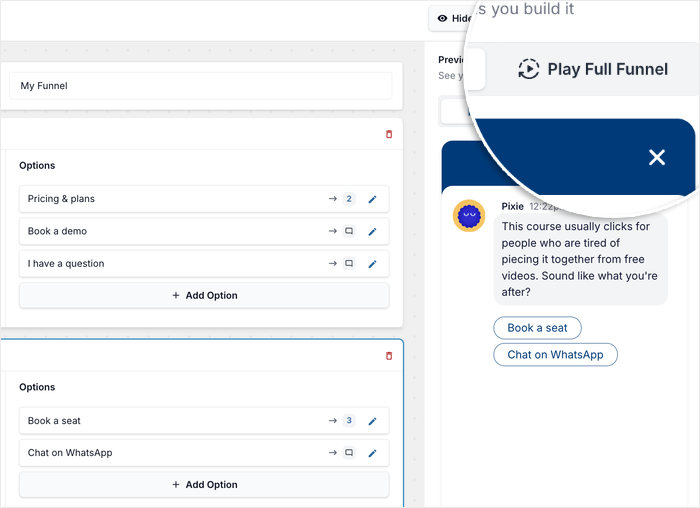
For Chat Funnels specifically, a live preview panel now sits alongside the editor.
It’s fully WYSIWYG, short for “what you see is what you get,” meaning the message in the preview looks exactly like the one your visitors will see in the chat widget, before you save a thing.
FAQ answers get the same formatting tools. The preview was already there for FAQs, so now the answers it shows can actually be formatted too.
Format and Preview Your Chat Funnel Messages in Real Time
Every message in your Chat Funnel is doing a job. It’s guiding a visitor toward a decision. The more clearly it communicates the right detail at the right moment, the more likely that visitor is to take the next step.
Chat Funnel messages guide visitors toward a conversation on WhatsApp, Messenger, Telegram, or Instagram.
Each one is a message block in the Chat Funnel editor. You write the prompt, add response options, and branch the flow based on what visitors pick.
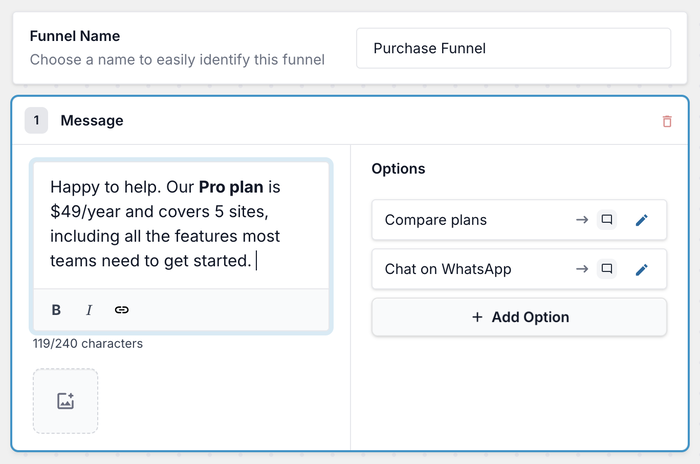
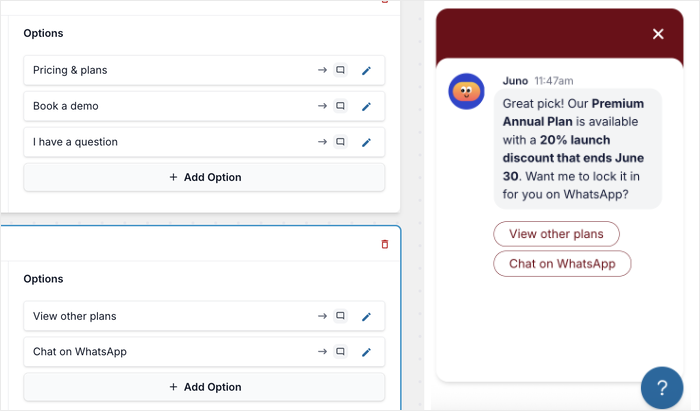
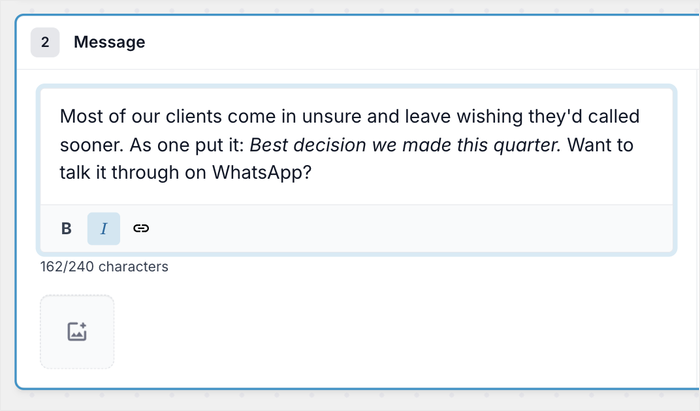
When you click into a message block, a formatting toolbar shows up at the bottom of the text field: B for bold, I for italic, and a chain-link icon for adding a hyperlink.
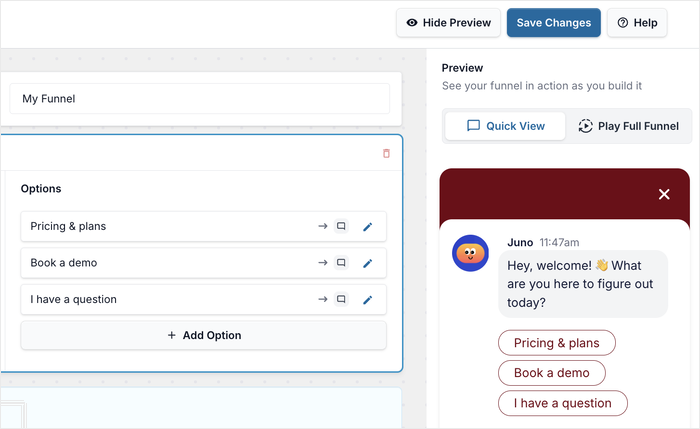
On the right, the Preview panel updates as you type.
Click Quick View to see the current message in the chat widget, or Play Full Funnel to walk the entire flow the way a visitor would.
Bold Text for the Details That Drive Action
When a visitor is moving through your funnel on mobile, they’re reading fast. Bold text tells them where to look, and keeps a price, a deadline, or a package name from getting skimmed past.
Here’s where it earns its place:
- A coaching practice can bold the program name mid-description, like “Our 3-month program includes weekly 1:1 sessions,” so visitors know exactly what they’re signing up for before they tap through.
- A fashion boutique running a flash sale can bold the end date right inside the message, so “This offer ends June 30” doesn’t disappear into the surrounding text.
- An e-commerce store can bold a specific SKU or color variant, so visitors know they’re looking at the right product without scrolling back to check.
- A dental clinic can bold the service tied to what the visitor picked, like “Teeth whitening consultations are available this week,” so the offer matches the box they just checked.
Italic for Tone and Softer Emphasis
Not every message in a funnel needs to push. Some just need to feel right. Italic gives you a lighter touch for moments where warmth or personality matters more than urgency.
A consulting firm can italicize a testimonial inside a funnel step, like “Best decision we made this quarter.” It reads like a real person said it, because they did.
Italicizing a destination name works the same way for a travel agency, giving the message a slightly warmer feel right as a visitor decides whether to reach out.
Clickable Links Inside Chat Funnel Messages
A Chat Funnel exists to move a visitor to the next step. A link puts that step one tap away, right inside the message.
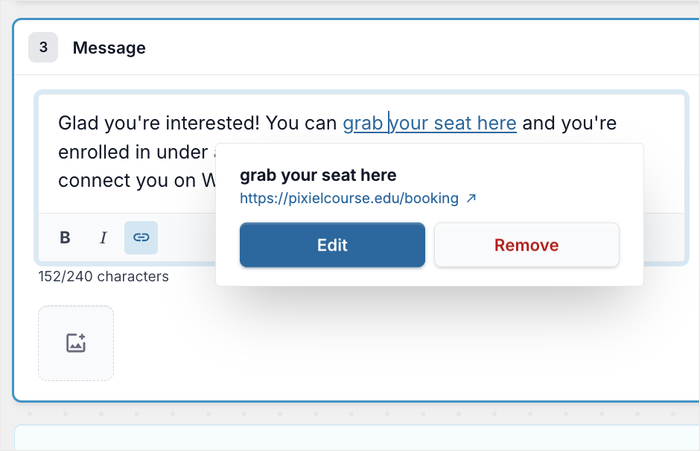
Highlight any text in the message block, click the link icon, and an inline editor opens just below the toolbar.
Paste a URL, confirm, and that text becomes a tappable hyperlink in the chat widget.
The real-world payoff:
- A restaurant can link directly to its reservations page from the funnel step that asks “Ready to book?” Visitors tap once and land exactly where they need to be.
- A Dubai e-commerce store can link to a product listing inside the message describing it, so there’s no hunting around the site.
- An online course creator can drop a direct enrollment link right when a visitor signals they’re ready. That’s the moment you can’t afford to lose.
- A B2B agency can link to its case studies page from the funnel step that introduces its services, so interested visitors can verify before committing to a conversation.
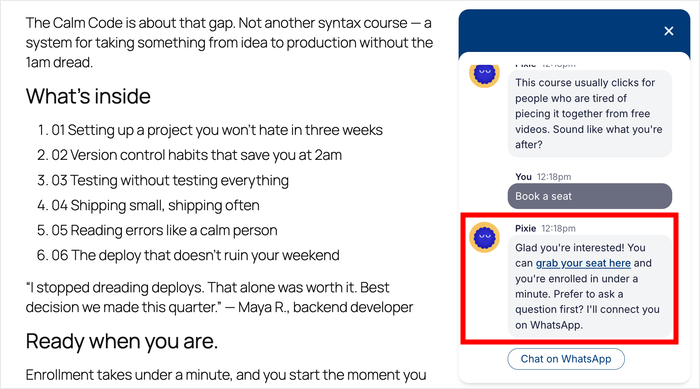
The character counter at the bottom of the field tracks your message against the 240-character limit as you type, and any formatting you add counts toward it too.
See How It Looks Before You Save
You put thought into every message in your funnel, and the Preview panel on the right makes sure that it shows up the way you intended.
As you work, every change appears immediately, bold text, italic, or a hyperlink, exactly the way a visitor will see it.
You can confirm your formatting and product links work before the funnel ever goes live.
With Play Full Funnel, a recruiting agency can walk every branch and catch anything that routes wrong before a visitor ever hits it.
The Same Formatting Tools, Now in Your FAQ Answers
FAQ answers are often the last thing standing between a visitor’s question and their decision to reach out. The same formatting tools now work here too, so those answers can do more than a flat block of text.
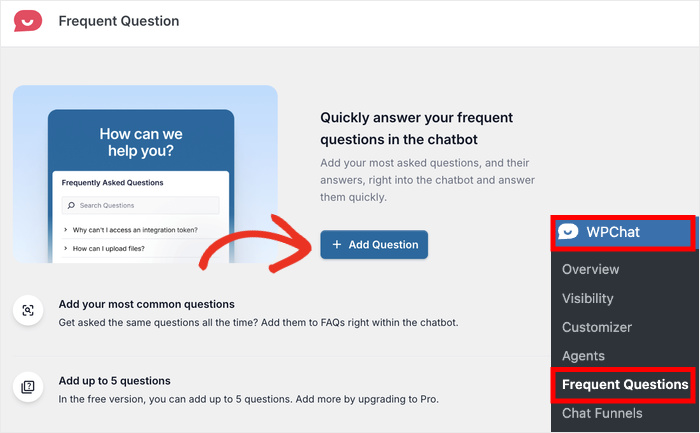
To find it, go to WPChat » Frequent Questions from your WordPress dashboard.
Open any existing FAQ or click Add Question.
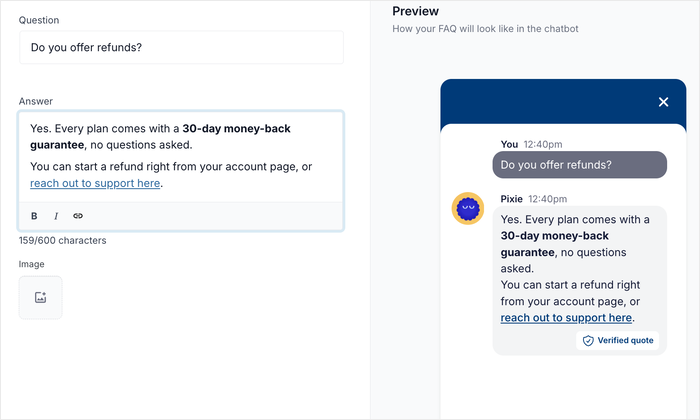
Inside the Create Question screen, the B / I / Link toolbar appears at the bottom of the Answer field, the same as in the Chat Funnel editor.
Format your answer, and the preview on the right shows exactly how it’ll look to a visitor before you save.
Bold, Italic, and Links in FAQ Answers
People scan chat widgets fast, especially on mobile. Formatting helps them find the one line they need without reading everything.
This is most useful for FAQ answers that reference a specific page, price, policy, or next step.
Here’s how it plays out across different businesses:
- A SaaS company can bold the plan name in its pricing FAQ, like “Our Pro plan starts at $199/year and covers 5 sites,” so the line that matters stands out.
- A service provider in Lagos can turn “see our full portfolio” into a tappable link, and visitors get there in one tap instead of going off to find it.
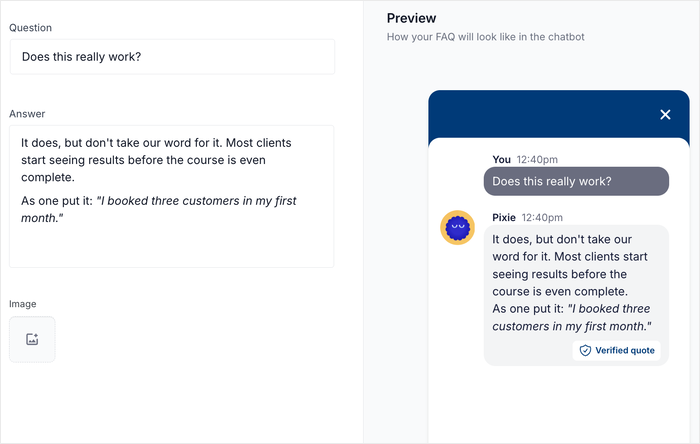
- A coaching service can italicize a client quote in an FAQ, like “I booked three customers in my first month,” so the answer reassures in a real voice.
- A clothing retailer can bold a return window like “returns accepted within 30 days” in a returns policy FAQ, so visitors can confirm it at a glance.
- A consultancy can link directly to its booking page inside the FAQ answer for “How do I get started?” instead of telling visitors to go find it.
The FAQ preview on the right shows how the answer looks in the chat widget: the visitor’s question in a gray bubble, WPChat’s answer below it with a Verified quote badge.
That preview was already there for FAQs. What’s new is that the answers it shows can now be formatted.
Start Using Chat Funnels and FAQs to Convert Visitors into Customers
Rich-text editing, live preview, and clickable links inside your Chat Funnels and FAQ answers give every message more tools to guide visitors toward a conversation.
I’ve seen how small improvements to the way a message is formatted can make a real difference in whether a visitor taps through or keeps scrolling.
Moving visitors from your WordPress site into a real WhatsApp conversation is what this plugin was built for. That’s precisely where WPChat shines.
Here’s what I suggest:
- If you’re new to WPChat, a paid plan starts at $49/year, and you can have your first Chat Funnel live the same day.
- If you’re already on a paid plan, update to v1.4.2 from your WordPress dashboard.
- Open an existing Chat Funnel and bold the one detail in each message that visitors most need to notice.
- Add a tappable link to any funnel step that points to a specific page, then use the WYSIWYG preview to confirm it looks right before you publish.
Not using WPChat yet? Now is the time to get WPChat and turn your site visitors into real conversations.
Have any questions about the new formatting features in WPChat? Just let me know in the comments below!