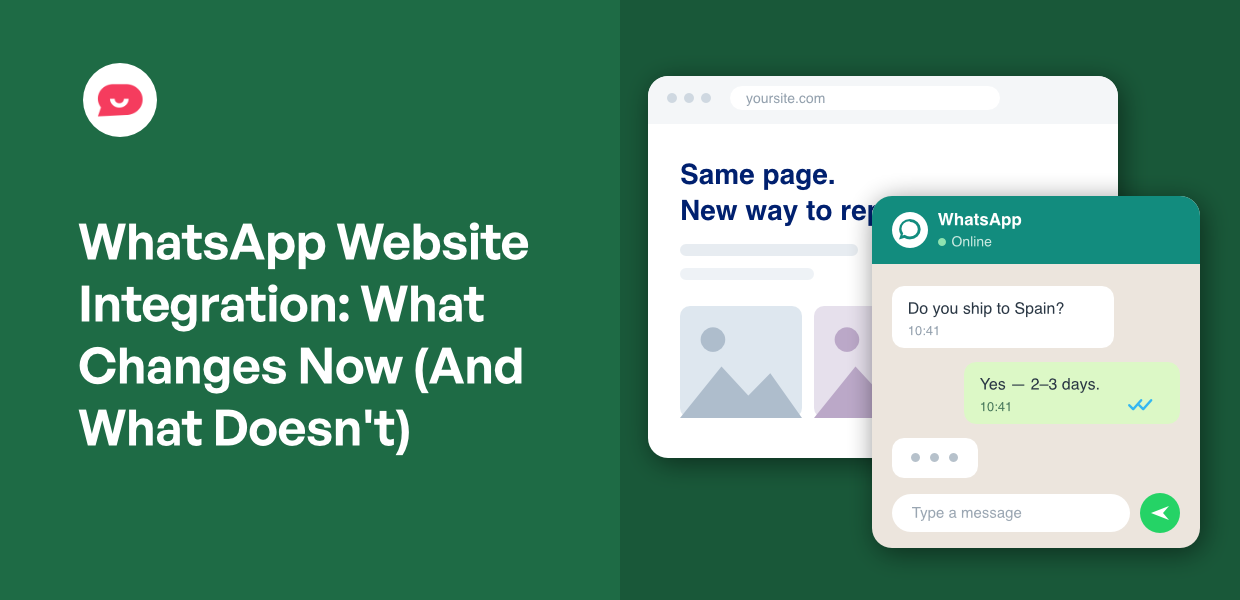
You wanted a button. A green WhatsApp button on your product page, so the person wondering whether you ship to Ireland can just ask.
You searched for how to add it. Google sent you to Meta’s developer docs, and now you’re staring at verification forms and approval rules.
That’s not a wrong turn. Meta ranks first for this search, so its route comes up first no matter who’s asking.
It matters more this month. From October 1, 2026, that route starts charging you for replies.
I work on WPChat where we help users connect their sites to WhatsApp and other chat platforms. So, I’ve been following all the changes closely.
Here’s what changes on October 1, whether your setup creates the account Meta bills against, and how to get a working button on your site in about five minutes.
In this Article:
- Short Answer: A WhatsApp Button Is Not the WhatsApp API
- What Changes on October 1, 2026 and What Doesn't
- The One Thing That Decides If Meta Can Bill You
- Why Some WordPress Plugins Ask You for an API Key
- Putting WhatsApp on Your Site Without Any of That
- Frequently Asked Questions
- How to Decide Which Route You Need
Short Answer: A WhatsApp Button Is Not the WhatsApp API
You can put WhatsApp on a WordPress site without creating a Meta app, without business verification, and without a WhatsApp Business Account.
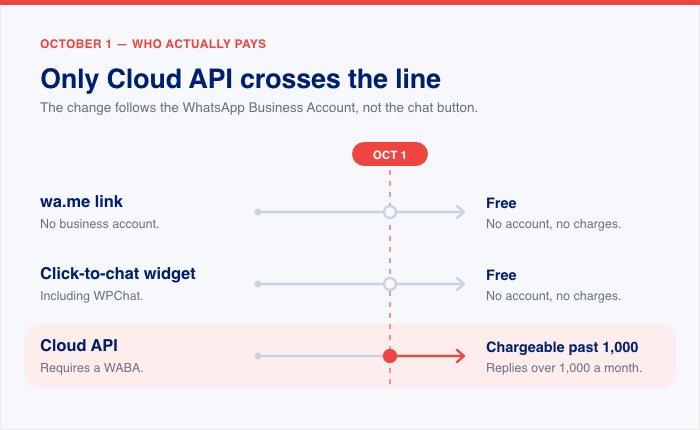
Meta’s upcoming pricing change makes service messages chargeable from October 1, 2026. That applies to the Cloud API, and the charges attach to a WhatsApp Business Account. A wa.me link and a click-to-chat widget plugin never require one, so nothing about them changes on that date.
The API route isn’t a trap. It’s built for businesses sending programmatic messages at volume, and the setup screens that sent you here belong to that job.
Here’s how the routes compare on the question that decides whether October 1 reaches you:
| Route | Requires a WABA | From October 1 |
|---|---|---|
wa.me link | No | Free |
| Click-to-chat widget, including WPChat | No | Free |
| Cloud API | Yes | Replies chargeable past 1,000 a month |
What Changes on October 1, 2026 and What Doesn’t
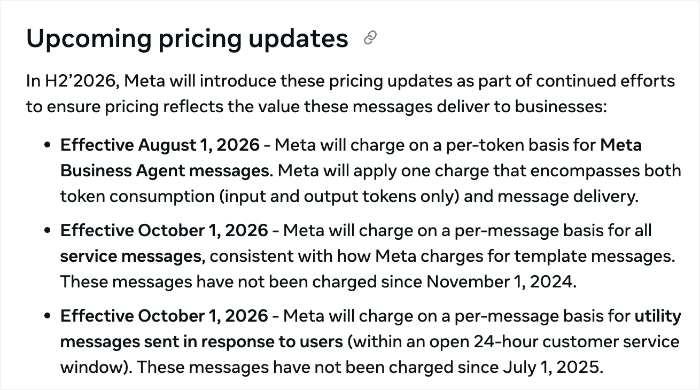
From October 1, 2026, Meta starts charging for service messages on the WhatsApp Business Platform. A service message is any non-template reply powered by a person, like a customer service representative, or by a third-party AI.
Those replies have been free since November 2024.
Utility messages get the same treatment. If you send one in response to a user inside an open 24-hour customer service window, it becomes chargeable. Those have been free since July 1, 2025.
Which means that past a certain point each month, someone on your team typing a reply to a customer becomes a billable event.
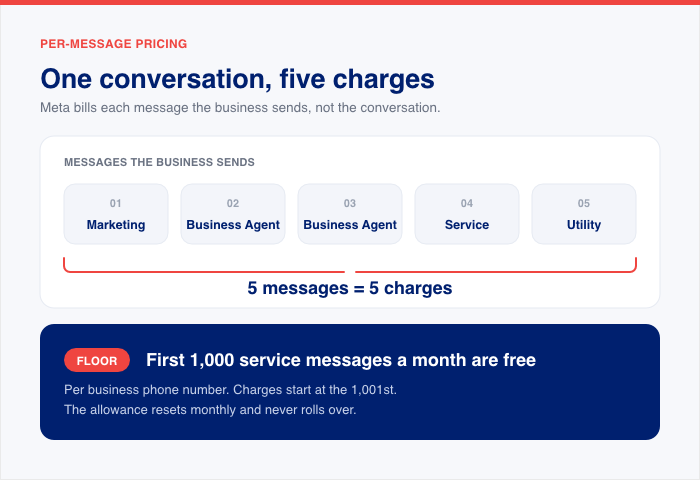
Meta’s own documentation walks through one conversation to show the difference. A cart abandonment reminder goes out, an AI sends two replies, a customer service rep steps in, and an order confirmation follows, all inside one hour.
Here’s what that same conversation costs at three different dates:
| Date | Chargeable events | What gets billed |
|---|---|---|
| As of July 1, 2026 | 1 | Marketing |
| As of August 1, 2026 | 3 | Marketing + 2 Meta Business Agent |
| As of October 1, 2026 | 5 | Marketing, 2 Meta Business Agent, 1 service, 1 utility |
Meta’s wording for that last row: “Meta will charge for each message the business sends – 5 messages thus 5 charges (1 marketing, 2 Meta Business Agent, 1 service, 1 utility).”
Same conversation. Five times the billing events in three months.
There is a floor before any of that starts. Each business phone number gets 1,000 free service messages a month, and charges begin at the 1,001st. The allowance resets every month and doesn’t roll over.
Past that, there’s no volume discount either. Volume tiers exist for utility and authentication messages, and Meta states explicitly that service messages don’t get them. Service rates match each market’s utility and authentication rates.
One piece of this is already live. Meta Business Agent replies have billed per token since August 1, 2026, at $2.00 USD per 1M tokens. One message runs about 20,000 to 25,000 tokens, or roughly 4 to 5 cents.
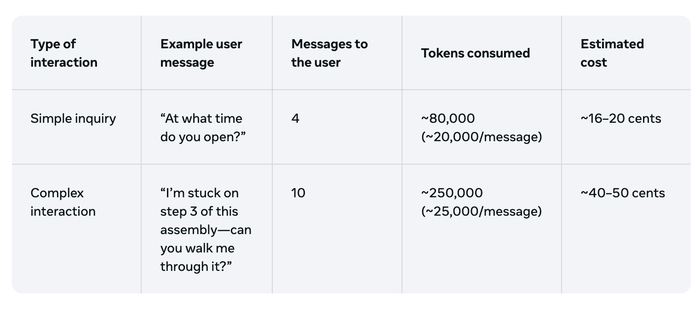
Meta’s examples put a simple “what time do you open?” exchange at roughly 16 to 20 cents, and multi-turn troubleshooting at 40 to 50 cents.
For 10,000 AI-powered replies to users in Brazil, the figures come to roughly $268 at low complexity and $968 at high.
The one exception is the 72-hour free entry point window. Messages sent inside it, from Click to WhatsApp Ads or Facebook call-to-action buttons, stay free to deliver.
All of it applies to one kind of site: the kind whose setup required a WhatsApp Business Account. Which raises the obvious question of whether yours did.
The One Thing That Decides If Meta Can Bill You
A WhatsApp Business Account, or WABA, is the billing and compliance entity Meta attaches its pricing to.
It isn’t the WhatsApp Business app sitting on your phone. You create one on purpose, through a Meta app and a Business portfolio, in a multi-step process. Installing a plugin doesn’t produce one by accident.
There are three ways to put WhatsApp on a WordPress site, and only one of them needs a WABA.
- A
wa.melink is a URL. The visitor taps it and WhatsApp opens on their phone. Two apps talking to each other, nothing in between. - A widget plugin is the same link inside a floating button, with settings for which channels to show and how the button looks.
- The Cloud API is a phone number you provision with Meta, sending messages programmatically through Meta’s infrastructure.
Here’s how they compare, compiled from Meta’s published documentation as of September 20, 2026:
wa.me link | Widget plugin | Cloud API | |
|---|---|---|---|
| Accounts needed | WhatsApp number | WhatsApp number + plugin | Meta app, Business portfolio, WABA, provisioned number, often a BSP account |
| Business verification | No | No | Yes, in Meta Business Manager |
| Requires a WABA | No | No | Yes |
| Cost per reply from Oct 1 | None | None | Chargeable past 1,000 a month |
The bill isn’t the only thing that comes with the API route. Every message you start the conversation with has to use a template Meta has approved.
Your daily sending limit is tiered and tied to your Business portfolio. And someone has to keep the webhooks working, the templates current, and an eye on your quality rating. If you go through a Business Solution Provider, their markup sits on top of Meta’s rates.
Replies you type by hand in the free WhatsApp Business App or on WhatsApp Web aren’t part of the metered system. That’s true before October 1 and after it.
What the Official Click-to-Chat Method Actually Is
Meta’s own click-to-chat documentation sanctions three link formats: universal links (the wa.me URLs), custom URL schemes, and the share extension. All three do the same job, which is handing a visitor off to WhatsApp with your number already filled in.
The limits are real and worth knowing before you build around it.
To start, the customer has to message you first. There’s no automation, so you can’t trigger a message when someone abandons a cart. You can’t schedule a follow-up for tomorrow afternoon.
And the conversation lives entirely in WhatsApp, so your website has no record of it. That’s the ceiling on the free route.
Two Reasons You Might Think This Doesn’t Apply to You
“I can keep using my number, so I’m fine.”
You can. Meta shipped Coexistence in May 2025, which lets one number run in the WhatsApp Business app and the Cloud API at the same time, so the old warning that connecting to the API locks your number away is out of date.
The API side comes with gaps, though. It can’t do groups, disappearing messages, view-once, live location, broadcast lists, or voice and video calls.
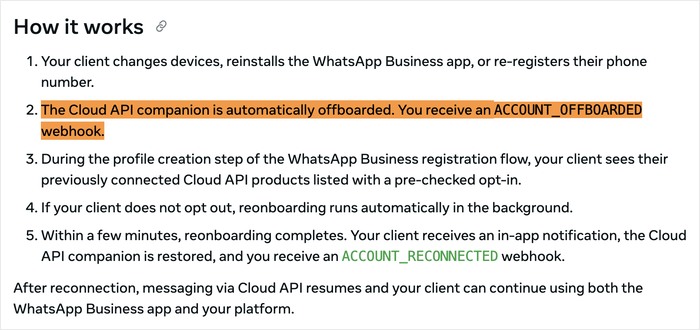
And when a business changes devices or re-registers the WhatsApp Business app, Meta’s documentation says the Cloud API connection is offboarded, then reconnects with one tap and finishes restoring in the background within a few minutes.
“There’s a free allowance, so I won’t be billed.”
There is one. From October 1, every business phone number gets 1,000 free service messages per month, charged from the 1,001st. The allowance resets monthly and doesn’t roll over.
So a small shop under that volume genuinely may pay nothing on the API. That’s the strongest argument against the cost case.
But the cost case was never the whole case, and neither objection removes the WABA.
The verification is still there. So is the template approval on every message you start, the messaging tiers, the webhook maintenance, and the quality rating someone has to watch.
And if you’re going through a Business Solution Provider, their fee sits on top of a Meta bill that may well read zero.
Why Some WordPress Plugins Ask You for an API Key
Here’s the ten-second test. If the setup screen asks you for an API key, a token, or a Business Manager login, you’re on the metered route. If it asks for your phone number, you aren’t.
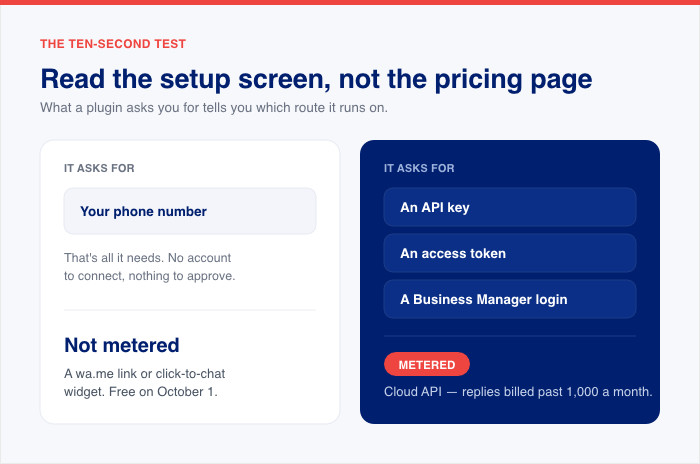
That test works because “WordPress plugin” doesn’t always mean self-contained.
Some plugins are widgets. They generate a link, render a button on your site, and that’s the entire product. Nothing else has to exist for them to work.
Others are connectors. The plugin is a bridge to an account somewhere else, and that account delivers your messages through the official WhatsApp Business API. The meter lives at the far end of that bridge, not in the plugin you installed.
Two documented examples of the second kind:
- Wappbiz requires an API key configured in the plugin settings, with registration on an external site, before the integration works at all.
- WANotifier’s plugin connects your site to a WANotifier account that delivers through the official Business API. Its public FAQ says WhatsApp charges a fee billed directly by Meta, with no WANotifier markup on top.
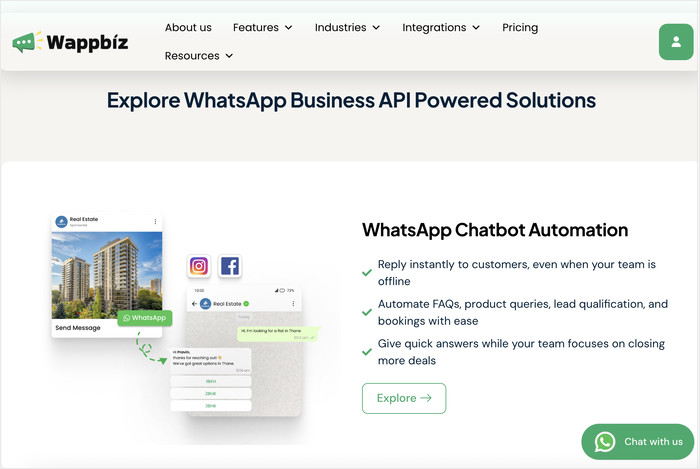
Neither vendor hides this. Both document it, and the catch is where you meet the information.
Vendors also tend to answer this question before anyone asks it. Elfsight’s WordPress WhatsApp page states up front that its plugin does not connect directly to the WhatsApp Business API.
WPBeginner’s plugin roundup teaches the split outright, before the reader has picked a plugin. Both suggest people keep arriving without knowing the two routes are different things.
The API route’s real costs tend to surface in an FAQ entry you read after installing, rather than in the search result that sent you there.
If a setup screen asks for a key, find out whose account is on the other end, and what Meta bills that account for, before you enter one.
Putting WhatsApp on Your Site Without Any of That
WPChat is a WordPress chat widget that puts WhatsApp and three other messaging apps on your site as a floating button. It runs on the click-to-chat route, which means none of the setup in the last three sections applies to it.
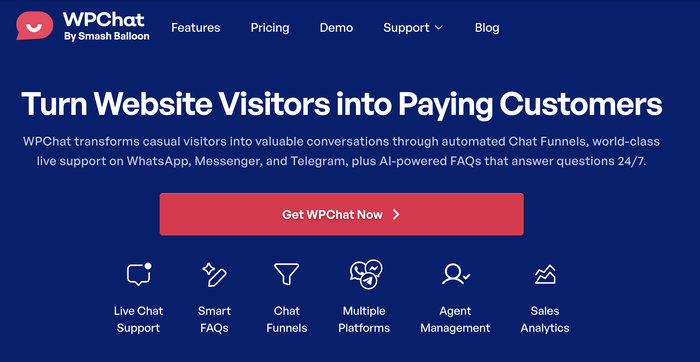
The free version covers four channels: WhatsApp, Messenger, Telegram and Instagram. You get one agent and ten FAQ responses, which are saved answers to questions you’re asked all the time.
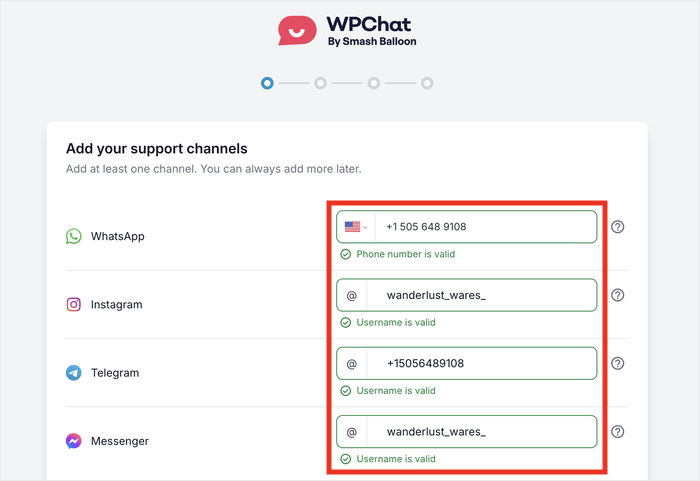
Setup takes under five minutes and no code. You connect the same number you already use, and there’s no WhatsApp Business Account anywhere in the process.
WPChat is built by the Smash Balloon team, whose plugins run on more than 1.75 million sites at a 4.9-star average rating.
Setting It Up in Five Minutes
- Get your copy of WPChat, then install and activate it on your site.
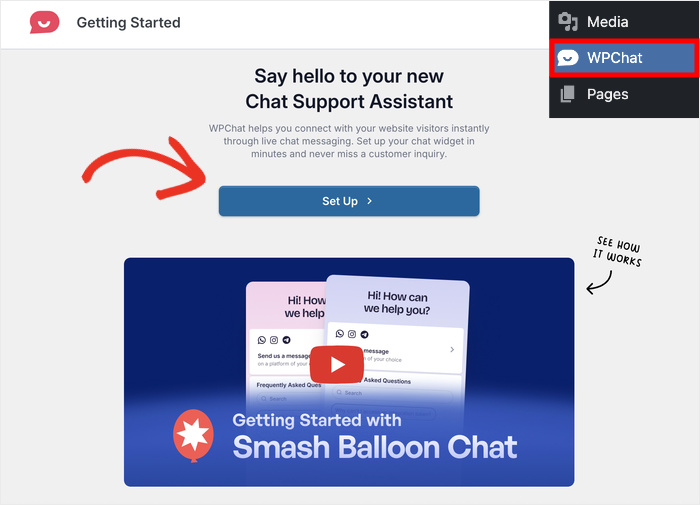
- Click the new WPChat menu in your dashboard, then click Set Up.
- Enter your WhatsApp phone number. This is the number your visitors reach when they tap the button.
- If you use other apps, add them here too: a phone number for Telegram, a username for Facebook Messenger and Instagram. Click Next.
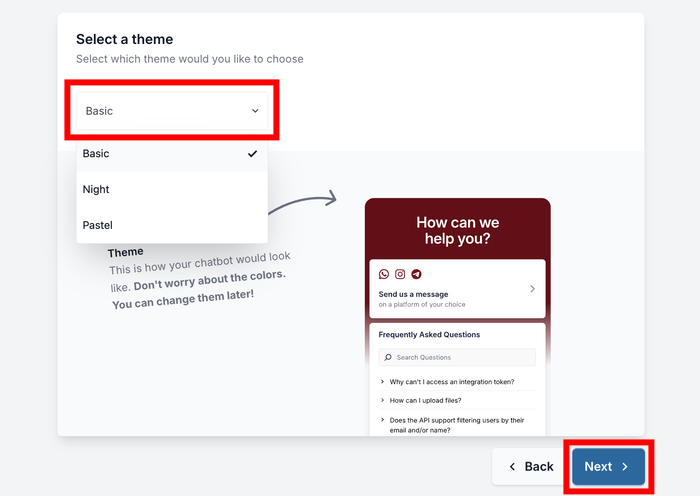
- Pick a theme. Basic, Night, or Pastel. Click Next.
- Choose where the button appears, either on every page or only on specific ones. You can include or exclude individual pages, categories, tags, and custom post types, so a product page can have it while your privacy policy doesn’t. Click Next.
- Enter your license key and click Complete Setup. The button goes live straight away.
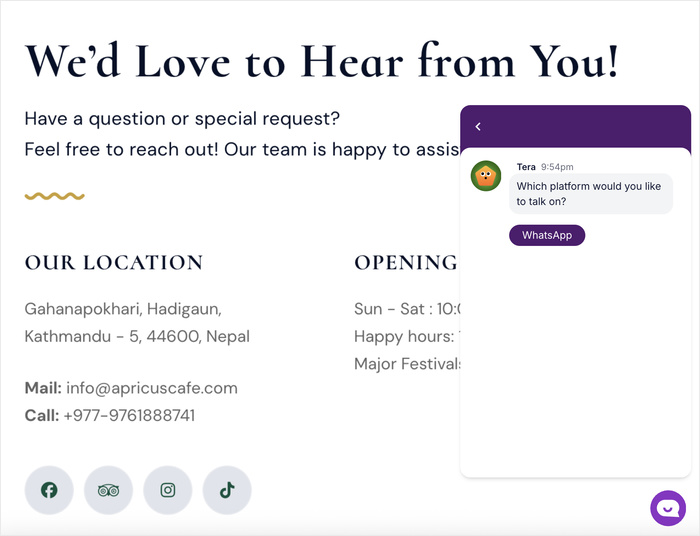
Open your site in a private browsing window and tap the button. On a phone it opens the WhatsApp app with your number filled in. On a desktop it opens WhatsApp Web.
To learn more, you can check out this step-by-step guide on adding a WhatsApp chat button to your website.
Get WPChat Pro and follow up with the visitors who didn’t buy the first time.
Frequently Asked Questions
Will I get charged by Meta if I put a WhatsApp button on my site?
No, you won’t get charged for a WhatsApp button, as long as that button is a click-to-chat link or a widget built on one. Meta’s charges attach to a WhatsApp Business Account, and neither of those routes creates one.
Is the WhatsApp API free?
The WhatsApp Cloud API has no licence fee, but that isn’t the same as free messaging. Messages are priced by category, and from October 1, 2026 that includes service messages, which Meta defines as any non-template reply typed by a person or generated by AI. Each business phone number gets 1,000 free service messages a month, and charges start at the 1,001st, at the same rate as utility and authentication messages for that country.
Does installing a WhatsApp plugin create a WhatsApp Business Account?
Installing a plugin doesn’t create a WhatsApp Business Account on its own. A widget plugin generates a link and renders a button, and nothing else has to exist for it to work. A connector plugin routes your messages through a provider’s Business API access, which does involve a WABA, and the tell is that it asks you for an API key during setup.
Can I use my existing WhatsApp Business app number for my website?
Yes, you can use the number that’s already in your WhatsApp Business app, directly, with a click-to-chat link or a widget. Since Meta shipped Coexistence in May 2025, you can also run that same number on the Cloud API alongside the app, though that puts you on the metered route. The API side comes with the feature gaps covered above, including no groups, broadcast lists, or voice and video calls.
What’s the difference between WhatsApp Business and the WhatsApp Business Platform?
The names are almost identical, and the difference matters. WhatsApp Business is the free app you install on a phone and reply from by hand. The WhatsApp Business Platform is Meta’s API product, and it brings business verification, approved message templates, tiered daily sending limits and per-message pricing with it.
How to Decide Which Route You Need
You went looking for a button and landed in a developer hub. That happens because Meta’s own properties rank first for this search, so the API route is what surfaces before you know there was a choice.
The line between the two routes is the WhatsApp Business Account. Meta’s charges attach to it, and only one of the three routes requires one.
That’s why the same one-hour support conversation Meta prices at 1 charge in July costs 5 from October 1, 2026. None of it touches a click-to-chat link or a widget built on one.
Most WordPress sites asking this question don’t need the metered product. They need the button they were looking for, and that takes under five minutes.
Put WhatsApp on Your Site With WPChat