Most visitors who leave your site without buying had a question they couldn’t get answered. They were not going to call. They were not going to fill out a contact form.
But they would have sent a message in seconds if there was a button to tap.
Adding online chat to your website closes that gap. Visitors click once and they are in a real conversation, right in the app they already use every day.
I set up WPChat, the WordPress click-to-chat plugin from Smash Balloon, on multiple sites and the setup takes under 5 minutes. There is no inbox to monitor, no support team to staff, and no custom software to run.
When a visitor clicks your chat button, the conversation goes directly to WhatsApp, Facebook Messenger, Telegram, or Instagram, wherever your team already is.
If you are weighing this against a full live chat platform first, here is how WPChat compares to traditional live chat tools for WordPress sites.
How Do I Add Online Chat to My Website?
Install WPChat from the WordPress plugin directory, connect your WhatsApp, Messenger, Telegram, or Instagram account, and complete a 3-step setup wizard. Your chat button goes live site-wide in under 5 minutes. No code, no API keys, no inbox to manage. Here is the full walkthrough.
Why Adding Online Chat Helps Your Website
Adding online chat to your WordPress site makes it easier for visitors to connect with you right when they need help.
Instead of filling out a contact form and waiting for a response, they can get answers immediately through their favorite messaging apps.
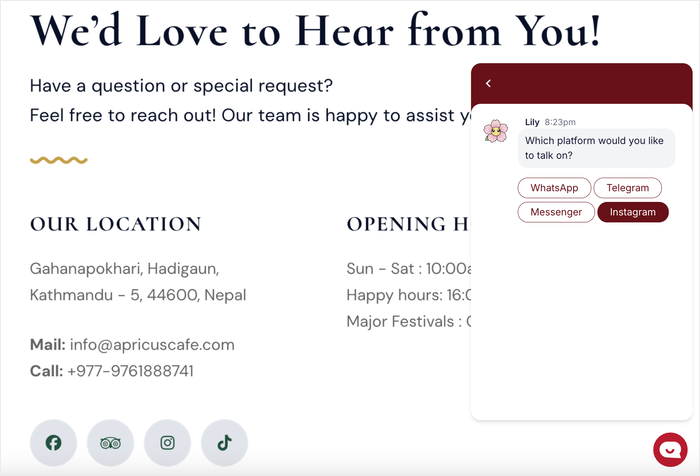
Here are the key benefits of adding online chat:
- Answer questions in real-time while visitors are still browsing your site, which helps prevent abandoned carts and missed opportunities.
- Visitors don’t need to download new apps or create accounts since they can message you through WhatsApp, Facebook Messenger, or Instagram.
- Continue conversations later to inform people about announcements, special deals, or answer additional questions they might have.
- Encourage people to follow your social accounts so you can keep in touch and share updates even after they leave your website.
- Let your support staff handle multiple chats at the same time, which is faster than responding to individual emails.
The numbers back this up.
Visitors who use chat are about 3 times more likely to convert than those who do not.
And since WPChat routes conversations to WhatsApp, where message open rates sit around 98% compared to 20% for email, you are reaching people through a channel they actually pay attention to.
Which Online Chat System is Right for You?
Building a new chat system from scratch takes a lot of time and effort, and it can easily backfire. The smarter approach is to pick platforms that people already know and use daily.
That way, visitors don’t need to install anything new just to contact you, and they’re likely to check these platforms regularly.
Since platforms like WhatsApp and Facebook Messenger are so popular, your visitors are probably already using at least one of them.
2 Ways to Add Online Chat to Your Website
Most guides default to live chat tools like Tawk.to, Tidio, or Intercom. Before you pick a solution, it is worth understanding the two approaches:
| Live Chat (Tawk.to, Tidio, Intercom) | Click-to-Chat via WPChat (Recommended) | |
|---|---|---|
| Where does the conversation happen? | A proprietary inbox your team logs into | WhatsApp, Messenger, Telegram, or Instagram |
| Do you need to staff an inbox? | Yes, someone monitors it during business hours | No, conversations land on your phone like any other message |
| Setup time | 15-30 minutes (code embed + account setup) | Under 5 minutes (WordPress plugin) |
| Pressure to respond instantly | High; visitors expect live responses | Lower; visitors message on their own timeline |
| Works outside business hours | Only with a chatbot | Conversations continue naturally in the messaging app |
| Best for | Teams with dedicated support staff and a full help desk | Small businesses and WordPress site owners without a support team |
If you have a team watching a dashboard all day, a full live chat platform may be worth the overhead. For most WordPress site owners, click-to-chat is the faster, lighter, and more personal choice.
For a detailed breakdown, here is how WPChat compares to traditional live chat tools for WordPress sites.
Easiest Way to Add Online Chat for Popular Platforms
WPChat is a WordPress plugin that makes it incredibly easy to add online chat to your website. It adds a floating button that visitors can click to choose their preferred messaging platform.
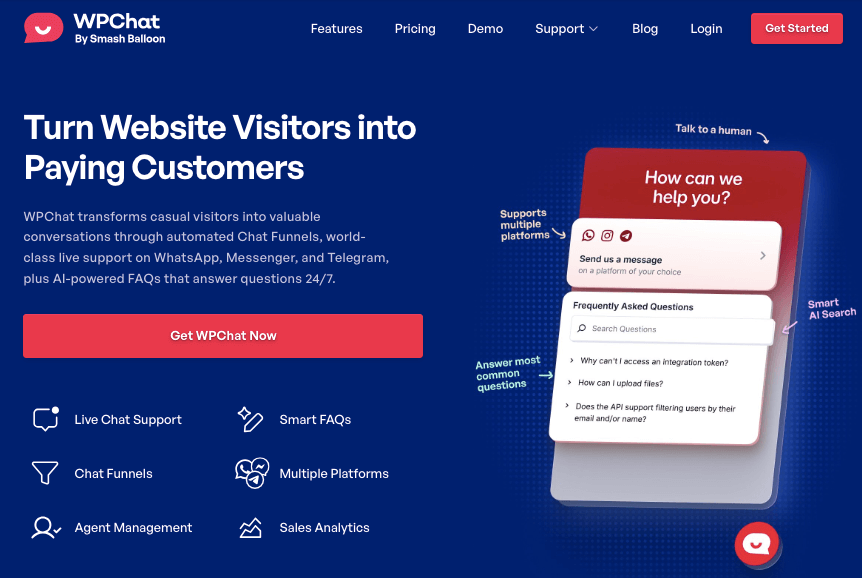
When visitors click the button and select a platform, WPChat redirects them to that messaging app where you or your support team can start chatting with them directly.
To help you reach the most people, the plugin supports the biggest messaging apps out there — WhatsApp, Facebook Messenger, Telegram, and Instagram.
- Custom Chat Agents: Create chat agents complete with names and profile pics to represent your support team and add a human touch to the chat.
- Balances Workload for Support: Set up online hours so the plugin can automatically send the chat to the available staff and balance the workload.
- Import Pre-Built Themes: Instantly create beautiful chat widgets by selecting from 3 different themes.
- Add FAQs to Your Widget: Give visitors instant answers to common questions before they even start a chat.
- Use the Visual Customizer: Design your online chat widget in detail in just a few simple clicks with a live preview to help you out.
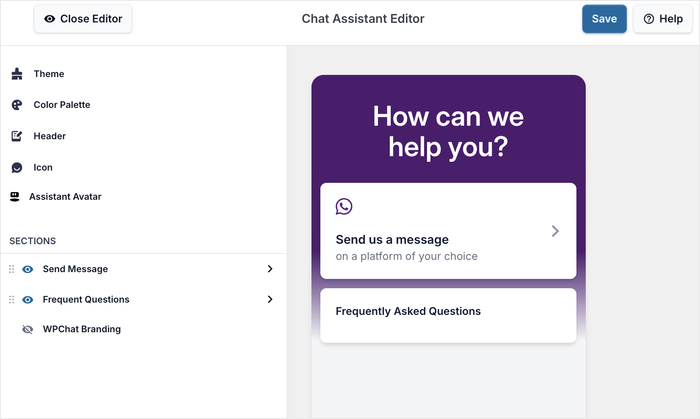
Compared to other chat solutions, WPChat is lightweight and simple to set up. I’ve found that you can have a fully functional online chat system ready to go in just minutes.
Ready to add online chat to your website? Get started with WPChat today!
How to Add Online Chat to Your Website the Easy Way
Ready to add online chat to your WordPress site? In this section, I’ll walk you through the entire setup process step by step. By the end, you’ll have a fully functional chat widget that connects visitors to multiple messaging platforms.
Setting up WPChat takes under 5 minutes. You install the plugin, connect your messaging accounts, choose where the button appears, customize the design, and set up your agent profile. No code or API credentials required.
If you want a focused guide on WhatsApp specifically, here is a step-by-step guide to adding a WhatsApp chat button to WordPress.
Step 1: Install and Activate WPChat on Your Website
First, you’ll need to get a copy of WPChat for your website. Get the WPChat plugin here and save the file to your computer.
Now, you can install and activate it on your WordPress website.
In case you need help, you can check out this beginner’s guide on installing WordPress plugins.
Step 2: Create Your Online Chat Widget
Now that the plugin is ready to go, it’s time to set up your chat widget.
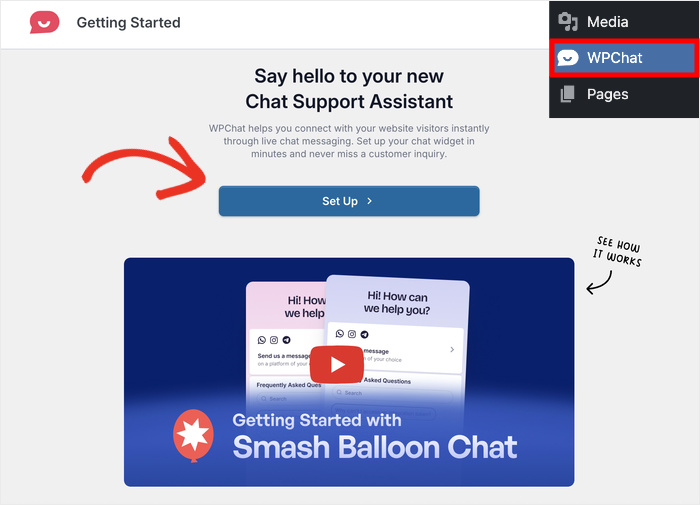
Go to the WPChat menu in your WordPress dashboard and click on the Set Up button.
On the setup screen, you’ll see the option to enter your contact info for the biggest messaging apps:
- WhatsApp: Enter your phone number with the country code
- Instagram: Add your Instagram username
- Telegram: Add the phone number you used for your Telegram account
- Messenger: Enter the username of your brand’s Facebook page
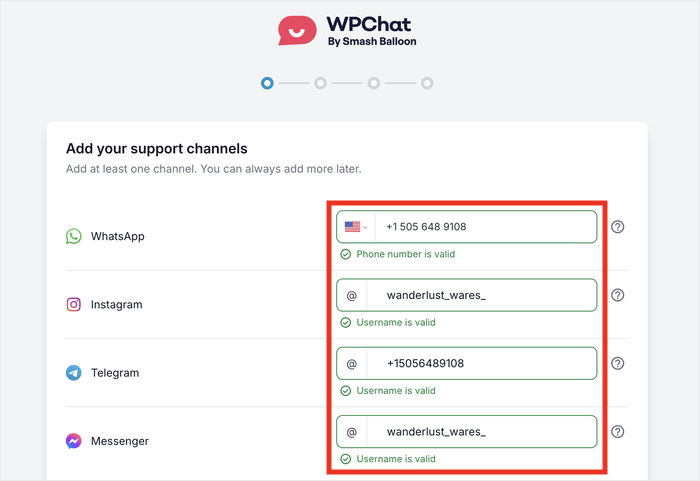
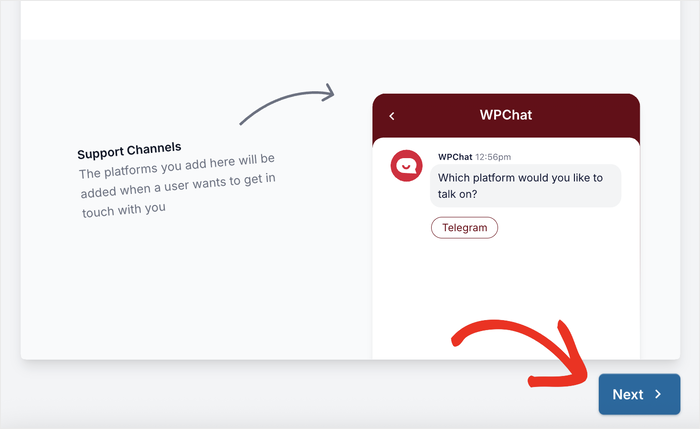
After selecting the messaging apps you want to use, scroll down on the page.
Finally, click on the Next button to continue.
Next, you’ll need to pick a theme for your chat widget. WPChat offers three pre-built options: Basic, Night, and Pastel.
Pick the theme that best matches your website’s design and click Next to continue.
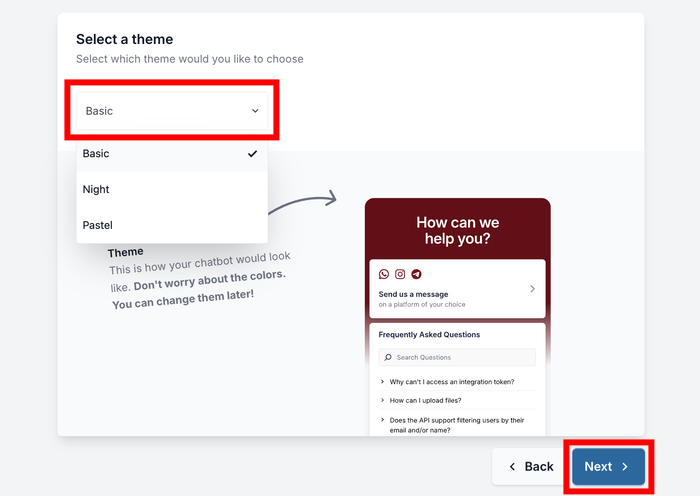
Each theme has a different color scheme and style, so choose the one that fits naturally with your site’s look.
Don’t worry if it’s not perfect – you’ll be able to customize the colors and design later.
Step 3: Choose Where Online Chat Widget is Visible
Now you need to decide where your chat widget will appear on your site. WPChat gives you two visibility options:
- Show the online chat widget everywhere on your site.
- Choose to display the chat widget only on specific pages.
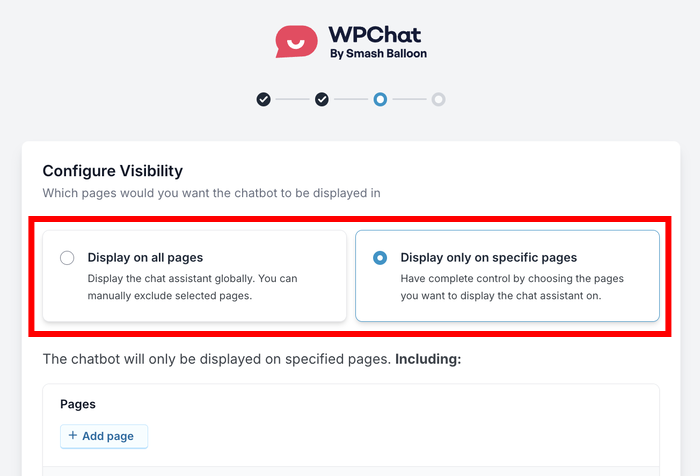
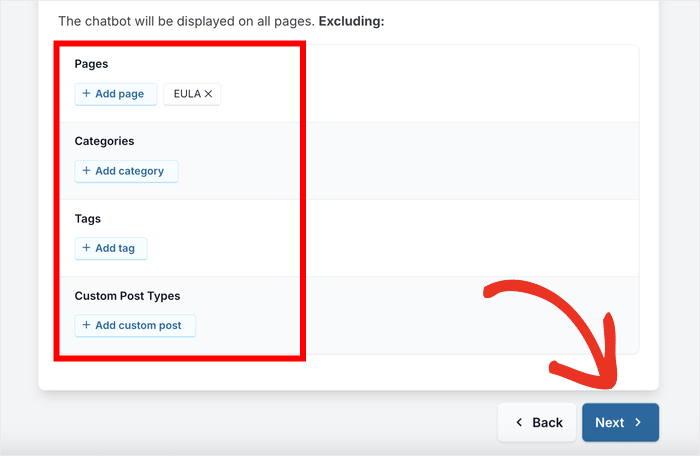
If you want the online chat feature available everywhere, choose Display on all pages.
Then, you can use the filters below to exclude certain Pages, Tags, Categories, and Custom Post Types.
You can then click on Next to proceed.
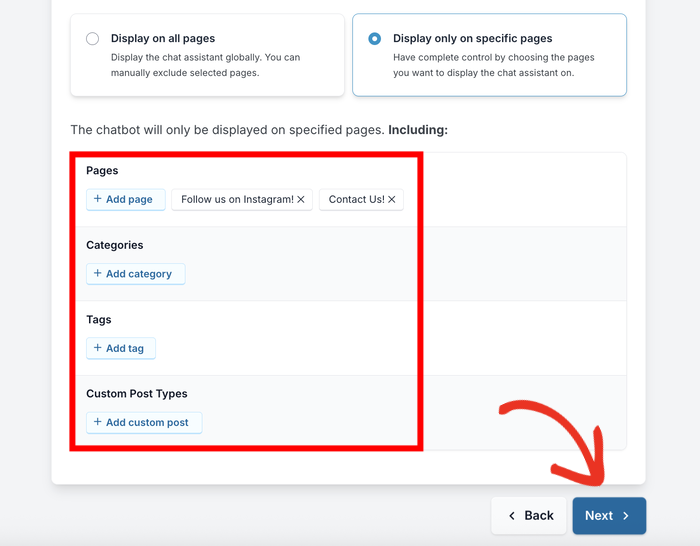
If you only want it on certain pages, select the Display only on specific pages option.
After doing that, you can use the filters to pick where the widget should be visible.
Once you’ve made your selection, click on Next to proceed.
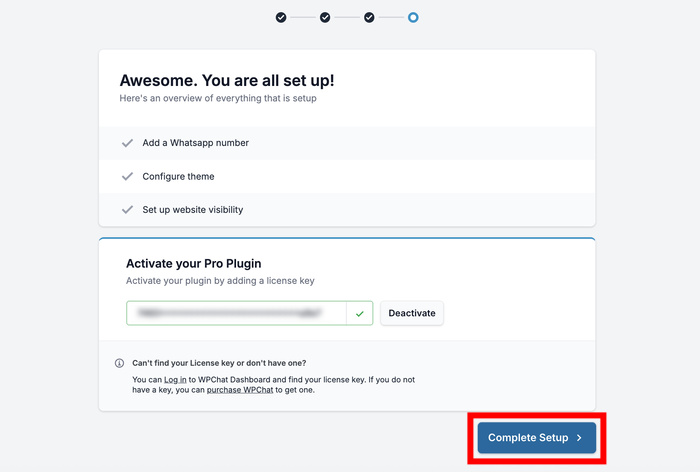
On the next screen, enter your WPChat license key in the provided field. You can find this key in your WPChat dashboard.
Finally, click on Finish Setup to complete the initial setup process. Your online chat widget is now active on your site, but we’ll customize it further in the next steps.
Step 4: Customize Your Online Chat Widget
With your chat widget set up, it’s time to make it match your brand.
To get started, you can click on the Customize button to open the live editor.
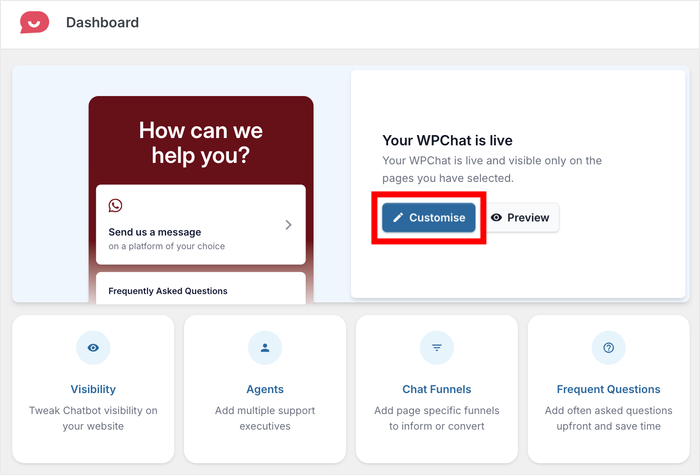
In the live editor, you’ll see a panel on the left with the different customization options.
When you use these options to make changes, the live preview on the right will be updated as well.
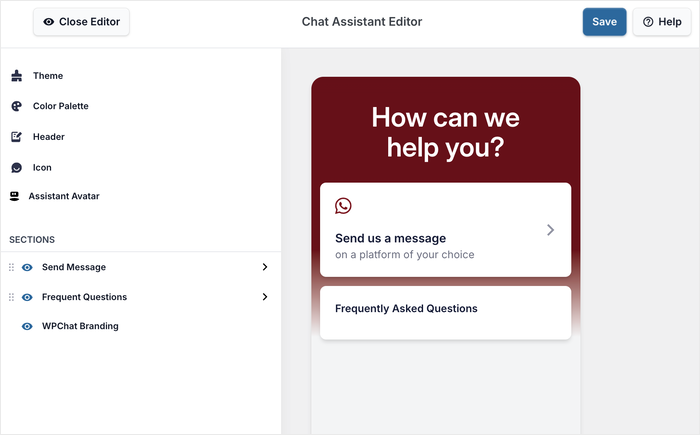
I’ll go through some of the customization options here so you can see how it works.
First of all, click on Color Palette in the left menu.
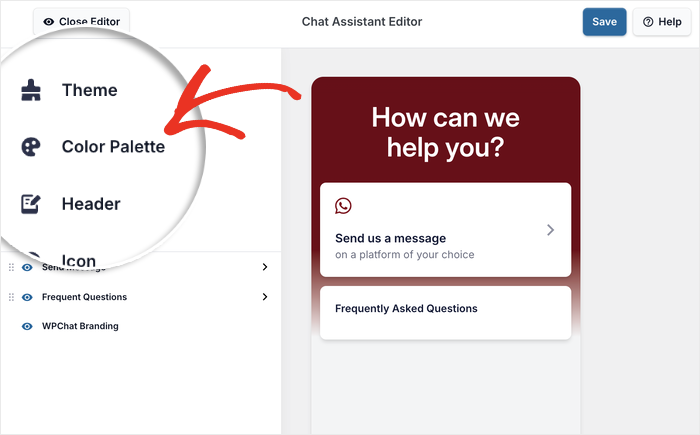
You’ll see several pre-made color palettes that you can choose from.
If none of them match your brand, click on Custom to pick your own colors.
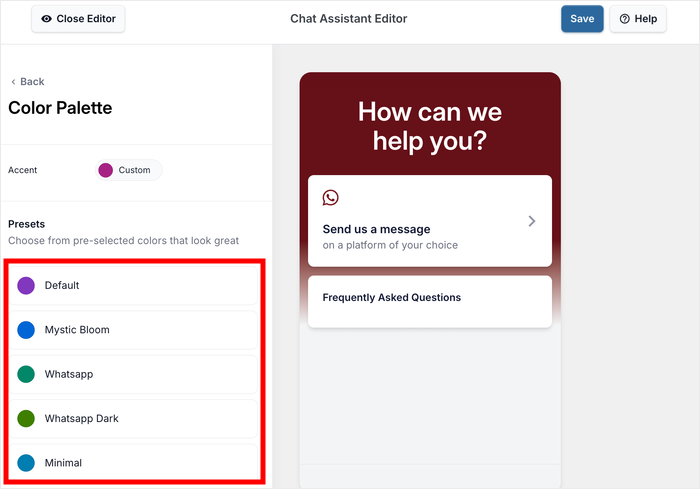
Once you’ve selected your colors, click on Save to apply them to your widget.
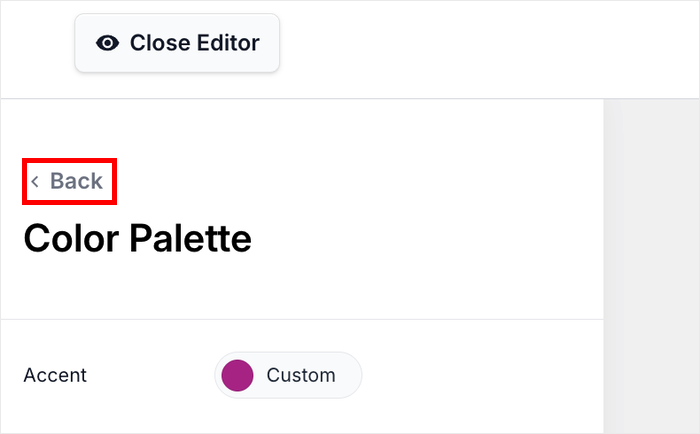
Then click the Back button to return to the main customization menu.
Next, look for the Sections option on the left side of the screen. Here you can uncheck any parts you want to hide from your chat widget.
You can also rearrange sections by dragging them up and down to change their order.
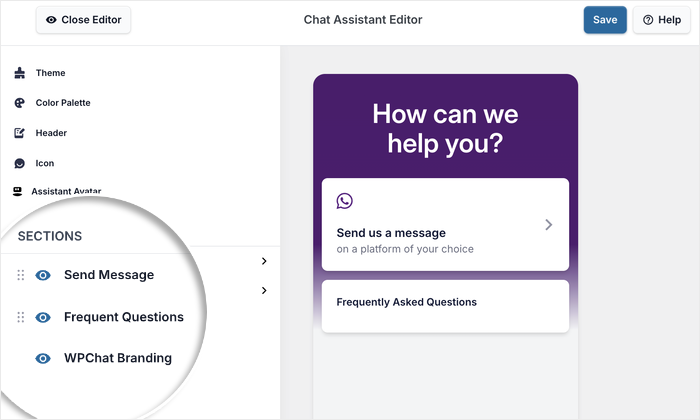
This gives you complete control over what visitors see and in what order. Click on Save to store your changes when you’re done customizing.
Step 5: Set Up Your Chat Agent
WPChat will show visitors a chat agent before you’re redirected to the messaging app or site.
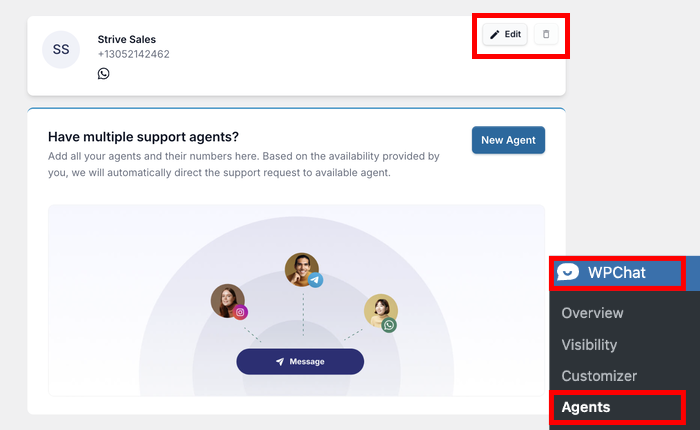
Navigate to the WPChat » Agents menu in your WordPress dashboard.
You’ll see a default agent already created for you. Click on Edit to customize this agent with your information.
First, click on Upload to select a fitting profile image for your agent.
This could be your photo, your logo, or a team member’s picture.
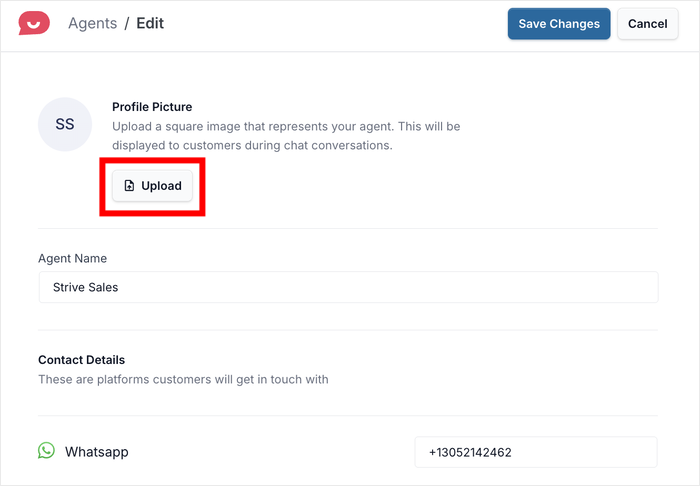
Adding a real photo helps make your online chat widget feel more personal and trustworthy.
Below the image, type in a Name for your agent in the field provided.
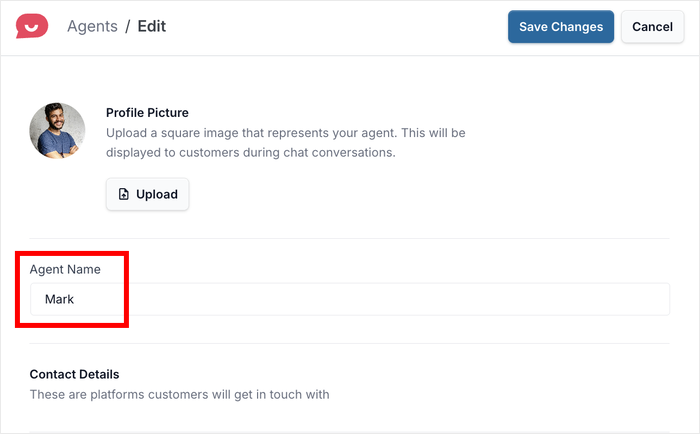
Use a real name if you want to add a personal touch, or use your business name if you prefer a more formal approach.
Scroll down and you’ll see fields to edit the contact details for WhatsApp, Telegram, Messenger, and Instagram.
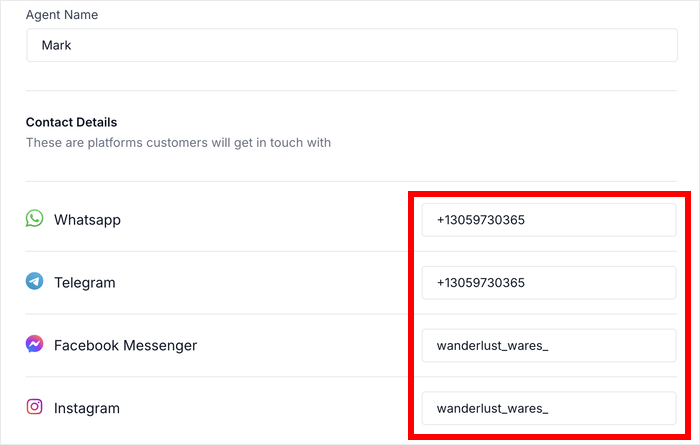
Doing that will change the contact info for this specific chat agent.
Once you’ve added all your contact information, click on Save Changes to store your agent details.
Your online chat widget is now fully configured and ready to help you connect with visitors.
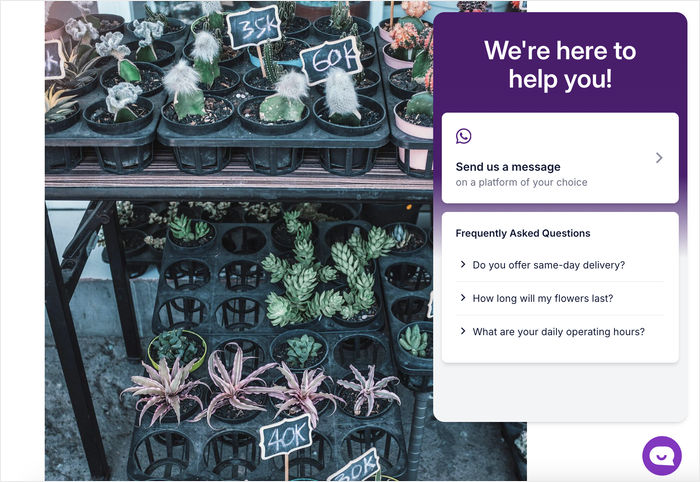
Get your WordPress chat button live today
WPChat connects your site to WhatsApp, Messenger, Telegram, and Instagram in under 5 minutes. No inbox to monitor. No support team to staff.
Add Chat to My WebsiteFrequently Asked Questions
What is the difference between live chat and click-to-chat?
Live chat tools route visitor messages into a proprietary inbox your team logs into and monitors. Click-to-chat (what WPChat does) sends visitors directly into a conversation in WhatsApp, Messenger, Telegram, or Instagram, the apps your team already uses. There is no inbox to staff and no dashboard to monitor. Conversations happen where your customers already are.
Do I need to be online for the chat button to work?
No. The chat button appears on your site regardless of your availability. When a visitor clicks it, they are taken to your WhatsApp (or other messaging app) where they send a message at any time. You reply when you are available, just like any other message. WPChat Pro also lets you set agent availability hours and automate FAQ responses for off-hours questions.
Can I add a chat button to WordPress without any coding?
Yes. WPChat installs as a standard WordPress plugin and sets up through a wizard in your WordPress admin. No code, no embed scripts, no API keys. The whole setup takes under 5 minutes and works on any WordPress theme.
Which messaging platform should I connect to my site first?
Start with WhatsApp if your customers are mobile-first or located outside North America. It has 2 billion+ active users and is the most widely used messaging app globally. Add Messenger if you run Facebook ads or have a strong Facebook following. Telegram is a solid choice for privacy-conscious or tech-savvy audiences. WPChat supports all four channels from one dashboard and your visitors choose which one to use.
Can I show the chat button on specific pages only?
Yes. WPChat lets you display the button site-wide or target specific pages, posts, categories, tags, or custom post types. Limiting it to high-intent pages like product pages, pricing pages, and checkout tends to drive more focused conversations than showing it everywhere.
Start Adding Online Chat to Your Website Today
Adding a chat button to your WordPress site is one of the fastest ways to make yourself more reachable to visitors who are actively considering buying from you.
That is precisely where WPChat shines. It takes under 5 minutes to set up, works on any WordPress theme, and routes every conversation to the messaging app you and your team already use. No inbox to manage, no support software to subscribe to, no learning curve.
Ready to get started? Here is what to do:
- Install WPChat
- Connect your WhatsApp number or Messenger, Telegram, or Instagram account
- Set your display rules and customize the chat button design
- Add automated FAQs so common questions get answered instantly
Have a question about setup or which messaging app to connect first? Drop it in the comments and I will answer it.