Most chat tools assume you have someone available to reply. But what if you could give visitors instant, helpful answers at any hour, without hiring a support team or managing a live inbox?
That’s exactly what interactive chat does.
Instead of routing visitors to a contact form or making them wait for a response, interactive chat meets them with clickable message paths they can work through on their own.
I work at Smash Balloon, the team behind WPChat, a WordPress click-to-chat plugin used on thousands of sites. So fair warning, I’m going to recommend it. But I’ll also show you the manual alternative so you can make the call yourself.
Can You Add Interactive Chat to a WordPress Website Without Coding?
Yes. With WPChat, the WordPress click-to-chat plugin from Smash Balloon, you can set up a fully automated chat funnel in about 10 minutes with no developer needed.
Install the plugin, connect WhatsApp, Messenger, Telegram, or Instagram, then build a conversation path with preset messages and clickable reply buttons. Visitors get guided answers around the clock, even when you’re offline.
One thing worth knowing upfront: WPChat is not a live chat inbox. There’s no agent dashboard, no ticket queue.
What it does is send visitors from your site into a real conversation on the messaging app you already use, with a chat funnel doing the qualifying first. If you’re looking for a Tawk.to or Tidio-style inbox tool, that’s a different category. If you want 24/7 automated chat that routes people straight to your WhatsApp or Messenger, WPChat is built exactly for that.
- What Is Interactive Chat and How Does It Work on a Website?
- 2 Ways to Add Chat to Your Website
- How to Add Interactive Chat to Your WordPress Website
- Best Practices for Chat Assistant Placement
- Conclusion
- More Helpful Guides & Tutorials (Handpicked)
- Frequently Asked Questions
- Start Adding Interactive Chat Now
What Is Interactive Chat and How Does It Work on a Website?
Interactive chat is a type of website chat that responds to visitor clicks, rather than requiring a human agent to be online.
You can easily add interactive chat to your website using a WordPress plugin called WPChat.
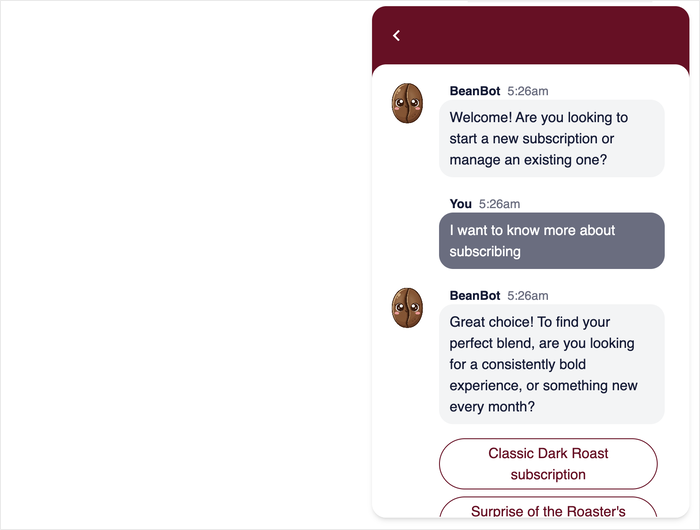
It lets you set up chat funnels, which are interactive message sequences where visitors see a greeting, pick a response, and get a tailored reply.
Instead of sending visitors to a contact form, it starts a conversation automatically and guides them to the answer they need.
2 Ways to Add Chat to Your Website
| Traditional Live Chat | Interactive Chat Funnel (WPChat) Recommended | |
|---|---|---|
| Do you need a human agent online? | Yes. Response times depend on staffing. | No. Funnels run automatically, around the clock. |
| What happens when you’re offline? | Visitors see “We’re away” or an email form. | The chat funnel still runs. Visitors get guided replies instantly. |
| Can visitors reach you on WhatsApp or Messenger? | Depends on the tool. | Yes. One click sends them straight to the channel you use. |
| How long does setup take? | Hours, plus agent onboarding. | About 10 minutes with WPChat. |
| What does it cost? | $20 to $100+/month for most tools. | WPChat Pro starts from $49/year. |
| Best for | Teams with a dedicated support inbox. | Solo operators and small teams who already use messaging apps. |
If you have staff monitoring a shared inbox, a traditional live chat tool like Tidio or LiveChat makes sense.
If you’re running a small site and already use WhatsApp or Messenger to talk to customers, WPChat gets you the same result at a fraction of the complexity.
What Is a Chat Funnel?
Think of a chat funnel like a phone tree at a front desk, except it’s active 24/7, instant, and doesn’t require a human agent.
It is a pre-built conversation that your website has with visitors automatically. Here is how it works, step by step:
- The visitor sees a greeting message — a short, welcoming note that appears when the chat widget opens.
- The visitor selects a response option — they click a button (like “I have a question about pricing”) instead of typing anything.
- The funnel shows a different message depending on which option they chose — so every visitor gets a reply that actually fits their need.
That is the full loop. As you can see, there’s no typing, no waiting, and no human required.
Why Use Interactive Chat Instead of a Contact Form?
Interactive chat gives your visitors faster answers without requiring you to be available around the clock.
A contact form, while useful, asks visitors to wait hours, or even days, for a reply.
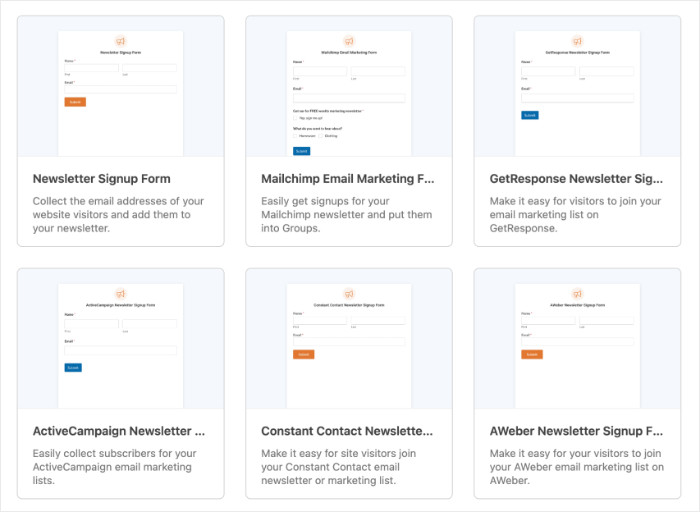
Interactive chat answers them instantly, which keeps them on your site longer and makes them more likely to take action.
Here is why it is worth setting up:
- Faster Answers for Visitors: Your chat responds the moment someone opens it, even at 2 a.m. on a Sunday.
- More Leads Captured: Visitors who get quick answers are far more likely to sign up, buy, or reach out.
- Less Time on Repetitive Questions: Once your funnel is live, it handles your most common questions automatically, so you do not have to.
- No Developer Required: WPChat is straightforward to set up yourself in under 30 minutes.
How to Add Interactive Chat to Your WordPress Website
Now I’ll walk you through the complete process of setting up interactive chat on your WordPress site. Each step is simple to follow, and you’ll have a working chat widget by the end of this tutorial.
Step 1: Install and Activate WPChat
First, you’ll need to get WPChat from the official website here.
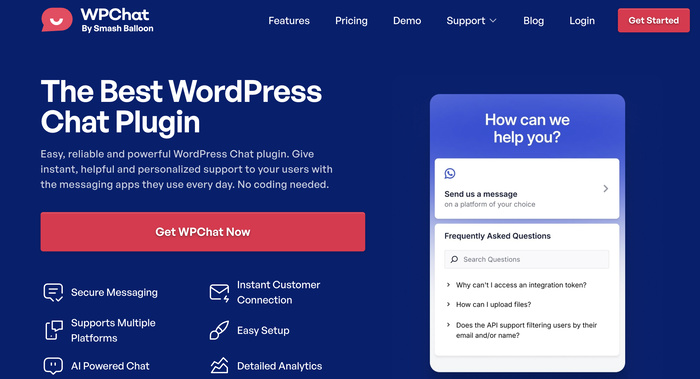
Once you’ve purchased and downloaded the plugin to your computer, you’re ready to add it to your WordPress site.
Need some help? You can take a look at this step-by-step guide on installing plugins to WordPress.
After activation, WPChat will be ready to configure on your website.
Step 2: Go Through the Quick Setup
WPChat includes a helpful setup wizard that guides you through the initial configuration. Let me show you how to complete each step.
Start by clicking on the WPChat menu in your WordPress dashboard.
Then, select the Set Up option to launch the setup wizard.
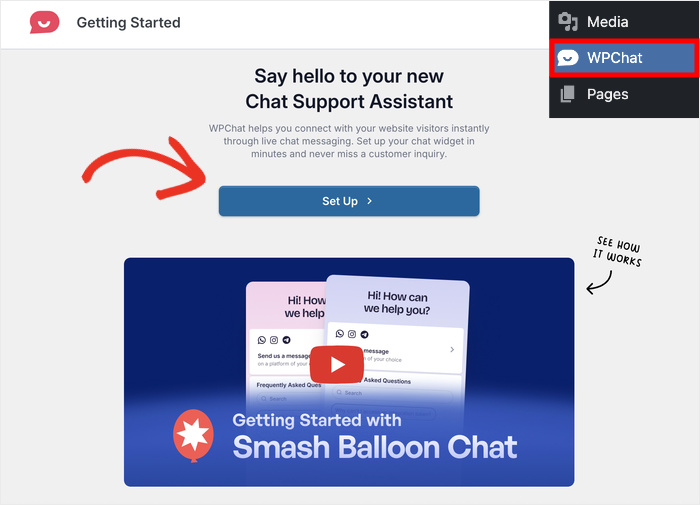
The first thing you’ll need to enter is your contact info. You can connect 4 of the biggest messaging apps by entering the contact details:
- WhatsApp: Your WhatsApp phone number
- Instagram: Your Instagram username
- Telegram: Your Telegram number
- Messenger: Username of your Facebook page
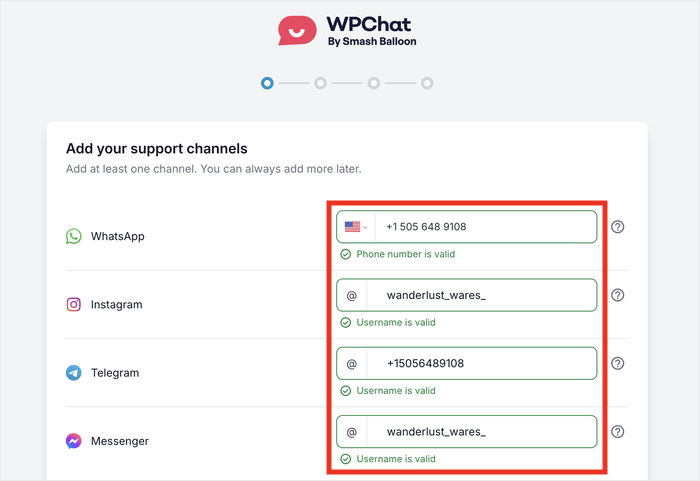
This allows visitors to reach you directly through popular messaging apps if they choose that option.
After you’re happy with the connected platforms, scroll down and click on Next.
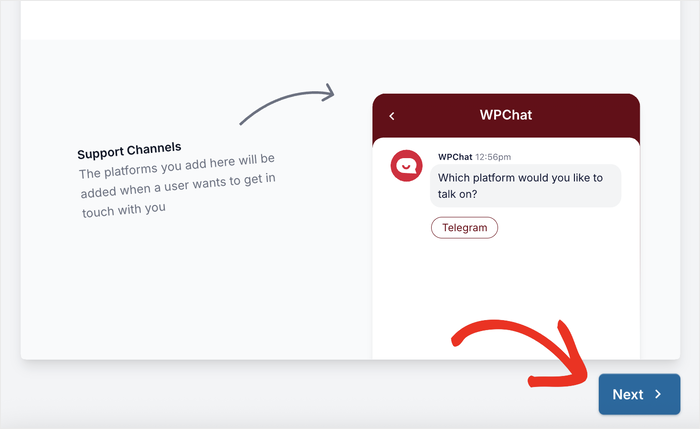
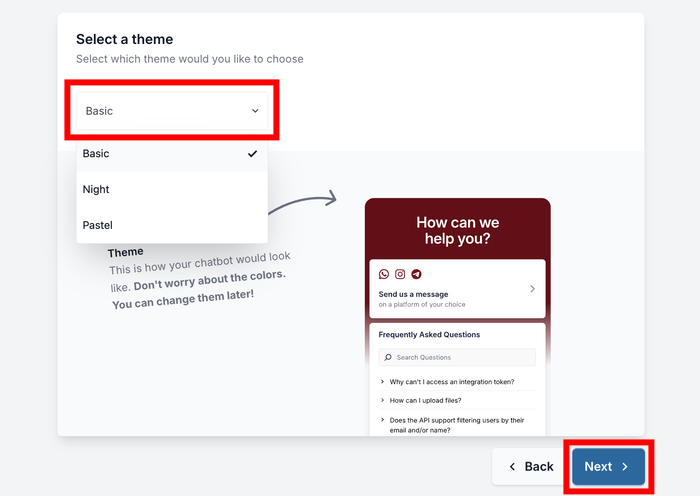
On the next screen, you can choose any of these 3 themes for your chat widget:
- Basic
- Night
- Pastel
Select a theme that matches your website’s design, then click on Next.
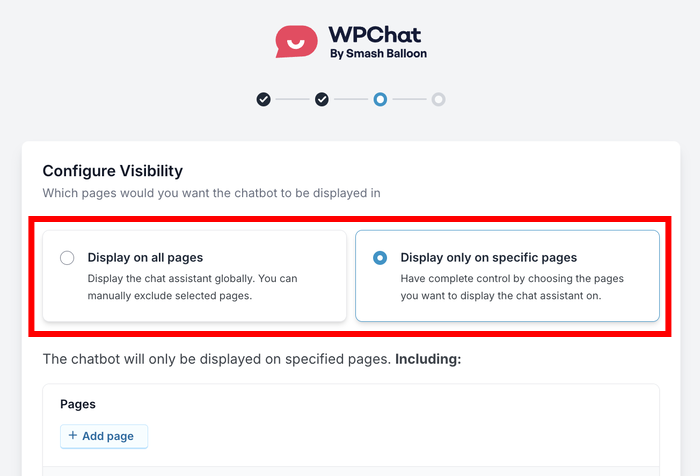
Now you’ll pick where you want the chat widget to display. You can decide to show it everywhere on your site or on specific parts.
First, pick from these 2 display options for your interactive chat:
- Display on all pages
- Display only on specific pages
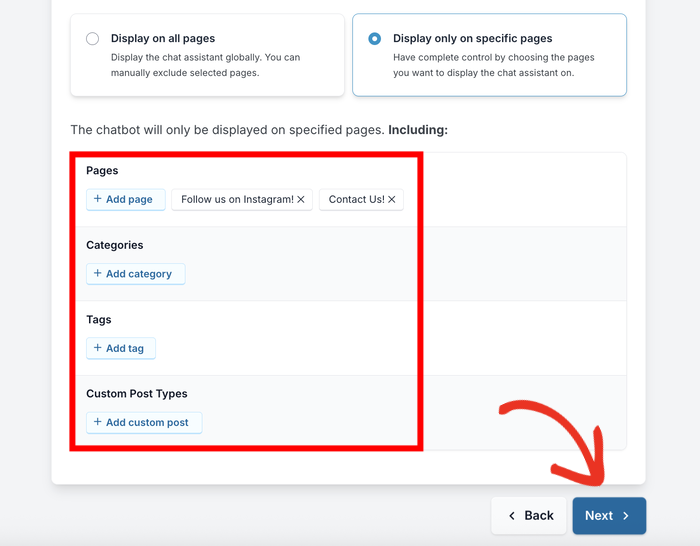
Use the filters to include or exclude specific pages, tags, categories, and custom post types. This gives you complete control over where visitors see your chat widget.
Once you’ve configured your display settings, click the Next button.
The final step asks for your WPChat license key. You’ll find this in your WPChat account dashboard.
Enter your license key in the field here, then click on Complete Setup.
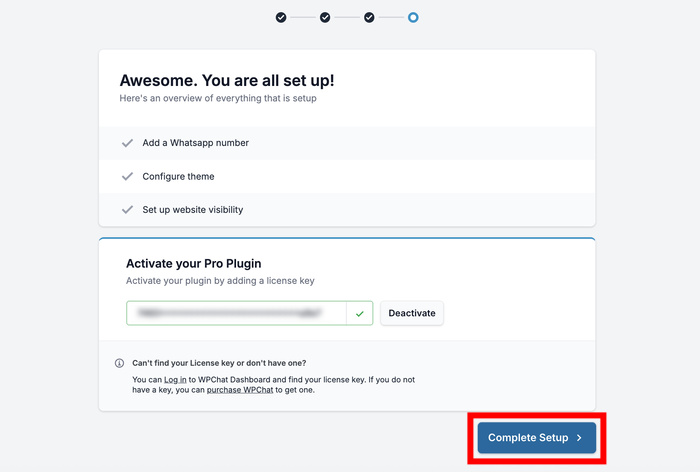
Your chat funnel is ready to go live.
Want to unlock unlimited funnels, advanced analytics, and multiple agent profiles? That’s where WPChat Pro comes in. The 14-day money-back guarantee means there’s no risk in trying it.
See WPChat Pro PricingStep 3: Create a Funnel of Interactive Messages
This is where you set up the automated conversation funnel that guides visitors to the answers they need.
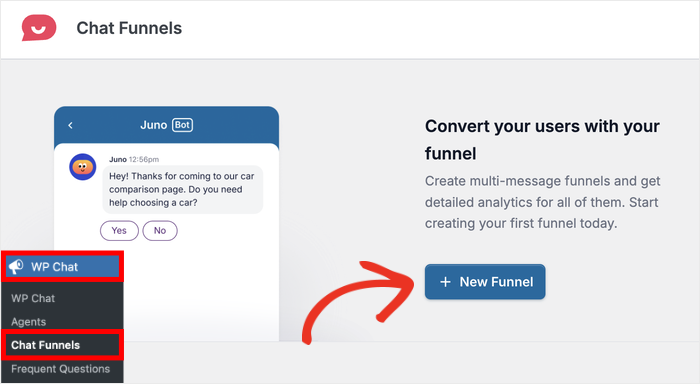
Go to WPChat » Chat Funnels in your WordPress dashboard. This is where you’ll create and manage all your chat conversations.
Click on the New Funnel button to start building your first interactive chat sequence.
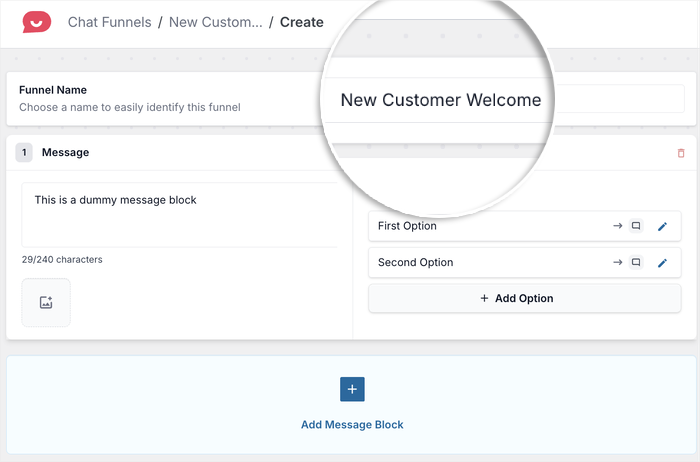
First, enter a descriptive name in the Funnel Name field so you can easily identify it later.
I recommend using simple names like “Product Questions” or “New Customer Welcome” to keep things organized if you create multiple funnels.
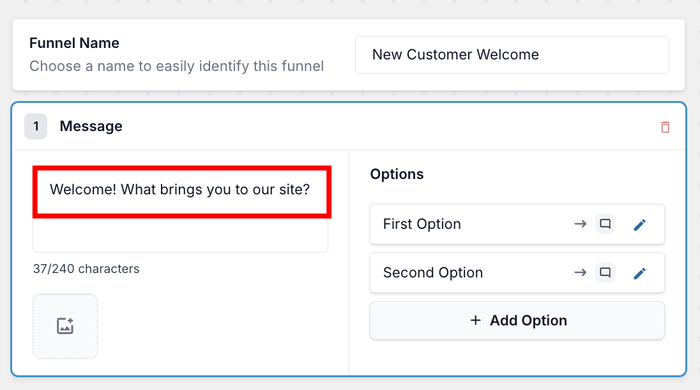
Now, enter the first message your visitors will see when they open the chat widget.
For best results, you can use a friendly greeting that lets them know you’re there to help.
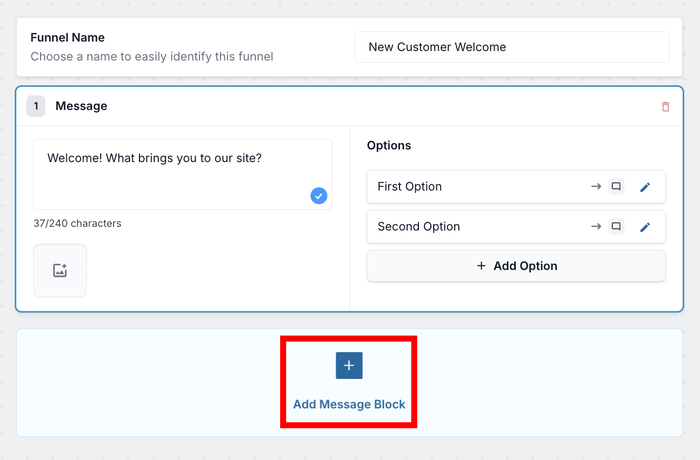
Click the Add Message button to create your next message in the sequence.
Enter your second message in the field provided. This could be a follow-up question or additional information based on what visitors might need.
If you want to make your messages more engaging, you can add images.
Simply click the Image icon and upload a photo from your computer.
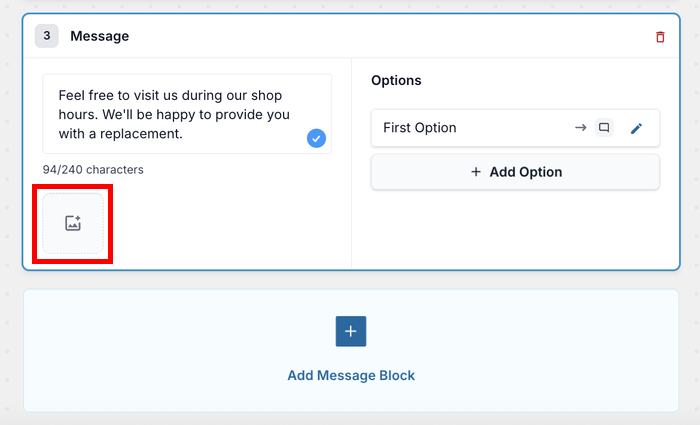
Adding images is great for showing product features, displaying diagrams, or just adding a personal touch with your photo or logo.
Step 4: Link Different Messages Together
Creating individual messages is just the first step. Now you’ll connect them to create an interactive conversation flow that guides visitors through their questions.
Click on the Edit icon next to one of your reply options.
This opens the settings where you can customize how visitors interact with your chat funnel.
Enter the text for the response option that visitors will see and click on.
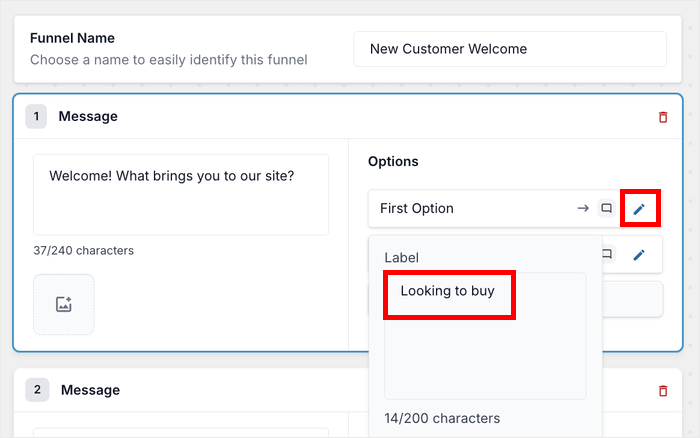
It’s best to make it clear and specific so visitors know exactly what they’re choosing.
For example, instead of just “Yes,” you might write “Yes, tell me about pricing” or “I need technical support.”
Now use the dropdown menu to decide where this response will lead.
This can be another message block or directly to your customer support on a messaging app they prefer.
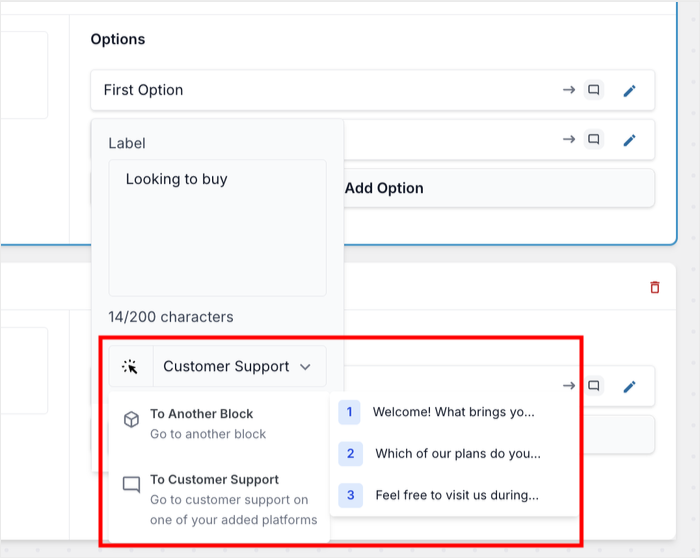
For example, let’s say the visitor selects the option to learn about your pricing plans.
You can link that to another message in the sequence that explains your pricing options in detail.
Click Save to store your changes. Your first interactive path is now complete.
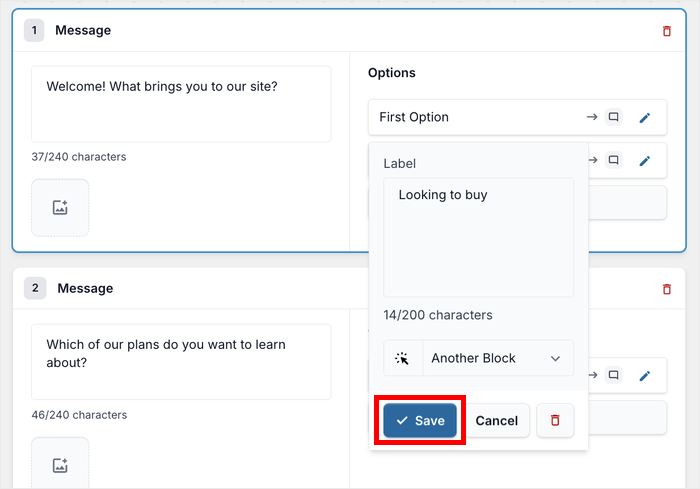
You’ll want to repeat these steps to add more response options and messages to create different conversation paths.
The more options you provide, the better WPChat can guide visitors to exactly what they need.
As you build out your interactive funnel, check the live preview on the right side of the screen.
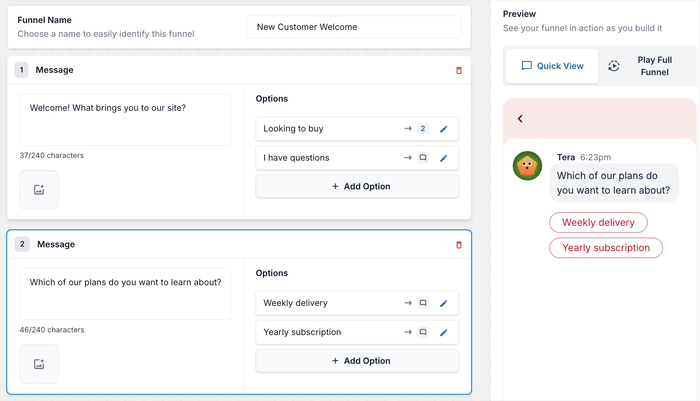
This shows you exactly how visitors will see your interactive chat on your website.
The preview updates in real-time as you make changes, so you can see if your conversation flow makes sense.
Once you’re happy with your interactive funnel, click on Save Changes to make it live on your website.
Step 5: Choose Where to Show Interactive Chat
Now that your chat funnel is ready, you can fine-tune exactly where it appears on your website.
In the display settings section, you’ll see options to select specific pages, categories, tags, and custom post types.
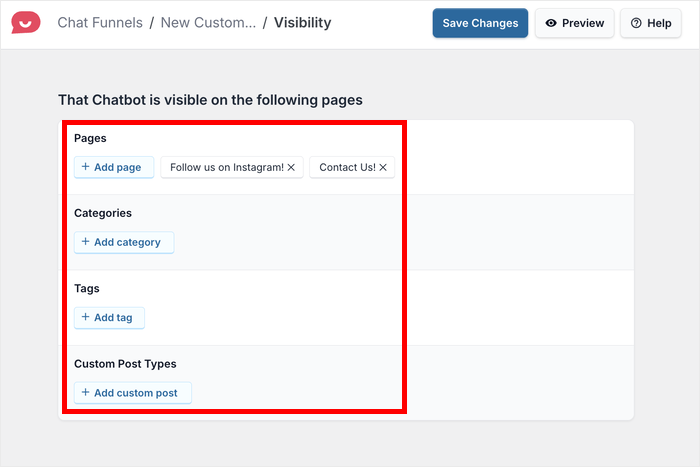
For example, you might want to show the chat widget on your product pages but hide it from your blog posts.
Or you could display it only on specific landing pages where you know visitors need extra help.
Select the pages where you want the chat to appear by checking the boxes next to them. You can choose individual pages or select entire categories at once.
Once you’ve configured all your display settings, click Save Changes to apply them.
Your interactive chat is now live and ready to help your website visitors. The chat icon will appear on the pages you selected, and visitors can start getting instant answers right away.
Best Practices for Chat Assistant Placement
Where you place your chat button and how your funnels are configured makes a bigger difference than most people expect. A few things that work well:
Tailor your funnel messages to the page the visitor is on. A visitor reading your pricing page has different questions than someone on your homepage. WPChat lets you create separate funnels for different pages, so the first message they see is actually relevant to where they are.
Skip checkout and cart pages. A chat button during the payment process adds friction at exactly the wrong moment. Let visitors complete their purchase without interruption. Your funnel can pick them up before or after.
Test different welcome messages on your highest-traffic pages. Small copy changes (a question vs. a statement, a specific offer vs. a general greeting) can shift how many people click. Use WPChat’s analytics to see which funnels get the most engagement and iterate from there.
Check engagement metrics by funnel, not just overall. If one funnel is getting clicks but visitors are dropping at step two, the problem is in that message, not the placement. WPChat’s dashboard breaks this down per funnel so you can fix the specific step that’s losing people.
Conclusion
Adding interactive chat to your WordPress website is one of the smartest moves you can make for improving visitor experience.
In one go, you can connect with visitors instantly, answer their questions automatically, and guide them toward taking action on your site.
The best part is that you didn’t need any technical skills or coding knowledge to set it up if you’re using WPChat.
Ready to add interactive chat to your website? Get started with WPChat today and start turning more visitors into customers.
More Helpful Guides & Tutorials (Handpicked)
- How to Customize Your Chat Assistant to Match Your Brand
- AI-Powered Support: How WPChat Saves Hours on Customer Service Every Week
- How to Add an FAQ Bot to Your Website & Boost Your Sales (Guide)
- How to Add a Facebook Messenger Chat Button to WordPress
Frequently Asked Questions
Can I add interactive chat to any WordPress website?
Yes, you can add interactive chat to any self-hosted WordPress.org website using a plugin like WPChat. You will just need admin access to install and activate plugins on your site.
Can I have more than one chat funnel active at the same time?
Yes, WPChat allows you to create and run multiple chat funnels at the same time. This is especially useful if you want different conversations happening on different pages — for example, a sales funnel on your pricing page and a support funnel on your contact page.
Does interactive chat work without me being online?
Yes, that is one of the biggest advantages of using an interactive chat funnel over traditional live chat. Your chat widget works automatically around the clock, so visitors get instant responses even when you are not available.
Can I customize the appearance of my chat widget to match my website?
Yes, most interactive chat plugins including WPChat let you customize the look of your chat widget, including colors and styling, so it fits naturally with your website’s branding.
Do I need any coding experience to add interactive chat to my website?
No, you do not need any coding experience to add interactive chat to your WordPress site. Using a plugin like WPChat, the entire setup is handled through a beginner-friendly dashboard inside your WordPress admin area.
Will adding a chat assistant slow down my website?
No. WPChat is designed to load asynchronously, which means it doesn’t block your page from rendering. The chat button loads after the rest of your content, so your Core Web Vitals scores stay clean. The plugin itself is lightweight with no heavy scripts or third-party tracking calls embedded in your page. In practice, most sites see no measurable impact on page speed after installing WPChat. If you’re ever in doubt, run a quick before/after check in Google PageSpeed Insights. The difference is typically under 100ms.
Start Adding Interactive Chat Now
Most WordPress sites are leaving conversations on the table.
Visitors land, can’t find what they need fast enough, and leave without ever reaching out. An interactive chat funnel fixes that automatically, with no agent required and no inbox to manage.
That’s precisely where WPChat shines. Set it up once, and it handles the first touch for every visitor, any time of day, on the channels they already use.
Get your copy of WPChat here and have your first chat funnel live in under 10 minutes.
- Install WPChat and run through the quick setup wizard
- Connect the messaging channel your customers use most (WhatsApp is a solid starting point)
- Build your first funnel with 3 to 5 messages covering your most common visitor questions
- Set it live on your highest-traffic page and check the engagement dashboard after a week
Have a question about setting up your first funnel? Drop it in the comments!