غالبًا ما تشعر إدارة موقع ويب بأنها وظيفة على مدار الساعة طوال أيام الأسبوع، خاصة عندما يتوقع العملاء ردودًا فورية في جميع الأوقات.
كنت أقلق باستمرار بشأن تفويت استفسارات العملاء المهمة أثناء العشاء أو أثناء نومي.
الحقيقة هي أن بطء أوقات الاستجابة يمكن أن يقتل معدلات التحويل لديك أسرع من أي شيء آخر تقريبًا. يتوقع الزوار اليوم ردودًا فورية، وسينتقلون ببساطة إلى منافس إذا أبقيتهم في الانتظار.
لا يجب أن تضطر إلى الاختيار بين الحصول على قسط جيد من الراحة وعملاء سعداء. هذا هو السبب في أنك بحاجة إلى معرفة كيفية إنشاء روبوت محادثة للرد التلقائي لموقعك.
يتجنب العديد من المبتدئين هذا لأنهم يخشون أنه يتطلب توظيف مطورين باهظي الثمن أو كتابة تعليمات برمجية معقدة. أنا هنا لأخبرك أن هذا لم يعد هو الحال.
في هذا الدليل، سأرشدك خلال 5 خطوات بسيطة لإعداد روبوت محادثة للرد التلقائي يعمل لصالحك على مدار الساعة.
لماذا تحتاج إلى روبوت محادثة للرد التلقائي
توفر لك روبوتات المحادثة ساعات كل أسبوع مع منح عملائك ردودًا فورية بالضبط عندما يحتاجون إليها.
يتيح لك روبوت المحادثة الخاص بموقع الويب تقديم خدمة عملاء على مدار الساعة طوال أيام الأسبوع، حتى عندما تكون نائمًا.
في الواقع، تشير تقارير IBM إلى أن روبوتات المحادثة يمكنها الإجابة على ما يصل إلى 80٪ من أسئلة العملاء الروتينية.
يمنع هذا الأتمتة فريق الدعم الخاص بك من الغرق في الاستفسارات الأساسية والمتكررة، مما يتيح لهم التعامل مع المشكلات المعقدة وتحويل زوار الموقع إلى عملاء.
الاتصال بالتطبيقات التي تستخدمها بالفعل
روبوتات المحادثة الحديثة ليست محصورة في موقعك فقط. يمكن لروبوت المحادثة الخاص بك أيضًا السماح للزوار بالوصول إليك مباشرة عبر تطبيقات المراسلة الشائعة مثل WhatsApp أو Telegram أو Instagram.
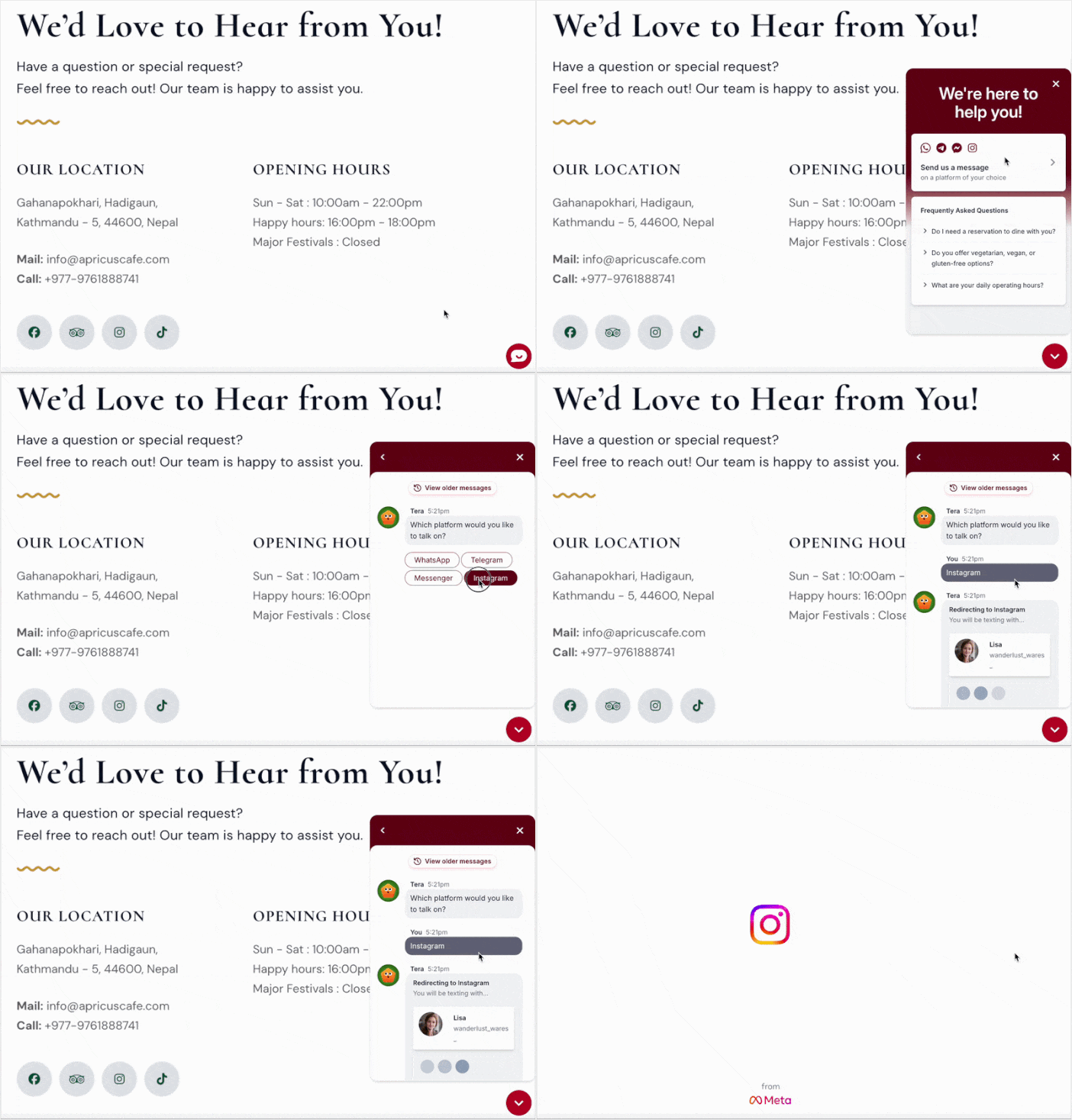
يضمن ربط روبوت المحادثة الخاص بك بهذه المنصات الاجتماعية أنك متاح دائمًا لجمهورك في المكان الذي يقضون فيه وقتهم بالفعل.
ما ستتمكن من القيام به بعد هذا البرنامج التعليمي
بنهاية هذا الدليل، ستتمكن من:
- الترحيب بكل زائر تلقائيًا برسالة ترحيب مخصصة
- تقديم ردود فورية على أسئلتك الأكثر شيوعًا - على مدار الساعة طوال أيام الأسبوع
- السماح للزوار بالاتصال مباشرة بتطبيق المراسلة الخاص بك إذا احتاجوا إلى مزيد من المساعدة
- التحكم بالضبط في مكان ووقت ظهور روبوت المحادثة على موقعك
- اختبار روبوت المحادثة الخاص بك قبل نشره حتى يعمل كل شيء بشكل مثالي
أسهل طريقة لإضافة روبوتات محادثة للرد التلقائي إلى WordPress
أسهل طريقة لإضافة روبوتات محادثة للرد التلقائي إلى WordPress هي باستخدام إضافة WPChat.
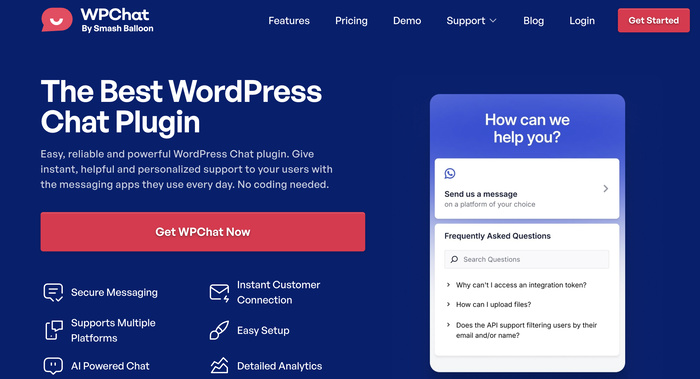
WPChat هي إضافة WordPress تربط موقعك بـ WhatsApp Business، مما يجعل إعداد محادثات الدردشة الآلية سهلاً للغاية.
أوصي بها لأنك تستطيع بناء نظام روبوت المحادثة بالكامل الخاص بك باستخدام واجهة بسيطة من نوع "انقر واسحب" مباشرة في لوحة تحكم WordPress الخاصة بك - لا حاجة إلى ترميز.
تم تصميم هذه الإضافة لجعل بناء روبوتات الدردشة للردود التلقائية أمرًا سهلاً للغاية:
- لا حاجة للبرمجة: قم بإعداد نظام روبوت الدردشة بالكامل من خلال واجهة بسيطة بنظام النقر والتحديد في لوحة تحكم ووردبريس الخاصة بك.
- تكامل الدردشة: للسماح للزوار بالوصول إليك، يمكنك ربط روبوتات الدردشة الخاصة بك بأكبر منصات المراسلة المتاحة - واتساب، تليجرام، انستجرام، وماسنجر.
- منشئ روبوتات دردشة سهل: قم بإنشاء تدفقات المحادثة عن طريق إضافة الأسئلة والأجوبة الشائعة وربطها ببعضها البعض.
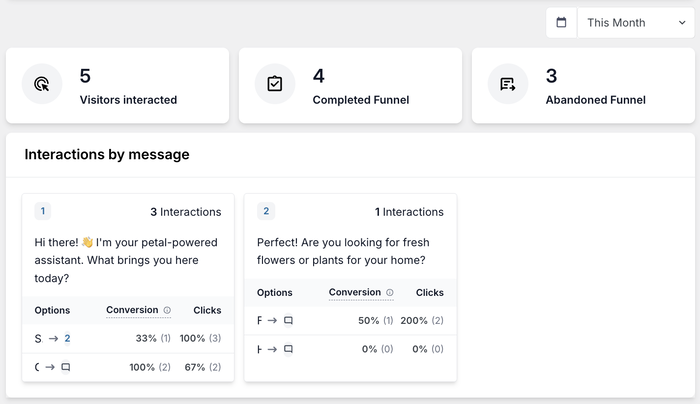
- تحليلات معمقة: احصل على رؤى مفصلة حول روبوت الدردشة الخاص بك حتى تتمكن من العثور على الأسئلة والمشكلات الشائعة التي يواجهها زوارك.
كيف يعمل:
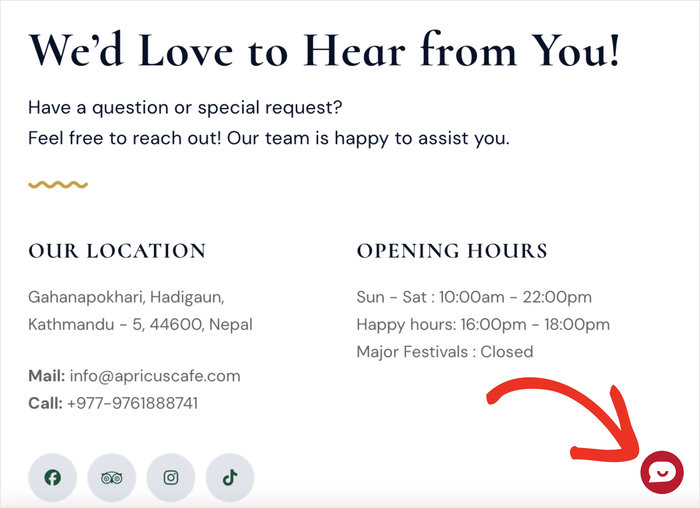
بمجرد تشغيل WPChat، يظهر رمز صغير عائم على موقعك. ينقر الزوار عليه لبدء الدردشة.
عندما يفتحون روبوت الدردشة، يمكنهم اختيار سؤال أو مشكلة من الخيارات، وتقوم الإضافة فورًا بعرض الإجابة التي أعددتها، مع المزيد من الخيارات.
إنها تجربة سلسة وموجهة تتعامل مع الاستفسارات الروتينية دون الحاجة إلى أن يكتب إنسان كلمة واحدة.
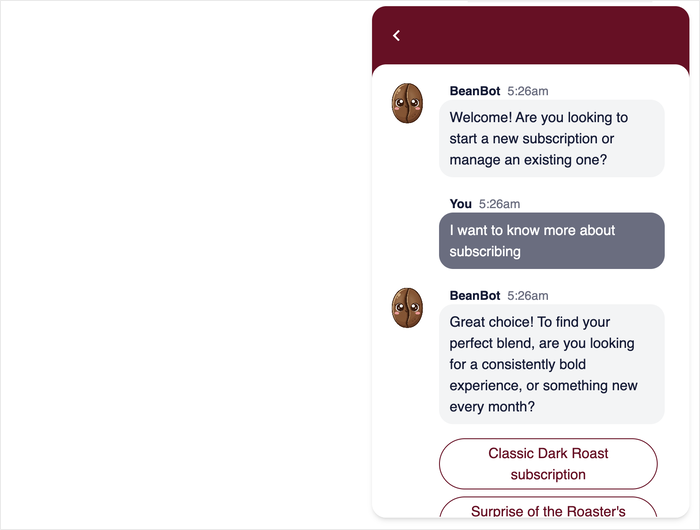
هل تفكر في السماح لروبوتات الدردشة بالتعامل مع بعض تفاعلات الزوار؟ احصل على نسختك من WPChat اليوم!
الطريقة 1: إنشاء روبوت دردشة للردود التلقائية باستخدام إضافة (الطريقة السهلة)
الآن سأرشدك خلال عملية إعداد روبوت الدردشة للردود التلقائية الخاص بك باستخدام WPChat.
ما عليك سوى المرور بكل خطوة على حدة، وستنتهي في غضون دقائق قليلة.
الخطوة 1: تثبيت وتفعيل WPChat
أولاً، ستحتاج إلى الحصول على WPChat من هنا وتنزيل الإضافة إلى جهاز الكمبيوتر الخاص بك.
بعد ذلك، قم بتسجيل الدخول إلى لوحة تحكم ووردبريس الخاصة بك وانتقل إلى الإضافات » إضافة إضافة.
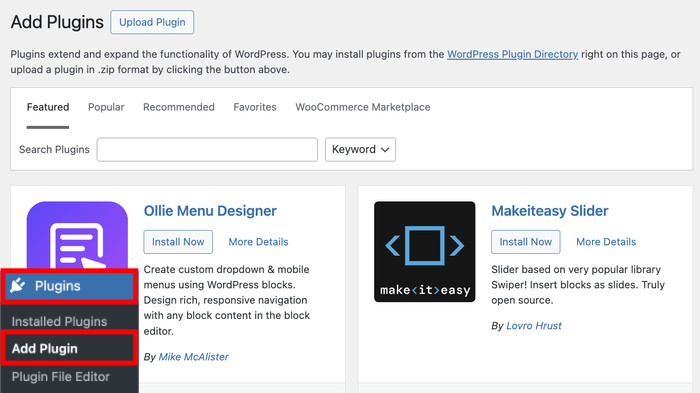
من هذه الصفحة، يمكنك تثبيت إضافات جديدة مستضافة على ووردبريس أو باستخدام ملف إضافة.
فقط انقر على زر تحميل إضافة في الأعلى واختر خيار اختيار ملف.
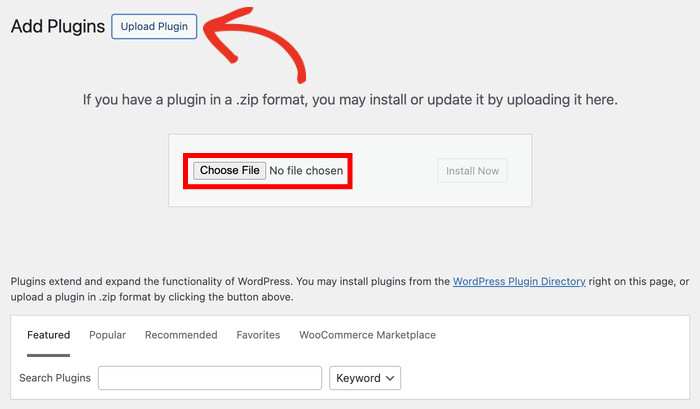
حدد ملف إضافة WPChat الذي قمت بتنزيله سابقًا.
بعد القيام بذلك، انقر على التثبيت الآن.
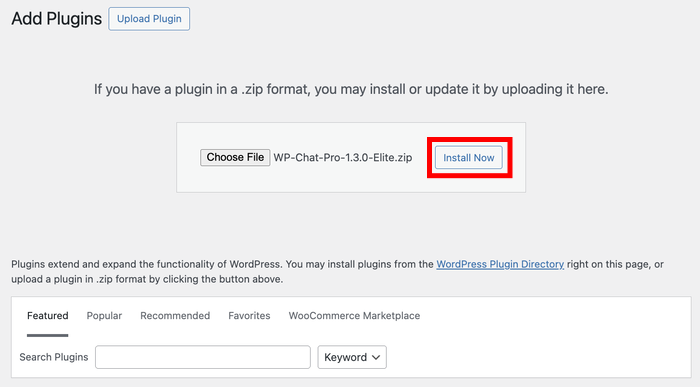
امنح موقعك بضع ثوانٍ لتثبيت الإضافة. WPChat خفيف جدًا، لذا يجب أن يتم ذلك بسرعة.
أخيرًا، يمكنك النقر على تفعيل الإضافة بمجرد انتهاء التثبيت.
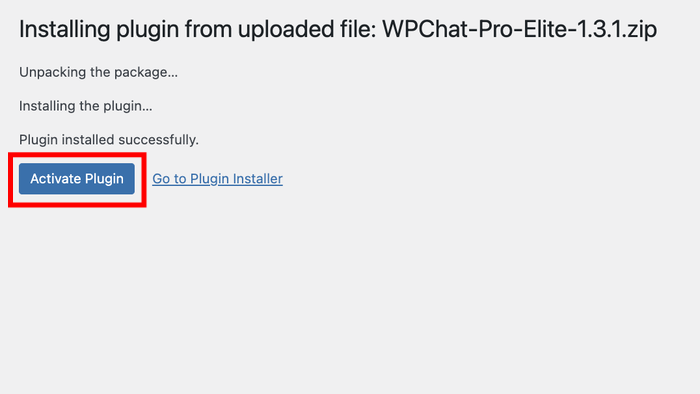
بمجرد التفعيل، يجب أن ترى عنصر قائمة جديد باسم WPChat يظهر في قائمة التنقل اليسرى داخل لوحة تحكم ووردبريس.
الخطوة 2: إعداد روبوت الدردشة الخاص بك
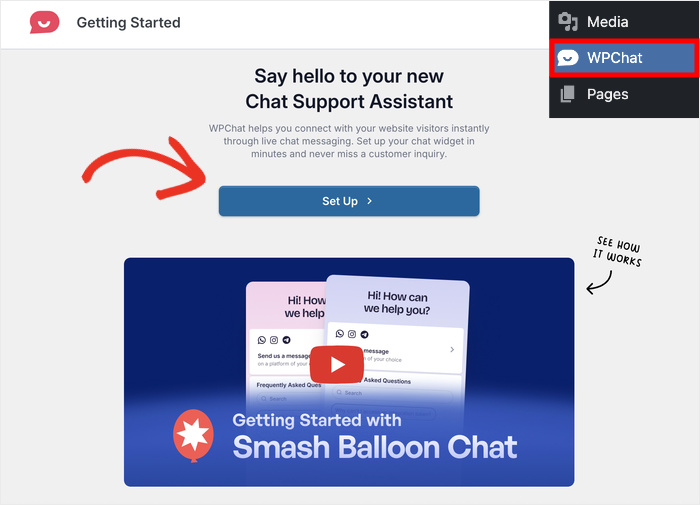
ابدأ بالنقر على قائمة WPChat في لوحة تحكم ووردبريس الخاصة بك. سينقلك هذا إلى منطقة إعدادات الإضافة الرئيسية.
بعد ذلك، حدد خيار الإعداد لبدء معالج التكوين.
في الصفحة التالية، يمكنك ربط روبوت الدردشة هذا بتطبيقات مراسلة مختلفة.
بهذه الطريقة، يمكن للزوار النقر على زر للدردشة مع شخص حقيقي مباشرة على واتساب، ماسنجر، انستجرام، أو تليجرام.
قبل ربط أي شيء، إليك نظرة سريعة على منصات المراسلة التي يدعمها WPChat:
| تطبيق المراسلة | الأفضل لـ |
|---|---|
| واتساب | الشركات الصغيرة ذات العملاء الذين يفضلون الهواتف المحمولة |
| فيسبوك ماسنجر | الشركات التي لديها صفحة نشطة على فيسبوك |
| تليجرام | الجماهير المتمرسة تقنيًا والزوار الدوليون |
| إنستغرام | الشركات التي لديها حضور نشط على إنستغرام |
يتعامل روبوت الدردشة الخاص بك مع الأسئلة الروتينية تلقائيًا، ولكن هناك دائمًا خيار للزوار للتواصل مع شخص حقيقي إذا احتاجوا إلى ذلك.
أدخل معلومات الاتصال لتطبيقات المراسلة التي تريد ربطها.
بالنسبة لـ فيسبوك و إنستغرام، إنه اسم المستخدم الخاص بك. يمكنك أيضًا استخدام رقم هاتف لـ واتساب و تيليجرام.
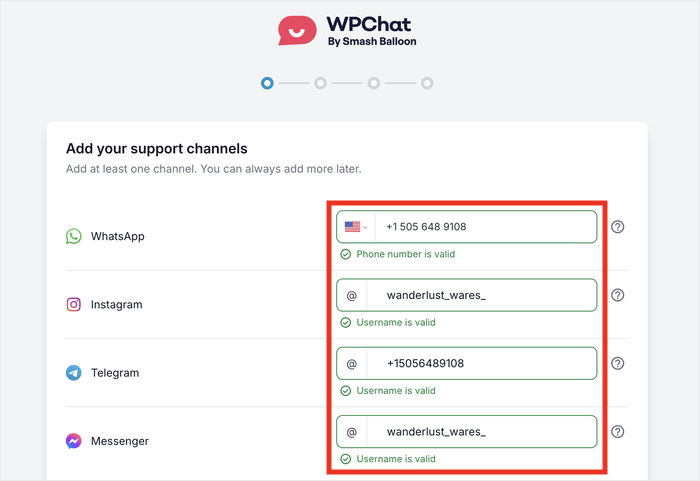
لا حاجة للاتصال بكل هذه التطبيقات - فقط أدخل التفاصيل الخاصة بالمنصات التي تستخدمها بالفعل.
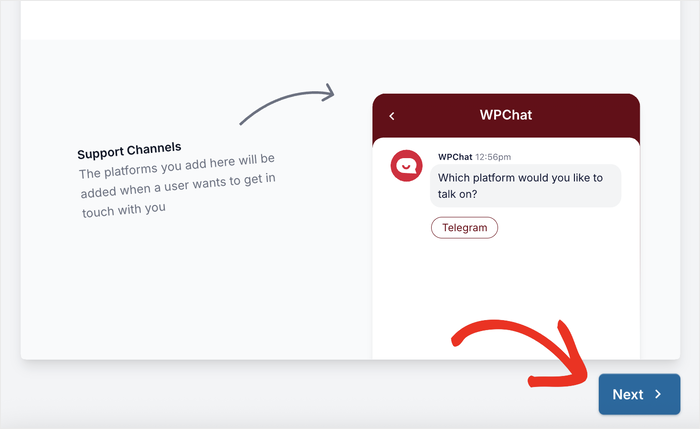
بعد إدخال المعلومات، قم بالتمرير لأسفل وانقر على التالي.
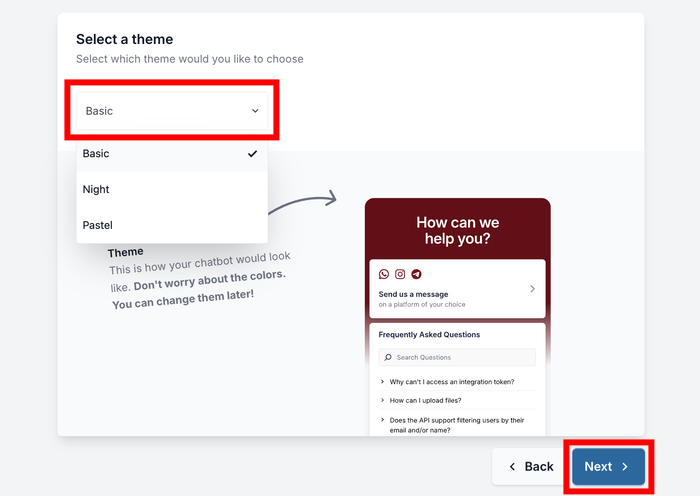
الآن ستختار سمة لعناصر واجهة الدردشة الخاصة بك، والتي تحدد كيفية ظهور زر روبوت الدردشة على موقعك.
استخدم القائمة المنسدلة لاختيار سمة تتناسب مع ألوان علامتك التجارية وتصميم موقعك.
انقر على التالي مرة أخرى للمتابعة.
تعيين خيارات رؤية روبوت الدردشة
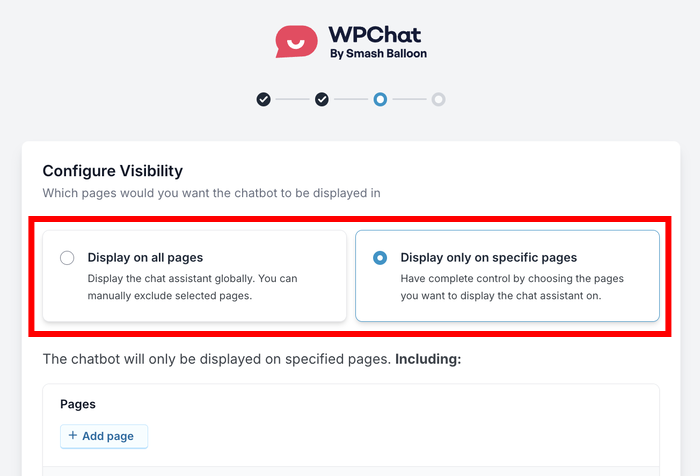
يعد الحصول على رؤية روبوت الدردشة بشكل صحيح أحد أهم القرارات التي ستتخذها عند إعداد روبوت الدردشة الخاص بك.
إذا ظهر في كل صفحة، فقد يبدو مزعجًا ويشتت انتباه الزوار. ولكن إذا كان مخفيًا في العديد من الصفحات، فهو لا يؤدي وظيفته على الإطلاق.
يمنحك WPChat تحكمًا كاملاً في هذا من خلال طريقتين لإعداد الرؤية:
- عرض على جميع الصفحات
- العرض على صفحات محددة فقط
إذا كنت تريد المزيد من التحكم، فاستخدم المرشحات لتضمين أو استبعاد صفحات وعلامات وفئات وأنواع منشورات مخصصة محددة.
يضمن هذا ظهور روبوت الدردشة الخاص بك فقط حيث يكون منطقيًا لزوارك.
بعد إعداد المرشحات، انقر على التالي مرة أخرى.
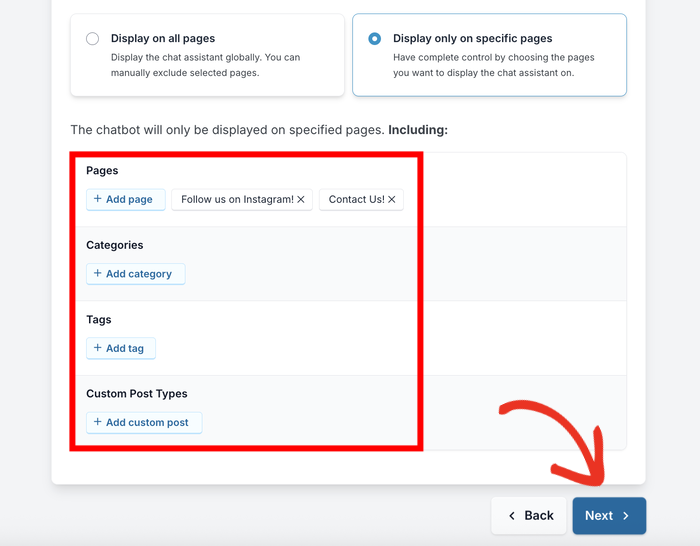
بالنسبة لمعظم مواقع الأعمال الصغيرة، أود أن أقول ضع روبوت الدردشة على صفحاتك الرئيسية وصفحات الاتصال وصفحات التسعير.
هذه هي الأماكن التي غالبًا ما يطرح فيها الزوار أسئلة، وحيث يمكن أن يحدث استجابة سريعة ومفيدة تأثيرًا حقيقيًا.
الآن، يمكنك إدخال مفتاح ترخيص WPChat الخاص بك في الحقل. يمكنك العثور على هذا المفتاح في لوحة تحكم حساب WPChat الخاص بك هنا.
أخيرًا، انقر على إكمال الإعداد لإنهاء التكوين الأولي.
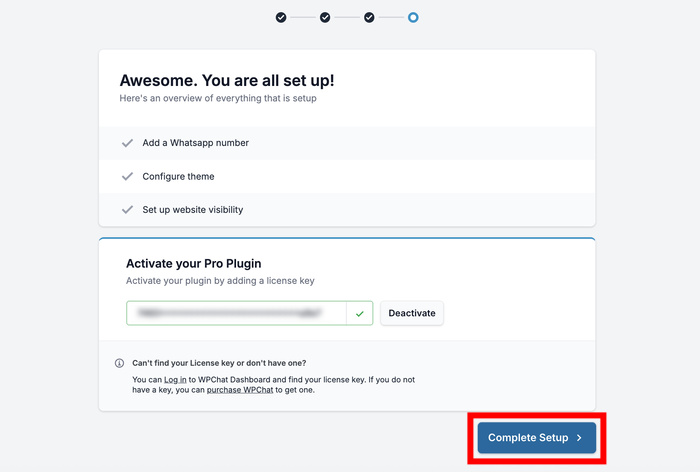
أصبح عنصر واجهة روبوت الدردشة الخاص بك نشطًا الآن على موقعك، على الرغم من أنك لا تزال بحاجة إلى إعداد الردود الآلية
الخطوة 3: إعداد ردود روبوت الدردشة
حان الوقت الآن لإنشاء تدفق المحادثة الآلي الذي سيستجيب لزوارك.
لتسهيل الأمر عليك، يأتي WPChat مع ميزة مسارات الدردشة.
كيف تعمل مسارات الدردشة
فكر في مسارات الدردشة في WPChat ككتاب رقمي "اختر مغامرتك الخاصة" لزوارك. إليك كيف يعمل:
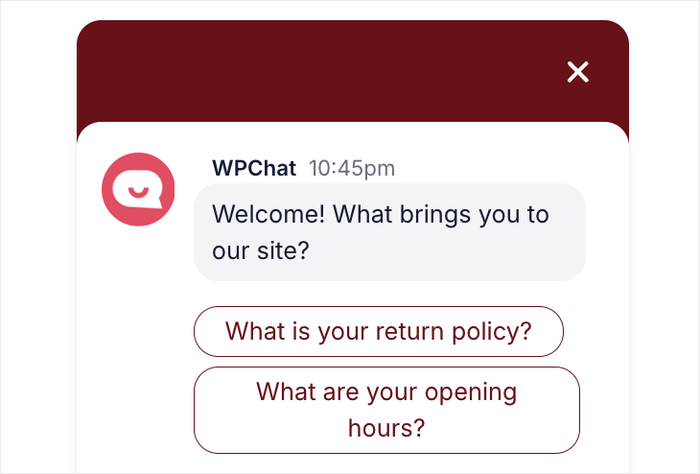
1. إعداد رسالة ترحيب
تبدأ بإنشاء تحية تلقائية، مثل "كيف يمكننا مساعدتك اليوم؟" هذا هو أول شيء يراه الزائر عند فتح الدردشة.
2. امنح الزوار خيارات
أسفل رسالة الترحيب الخاصة بك، يمكنك إضافة أزرار قابلة للنقر. على سبيل المثال، يمكنك منحهم خيارين:
- الخيار الأول: "لدي سؤال حول المبيعات."
- الخيار الثاني: "أحتاج إلى دعم فني."
3. ربط الردود
هذا هو جزء "القمع". لكل خيار، تختار إلى أين يذهب الزائر بعد ذلك:
- إلى رسالة أخرى: إذا نقروا على "الأسعار"، يرسل الروبوت فورًا رسالة جديدة بقائمة الأسعار الخاصة بك وخيارين إضافيين (مثل "شهري" أو "سنوي").
- إلى رعاية العملاء: إذا لم يتمكن الروبوت من حل المشكلة، يمكنك تعيين الزر النهائي لتنبيه شخص حقيقي للتدخل وتولي الأمر.
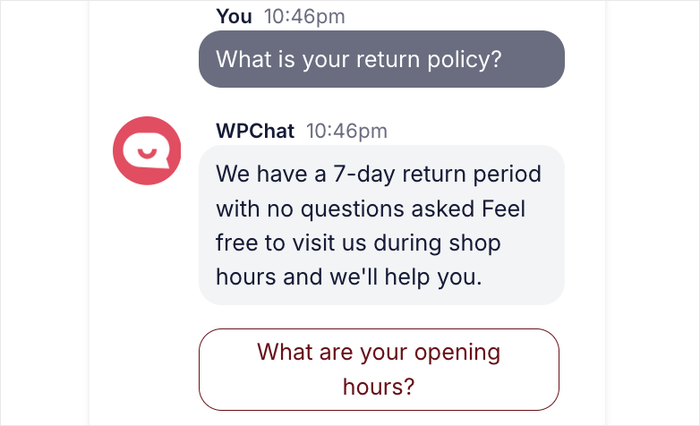
يمكنك إنشاء المزيد من الرسائل مثل هذه وإعداد محادثات كاملة مسبقًا لزوار موقعك.
هل أنت مستعد لتجربة إعداد الردود التلقائية لزوارك؟
انتقل إلى WPChat » Chat Funnels في لوحة تحكم WordPress الخاصة بك وانقر على New Funnel.
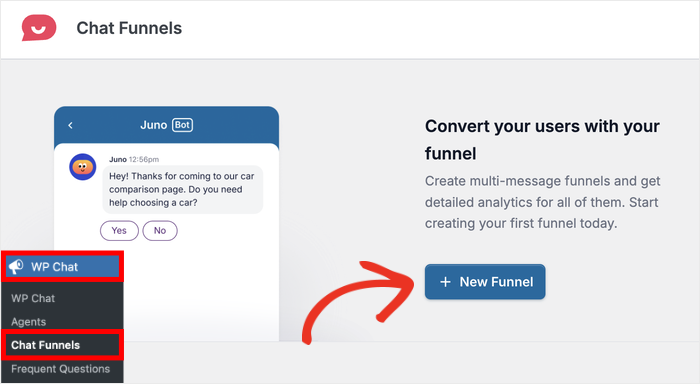
يفتح هذا منشئ القمع، حيث ستقوم بتصميم حوار روبوت الدردشة الخاص بك.
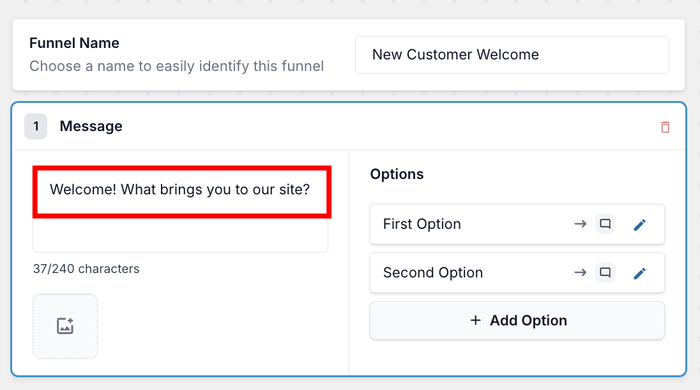
أدخل اسمًا وصفيًا في حقل "اسم القمع" (Funnel Name)، مثل "دعم العملاء" أو "استفسار عن المنتج".
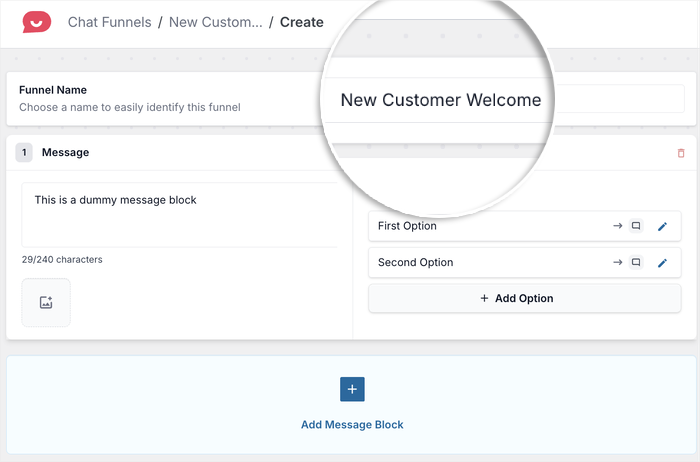
بعد ذلك، أدخل الرسالة الأولى التي سيرسلها روبوت الدردشة الخاص بك إلى الزوار.
فكر في رسالة مقدمة روبوت الدردشة الخاصة بك مثل التحية عند الباب الأمامي لمتجرك. تريدها أن تكون ودودة وواضحة ومفيدة على الفور.
لست متأكدًا مما تكتب؟ إليك ثلاثة أمثلة يمكنك نسخها ولصقها، اعتمادًا على نوع موقعك الإلكتروني:
| نوع الموقع | مثال لرسالة مقدمة |
|---|---|
| عمل تجاري صغير / خدمة | "👋 مرحبًا! مرحبًا بك في [اسم عملك]. هل لديك سؤال؟ اسألني أي شيء - أنا هنا على مدار الساعة طوال أيام الأسبوع!" |
| تجارة إلكترونية / متجر عبر الإنترنت | "👋 مرحبًا! هل تبحث عن شيء معين؟ اسألني عن المنتجات أو الشحن أو المرتجعات." |
| مدونة / موقع محتوى | "مرحبًا! 👋 هل تبحث عن شيء ما؟ يمكنني مساعدتك في العثور على المقالة المناسبة أو الإجابة على أسئلتك." |
لا تتردد في استبدال اسم عملك الخاص وتعديل الصياغة لتتناسب مع شخصية علامتك التجارية.
بمجرد أن تستقر على رسالة، أدخلها أسفل خيار Message.
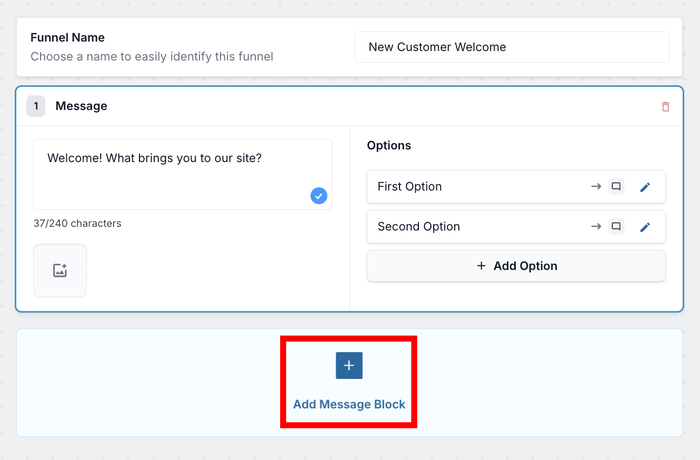
انقر على زر Add Message لإنشاء رسالتك الثانية.
يمكن أن يكون هذا سؤال متابعة أو يقدم خيارات للزوار للاختيار من بينها.
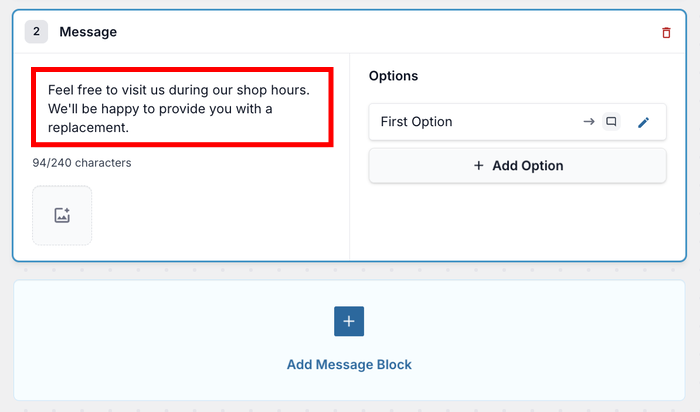
كما في السابق، أدخل نص رسالتك الثانية.
في هذا المثال، أستخدم الرسالة الثانية للإجابة على سؤال حول استبدال المنتجات.
لا تقلق - سنقوم بإعداد ردود الزوار التي ستوجههم إلى هذه الرسالة في الخطوة التالية.
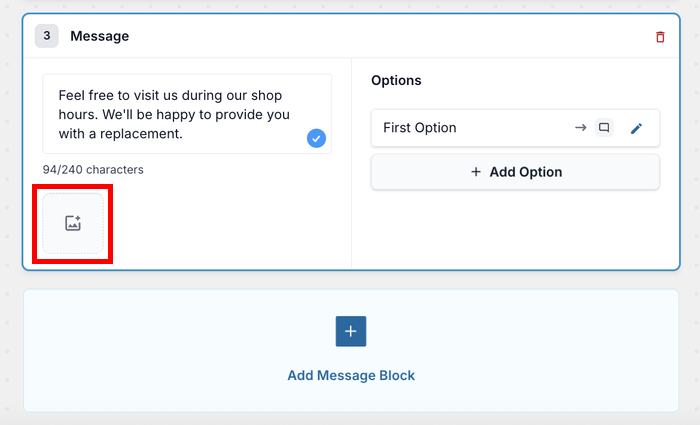
إذا كنت ترغب في جعل روبوت الدردشة الخاص بك أكثر جاذبية، فانقر فوق أيقونة الصورة وقم بتحميل صورة.
يمكن أن يؤدي إضافة صور مثل صور المنتجات أو الرسوم البيانية المفيدة إلى جعل الردود أكثر وضوحًا واحترافية.
الخطوة 4: ربط الردود المختلفة معًا
هنا نقوم بإنشاء ردود يمكن لزوارك تحديدها. يمكنك بعد ذلك ربط رد برسالة أخرى.
لذلك، إذا اختار الزائر "أريد معرفة خطط التسعير"، يمكنك ربطها بالرسالة التي تشرح خيارات التسعير الخاصة بك.
أولاً، انقر فوق أيقونة تحرير بجوار خيار الرد في مسارك.
أدخل النص لخيار الرد الذي سيراه الزوار. اجعله واضحًا وموجهًا نحو اتخاذ إجراء، مثل "التحقق من حالة الطلب" أو "طلب عرض أسعار".
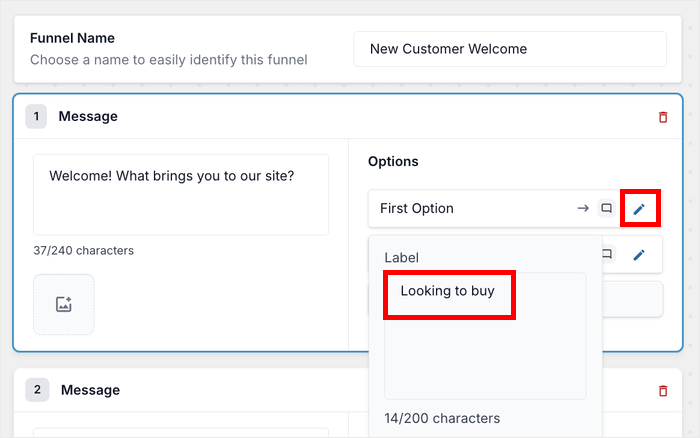
بعد ذلك، يمكنك استخدام القائمة المنسدلة لتحديد المكان الذي سيؤدي إليه الرد.
يمكنك توجيه الزوار إلى رسالة أخرى، أو صفحة معينة على موقعك، أو حتى ربطهم بوكيل مباشر.
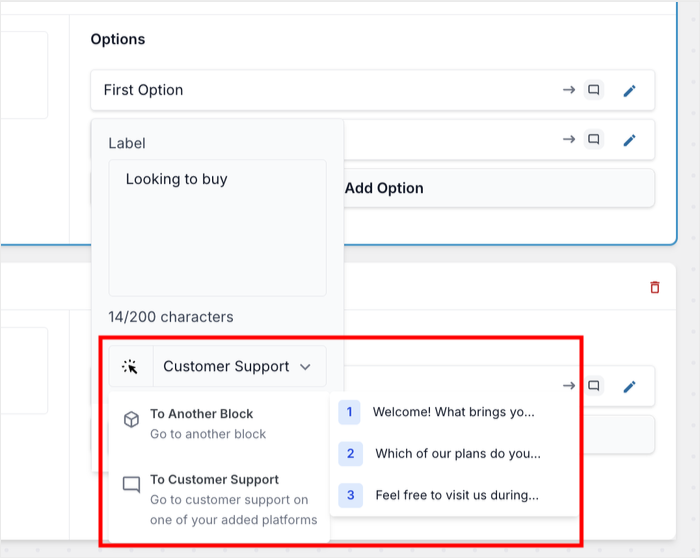
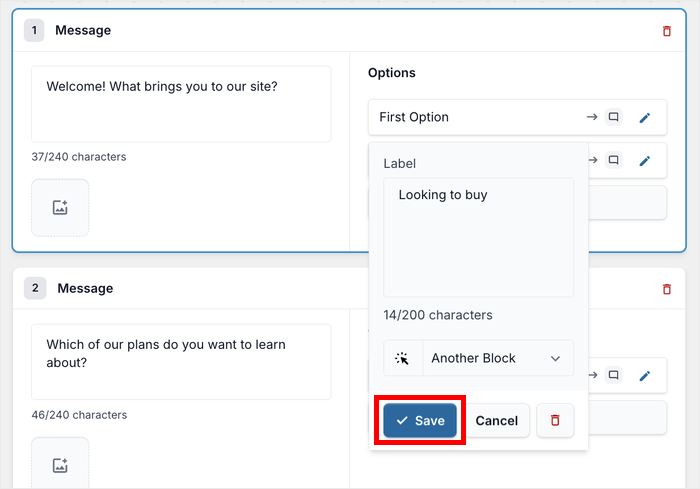
بعد اختيار المكان الذي سيؤدي إليه هذا الرد، انقر فوق حفظ لتخزين تغييراتك.
بهذه الطريقة، يتم إنشاء الاتصال بين الرسائل بشكل صحيح.
يمكنك تكرار هذه الخطوات لإضافة المزيد من خيارات الرد والرسائل.
لمساعدتك على البدء، إليك أربعة أسئلة واقعية يمكنك تكييفها لروبوت الدردشة الخاص بك:
| إذا اختار الزائر... | يجب أن يقول ردك التلقائي... |
|---|---|
| "ما هي أسعاركم؟" | "تبدأ خططنا من X دولار شهريًا. يمكنك الاطلاع على الأسعار الكاملة هنا: [رابط لصفحة الأسعار]. هل هناك أي شيء آخر يمكنني مساعدتك به؟" |
| "ما هي ساعات عملكم؟" | "نحن نعمل من الاثنين إلى الجمعة، من 9 صباحًا إلى 5 مساءً بتوقيت شرق الولايات المتحدة. خارج هذه الساعات؟ اترك رسالة، وسنرد في أسرع وقت ممكن! هل لديك أي أسئلة أخرى؟" |
| "كيف يمكنني التواصل معكم؟" | "يمكنك التواصل معنا عبر [البريد الإلكتروني] أو الاتصال بنا على [رقم الهاتف]. عادةً ما نرد في غضون 24 ساعة. هل يمكنني مساعدتك في أي شيء آخر؟" |
| "ما هي سياسة الإرجاع الخاصة بكم؟" | "لدينا سياسة إرجاع خالية من المتاعب لمدة 30 يومًا. اعرف المزيد هنا: [رابط لصفحة سياسة الإرجاع]. هل هناك أي شيء آخر تود معرفته؟" |
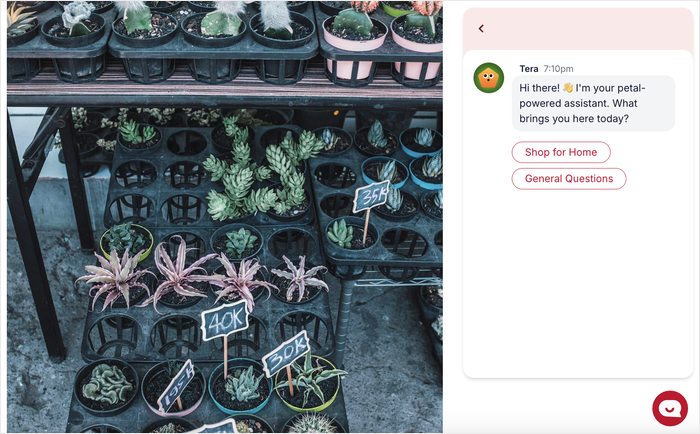
تذكر التحقق من المعاينة المباشرة على الجانب الأيمن من شاشتك.
يعرض لك هذا بالضبط كيف سيختبر الزوار تدفق المحادثة، مما يساعدك على اكتشاف أي أجزاء مربكة.
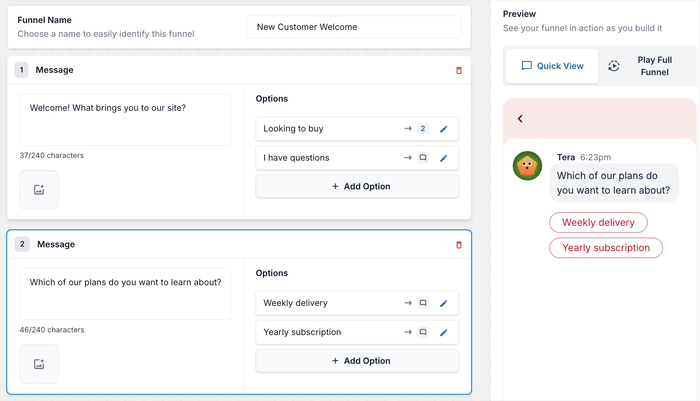
بمجرد رضاك عن كيفية اتصال كل شيء، انقر فوق حفظ التغييرات.
الخطوة 5: تحديد خيارات الرؤية لروبوت المحادثة
الخطوة الأخيرة هي التحكم في المكان الذي سيظهر فيه تدفق المحادثة الذي أنشأته للتو على موقعك.
بهذه الطريقة، يمكنك تخصيص الردود التلقائية لصفحات معينة، ثم إنشاء تدفقات محادثة جديدة لأجزاء أخرى من موقعك.
استخدم خيارات التصفية لتحديد الصفحات والفئات والعلامات وأنواع المنشورات المخصصة المحددة التي تريد ظهور روبوت الدردشة فيها.
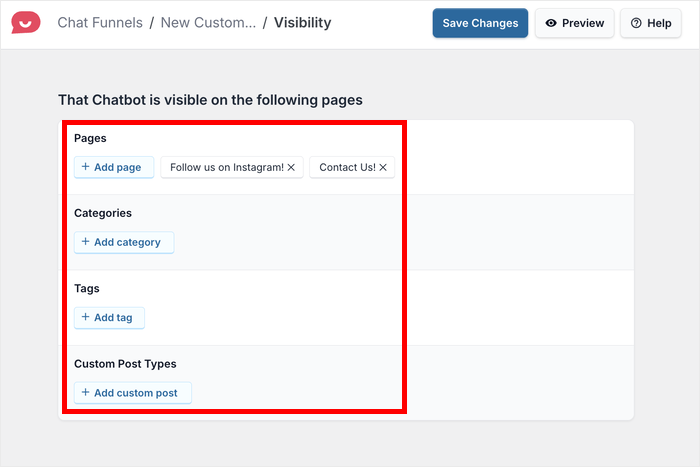
على سبيل المثال، قد ترغب في ظهوره على صفحات المنتجات ولكن ليس على منشورات مدونتك.
أوصي بالبدء بالصفحات ذات الزيارات العالية مثل صفحتك الرئيسية وصفحة الاتصال وصفحات المنتجات.
أخيرًا، انقر على حفظ التغييرات لتطبيق إعدادات الرؤية الخاصة بك. تم الآن تكوين روبوت الدردشة للرد التلقائي الخاص بك بالكامل ويعمل على موقع ووردبريس الخاص بك.
نصائح لتحقيق أقصى استفادة من روبوت المحادثة الخاص بموقعك
الآن بعد أن أصبح روبوت الدردشة للرد التلقائي الخاص بك جاهزًا ويعمل، سترغب في تحسينه باستمرار بناءً على تفاعلات الزوار الحقيقية.
توفر WPChat أدوات تحليل تساعدك على فهم كيفية استخدام الأشخاص لروبوت الدردشة الخاص بك.
فيما يلي بعض أفضل الممارسات لتحقيق أقصى استفادة من روبوت الدردشة الخاص بك:
- راجع سجلات الدردشة الخاصة بك بانتظام لمعرفة الأسئلة التي يتم طرحها بشكل متكرر، ثم أضف أو حسّن الردود الآلية للتعامل معها بشكل أفضل.
- يفضل الزوار الردود السريعة والقابلة للمسح الضوئي بدلاً من الفقرات الطويلة، لذا قم بتقسيم المعلومات المعقدة إلى رسائل قصيرة متعددة.
- مع تغير عملك أو ظهور أسئلة جديدة، قم بتعديل ردود روبوت الدردشة الخاص بك لتبقى محدثة وذات صلة.
- قم بالمرور بانتظام على تدفق المحادثة بأكمله بنفسك لتحديد أي مسارات مربكة أو روابط معطلة.
الطريقة 2: تعديل ملفات السمة يدويًا (الطريقة الصعبة)
يمكنك لصق نصوص روبوت الدردشة مباشرة في ملفات رأس ووردبريس الخاصة بك، ولكن خطأ مطبعي واحد يمكن أن يعطل موقعك بالكامل.
للقيام بذلك بأمان، يجب عليك إنشاء سمة فرعية أولاً حتى لا تؤدي تحديثات ووردبريس المستقبلية إلى محو كود روبوت الدردشة الخاص بك بالكامل.
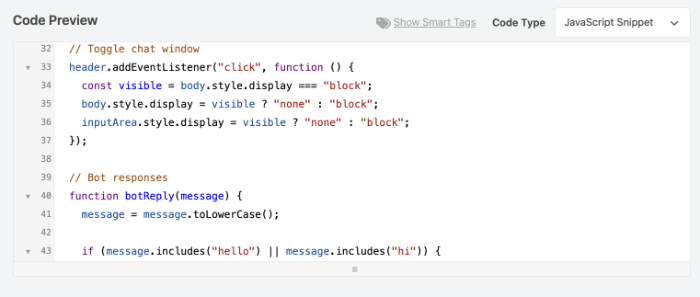
حتى مع وجود سمة فرعية، أريد أن أحذرك من أنه من السهل للغاية حذف قطعة حيوية من PHP عن طريق الخطأ أثناء تحرير هذه الملفات، مما قد يؤدي إلى قفل موقعك بالكامل.
بسبب هذا الخطر الكبير، لا أوصي بهذه الطريقة اليدوية إلا إذا كنت مطورًا متمرسًا تشعر بالراحة التامة في استكشاف أخطاء الخادم وإصلاحها.
الخاتمة
إعداد روبوت دردشة للرد التلقائي لموقعك لا يجب أن يكون معقدًا أو مكلفًا.
مع WPChat، يمكنك إنشاء نظام روبوت دردشة احترافي في خطوات بسيطة فقط دون كتابة أي كود.
هذا يعني أنه يمكنك أخيرًا التوقف عن القلق بشأن فقدان استفسارات العملاء المهمة والتركيز على تنمية عملك.
هل أنت مستعد لتحويل موقعك الإلكتروني باستخدام روبوت دردشة؟ ابدأ مع WPChat اليوم!
هل تريد جعل روبوتات الدردشة الخاصة بك أكثر جاذبية؟ تحقق من دليل المبتدئين الخاص بنا حول تخصيص مساعد الدردشة الخاص بك.