
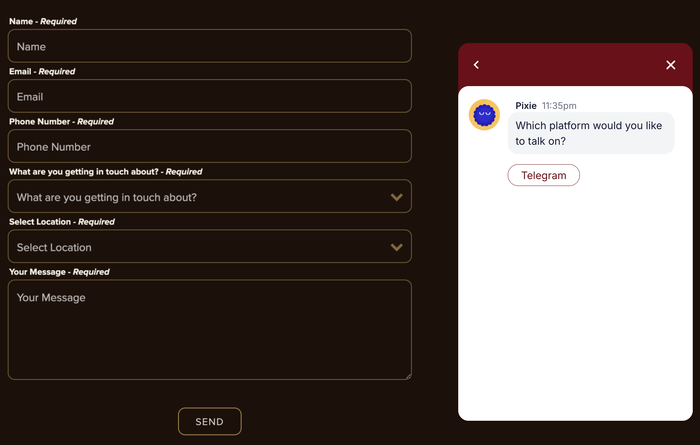
La plupart des visiteurs qui souhaitent vous joindre sur Telegram ne chercheront pas votre nom d'utilisateur. Ils partiront tout simplement.
J'ai déjà configuré cela sur des sites WordPress et la différence est immédiate : une fois qu'un bouton de chat Telegram approprié est présent sur la page, les visiteurs l'utilisent réellement. Sans cela, ils font défiler et partent.
Dans ce guide, je vais vous expliquer comment connecter votre site Web WordPress à Telegram en utilisant WPChat, le plugin WordPress click-to-chat de Smash Balloon.
La configuration prend environ 5 minutes et ne nécessite aucun codage.
Une chose à savoir avant de commencer : WPChat n'est pas un outil de chat en direct dans le tableau de bord. Il n'y a pas de boîte de réception à gérer et pas de tickets à enregistrer.
Lorsqu'un visiteur clique sur le bouton de chat de votre site, cela ouvre une conversation Telegram dans l'application qu'il utilise déjà. La conversation se déroule là où il se trouve déjà.
Dans cet article :
- Comment connecter WordPress à Telegram : La réponse rapide
- 2 Façons de Connecter WordPress à Telegram
- Comment Telegram peut aider votre entreprise à se développer
- Pourquoi WPChat est le meilleur moyen de se connecter à Telegram
- Comment connecter les sites Web WordPress à votre Telegram
- WPChat vs. Autres moyens de connecter WordPress à Telegram
- Questions Fréquemment Posées sur la Connexion de WordPress à Telegram
- Commencez à Recevoir des Conversations Telegram Dès Maintenant
Comment connecter WordPress à Telegram : La réponse rapide
WPChat est un plugin WordPress gratuit qui ajoute un widget de chat en direct à votre site Web, permettant aux visiteurs de vous contacter via des applications de messagerie comme Telegram. Voici le processus complet en un coup d'œil :
- Installez le plugin WPChat et activez-le sur votre site.
- Accédez aux paramètres WPChat dans votre tableau de bord WordPress.
- Sélectionnez Telegram comme canal et entrez votre numéro Telegram.
- Personnalisez l'apparence, la position, la couleur et les règles d'affichage du widget.
- Cliquez sur Enregistrer les modifications et testez le widget sur votre site en direct.
2 Façons de Connecter WordPress à Telegram
Avant de commencer, il est bon de savoir que « connecter WordPress à Telegram » signifie deux choses très différentes selon ce que vous essayez de faire.
| WPChat (Recommandé) | Plugin WP Telegram | |
|---|---|---|
| Qu'est-ce que cela fait ? | Ajoute un bouton de chat pour que les visiteurs puissent vous envoyer des messages en direct sur Telegram | Publie automatiquement du contenu et envoie des alertes d'administration à un canal Telegram |
| Les visiteurs peuvent-ils vous joindre directement ? | Oui. Un clic ouvre une conversation Telegram en direct | Non, unidirectionnel uniquement |
| Avez-vous besoin de créer un bot Telegram ? | Non. Juste votre numéro de téléphone ou votre nom d'utilisateur | Oui, nécessite la configuration de BotFather |
| Le codage est-il requis ? | Non | Non |
| Temps d'installation | Environ 5 minutes | 15-30 minutes |
| Idéal pour | Tout site qui souhaite que les visiteurs puissent vous joindre directement sur Telegram | Blogs ou boutiques qui souhaitent diffuser des publications ou recevoir des notifications d'administration |
Si vous souhaitez que les visiteurs puissent vous joindre directement depuis votre site, WPChat est ce dont vous avez besoin. Le plugin WP Telegram est un outil solide mais il est conçu pour la diffusion et l'automatisation, pas pour les conversations directes avec les visiteurs.
Le reste de ce guide couvre la configuration de WPChat.
Comment Telegram peut aider votre entreprise à se développer
Telegram peut être un outil étonnamment puissant pour les entreprises qui cherchent à se connecter avec leur public en temps réel.
En fait, voici quelques exemples pour montrer comment l'ajout d'une option de chat Telegram aide votre marque :
- Sûr et sécurisé : Telegram utilise un cryptage puissant pour toutes vos conversations, vous aidant à établir la confiance et à respecter les réglementations en matière de confidentialité.
- Populaire à l'étranger : Avec plus de 900 millions d'utilisateurs dans le monde, Telegram vous aide à atteindre des clients internationaux qui préfèrent cette plateforme à l'e-mail ou à d'autres applications de messagerie.
- Pièces jointes volumineuses : Les clients peuvent partager des captures d'écran de leurs problèmes et des fichiers jusqu'à 2 Go, vous permettant de discuter sans vous soucier des tailles de téléchargement.
- Vous permet de faire un suivi : Chaque conversation est enregistrée dans votre historique de chat, vous pouvez donc facilement référencer les discussions passées et faire un suivi avec les clients pour conclure des ventes ou fournir un meilleur support.
De plus, les notifications Telegram sont instantanées. Vous saurez au moment où un client vous contacte, ce qui vous permettra de répondre rapidement et de lui montrer que vous êtes disponible lorsqu'il a besoin d'aide.
Pourquoi WPChat est le meilleur moyen de se connecter à Telegram
Vous pourriez simplement partager votre nom d'utilisateur Telegram sur votre site Web, mais cette approche a un inconvénient majeur.
Les visiteurs doivent vous rechercher manuellement sur Telegram, ce qui crée des frictions inutiles et entraîne souvent des connexions perdues.
Je recommande d'utiliser WPChat car il élimine complètement ce problème.
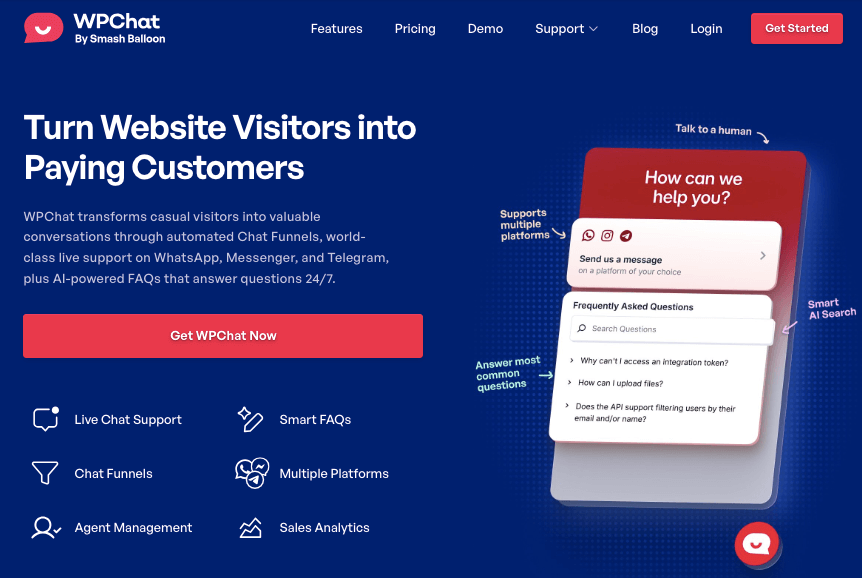
WPChat vous permet de créer un widget de chat professionnel qui s'affiche sur votre site WordPress, permettant ainsi à vos visiteurs d'engager facilement une conversation.
Le widget prend en charge Telegram, Facebook Messenger, Instagram et WhatsApp, vous permettant ainsi de contacter vos clients sur leur plateforme préférée.
Au-delà de la connexion de base, WPChat inclut des fonctionnalités qui rendent la communication client plus efficace :
- Ajouter des FAQ : Affichez les questions et réponses courantes directement dans votre widget de chat, aidant ainsi les visiteurs à trouver des informations instantanément sans attendre de réponse.
- Réponses automatiques avec Chat Funnels : Configurez des réponses automatisées qui guident les clients à travers les questions courantes ou les dirigent vers le bon service en fonction de leurs besoins.
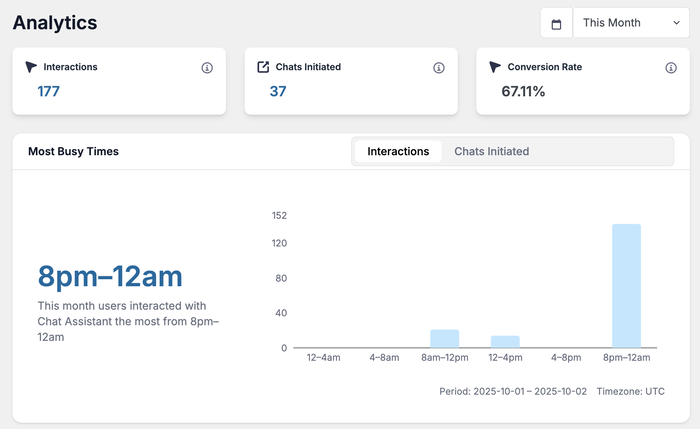
- Obtenez des analyses approfondies : Suivez le nombre de personnes utilisant votre widget de chat, les pages qui génèrent le plus de conversations et les moments où votre activité de contact est la plus intense.
- Conçu pour le travail d'équipe : Créez des agents distincts pour les différents membres de votre équipe de support afin que les clients puissent toujours joindre la bonne personne pour leur question.
- Personnalisation puissante : Utilisez des thèmes et un éditeur en direct pour personnaliser votre widget Telegram afin qu'il corresponde aux couleurs et au style de votre marque sans toucher au code.
Comment fonctionne un widget Telegram WPChat
Lorsqu'un visiteur ouvre votre site Web, il verra un bouton flottant dans le coin. Vous pouvez contrôler les parties de votre site Web où ce bouton apparaît.
Cliquer sur le bouton ouvrira un widget qui affiche les moyens de discuter avec vous. Vous pouvez également choisir d'afficher les FAQ ici si vous le souhaitez.
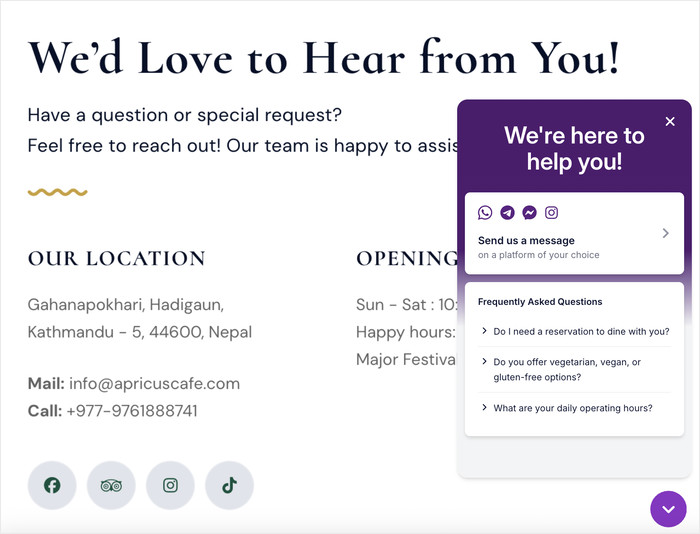
Pour continuer, ils peuvent simplement sélectionner Telegram parmi les options de chat du widget.
Après cela, WPChat les redirigera vers le chat Telegram, où ils pourront immédiatement commencer à taper et à envoyer des messages.
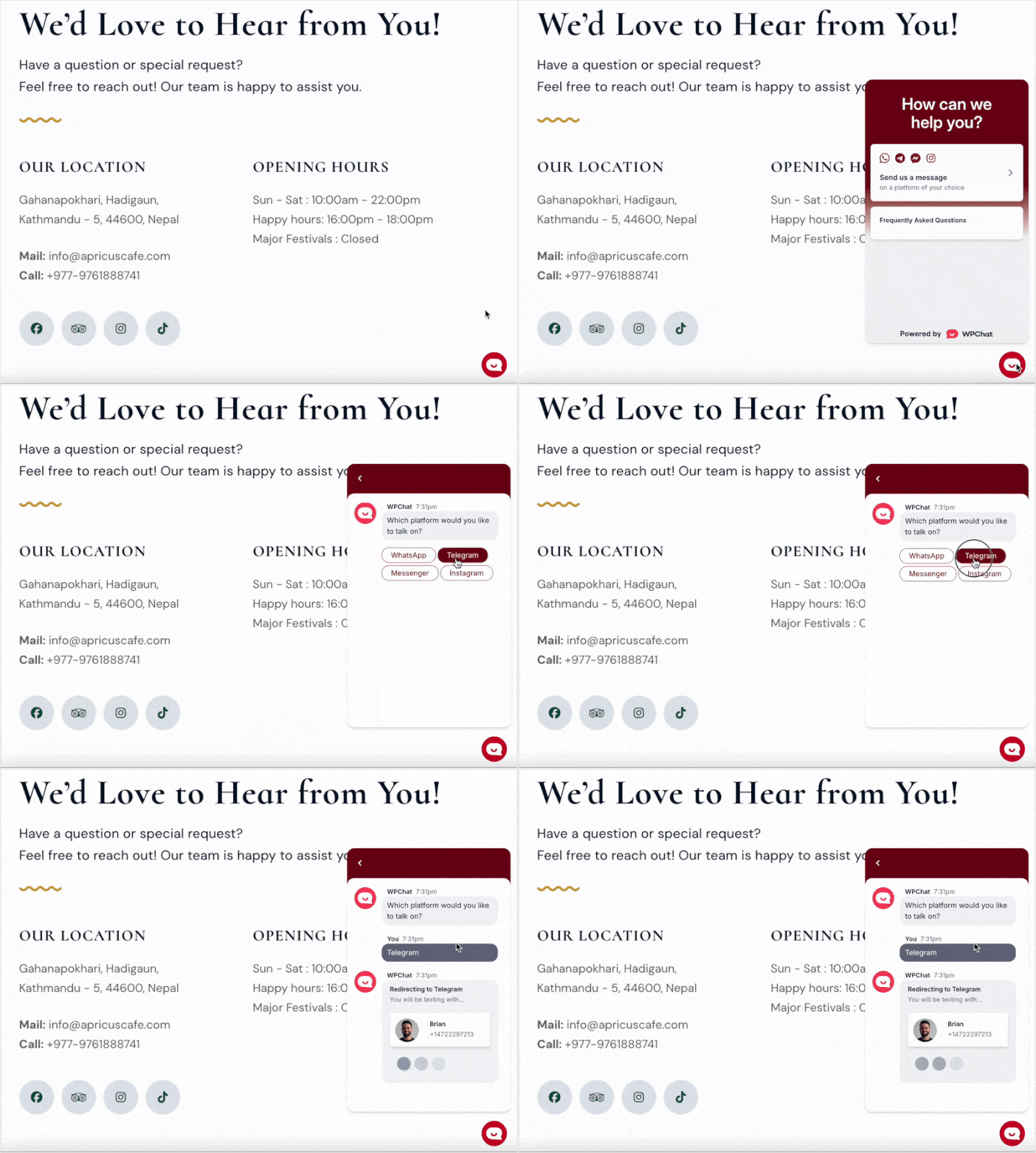
Comme vous pouvez le constater, cela vous permet d'ajouter une fonctionnalité de chat tout en garantissant que votre site reste léger et sécurisé.
WPChat transforme essentiellement votre site Web en un centre de communication professionnel. Au lieu d'espérer que les visiteurs vous trouvent sur Telegram, vous leur présentez la connexion directement.
Procurez-vous votre copie de WPChat ici et commencez à communiquer avec vos visiteurs dès aujourd'hui !
Comment connecter les sites Web WordPress à votre Telegram
Maintenant que vous comprenez pourquoi Telegram et WPChat peuvent être précieux pour votre entreprise, laissez-moi vous guider à travers les étapes exactes pour tout configurer.
Le processus est simple et votre connexion Telegram sera opérationnelle sur votre site WordPress en quelques minutes seulement.
Voici à quoi ressemble le processus complet. Vous installerez WPChat, connecterez votre compte Telegram, choisirez où le widget apparaît sur votre site, configurerez vos agents, personnaliserez le widget pour qu'il corresponde à votre marque, puis définirez les heures de disponibilité afin que les messages ne parviennent qu'aux agents qui sont réellement en ligne.
L'ensemble de la configuration prend environ 5 minutes.
Étape 1 : Installer et activer WPChat sur votre site Web
Tout d'abord, vous devrez obtenir le plugin WPChat pour connecter votre site WordPress à Telegram.
Commencez par vous procurer une copie de WPChat ici, puis installez-le et activez-le sur votre site Web.
Remarque : Si vous avez besoin d'aide pour cela, il existe un guide utile pour débutants sur comment installer des plugins WordPress que vous pouvez consulter.
Étape 2 : Connectez votre widget à Telegram
Il est maintenant temps de configurer le widget qui connectera WordPress à Telegram.
Accédez au menu WPChat dans votre tableau de bord WordPress et cliquez sur le bouton Configuration pour lancer l'assistant de configuration.
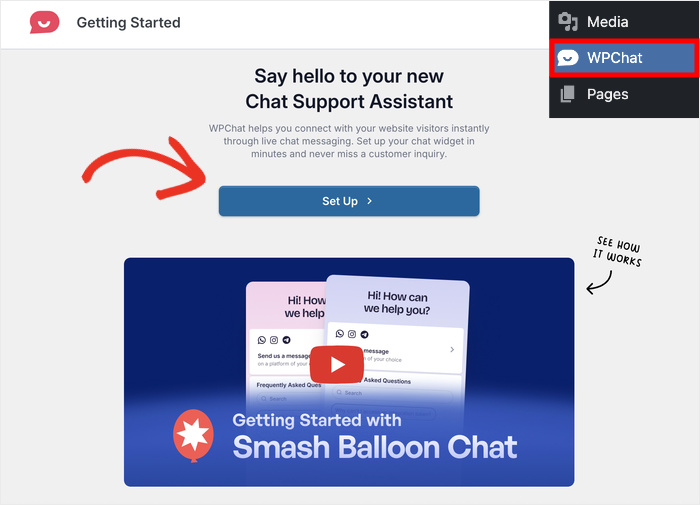
C'est ici que la connexion s'effectue : entrez votre numéro de téléphone ou votre nom d'utilisateur associé à Telegram.
L'assistant de configuration vous permet également de vous connecter à d'autres plateformes de messagerie populaires : WhatsApp, Messenger et Instagram.
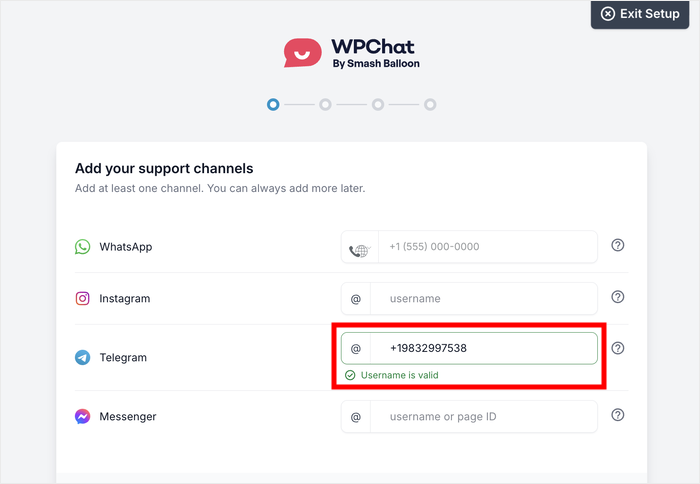
En conséquence, vos visiteurs auront d'autres moyens de vous joindre.
À partir de là, faites défiler vers le bas et cliquez sur le bouton Suivant.
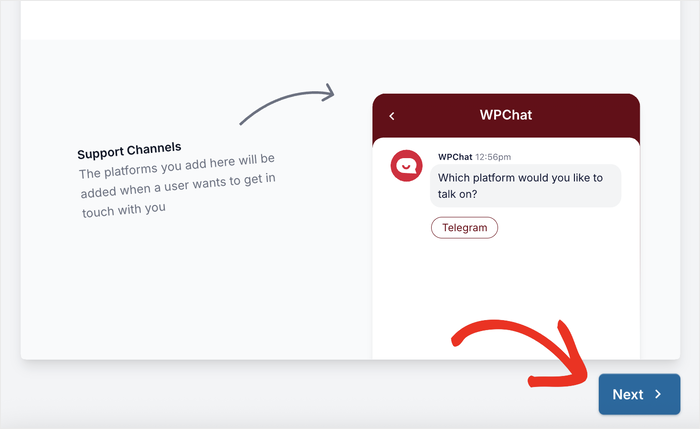
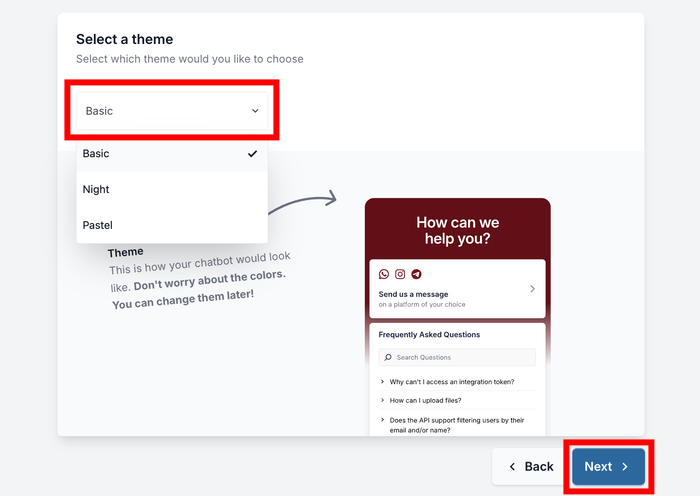
Sur l'écran suivant, choisissez un thème visuel pour votre widget de chat Telegram.
WPChat propose plusieurs thèmes prédéfinis que vous pourrez personnaliser en détail plus tard.
Choisissez donc celui qui correspond le mieux au style de votre marque et cliquez sur Suivant.
Étape 3 : Choisissez où le widget Telegram est visible
Vous devez maintenant décider où les visiteurs peuvent vous contacter via Telegram depuis votre site WordPress.
Pour vous donner le contrôle, WPChat offre 2 options de visibilité : Afficher sur toutes les pages ou Afficher uniquement sur des pages spécifiques.
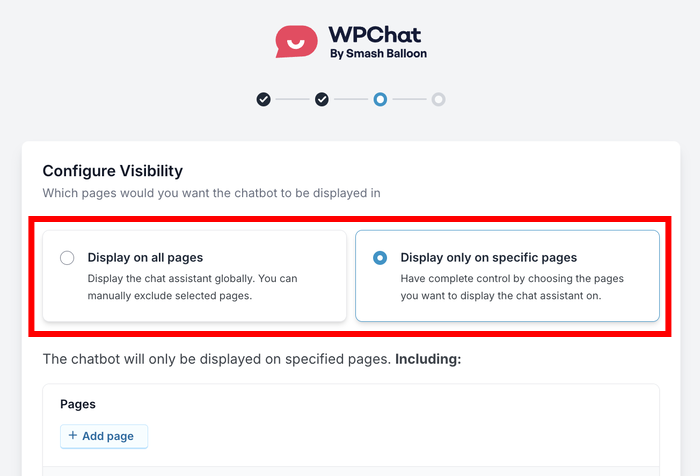
Si vous souhaitez que les visiteurs vous contactent depuis n'importe où sur votre site, sélectionnez la première option.
Cependant, si vous ne souhaitez que la connexion Telegram soit disponible sur certaines pages, sélectionnez la deuxième option.
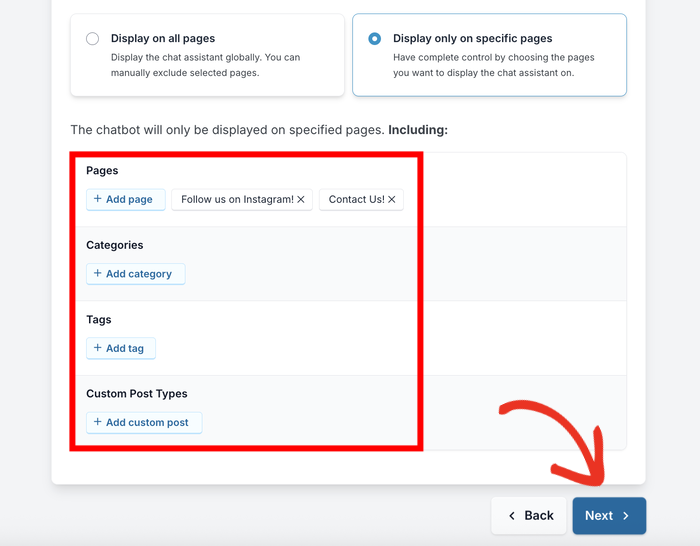
Ci-dessous, vous trouverez des filtres intégrés qui vous permettent d'inclure ou d'exclure des parties spécifiques de votre site web.
Sélectionnez les Pages, Catégories, Étiquettes et Types de publication personnalisés que vous souhaitez inclure ou exclure.
Enfin, vous pouvez cliquer sur Suivant pour continuer.
Enfin, entrez votre clé de licence WPChat dans le champ pour activer le plugin.
Une fois votre clé saisie, cliquez sur Terminer la configuration.
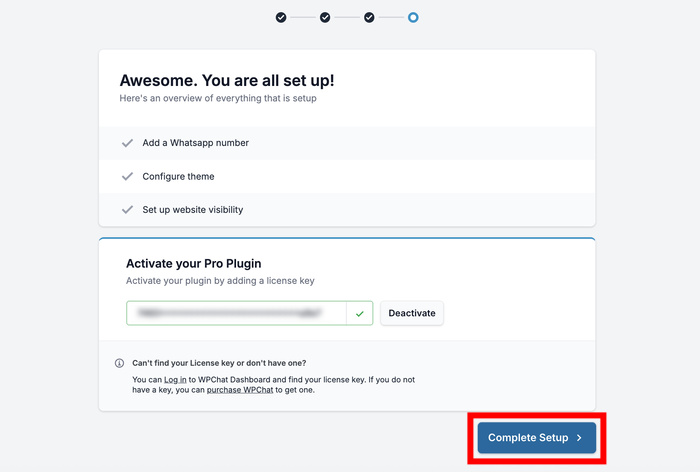
Votre site WordPress est maintenant connecté avec succès à Telegram, et les visiteurs peuvent commencer à vous contacter directement via le widget de chat.
Je vous recommande de tester vous-même la connexion en cliquant sur le widget de votre site. Cela garantit que tout est correctement redirigé vers votre chat Telegram.

Étape 4 : Configurer vos agents de chat
C'est l'étape où vous configurez les agents qui redirigeront vos visiteurs vers Telegram.
Chaque agent représente un membre de votre équipe de support. Ainsi, vous pouvez avoir différents profils, informations de contact et heures d'ouverture pour différents agents.
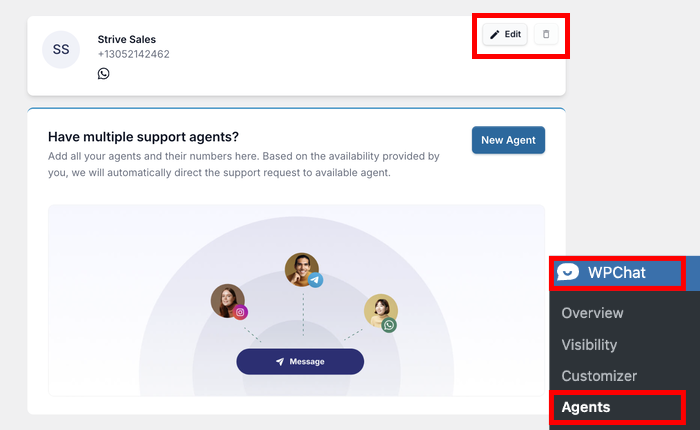
Accédez à WPChat » Agents depuis le menu de votre tableau de bord WordPress pour configurer votre connexion Telegram.
Vous verrez un agent par défaut listé sur cette page. Cliquez sur Modifier pour ouvrir les paramètres de l'agent.
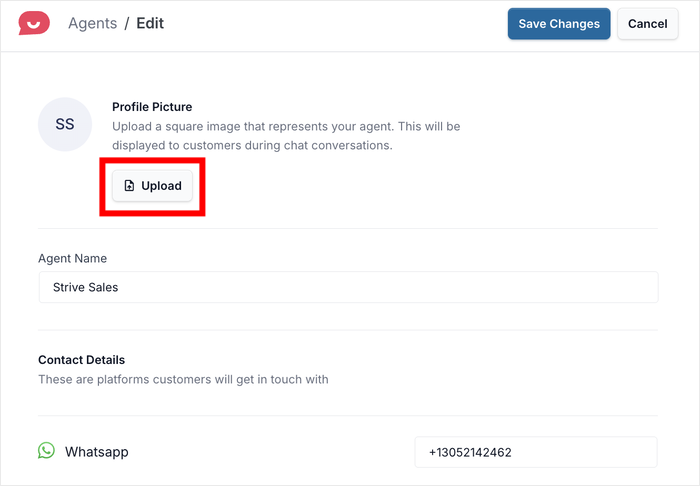
Tout d'abord, cliquez sur Télécharger pour ajouter une photo de profil professionnelle ou un logo d'entreprise qui vous représentera dans le widget de chat.
Cela aide les visiteurs à savoir qu'ils parlent à une personne réelle ou à une entreprise légitime.
Ensuite, entrez un nom approprié pour votre agent de chat dans le champ du nom. Vous pouvez utiliser votre vrai nom, le nom de votre entreprise, ou même un nom de département comme « Équipe de support ».
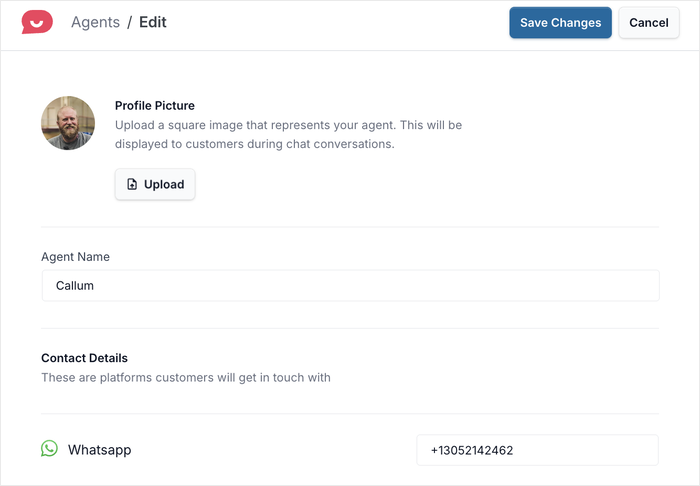
Enfin, cliquez sur Enregistrer les modifications pour confirmer vos modifications apportées à cet agent.
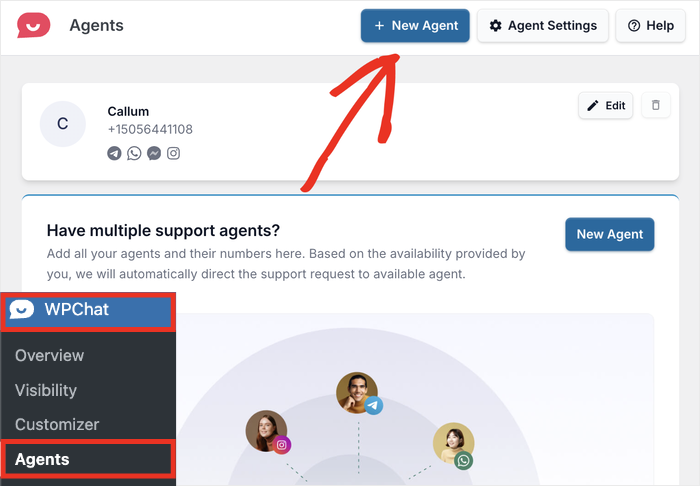
Après cela, retournez au menu WPChat » Agents, et vous verrez les nouveaux détails affichés avec l'agent.
Pour créer un autre agent, cliquez sur le bouton Nouvel agent en haut, puis répétez cette étape.
Étape 5 : Personnaliser votre Widget de Chat Telegram
Maintenant que vos agents sont configurés, vous pouvez ajuster l'apparence du widget sur votre site.
Accédez à WPChat » Customizer dans votre tableau de bord WordPress. L'éditeur en direct s'ouvrira avec un aperçu qui se met à jour instantanément au fur et à mesure que vous apportez des modifications.
Voici ce que vous pouvez ajuster :
- Palette de couleurs : Choisissez parmi des palettes de couleurs prédéfinies ou cliquez sur Personnaliser pour définir vos propres couleurs de marque à l'aide du sélecteur de couleurs.
- Avatar de l'assistant : Sélectionnez parmi la grille d'avatars prédéfinis ou cliquez sur « Ajouter le vôtre » pour télécharger une image personnalisée. Les images carrées fonctionnent mieux.
- En-tête : Modifiez le texte affiché en haut de votre widget de chat.
- Icône : Changez l'icône du bouton flottant que les visiteurs voient sur votre site.
- Sections : Faites glisser les sections vers le haut ou vers le bas pour les réorganiser, ou activez-les ou désactivez-les complètement.
Une fois que l'apparence vous convient, cliquez sur Enregistrer dans le coin supérieur droit.
Étape 6 : Ajouter des Horaires pour vos Agents de Chat
Enfin, vous pouvez commencer à configurer des plannings pour les agents. De cette façon, vous pouvez vous assurer que les messages Telegram sont envoyés au personnel qui est réellement en ligne.
Tout d'abord, cliquez sur le bouton Paramètres des agents en haut.
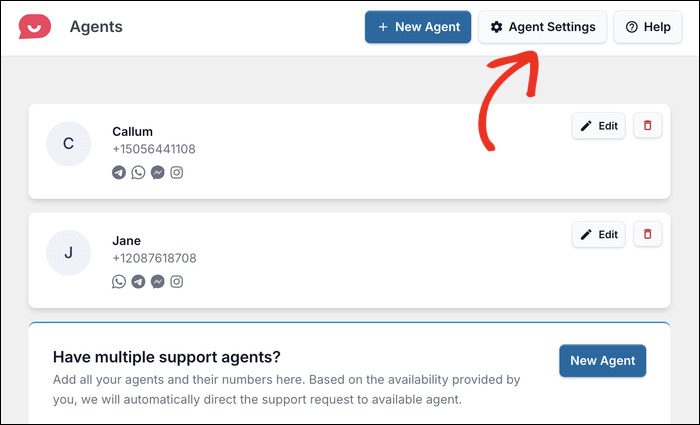
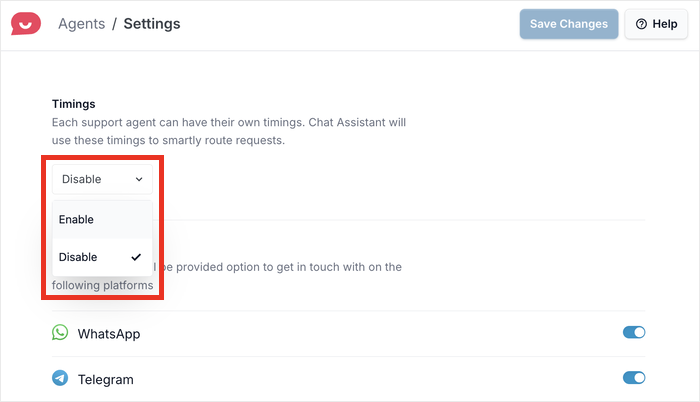
Sur cette page, utilisez le menu déroulant sous l'option Horaires.
Sélectionnez l'option Activer ici.
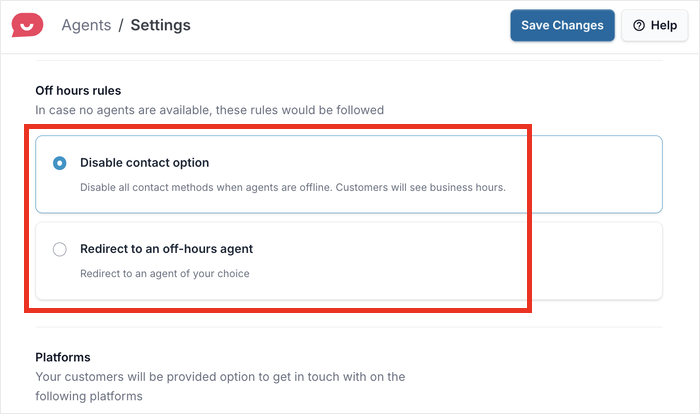
Cela affichera une nouvelle option qui vous permettra de contrôler les règles de hors service.
Vous avez 2 options parmi lesquelles choisir :
- Désactiver l'option de contact : Les messages ne seront pas envoyés lorsque tous vos agents seront hors service.
- Rediriger vers un agent hors service : Sélectionnez un agent spécifique qui gérera tous les messages lorsque tous les autres seront hors service.
Sélectionnez l'option qui correspond le mieux au planning de support de votre marque ici.
Après cela, cliquez sur Enregistrer les modifications pour confirmer vos nouveaux paramètres.
Vous pouvez ensuite revenir à la page principale des agents en cliquant sur Agents en haut.
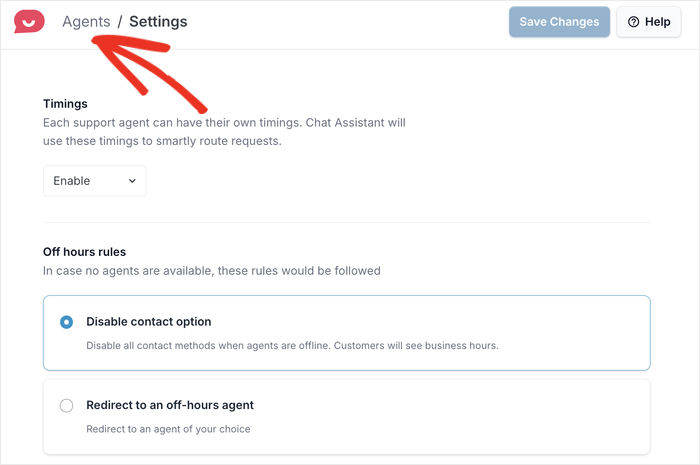
Une fois de plus, vous verrez une liste de vos agents de chat Telegram.
Cette fois, cliquez sur le bouton Modifier sur l'un des agents pour configurer ses heures de service.
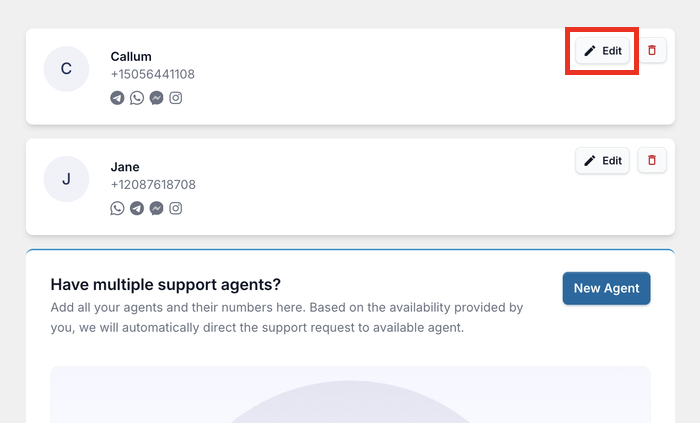
Vous pouvez maintenant voir un nouveau paramètre Horaires pour chaque agent.
Utilisez le menu déroulant pour sélectionner les heures de service, puis sélectionnez les jours actifs à droite.
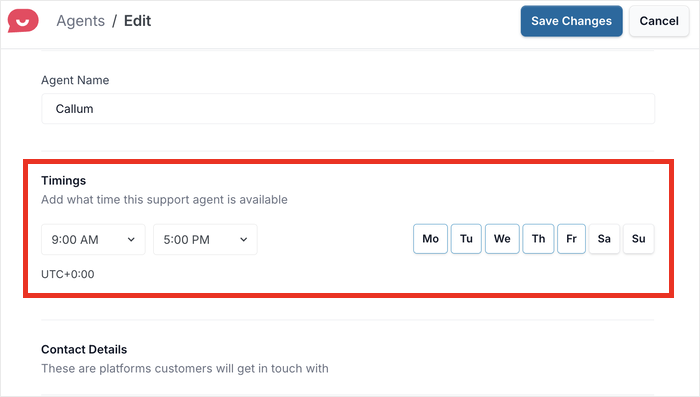
Enfin, cliquez sur Enregistrer les modifications et répétez les étapes pour les autres agents également.
Vos visiteurs peuvent maintenant vous joindre sur Telegram
Votre widget de chat Telegram est maintenant en ligne. Les visiteurs peuvent vous joindre en un clic depuis n'importe quelle page que vous avez choisie. Si vous souhaitez des entonnoirs de chat, un tableau de bord d'analyse complet ou des profils d'agents illimités, c'est là qu'intervient WPChat Pro.
Commencez à recevoir des conversations Telegram dès aujourd'huiWPChat vs. Autres moyens de connecter WordPress à Telegram
WPChat n'est pas seulement le meilleur moyen d'ajouter Telegram à votre site WordPress, c'est aussi le plus simple pour les débutants.
Si vous vous demandiez s'il existait une meilleure option pour votre situation spécifique, cette comparaison rapide vous aidera à décider.
| Méthode | Facilité d'installation | Nécessite du codage ? | Résultat final |
|---|---|---|---|
| Plugin WPChat | Très facile | ✅ Non | Un bouton de chat flottant et visible qui permet aux visiteurs de discuter facilement avec vous |
| Bot Telegram + Code personnalisé | Avancé | ❌ Oui | Messagerie et flux de travail personnalisés — mais complexes à construire |
| Crisp (avec intégration Telegram) | Modéré | ✅ Non | Plateforme de chat de style helpdesk avec connexion Telegram |
| Lien Telegram manuel dans le pied de page/menu | Très facile | ✅ Non | Un lien ou un bouton en texte brut que les visiteurs peuvent manquer. |
Pour la plupart des propriétaires de sites WordPress, WPChat est le choix évident. Il ne nécessite aucun codage, prend moins de 5 minutes à configurer et vous offre un widget de chat d'aspect professionnel que les visiteurs remarqueront et utiliseront réellement.
Un lien manuel dans votre pied de page peut sembler l'option la plus simple, mais en pratique, cela fonctionne rarement bien.
Les visiteurs font rarement défiler la page jusqu'en bas à la recherche d'un moyen de vous contacter, et un lien en texte brut n'attire pas l'attention comme le fait un bouton de chat flottant.
Questions Fréquemment Posées sur la Connexion de WordPress à Telegram
Puis-je connecter WordPress à Telegram gratuitement ?
Oui. WPChat dispose d'une version gratuite disponible sur WordPress.org qui vous permet d'ajouter un bouton de chat Telegram à votre site sans frais. Il prend en charge Telegram ainsi que WhatsApp, Messenger et Instagram. Si vous souhaitez des fonctionnalités avancées comme un tableau de bord d'analyse complet, des profils d'agents illimités ou des entonnoirs de chat, celles-ci sont disponibles dans les plans payants sur wpchat.com/pricing/.
Quelle est la différence entre WPChat et le plugin WP Telegram ?
Ils résolvent des problèmes différents. WPChat place un bouton de chat sur votre site afin que les visiteurs puissent démarrer une conversation Telegram en direct avec vous. Le plugin WP Telegram gère l'automatisation unidirectionnelle, comme l'envoi de vos nouveaux articles de blog vers un canal Telegram ou la réception d'alertes lorsqu'un formulaire est soumis. Si les visiteurs ont besoin de pouvoir vous joindre, utilisez WPChat.
Dois-je créer un bot Telegram pour utiliser WPChat ?
Non. Vous entrez simplement votre numéro de téléphone ou votre nom d'utilisateur Telegram dans les paramètres du plugin. WPChat s'occupe de tout à partir de là. D'autres méthodes nécessitent de créer un bot via le BotFather de Telegram, mais WPChat évite cette étape entièrement.
Comment définir les heures de disponibilité pour mes agents de chat Telegram ?
Allez dans WPChat > Agents > Paramètres des agents dans votre tableau de bord WordPress et activez l'option Horaires. À partir de là, vous pouvez définir les heures de service pour chaque agent et choisir ce qui se passe lorsque tous les agents sont hors ligne, soit désactiver l'option de contact, soit rediriger vers un agent désigné hors heures.
Puis-je ajouter plusieurs agents Telegram à mon site WordPress ?
Oui, avec WPChat Pro. Allez dans WPChat > Agents et cliquez sur Nouvel agent pour ajouter des membres de l'équipe. Chaque agent obtient son propre nom, sa photo, ses informations de contact Telegram et son calendrier de disponibilité. La version gratuite comprend un profil d'agent.
Commencez à Recevoir des Conversations Telegram Dès Maintenant
Si quelqu'un arrive sur votre site avec une question en ce moment, le résultat le plus probable est qu'il parte sans la poser. L'ajout d'un bouton de chat Telegram change cela.
C'est précisément là que WPChat excelle.
Vous avez déjà configuré le widget, ajouté vos agents et configuré leurs heures de disponibilité. Vos visiteurs peuvent maintenant vous joindre sur Telegram en un clic depuis n'importe quelle page que vous souhaitez.
Voici ce qu'il faut faire ensuite :
- Testez le widget sur votre site pour confirmer qu'il est correctement acheminé vers votre Telegram
- Partagez l'URL en direct avec votre équipe afin que tout le monde sache que le chat est actif
- Passez en revue les plannings de vos agents pour vous assurer que la couverture correspond à vos heures de pointe
- Consultez vos analyses WPChat après une semaine pour voir quelles pages génèrent le plus de conversations
Quelle application de messagerie vos visiteurs utilisent-ils le plus ? Faites-le moi savoir dans les commentaires.
Commencez dès maintenant avec WPChat