
Most WooCommerce store owners end up answering the same questions on repeat.
Where’s my order?
Can I return this?
When will it arrive?
What’s your exchange policy?
They come in through email, customers wait hours (sometimes days), and by the time there’s a reply, the frustration has already set in.
I’ve seen stores lose repeat customers not because the product was bad but because post-purchase support felt like a black hole.
Moving that support to WhatsApp changes things pretty fast.
Customers get answers on the app they’re already using, conversations happen in minutes instead of days, and the whole thing feels personal rather than transactional.
I’ve configured this on WooCommerce stores using WPChat, a WordPress plugin that connects your website’s chat widget directly to WhatsApp, and it’s one of the highest-impact changes you can make after someone places an order.
WPChat helps WordPress site owners turn real conversations into trust signals that keep customers coming back.
In this guide, I’ll show you how to configure it specifically for post-purchase support: adding a WhatsApp widget to your order pages, automating answers to common questions, and building a Chat Funnel that handles things while you’re offline.
In This Article
- How Do I Add WhatsApp Support to My WooCommerce Store?
- What is WPChat?
- Why WhatsApp Beats Email for Post-Purchase Support
- 3 Ways WPChat Handles WooCommerce Support
- How to Configure WPChat for Post-Purchase Support
- What This Does for Your WooCommerce Store
- Frequently Asked Questions on Using WhatsApp for WooCommerce
- Start Offering WhatsApp Support Now
How Do I Add WhatsApp Support to My WooCommerce Store?
You use WPChat’s Visibility Controls to place a WhatsApp chat widget on your order confirmation and thank-you pages, then configure Smart FAQs to automatically handle the most common post-purchase questions.
The whole configuration takes about 15 minutes once WPChat is installed, and it works with the standard WhatsApp Business app. No API required.
(Not sure which you have? Here’s a quick breakdown.)
What is WPChat?
WPChat is a WordPress plugin that adds a chat widget to your website and connects it to WhatsApp, Facebook Messenger, Telegram, and Instagram.
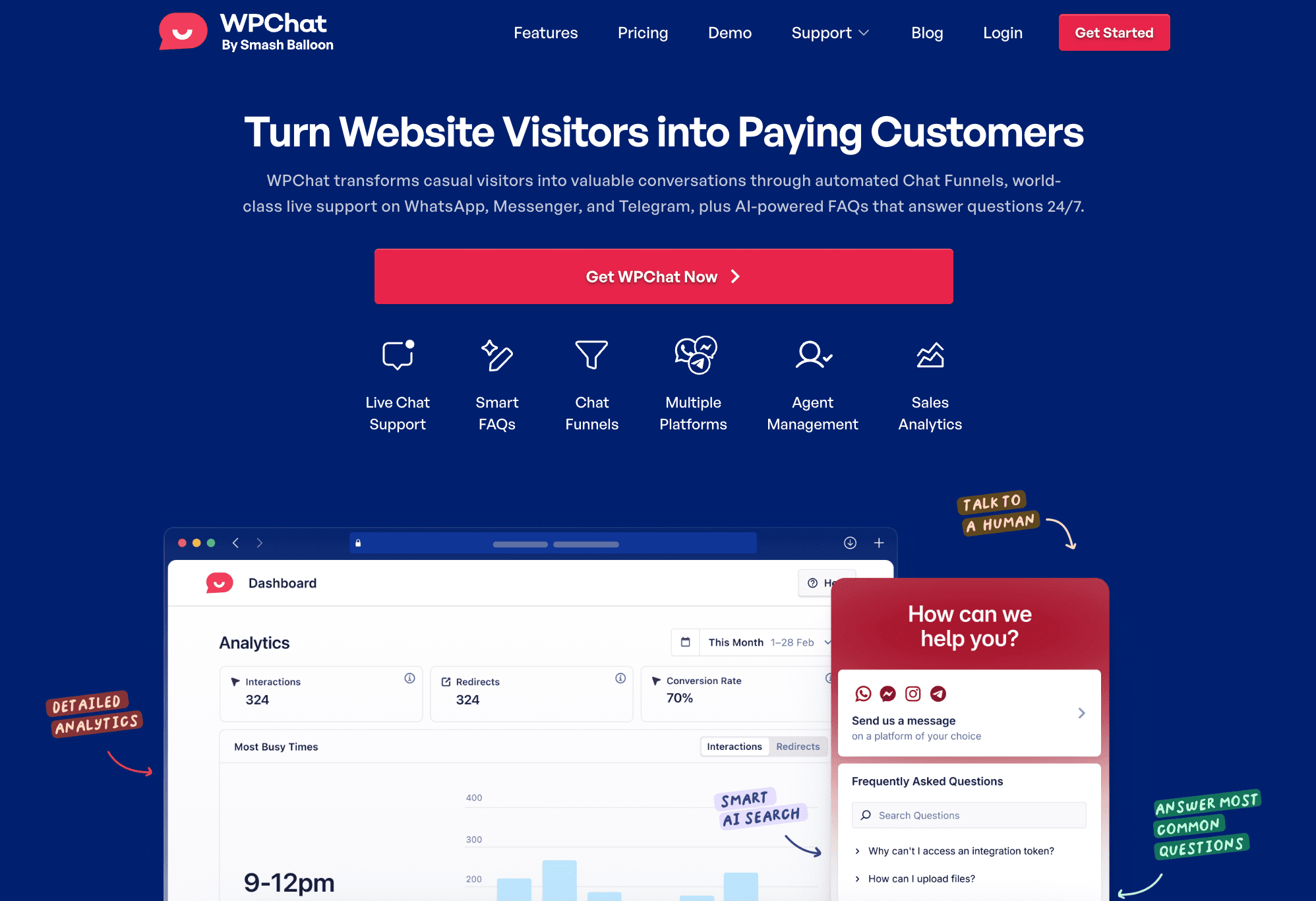
It’s built by Smash Balloon, the team behind 1.75 million WordPress websites, and it’s designed specifically for WordPress.
For WooCommerce stores, the relevant features are:
- Smart FAQs (automated answers to common questions),
- Chat Funnels (guided conversation flows that handle customer requests automatically),
- and Visibility Controls (so you can show the right widget on the right page).
That’s what this guide covers.
Why WhatsApp Beats Email for Post-Purchase Support
WhatsApp messages get a 98% open rate. Email sits around 20%. That gap alone makes the case, but timing is the bigger issue.
When a customer emails a support question, they’re resigning themselves to waiting.
When they message on WhatsApp, they expect a reply within minutes. And when they get one, that’s what actually builds loyalty.
Post-purchase is one of the most anxious moments in the customer journey.
The order is placed, the money is gone, and now they’re waiting. Any friction in getting answers during that window — a slow email response, a contact form routing to a general inbox nobody monitors — erodes trust fast.
For more on this, the WhatsApp vs. email breakdown is worth a read.
But for WooCommerce stores, the short version is: WhatsApp meets customers on the platform they’re already on, and fast responses change how they feel about the purchase.
3 Ways WPChat Handles WooCommerce Support
Before jumping into setup, here’s a quick look at what you’re configuring and what each piece does.
| Feature | What it does | When it fires | What it solves |
|---|---|---|---|
| Order page chat widget | Adds a WhatsApp button to your thank-you and order status pages | Right after checkout and on order history pages | Customers can’t find a way to reach you after ordering |
| Smart FAQ automation | Answers common questions automatically, no human needed | Any time a customer types a question into the chat | “Where’s my order?” at midnight gets an answer immediately |
| Post-purchase Chat Funnel | A short automated conversation with tappable reply options | Triggered when a customer opens chat after ordering | Handles tracking requests, returns, and review asks before they become emails |
Each one covers a different moment in the post-purchase experience.
The widget gets customers into the conversation. Smart FAQs resolve the most common questions without you needing to be online. And the Chat Funnel handles the rest automatically.
Most stores start with the widget and FAQs, then add the funnel once they know which questions come up most. All three together is the full setup.
How to Configure WPChat for Post-Purchase Support
If you haven’t installed WPChat and connected your WhatsApp account yet, start with the WooCommerce setup guide first, then come back here.
The steps below assume WPChat is already live on your site.
Here’s what you’re configuring:
- Restricting your support widget to order-specific pages only
- Writing Smart FAQs for the questions your inbox handles most
- Building a short post-purchase Chat Funnel (3 to 5 exchanges)
Step 1: Show your WhatsApp widget on order pages only
WPChat’s Visibility Controls let you decide exactly which pages the chat widget appears on.
By default it shows across your whole site, but for post-purchase support you only want it in two places: your order confirmation page and your order status page.
In your WordPress dashboard, go to WPChat » Visibility.
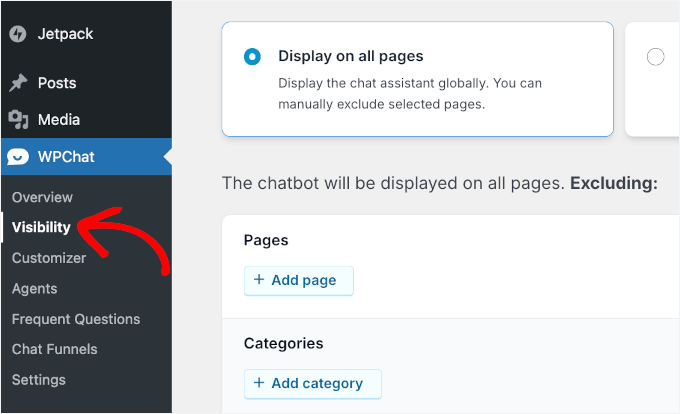
On the next screen, you’ll see two choices: show the button everywhere or only on specific pages.
Click on Display only on specific pages, then choose which pages you want your WhatsApp chatbot to appear in.
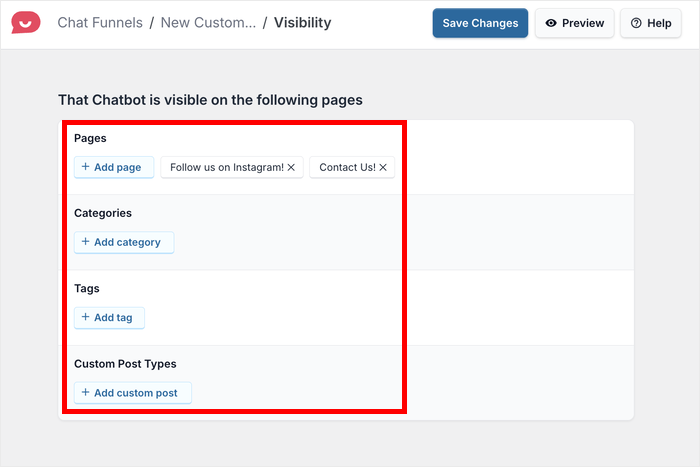
Set the widget to show on specific pages, then add your WooCommerce order pages to the list. Typically that’s /checkout/order-received/ and /my-account/orders/.
I’d suggest hiding this widget on product pages and keeping a separate sales-focused widget there.
A customer on your thank-you page doesn’t want a sales prompt. They want to know their order went through and have a clear path to reach you if something goes wrong.
Getting the context right is what makes the widget feel helpful rather than off.
Step 2: Set up Smart FAQs for common order questions
WPChat’s Smart FAQ feature lets you build a library of Q&A pairs that the chat assistant surfaces automatically when a customer types a question.
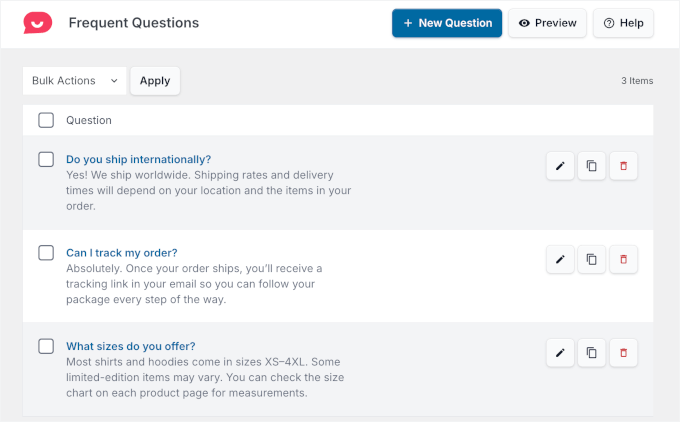
The AI-powered search reads intent rather than matching exact keywords, so “when will my package arrive?” and “delivery estimate?” both pull the right answer.
Start by listing the 5 to 10 questions your support inbox gets most after a purchase. For most WooCommerce stores, that list looks something like:
- Where is my order / what’s my tracking number?
- How do I return or exchange an item?
- What’s the estimated delivery time?
- I received the wrong item. What do I do?
- Can I cancel or change my order?
Write each answer as a short, direct response. Two to three sentences, specific enough to actually close the question.
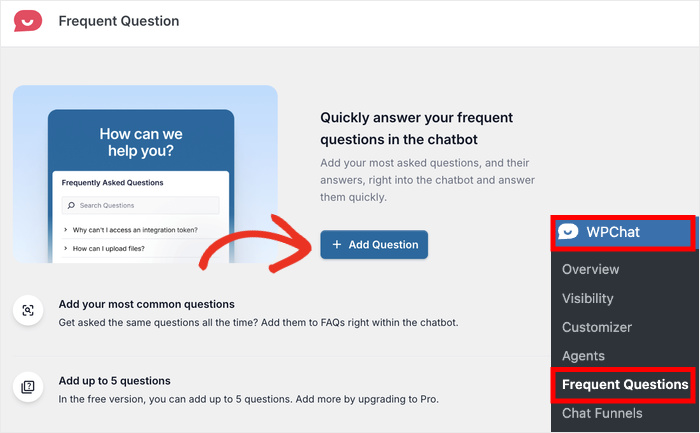
“Your tracking number is emailed to you within 24 hours of shipping. If you don’t see it, check your spam folder or reply here with your order number and I’ll look it up.” That kind of answer resolves things instead of creating a follow-up.
For more details on how to do this step-by-step, here’s our tutorial on how to add FAQ bot to your website.
Personally, I keep FAQ answers to one sentence plus a next step. Customers who are anxious about an order don’t want to read three paragraphs.
Stop answering the same order questions over and over
WPChat connects your WooCommerce order pages to WhatsApp and handles your most common support questions automatically. Try it free for 14 days.
Add WPChat to My StoreStep 3: Build a post-purchase Chat Funnel
Chat Funnels are where WPChat goes beyond basic support.
Instead of waiting for a customer to type something, a funnel opens with a message and gives them tappable reply options.
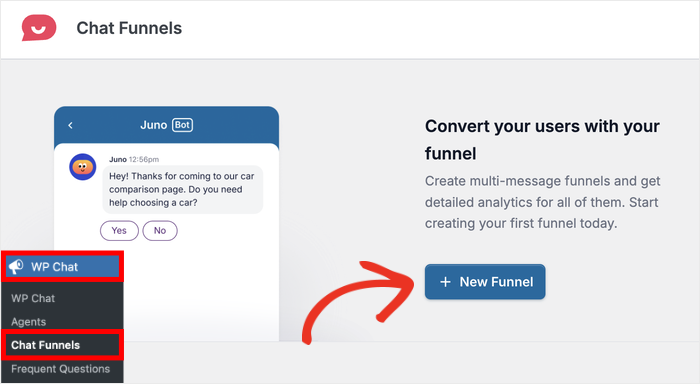
For a post-purchase funnel on your thank-you page, the sequence might look like this:
Message 1: “Thanks for your order! Is there anything I can help with?”
- Track my order
- Return or exchange
- Something else
If “Track my order”: “Your tracking number will be emailed within 24 hours. If you need help now, tap here to message us directly.”
If “Return or exchange”: “No problem. Here’s how our return process works: [link]. Reply here if you want to get one started.”
Keep it to 3 to 5 exchanges.
The goal isn’t to replace your support system. It’s to handle the most predictable questions before they become emails.
Customers who need something the funnel doesn’t cover can always tap through to a live WhatsApp conversation.
For a full walkthrough of funnel configuration, the Chat Funnels guide covers each setting in detail.
What This Does for Your WooCommerce Store
The practical outcome is fewer support emails and customers who feel looked after after they buy.
When the most common post-purchase questions get answered automatically, your support load drops.
More importantly, customers who get fast answers on WhatsApp don’t carry that post-purchase anxiety into their next decision about whether to buy from you again.
There’s also a reviews angle worth considering.
A Chat Funnel that asks for a review 24 hours after delivery, with a single-tap link, converts better than a review request email.
Customers are more likely to respond on WhatsApp, and the ask feels like a message from a real person rather than an automated campaign.
If cart recovery is also on your radar, the abandoned cart guide covers using WhatsApp at the opposite end of the customer journey. It pairs well with what you’re building here.
Frequently Asked Questions on Using WhatsApp for WooCommerce
Does WPChat send automatic order status updates on WhatsApp?
No. WPChat adds a chat widget to your site that customers initiate. It doesn’t push outbound messages when an order ships. For automatic order status notifications, you’d need a separate WooCommerce notification plugin. WPChat handles the inbound support side: answering questions, running Smart FAQs, and managing Chat Funnels.
What post-purchase questions should I include in my Smart FAQs?
Start with whatever fills your inbox most. For most WooCommerce stores that’s order tracking, returns and exchanges, estimated delivery times, wrong item received, and order cancellation. Write each answer with your actual return window and actual shipping times. Vague answers just create follow-up questions.
Can I show a different widget on different WooCommerce pages?
Yes. WPChat’s Visibility Controls let you configure separate widget setups for different pages. You can run a sales-focused Chat Funnel on product pages and a support-focused widget on your thank-you and order status pages. The right prompt at the right moment works significantly better than a one-size-fits-all widget.
Do customers need WhatsApp installed to use this?
Yes. Clicking the WPChat widget opens WhatsApp on the customer’s device. If they don’t have it installed, they’ll be prompted to download it. WhatsApp has over 3 billion active users, so for most audiences this isn’t a barrier. If yours aren’t on WhatsApp, WPChat also supports Facebook Messenger, Telegram, and Instagram, and you can run multiple channels at the same time.
Start Offering WhatsApp Support Now
Post-purchase is where most WooCommerce stores either build loyalty or lose it.
Customers who feel supported after they buy come back. Customers who feel like they entered a black hole after checkout don’t.
That’s precisely where WPChat shines. A WhatsApp widget on your order pages, Smart FAQs handling your most common questions automatically, and a Chat Funnel managing the predictable stuff around the clock. All of it runs without you needing to be online for every interaction.
Start handling post-purchase support where your customers already are.
- Set up a support widget on your thank-you and order pages
- Build Smart FAQs for your 5 to 10 most common post-purchase questions
- Create a post-purchase Chat Funnel that handles tracking and return requests
- Watch your support email volume drop
Get Started with WPChat today!
Already using WPChat for post-purchase support? Leave a comment and let me know which FAQ questions get the most traction in your store.
