
Telegram has quietly become one of the most effective ways to reach your audience instantly.
Instead of waiting for an email response, customers prefer using this secure and trusted platform to communicate with businesses.
The problem? Most WordPress websites don’t make it easy to connect with Telegram. Visitors have to hunt for your username or phone number to find you on the app.
In this guide, I’ll show you how to connect your WordPress website to Telegram so your visitors can reach you directly with ease.
No complicated coding required — just simple steps anyone can follow.
In this Article:
How to Connect WordPress to Telegram: The Quick Answer
WPChat is a free WordPress plugin that adds a live chat widget to your website, allowing visitors to contact you through messaging apps like Telegram. Here’s the complete process at a glance:
- Install the WPChat plugin and activate it on your site.
- Go to WPChat settings in your WordPress dashboard.
- Select Telegram as your channel and enter your Telegram number.
- Customize the widget appearance, position, color, and display rules.
- Click on Save Changes and test the widget on your live site.
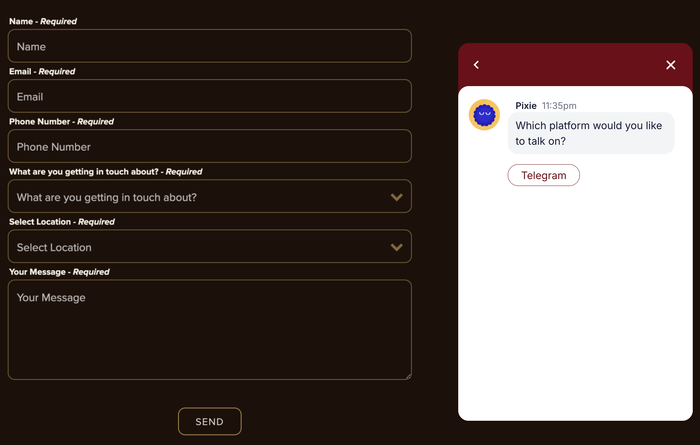
How Telegram Can Help Your Business Grow
Telegram can be a surprisingly powerful tool for businesses looking to connect with their audience in real-time.
In fact, here are a few examples to show how adding a Telegram chat option helps your brand:
- Safe and Secure: Telegram uses powerful encryption for all your conversations, helping you build trust and comply with privacy regulations.
- Popular Overseas: With over 900 million users worldwide, Telegram helps you reach international customers who prefer this platform over email or other messaging apps.
- Large attachments: Customers can share screenshots of their issues and files up to 2GB, letting you chat without worrying about upload sizes.
- Allows You to Follow Up: Every conversation is saved in your chat history, so you can easily reference past discussions and follow up with customers to close sales or provide better support.
On top of that, Telegram notifications are instant. You’ll know the moment a customer reaches out, allowing you to respond quickly and show them you’re available when they need help.
Why WPChat Is the Best Way to Connect to Telegram
You could simply share your Telegram username on your website, but that approach has a major downside.
Visitors have to manually search for you on Telegram, which creates unnecessary friction and often leads to lost connections.
I recommend using WPChat because it eliminates this hassle entirely.

WPChat lets you create a professional chat widget that sits on your WordPress website, making it incredibly easy for visitors to start a conversation.
The widget supports Telegram, Facebook Messenger, Instagram, and WhatsApp, so you’re meeting customers on their favorite platform.
Beyond the basic connection, WPChat includes features that make customer communication more efficient:
- Add FAQs: Display common questions and answers right in your chat widget, helping visitors find information instantly without waiting for a response.
- Auto Replies with Chat Funnels: Set up automated responses that guide customers through common questions or direct them to the right department based on their needs.
- Get In-Depth Analytics: Track how many people are using your chat widget, which pages generate the most conversations, and when your busiest contact times are.
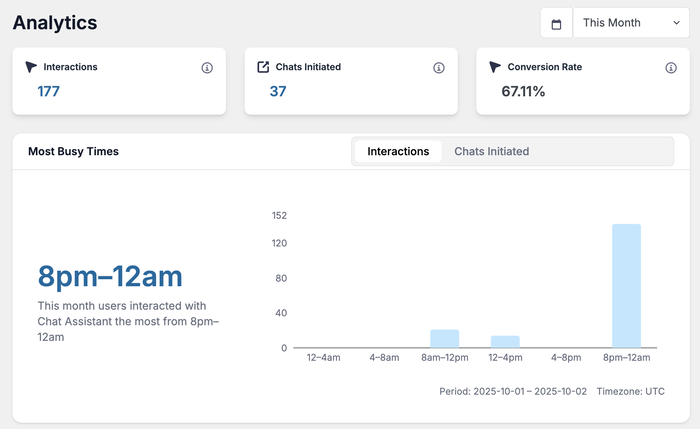
- Built for Teamwork: Create separate agents for different members of your support team so customers always reach the right person for their question.
- Powerful Customization: Use themes and a live editor to customize your Telegram widget so it matches your brand colors and style without touching any code.
How a WPChat Telegram Widget Works
When a visitor opens your website, they’ll see a floating button in the corner. You can control the parts of your website where this button shows up.
Clicking on the button will open a widget that shows the ways of chatting with you. You can also choose to show FAQs here if you like.
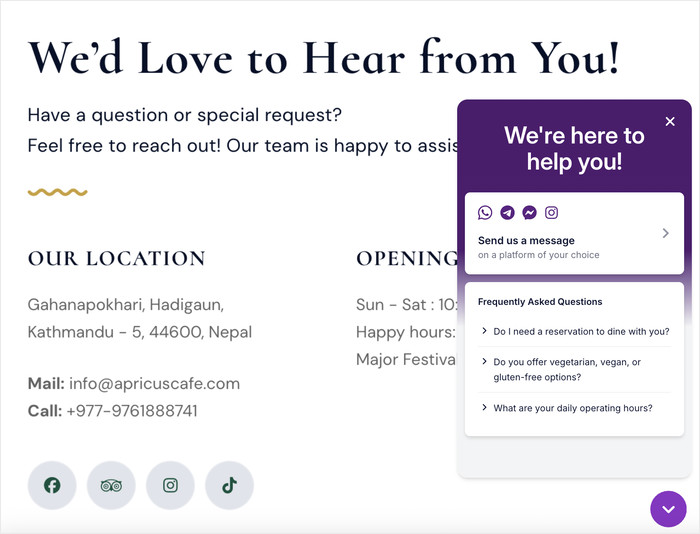
To continue, they can simply select Telegram from the chat options on the widget.
After that, WPChat will redirect them into Telegram chat, where they can immediately start typing and sending messages.
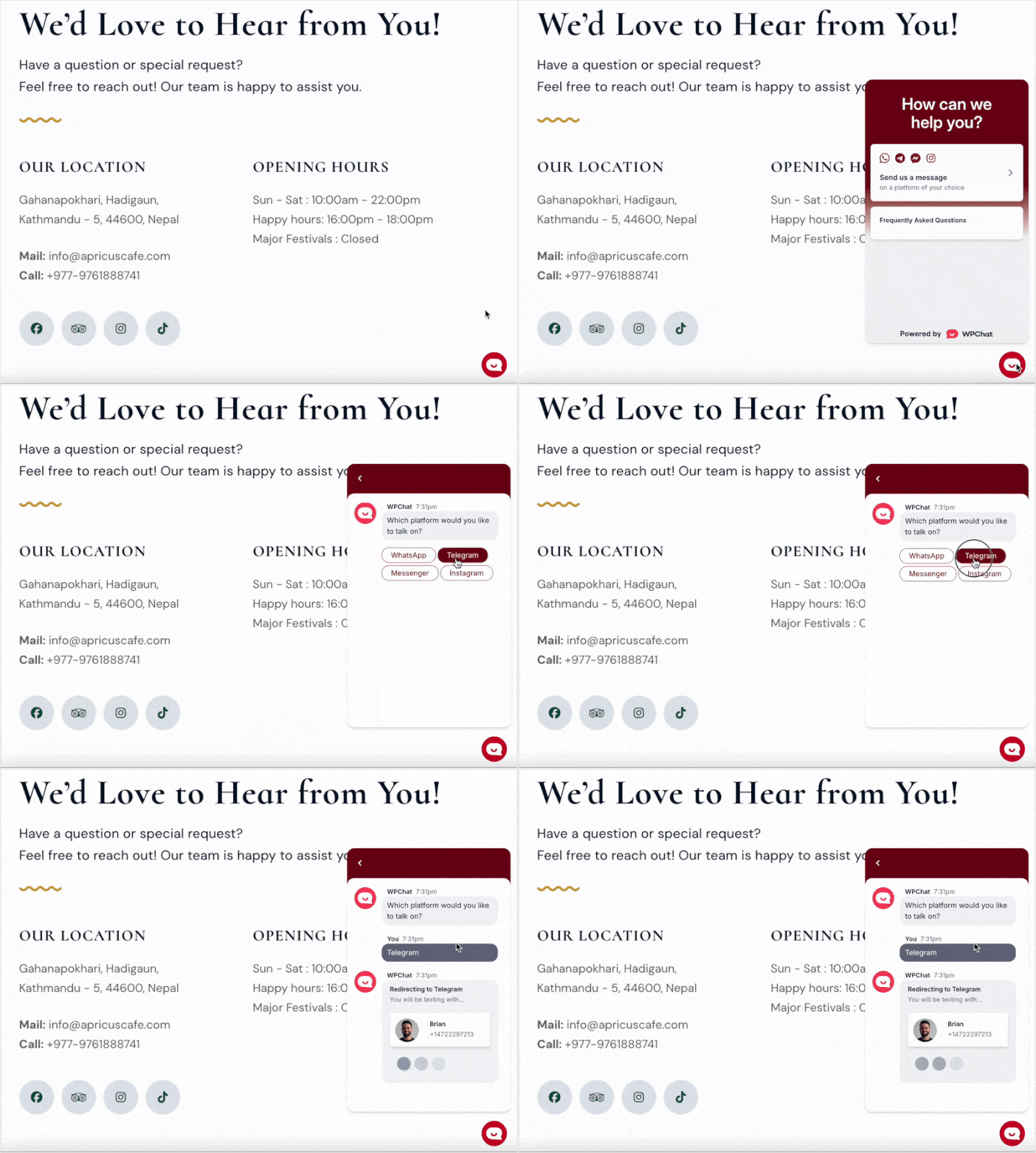
As you can see, this lets you add a chat feature while making sure your site is lightweight and secure.
WPChat essentially turns your website into a professional communication hub. Instead of hoping visitors will find you on Telegram, you’re putting the connection right in front of them.
Get your copy of WPChat here and start connecting with visitors today!
How to Connect WordPress Websites to Your Telegram
Now that you understand why Telegram and WPChat can be valuable for your business, let me walk you through the exact steps to set everything up.
The process is straightforward, and you’ll have your Telegram connection live on your WordPress site in just a few minutes.
Step 1: Install and Activate WPChat on Your Website
First, you’ll need to get the WPChat plugin to connect your WordPress site to Telegram.
Start by getting a copy of WPChat here, then install and activate it on your website.
Note: In case you need help with this, there’s a useful beginner guide on how to install WordPress plugins that you can check out.
Step 2: Connect Your Widget to Telegram
Now it’s time to set up the widget that will connect WordPress to Telegram.
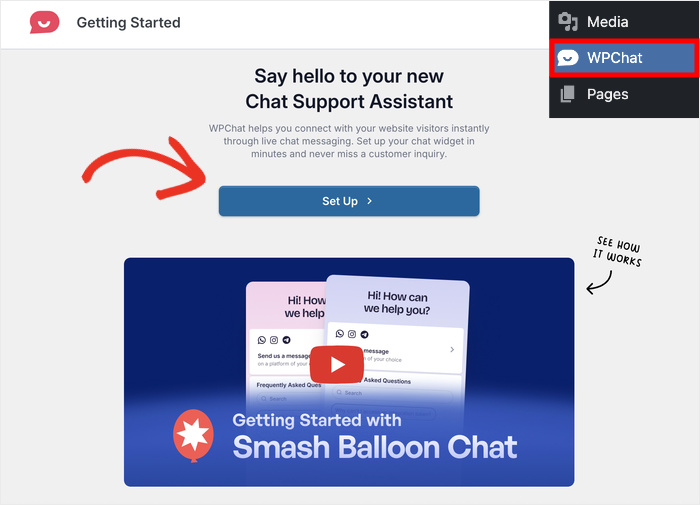
Navigate to the WPChat menu in your WordPress dashboard and click on the Setup button to launch the setup wizard.
This is where the connection happens — enter your phone number that’s connected to Telegram.
The setup wizard also lets you connect to other popular messaging platforms: WhatsApp, Messenger, and Instagram.
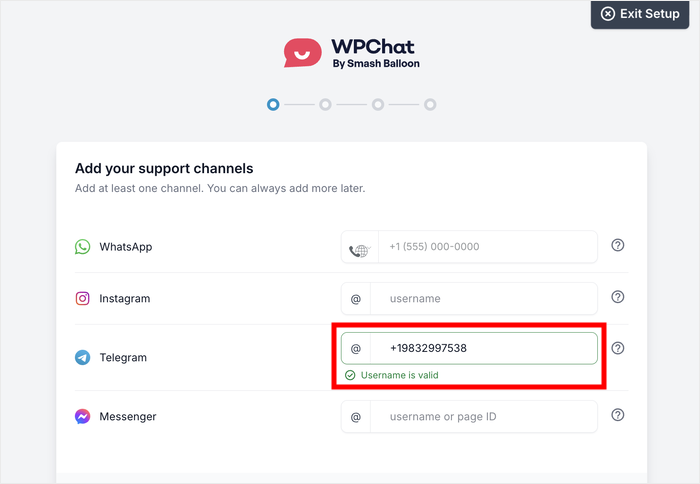
As a result, your visitors will have other ways of reaching you.
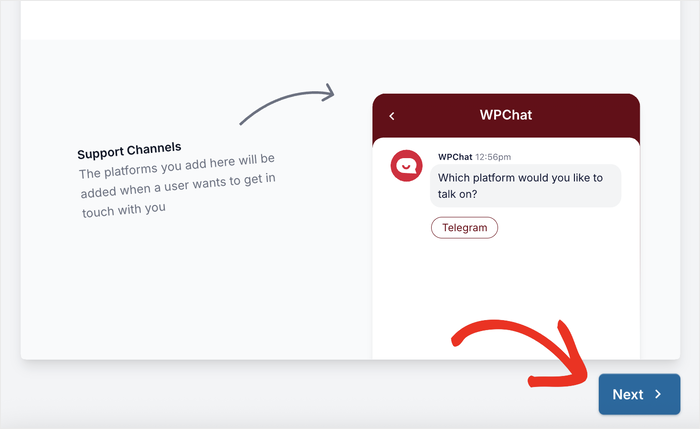
From here, scroll down and click on the Next button.
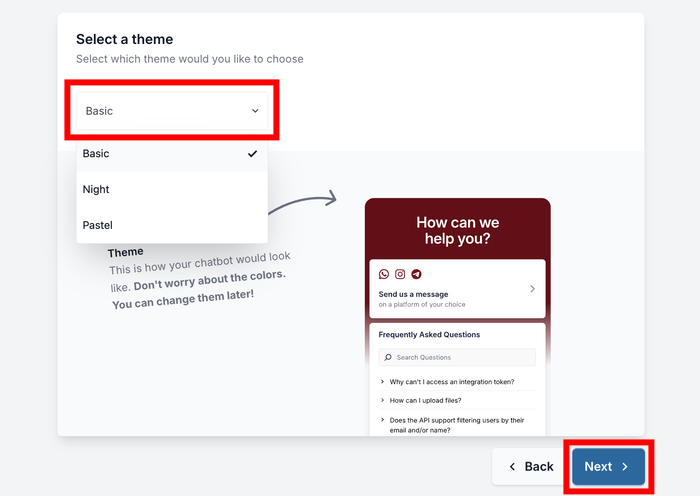
On the next screen, pick a visual theme for your Telegram chat widget.
WPChat offers several pre-designed themes that you can customize in detail later.
So, just choose one that’s close to your brand style and click Next.
Step 3: Pick Where the Telegram Widget is Visible
Now you need to decide where visitors can connect to your Telegram from your WordPress site.
To give you control, WPChat comes with 2 visibility options: Display on all pages or Display only on specific pages.
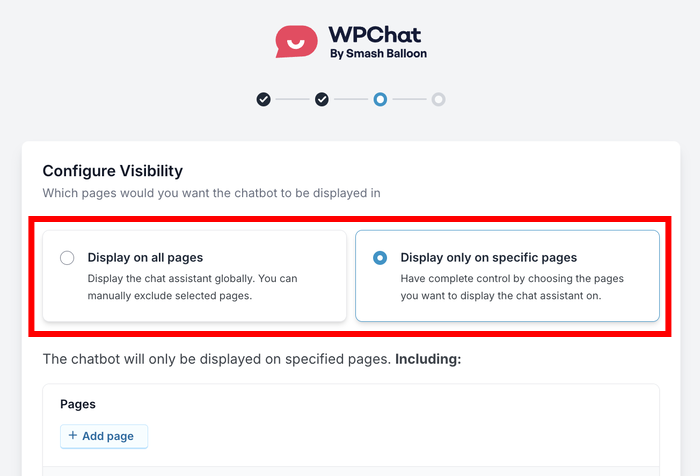
If you want visitors to reach you from anywhere on your site, select the first option.
However, if you only want the Telegram connection available on certain pages, select the second option.
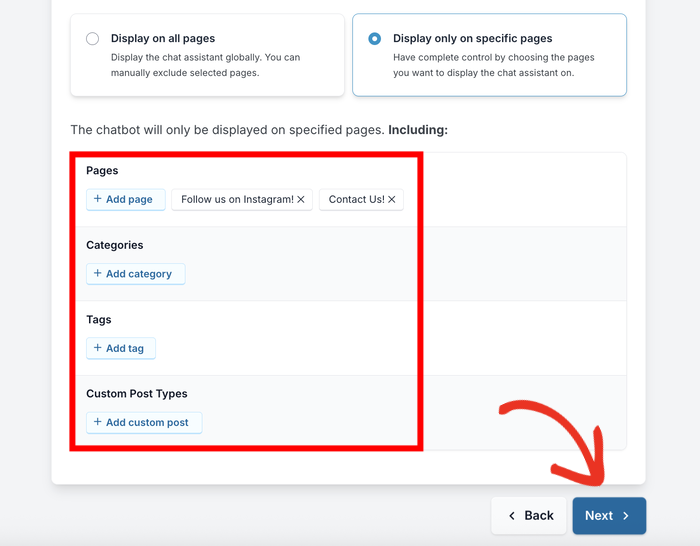
Below, you can find built-in filters that let you include or exclude specific parts of your website.
Select the Pages, Categories, Tags, and Custom Post Types that you want to include or exclude.
Finally, you can click on Next to move forward.
Finally, enter your WPChat license key into the field to activate the plugin.
Once you’ve entered your key, click on Complete Setup.
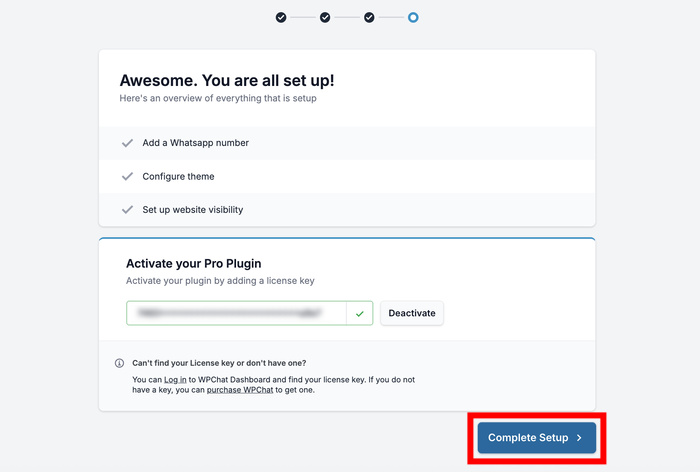
Your WordPress site is now successfully connected to Telegram, and visitors can start reaching you directly through the chat widget.
I recommend testing the connection yourself by clicking the widget on your site. This ensures everything redirects properly to your Telegram chat.

Step 4: Set Up Your Chat Agents
This is the step where you set up agents that will redirect your visitors to Telegram.
Each agent represents a member of your support team. That way, you can have different profiles, contact info, and online hours for different agents.
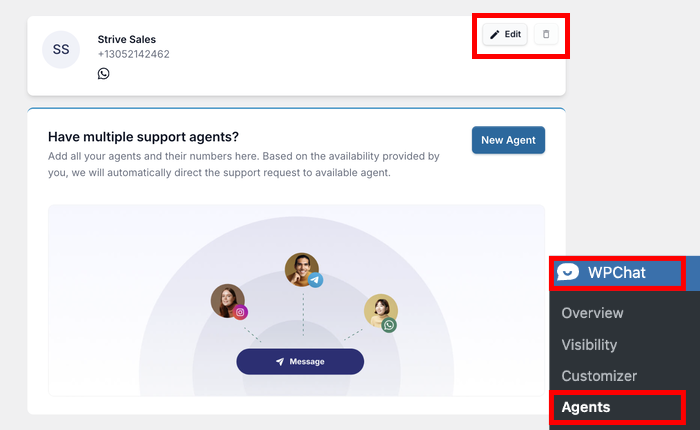
Navigate to WPChat » Agents from your WordPress dashboard menu to set up your Telegram connection.
You’ll see a default agent listed on this page. Click on Edit to open the agent settings.
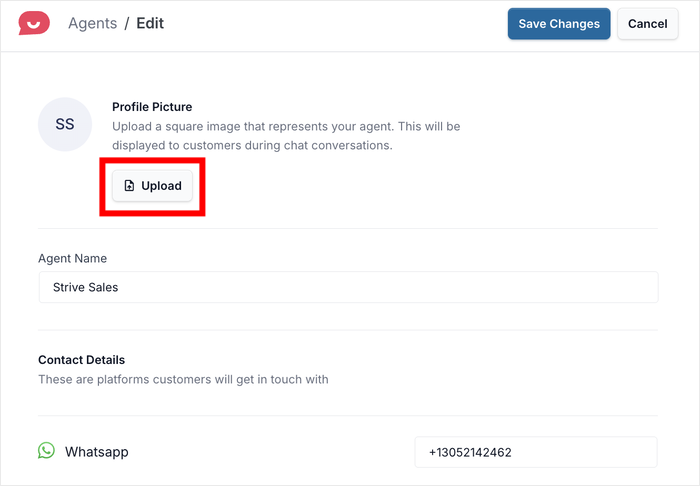
First, click Upload to add a professional headshot or company logo that will represent you in the chat widget.
This helps visitors know they’re talking to a real person or legitimate business.
Next, enter a fitting name for your chat agent in the name field. You can use your actual name, your business name, or even a department name like “Support Team.”
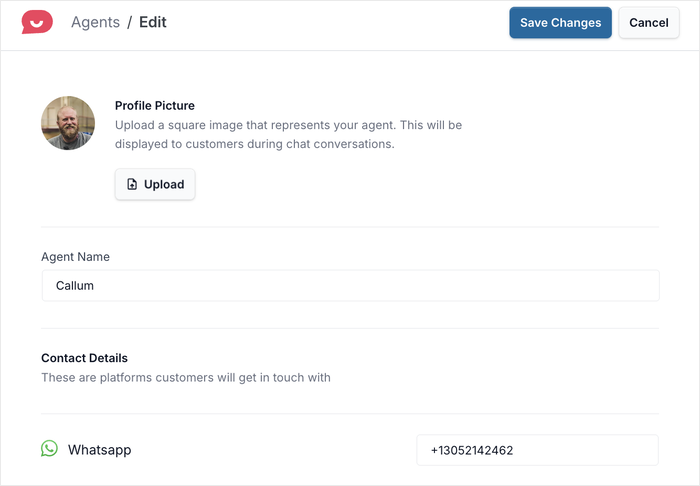
Finally, click on Save Changes to confirm your changes to this agent.
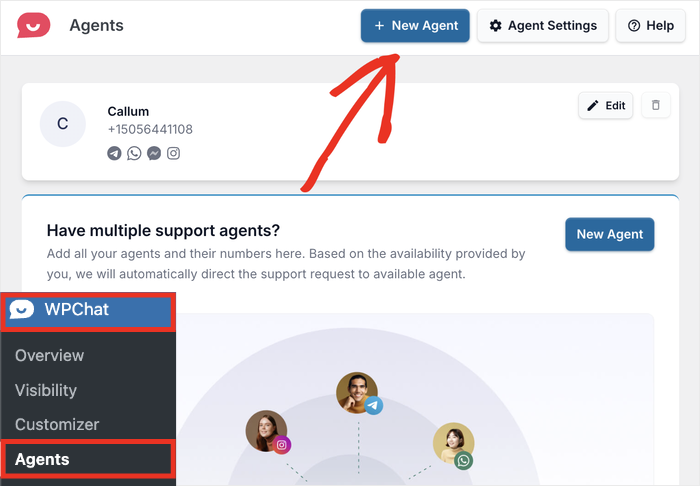
After that, return to the WPChat » Agents menu, and you’ll see the new details shown with the agent.
To create another agent, click on the New Agent button at the top, then repeat this step.
Step 5: Add Schedules for Your Chat Agents
Finally, you can start setting up schedules for the agents. That way, you can make sure the Telegram messages are sent to the staff that’s actually online.
First, click on the Agent Settings button at the top.
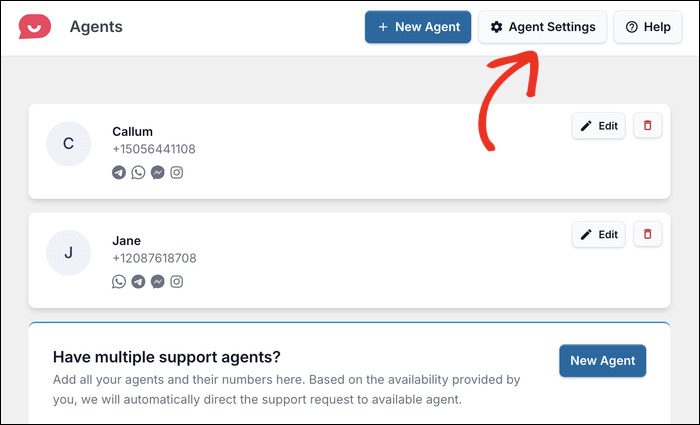
On this page, use the dropdown menu under the Timings option.
Select the Enable option here.
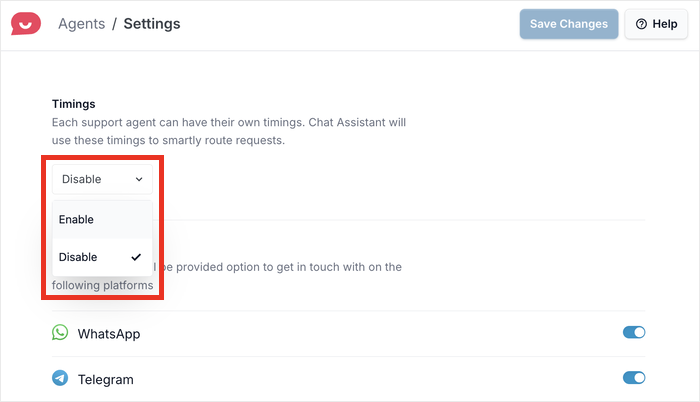
This will show a new option that lets you control off hour rules.
You have 2 options to choose from:
- Disable contact option: Messages won’t be sent when all your agents are off-duty
- Redirect to an off-hours agent: Select a specific agent that’ll handle all the messages when everyone else is off duty.
Select whichever option fits your brand’s support schedule from here.
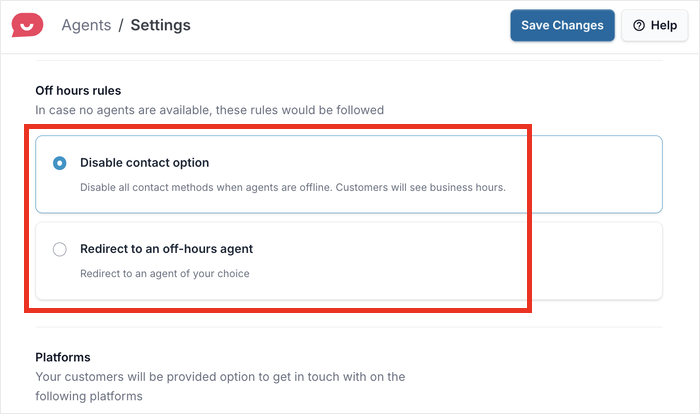
After that, click on Save Changes to confirm your new settings.
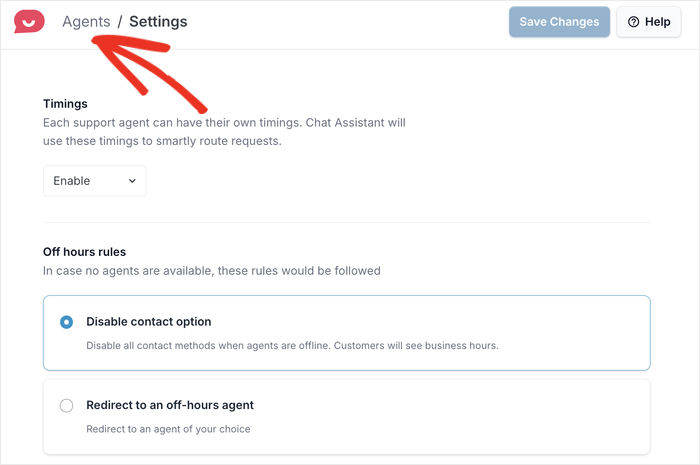
You can then return to the main agents page by clicking on Agents at the top.
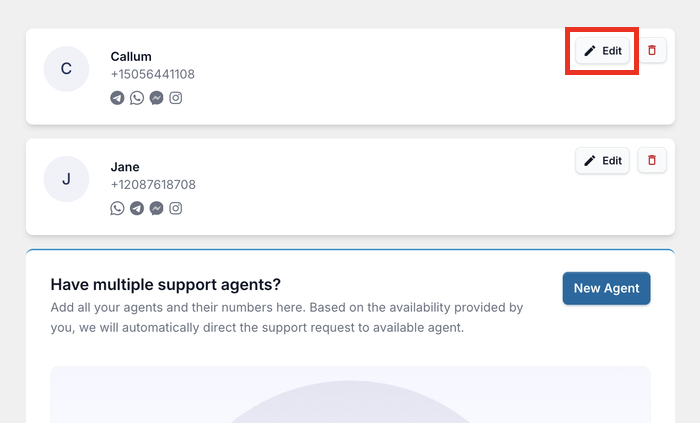
Once again, you’ll see a list of your Telegram chat agents.
This time, click on the Edit button on one of the agents to set up their duty hours.
You can now see a new Timings setting for each agent.
Use the dropdown menu to select the duty hours, then select the active days on the right.
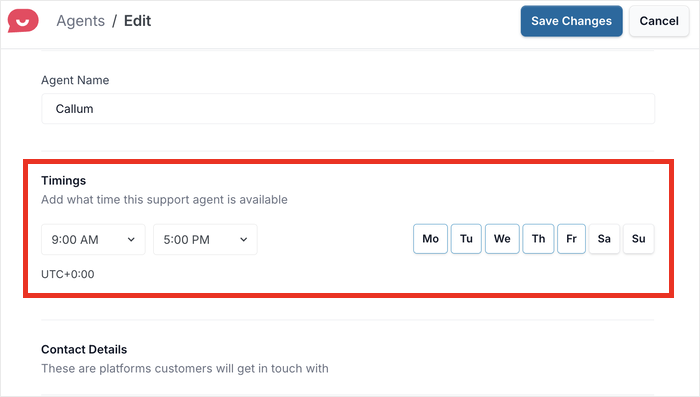
Finally, click on Save Changes and repeat the steps for other agents as well.
WPChat vs. Other Ways to Connect WordPress to Telegram
WPChat is not only the best way to add Telegram to your WordPress site, it’s also the easiest for beginners.
If you’ve been wondering whether there’s a better option for your specific situation, this quick comparison will help you decide.
| Method | Ease of Setup | Requires Coding? | End Result |
|---|---|---|---|
| WPChat Plugin | Very Easy | ✅ No | A visible, floating chat button that lets visitors easily chat with you |
| Telegram Bot + Custom Code | Advanced | ❌ Yes | Messaging and custom workflows — but complex to build |
| Crisp (with Telegram integration) | Moderate | ✅ No | Heavy helpdesk-style chat platform with Telegram connected |
| Manual Telegram link in footer/menu | Very Easy | ✅ No | A plain text link or button that visitors can miss. |
For most WordPress site owners, WPChat is the clear winner. It requires no coding, takes less than 5 minutes to set up, and gives you a professional-looking chat widget that visitors will actually notice and use.
A manual link in your footer might seem like the simplest option, but in practice it rarely works well.
Visitors rarely scroll to the bottom of a page looking for a way to contact you, and a plain text link doesn’t grab attention the way a floating chat button does.
Conclusion & Going Forward
By connecting WordPress to Telegram, you can open up a direct communication channel between you and your visitors.
Instead of relying on slow email responses or hoping customers find your contact information, you’re giving them an instant way to reach you on a platform they already trust.
With WPChat, the entire process takes just a few minutes. You install the plugin, customize your chat widget, and add your Telegram phone number—that’s it.
Sign up for WPChat today and start connecting with visitors using Telegram.
If you want to get more out of WPChat, you may also want to see our guide on adding interactive chatbots to your website.