Want more restaurant website visitors to book a table?
It’s Friday night, and someone wants a table for two at 7pm. They land on your site, hit the reservation form, and read “we’ll get back to you.” Then they bounce to OpenTable.
Meanwhile, 91% of guests check a restaurant’s website before ordering, so the traffic is already there. The booking path is what’s broken.
Every restaurant owner I talk to knows a chat option matters. But adding it feels so complex that most give up before they finish. I’ve spent 10+ years helping businesses turn website visitors into customers, and I’ve seen how a single button can fix that.
I’ll show you how to add a WhatsApp chat button that lets guests book a table instantly, with no slow form and no third-party platform taking a cut.
You’ll get the exact placements, a copy-paste reservation script, and the one setting most people miss. By the end, you can turn that Friday-night browser into a booked table today.
Yes. You add a WhatsApp, Instagram, or Messenger chat button to your site, and guests message you to book a table. And with a chat funnel, WPChat answers the questions guests ask before they commit.
They can check if you have vegan options or a table for a big group, all in the same chat.
Here’s the best part. WPChat keeps things light, so it won’t slow down your website with a heavy chat system. It runs on WhatsApp or Messenger, platforms your guests already know and trust.
Here’s how the process works:
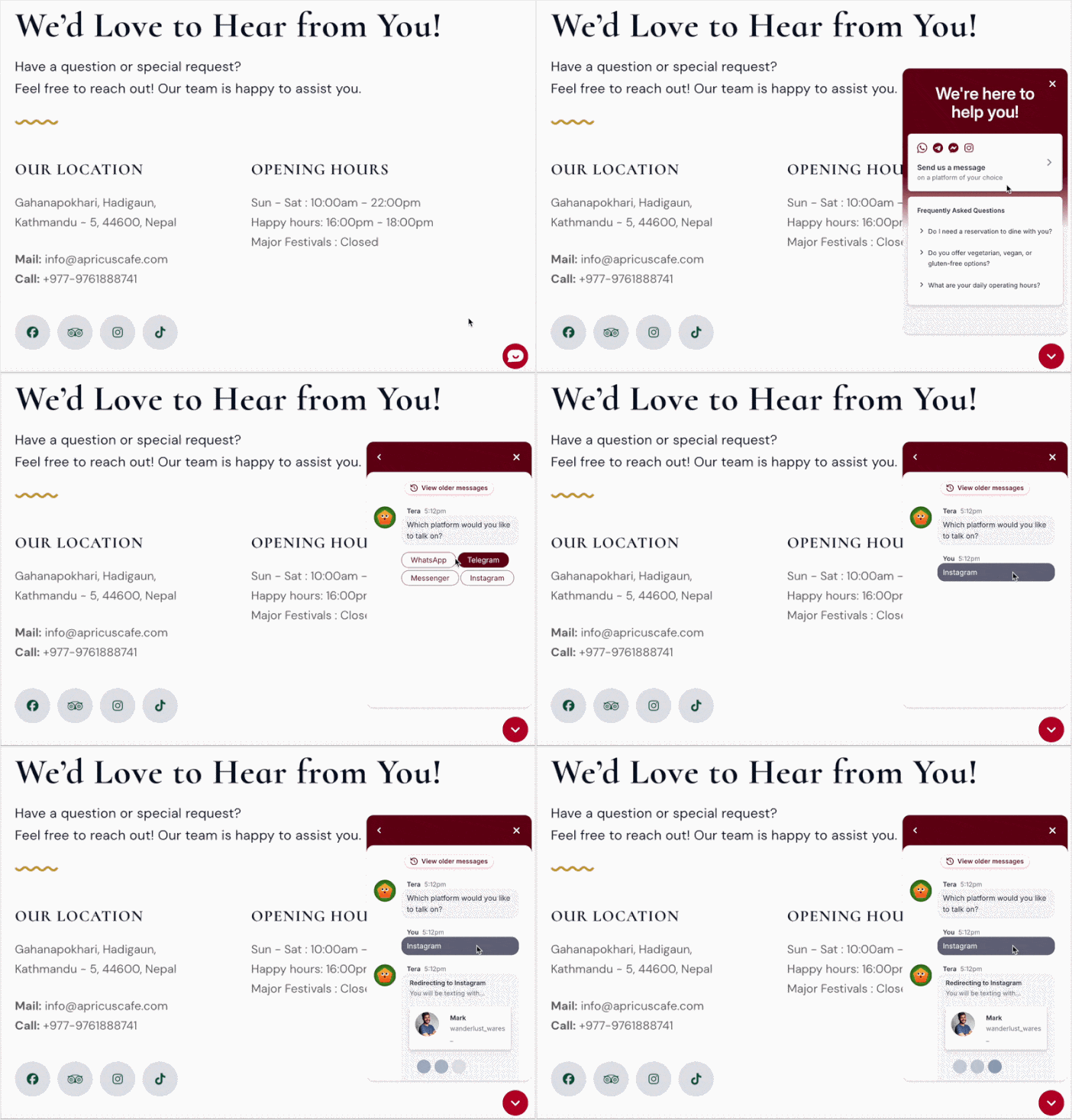
A guest clicks the WhatsApp or Messenger button on your site.
WPChat asks what they want to know, like your vegan options, opening hours, or room for a big group.
The funnel gives them the answers they need, so they feel sure you’re the right spot.
Once guests have all the info they need, the funnel redirects them to Instagram, WhatsApp, Messenger, or Telegram, where you confirm the table directly.
Once guests feel confident you have what they want, they reach out on a channel they already use, and you confirm the table when you’re ready. That’s a win for you and your guests.
Why Restaurant Websites Lose Bookings
Restaurant websites lose bookings because the path from visitor to table is too slow. Guests land on your site every night, but a clunky form, a missed call, or a third-party platform gets in the way. So where do they go?
Most of the time, three things stand in the way of the table.
Reservation forms are slow. A guest fills in the form and gets “we’ll get back to you.” There’s no instant “you’re in,” so they keep looking somewhere else.
Phone lines ring out during service. Your team is busy running the floor at 7pm. The one time a guest calls to book, nobody picks up.
Third-party platforms cost you. OpenTable and Resy take a cut of every cover, and they force the guest to make yet another account.
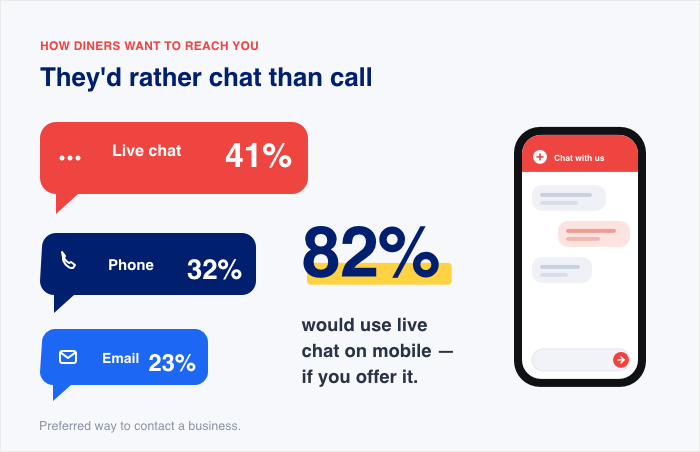
The numbers back this up. 41% of consumers prefer live chat over the phone (32%) and email (23%), according to Help Scout. And 82% of customers would use live chat on mobile if it were available, per Nextiva.
Think about where your guest is when they find you. They’re on their phone, mid-scroll, looking for a table tonight. A WhatsApp button turns that moment into an instant conversation on an app they already have open.
The Best Places to Add the Chat Widget on a Restaurant Site
Where should the chat button go so it helps guests book without getting in the way? The answer is the spots where guests are already thinking about a table.
Put the button where booking is on their mind, and a tap turns into a reservation.
Here are the four best placements and why each one works for a restaurant:
Placement
Why it works for bookings
Homepage, above the fold
This is where the guest decides whether to book at all. A visible chat button gives them a fast way in before they leave.
Menu page
Someone reading your menu is already hungry and warm. Catch that high intent with a button to ask about a dish or grab a table.
Contact or reservations page
Guests come here ready to book. A chat button supplements or replaces the slow form, so they get an answer now.
After a photo gallery or Google Maps embed
The guest just pictured themselves at your table. A button right there turns that feeling into a booking.
I always tell owners to lead with the homepage button. It’s the one spot every guest sees, so it catches the most bookings for the least effort.
Don’t worry, you don’t need all four at once. Start with the homepage and menu page, then add the others as you go.
Match Your Widget Hours to Your Kitchen Hours
Here’s the trap most restaurants fall into. You add a chat widget, leave it open all the time, but when the message reaches a support staff who’s taking a break.
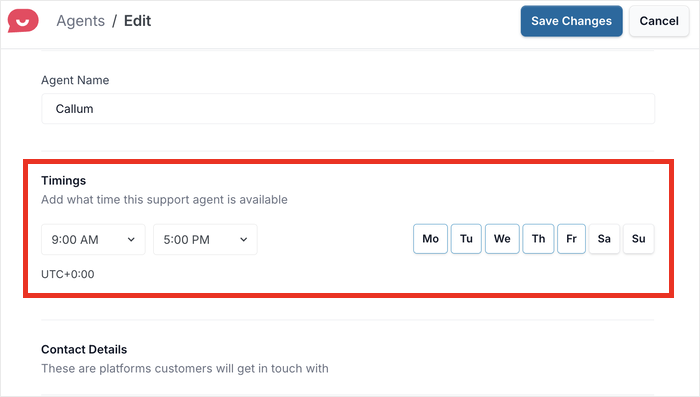
The fix is simple. WPChat lets you select when people on your support staff will be online and offline. That way, your visitors will always have someone ready to answer questions.
Create chat agents. Each agent can represent a different member of your support team, with avatars, custom names, and more to build trust.
Set available time. Select online and offline hours and days for each agent so the message requests reach someone who’s ready to reply.
Capture the request anyway. All the relevant info they leave (date, time, and party size) will be saved in the inbox of whichever chat application they prefer.
On top of that, chat applications like WhatsApp even have auto-reply options that will respond with a preset message when you’re offline.
Think of the auto-reply as your host after closing time. It greets the guest, tells them when you’ll reply, and holds their booking details for you.
Ready to put this on your site? Here’s the good news: WPChat is built for this. You get multi-channel chat funnels for your reservation flow, so guests book on the app they already use.
Follow these steps and you’ll be live before your next service.
Install and connect your channels
In WordPress Admin, click WPChat in the sidebar, then click Set Up on the welcome screen.
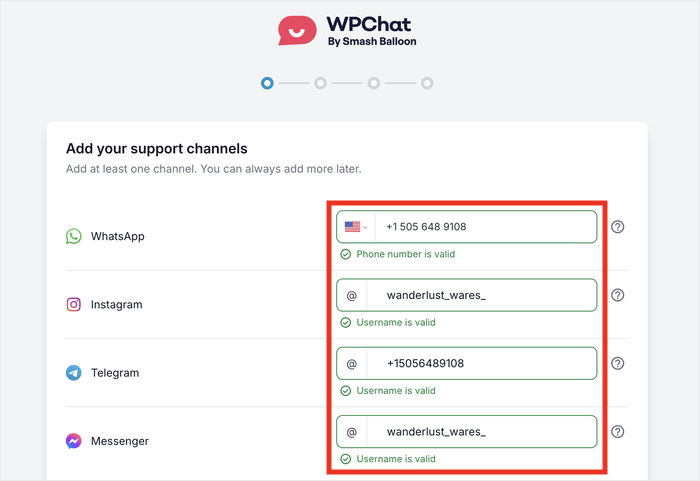
Add Support Channels: Enter at least one channel your restaurant uses. For WhatsApp, pick your country flag and type your business phone number.
If you want, you can add Instagram, Telegram, or Messenger usernames too. Wait for the green ✓ is valid confirmation, then click Next.
Select a theme for the chat widget between 3 options: Basic, Night, or Pastel.
Configure visibility to choose which parts of your site it shows up and click on Next.
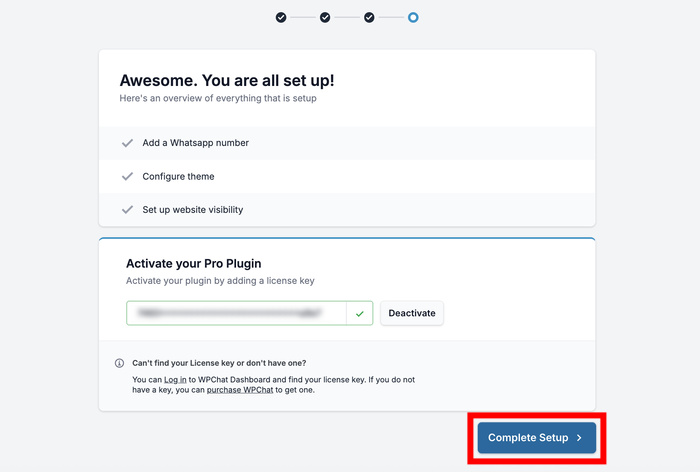
Finally, enter and Activate your license key and click on Complete Setup.
Write a restaurant-specific greeting
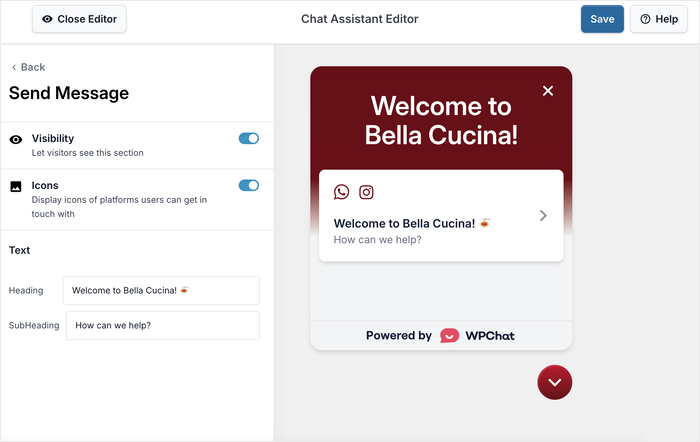
From the WPChat Dashboard, click Customize, then click Send Message.
In the Heading field, add a restaurant greeting, for example: Welcome to Bella Cucina!🍝 and under Subheading, add How can we help?
Watch the live preview update the greeting text in real time.
Optional: Match the restaurant’s look
Click Back, then Color Palette to select a preset or set a custom Accent color.
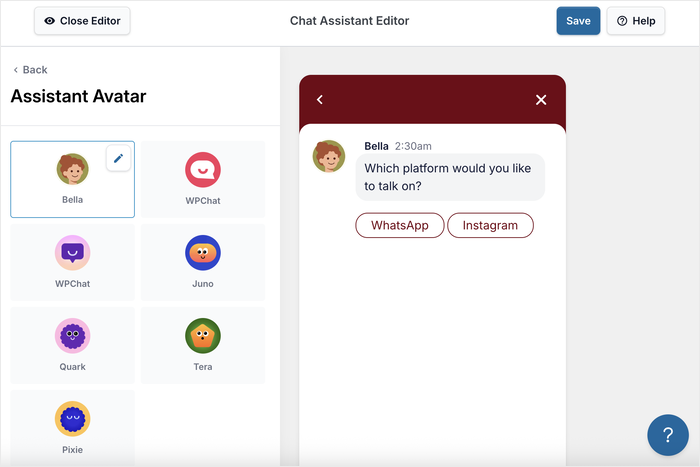
Click Back, then Assistant Avatar to pick a preset or click + Add Your Own to upload your logo (square image) and enter a Chatbot Name.
Build a basic reservation funnel
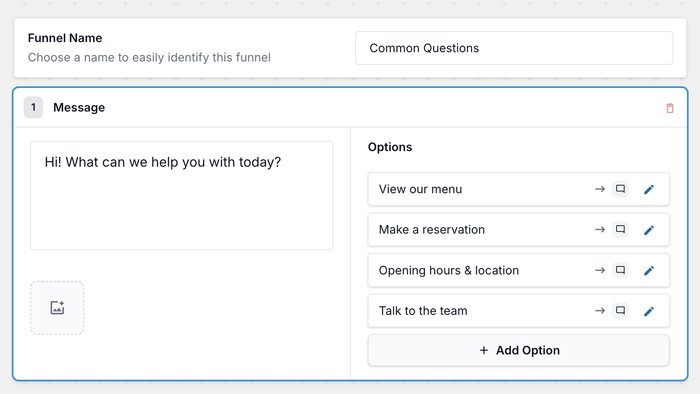
Go to WPChat » Chat Funnels, click + New Funnel, and type a Funnel Name, like Common Questions.
Edit the first Message Block (Block 1). In the message text area, enter your opening question, example: Hi! What can we help you with today?
Under that block, click + Add Option for each common question. Add options like:
View our menu
Make a reservation
Opening hours & location
Talk to our team
Add more message blocks with + Add Message Block. For example:
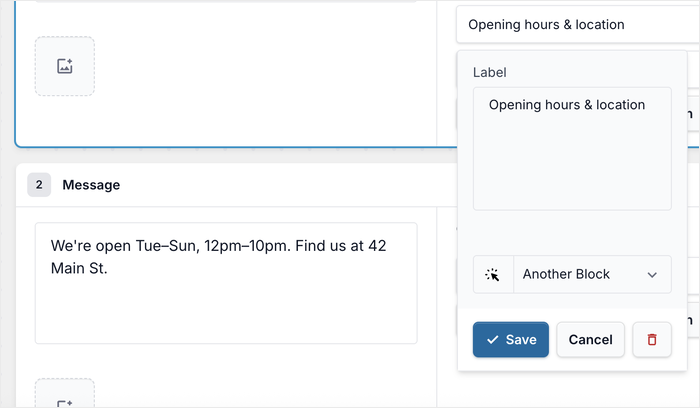
Block 2 — Opening hours:We're open Tue–Sun, 12pm–10pm. Find us at 42 Main St.
Block 3 — Menu:Here's our full menu: (attach an image or link).
Return to the first message block, and for each response option, click the edit icon and connect it to:
To Another Block → send the visitor to a follow-up message (e.g. an answer block), then pick the target block number.
To Customer Support → route them to a channel (e.g. WhatsApp) for reservations or live help.
Click Save.
Connect each Block 1 option to its matching answer block or customer support, then add response options to Block 2 and repeat the steps.
Use the preview panel (or Play Full Funnel) on the right to test the flow end to end, then click Save Changes.
Set where the funnel appears
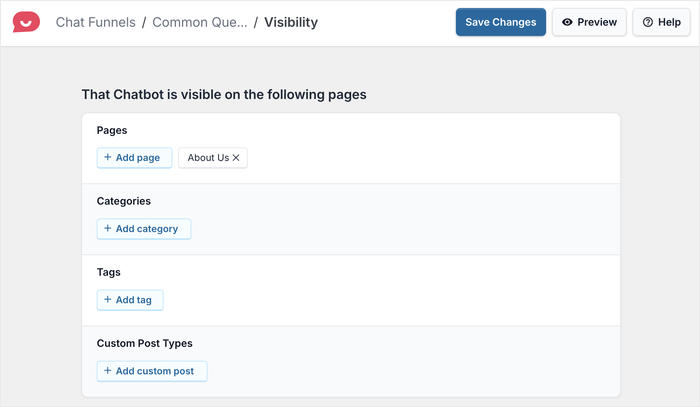
Go to the funnel’s Visibility tab and add the pages this funnel should run on with + Add page (e.g. your menu or reservations page), or add Categories, Tags, or Custom Post Types.
Click Save Changes.
Want the full walkthrough on building the flow? See our guide on WhatsApp chat funnels.
Even if you’ve never touched a plugin setting, this takes about ten minutes.
A Simple Reservation Chat Funnel (Copy This)
Want a funnel you can paste in today? Here’s one that answers the questions guests ask before they book. It gives them your hours, your menu, and a quick way to reach your team.
Drop this into your reservation funnel, block by block:
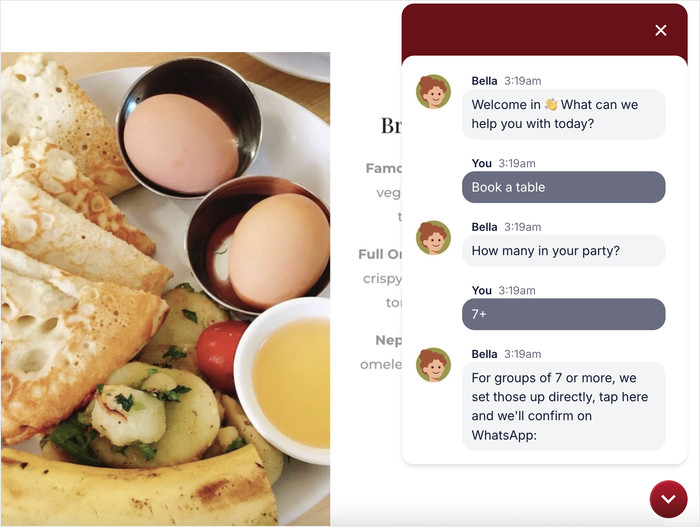
Block 1 Opening message
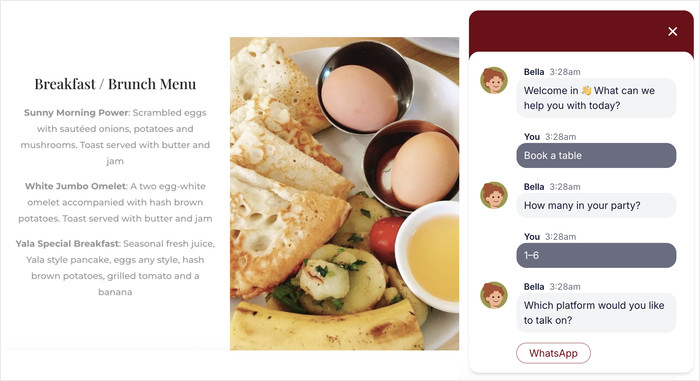
Bot: Hi! Welcome in 👋 What can we help you with today?
Book a table
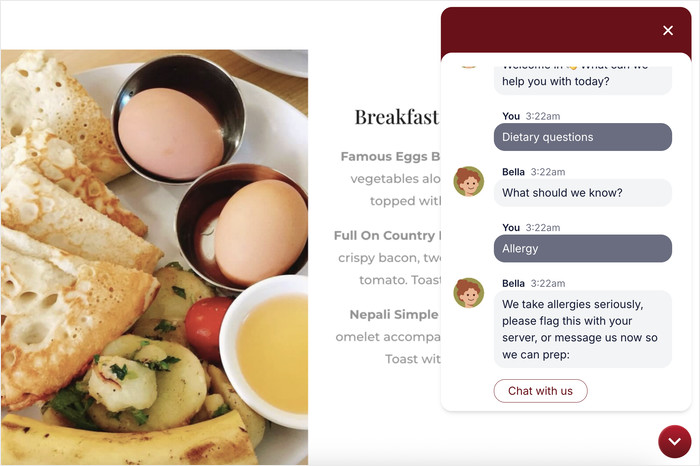
Dietary questions
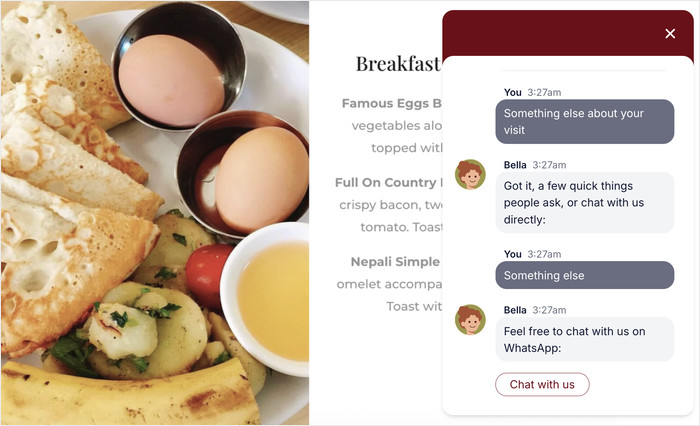
Something else about your visit
If the customer selects “Book a table”:
Bot: How many in your party?
1–6
7+
If 1–6: Book here in a few taps: [booking link]
If 7+: For groups of 7 or more, we set those up directly, tap here and we’ll confirm on WhatsApp: [chat button] → routes to Customer Support
If the customer selects “Dietary questions”:
Bot: What should we know?
Vegan / vegetarian
Gluten-free
Allergy
Vegan/vegetarian or Gluten-free: Marked on the menu with 🌱 / 🌾, here’s the full menu: [menu link]
Allergy: We take allergies seriously, please flag this with your server, or message us now so we can prep: [chat button] → routes to Customer Support
If the customer selects “Something else about your visit”:
Bot: Got it, a few quick things people ask, or chat with us directly:
Opening hours & location
Can we bring a dog / kids?
Something else
Opening hours & location: Tue–Sun, 12pm–10pm, at 42 Main St. Free parking out back.
Dogs/kids: Dogs welcome on the patio! High chairs available inside.
Something else: Feel free to chat with us on WhatsApp: [chat button] → routes to Customer Support
Here’s the best part. This funnel hands guests the exact links and answers they need to book with confidence, in seconds.
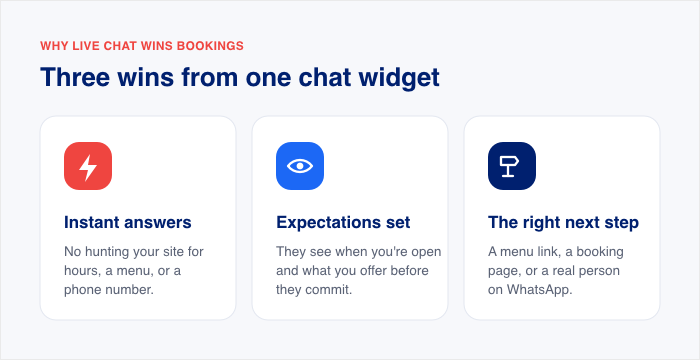
That’s what makes it work for a restaurant:
The guest gets instant answers. No hunting your site for hours, a menu, or a phone number.
You set expectations up front. They see when you’re open and what you offer before they commit.
You point them to the right next step. A menu link, a booking page, or a real person on WhatsApp.
Swap the placeholder links for your real menu, booking page, and WhatsApp button. A working link beats a dead end every time.
This funnel is also a reassurance tool. Every guest who taps through sees that you’re open, ready, and easy to reach, even mid-service.
Reservations are the big win, but the same chat button solves smaller headaches too. Once WPChat is live, you can point it at the questions that eat up your team’s time. Here are three that work well for restaurants:
Answer menu questions. Set up FAQ automation for the ones you hear daily, like “Do you have gluten-free options?” The bot replies in a tap, so guests get an answer without waiting on your team.
Handle takeaway and delivery questions. Let the chat funnel field order and pickup questions during service. This keeps your phone line free when the kitchen is busiest.
Point guests to directions or parking. Add a block with your address, a map link, and where to park. Guests find you without a phone call, and your host stays on the floor.
One thing worth knowing: sending daily specials by broadcast is a WhatsApp Business feature, not a WPChat one.
It’s handy if you already use WhatsApp Business, so keep it in mind as a bonus rather than a reason to switch.
The good news is you can turn these on one at a time, starting with whatever question your team answers most.
Frequently Asked Questions
What if guests message during service when I cannot respond?
When guests message during service, your availability hours and auto-reply keep them from waiting in silence. The guest gets an instant acknowledgment plus a reply-by time, and their booking details are held for you.
You confirm the table the moment your team is free.
Can I use WPChat in multiple languages for international guests?
Yes, you can use WPChat with international guests. It supports multi-channel chat and lets you set a greeting to welcome visitors in more than one language. That way guests see a message they understand before they reach out.
Can WPChat connect to my existing reservation system (OpenTable, Resy)?
WPChat does not plug directly into OpenTable or Resy as a two-way integration. It is a direct-contact funnel, so it collects the guest’s date, time, and party size, then your team enters that request into your system.
The upside is real: no third-party platform takes a cut of the booking.
Is WhatsApp really better than a booking form for restaurants?
Yes, WhatsApp beats a booking form for speed and familiarity. Help Scout reports that 41% of consumers prefer live chat over phone and email, and Nextiva found that 82% of customers would use live chat on mobile if it were available.
Guests already have WhatsApp open, so a quick tap wins where a slow form loses the booking.
Start Taking WhatsApp Reservations Today
The traffic is already on your site. Right now, someone is checking your menu, wondering if you have a free table for Friday night. A WhatsApp button turns that browser into a booked table, with no platform cut and no slow form standing in the way.
Here’s what you’re really doing when you add that button:
You meet guests where they already are. WhatsApp is open on their phone, so booking takes a tap, not a form.
You keep every booking. No third-party platform skims a fee off the top of your reservations.
You reply on your own time. Auto-replies and availability hours hold the details until your team is free.
The good news is you don’t need to be technical to set this up. If you can send a text message, you can build a reservation funnel that works while you’re busy in the kitchen.
You can do this even if you’re just getting started with plugins. Add the button, paste in your links, and let the chat do the rest.
As the Senior Writer at Smash Balloon and WPChat, Sajjan has been writing about WordPress, social media marketing, and online business for over 10 years, with a focus on content curation and digital marketing strategy. His work shows site owners how to grow a following, get more from the content they publish, and reach that audience one-on-one through messaging apps.
We use cookies to improve your experience on our site. By using our site, you consent to cookies.
This website uses cookies
Websites store cookies to enhance functionality and personalise your experience. You can manage your preferences, but blocking some cookies may impact site performance and services.
Essential cookies enable basic functions and are necessary for the proper function of the website.
Name
Description
Duration
Cookie Preferences
This cookie is used to store the user's cookie consent preferences.
30 days
You can find more information in our Cookie Notice and .