Aquí tienes una historia que he visto a menudo: un propietario de tienda añade un botón de WhatsApp esperando contactar con los clientes, pero no pasa nada.
Sin mensajes. Sin clics.
Normalmente, han pegado un enlace wa.me en un widget, o han cogido el primer plugin gratuito que han encontrado y lo han dado por terminado. Pero esta configuración conlleva muchos problemas.
Un enlace wa.me básico puede ser difícil de encontrar y no funciona correctamente en el escritorio. Además, la mayoría de los tutoriales ni siquiera te dicen que configures las horas de disponibilidad.
He probado los enfoques comunes, incluido el método manual junto con plugins diseñados para WooCommerce, para averiguar qué funciona exactamente.
En esta guía, te mostraré la forma más sencilla de añadir chat de WhatsApp a tu tienda WooCommerce y empezar a conectar con los visitantes, generar ventas y crear confianza con los clientes.
- ¿Puedes añadir WhatsApp a WooCommerce? (Respuesta rápida)
- Por qué vale la pena añadir el chat de WhatsApp a tu tienda WooCommerce
- ¿Cómo conecta WPChat tu tienda con WhatsApp?
- Paso a paso: Añadir chat de WhatsApp a WooCommerce
- Dónde mostrar tu botón de WhatsApp en WooCommerce (Guía de ubicación)
- Preguntas frecuentes
- Empieza a añadir chat de WhatsApp a tu tienda WooCommerce ahora
- Más tutoriales y guías de marketing online
¿Puedes añadir WhatsApp a WooCommerce? (Respuesta rápida)
Sí, la forma más rápida de añadir chat de WhatsApp a tu tienda WooCommerce es usar el plugin WPChat.
Tarda unos cinco minutos, no necesita código y funciona en móvil y escritorio directamente.
Sigue leyendo para ver el paso a paso completo, incluyendo dónde colocar el botón en tu tienda para que realmente reciba clics.
Por qué vale la pena añadir el chat de WhatsApp a tu tienda WooCommerce
Cada día, los visitantes llegan a tu tienda con preguntas y si no obtienen una respuesta rápida, se van.
WhatsApp es donde ya se encuentran la mayoría de esos clientes. Meta informa que WhatsApp tiene más de 2 mil millones de usuarios activos mensuales en todo el mundo, lo que la convierte en una de las mayores aplicaciones de mensajería.
Tampoco se utiliza solo para chat normal. Más de 200 millones de empresas ya utilizan WhatsApp para conectar con los clientes.

Según una encuesta de Nielsen encargada por Facebook, el 64% de los consumidores dice que prefiere enviar un mensaje a una empresa que llamar.
Tus clientes no quieren coger el teléfono, quieren enviar un mensaje rápido y seguir con su día.
Un botón de chat de WhatsApp les ofrece exactamente eso. Elimina la fricción entre una pregunta y una compra.
Antes de empezar: ¿Necesitas WhatsApp Business?
No, no necesitas WhatsApp Business para añadir un botón de chat a tu tienda. Un número personal de WhatsApp funciona perfectamente.
Dicho esto, WhatsApp Business es gratuito y te ofrece algunas ventajas realmente útiles.
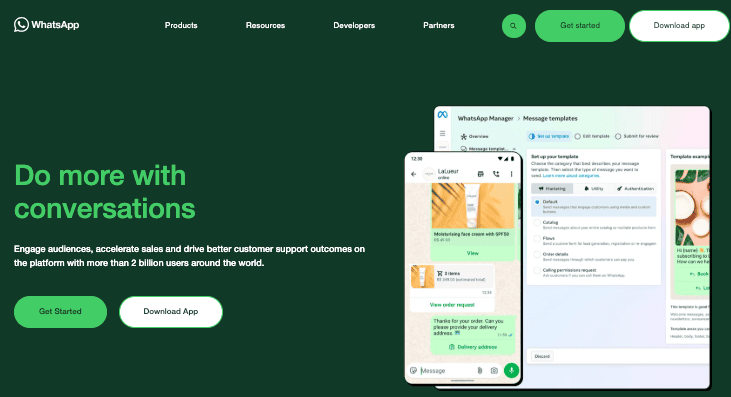
Cosas como un perfil de empresa, mensajes de ausencia y respuestas rápidas facilitan mucho la gestión de las conversaciones con los clientes.
Aquí tienes una comparación rápida para ayudarte a decidir:
| Característica | WhatsApp personal | WhatsApp Business |
|---|---|---|
| Coste | Gratis | Gratis |
| Perfil de empresa | No | Sí |
| Mensajes de ausencia | No | Sí |
| Respuestas rápidas | No | Sí |
| Requerido para el botón de chat | No | No |
Recomiendo descargar WhatsApp Business si aún no lo has hecho. Se configura en dos minutos y la función de mensajes de ausencia por sí sola ya vale la pena.
Para obtener más información, también tenemos una guía que compara WhatsApp Business con la API de WhatsApp Business.
¿Cómo conecta WPChat tu tienda con WhatsApp?
Este es el flujo real: un cliente hace clic en un icono flotante para abrir el asistente de chat.
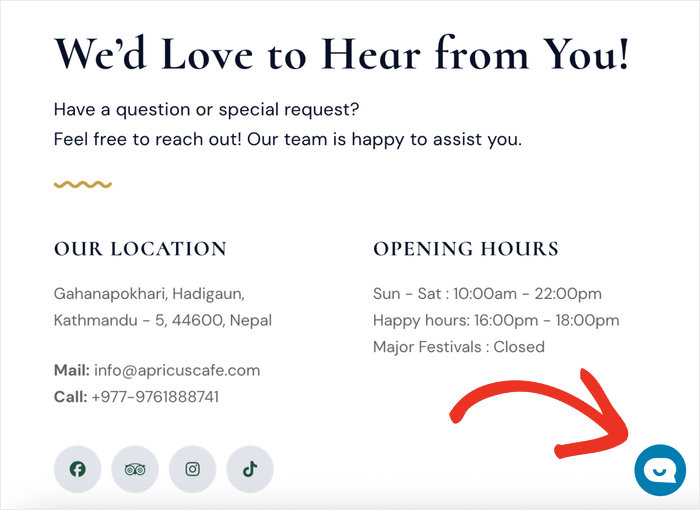
Desde allí, tus visitantes pueden elegir WhatsApp entre las plataformas de mensajería disponibles.
Al hacerlo, se abrirá instantáneamente WhatsApp en su teléfono o navegador web, listo para enviarte un mensaje.
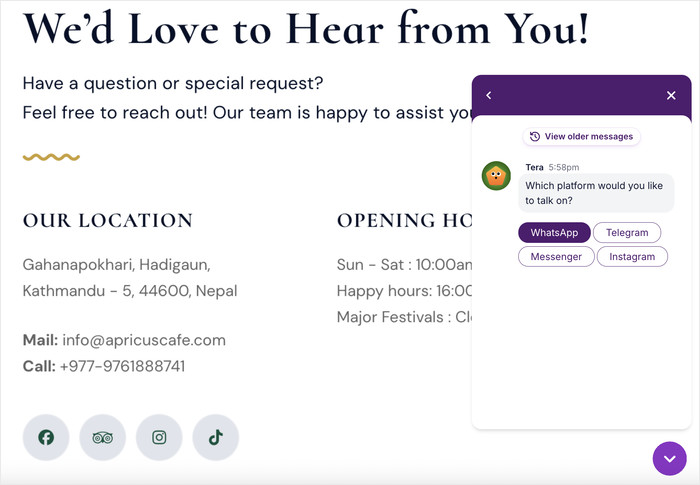
Cuando un cliente te envía un mensaje, llega como cualquier mensaje normal de WhatsApp.
Lo que necesitarás para empezar
Antes de empezar, asegúrate de tener lo siguiente preparado:
- Una tienda WooCommerce en funcionamiento: Tu tienda ya debería estar configurada y activa
- El plugin WPChat: Creado por el equipo de Smash Balloon, en el que confían más de 1,75 millones de usuarios
- Un número de WhatsApp Business: Consulta nuestra guía sobre cómo obtener un número de WhatsApp Business.
Paso a paso: Añadir chat de WhatsApp a WooCommerce
WPChat es la forma más fácil de añadir un botón de chat profesional de WhatsApp a tu tienda WooCommerce.
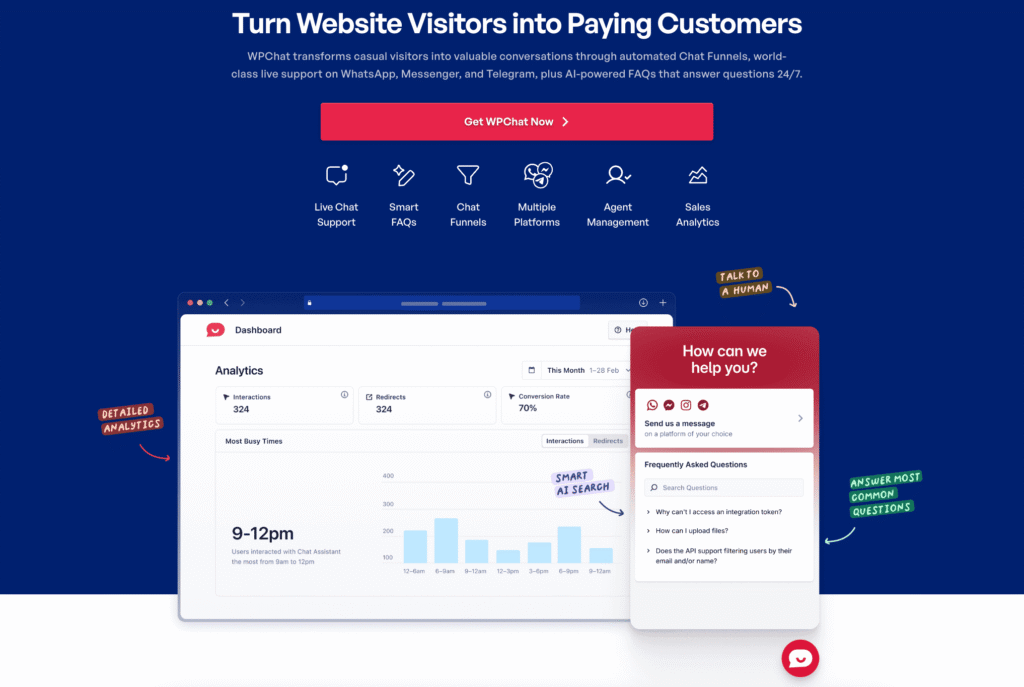
Gestiona automáticamente a los visitantes de escritorio y móviles, y obtienes reglas específicas de WooCommerce para dónde y cuándo mostrarlo.
Eso significa que el botón solo aparece cuándo y dónde realmente ayuda a tus clientes.
Empecemos y veamos cómo puedes añadir la función de chat de WhatsApp a WooCommerce usando este plugin.
Paso 1: Instalar y activar WPChat
Consigue una copia de WPChat desde aquí y descárgala en tu ordenador.
Después de eso, el plugin se puede instalar y activar como cualquier otro plugin.
En caso de que necesites ayuda para hacerlo, consulta esta guía sobre cómo instalar plugins de WordPress.
Una vez que lo actives, verás un nuevo menú WPChat en tu panel.
Paso 2: Ejecuta la configuración inicial
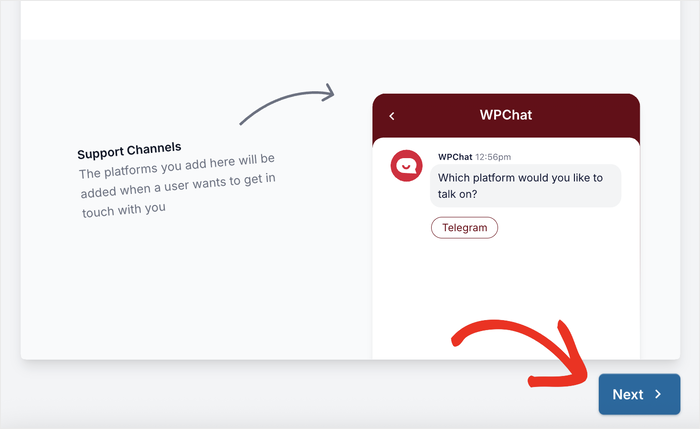
Una vez activado WPChat, haz clic en WPChat en la barra lateral de administración de WordPress y luego haz clic en Configurar.
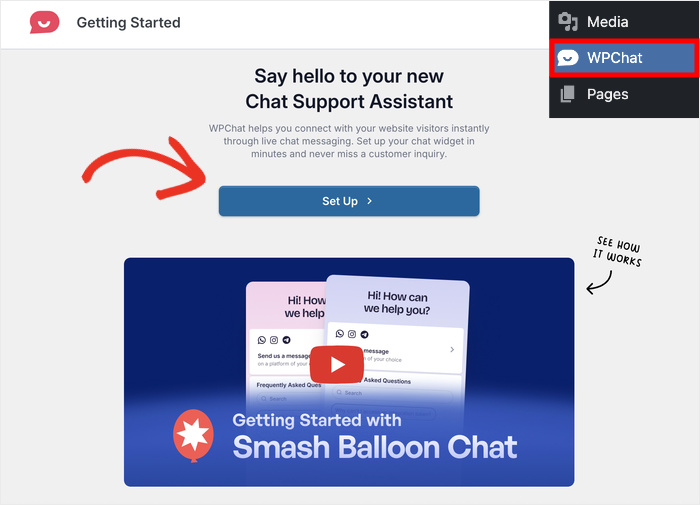
La primera pantalla te pide que añadas información para diferentes aplicaciones de mensajería.
Busca el campo de WhatsApp e introduce tu número de teléfono junto con tu código de país.
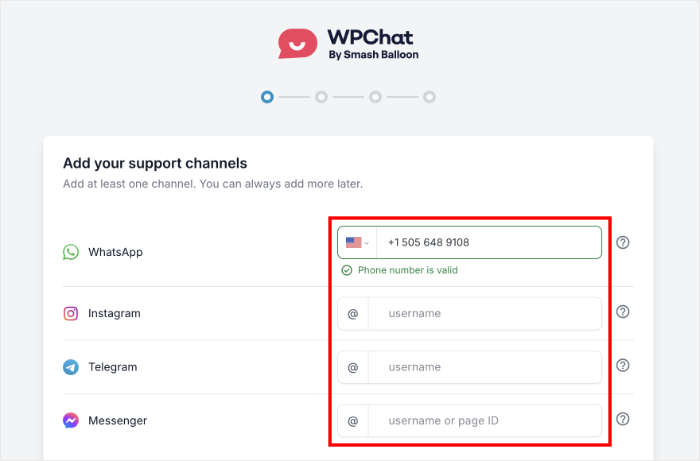
Una vez que hayas terminado, haz clic en Siguiente.
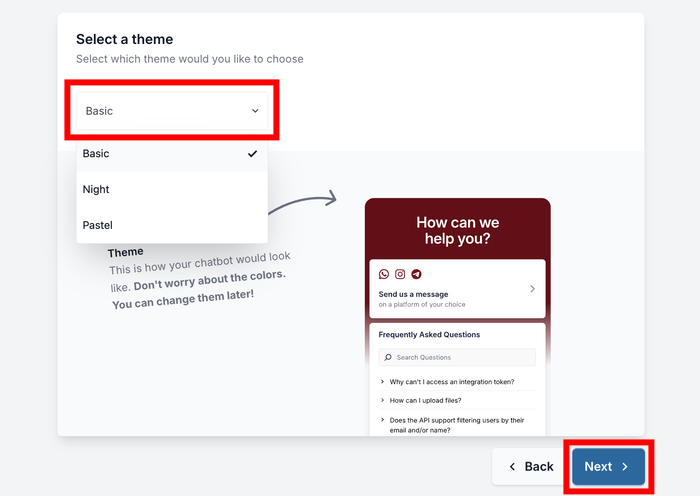
A continuación, el plugin te pide que selecciones un tema.
Usa el menú desplegable para elegir un estilo que encaje con el aspecto de tu tienda y, a continuación, haz clic de nuevo en Siguiente.
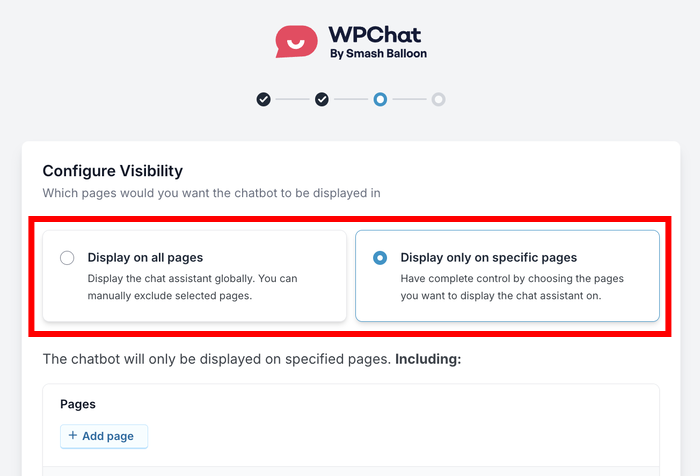
La tercera pantalla te permite controlar dónde aparece el botón de chat.
Puedes elegir entre Mostrar en todas las páginas o Mostrar solo en páginas específicas.
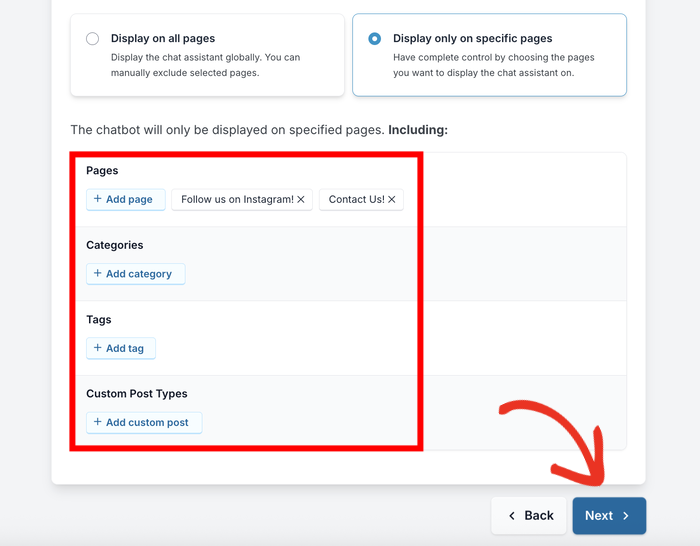
Si decides mostrarlo en todas partes, puedes usar los filtros de abajo para excluir partes de tu sitio web.
En caso de que elijas mostrarlo en páginas específicas, puedes usarlos para seleccionar dónde es visible.
Después de configurar la visibilidad y los filtros, haz clic en Siguiente para continuar.
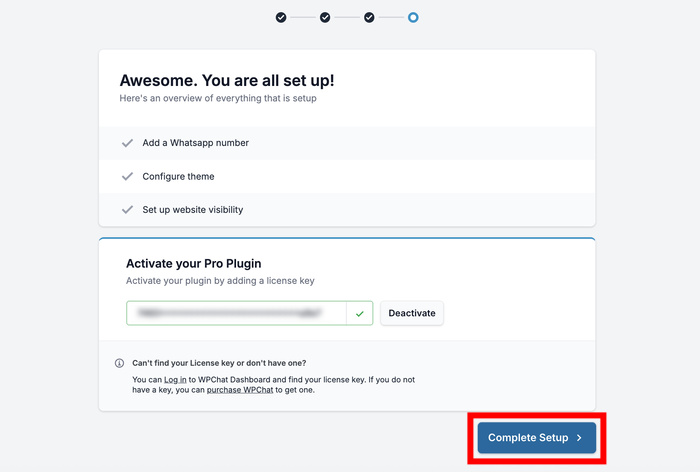
Finalmente, pega tu clave de licencia en el campo y haz clic en Activar.
Una vez confirmada tu licencia, haz clic en Completar configuración para finalizar.
Paso 3: Habilita los horarios de agente
Ahora, puedes configurar el horario comercial de tu tienda WooCommerce.
Para habilitar esta opción, ve a WPChat » Agentes y haz clic en Configuración del agente.
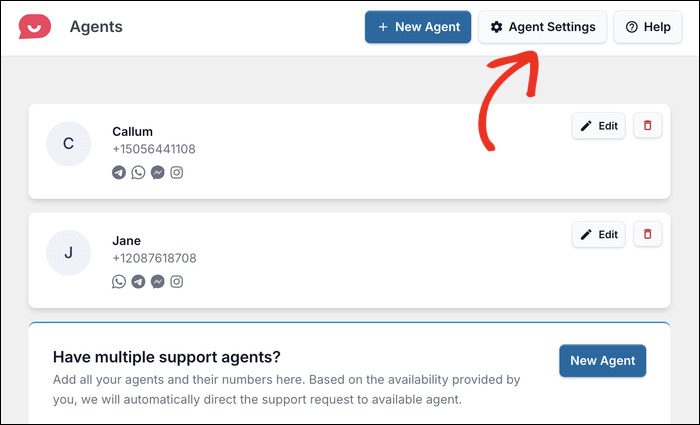
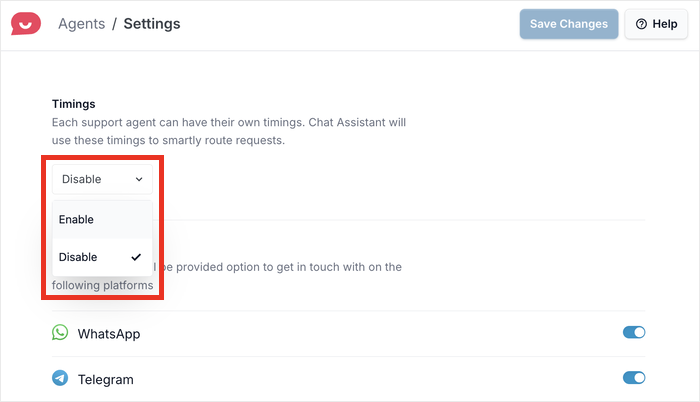
Desplázate hacia abajo hasta la sección Horarios y haz clic en el menú desplegable.
Selecciona Habilitar para activar el horario comercial para tus agentes.
Justo debajo, verás la configuración de las reglas de Horas de inactividad. Esto controla lo que sucede cuando tus agentes no están disponibles. Tienes dos opciones:
- Deshabilitar opción de contacto: Oculta el botón de chat por completo cuando no estás disponible.
- Redirigir a un agente de horas de inactividad: Envía a los clientes a un agente específico que elijas del menú desplegable.
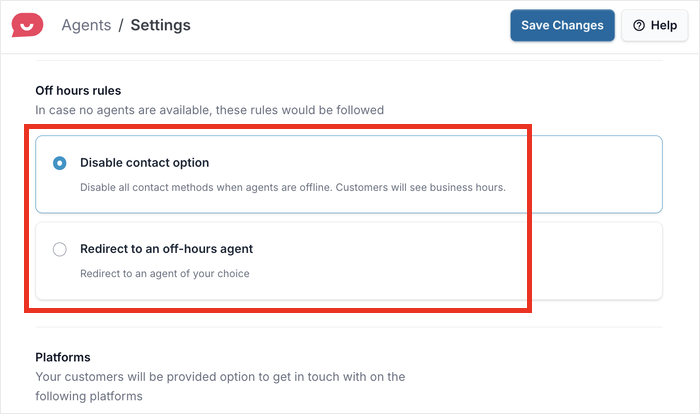
Siéntete libre de elegir la opción con la que tú y tu equipo de soporte se sientan más cómodos.
Una vez que hayas hecho tu selección, haz clic en Guardar cambios.
Paso 4: Establece tus horarios de agente
Ahora que los horarios de los agentes están habilitados, puedes configurar las horas reales en las que tu botón de chat estará activo.
Ve a WPChat » Agentes y haz clic en Editar en tu agente.
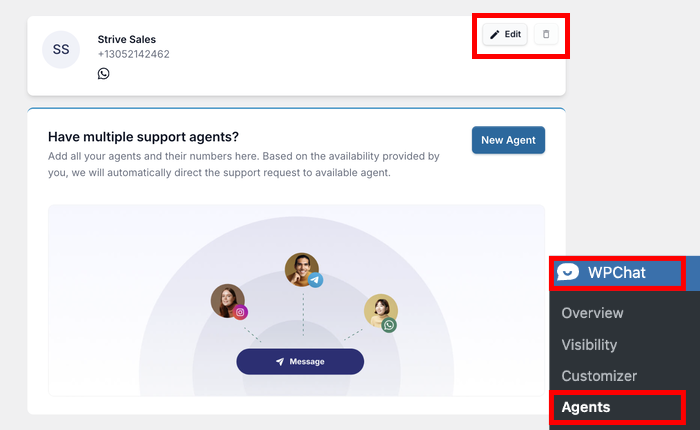
A continuación, desplázate hacia abajo hasta la sección de horas de disponibilidad.
Usa los menús desplegables de Hora de inicio y Hora de fin para establecer tu horario laboral.
A continuación, haz clic en los botones de los días para activar qué días estás disponible.
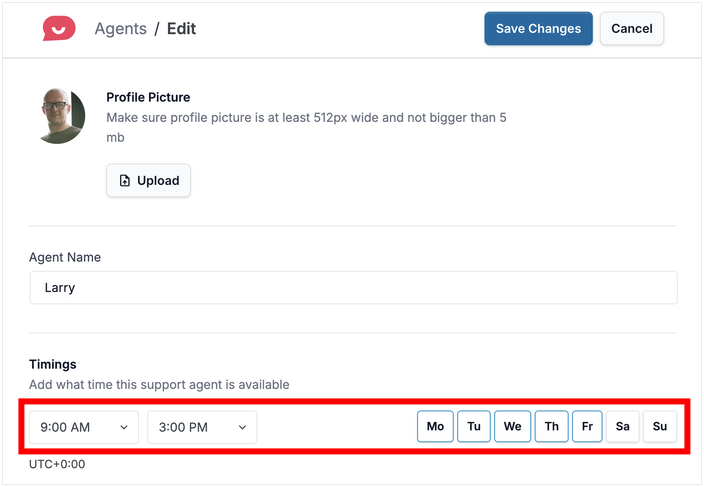
Recomiendo usar tu horario comercial real aquí en lugar de adivinar. Después de todo, establecer un horario honesto genera expectativas honestas.
Finalmente, desplázate hacia abajo hasta la sección Detalles de contacto.
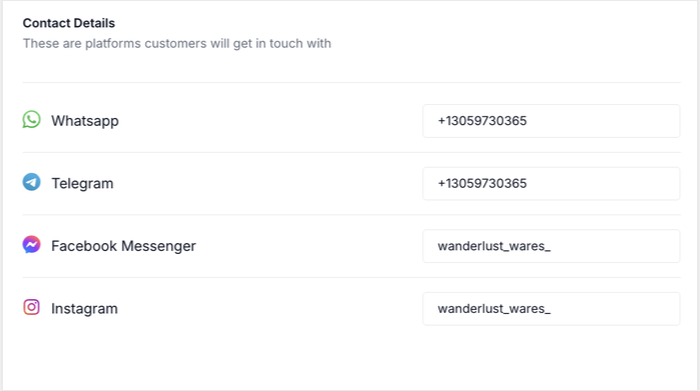
Desde aquí, puedes configurar detalles de contacto específicos para agentes específicos.
Puedes conectar este agente a otras plataformas de mensajería si lo deseas, o simplemente confirmar que tu número de teléfono de WhatsApp es correcto.
Una vez que todo parezca correcto, haz clic en Guardar cambios.
Paso 5: Personaliza el botón de chat de WhatsApp
Ve a WPChat » Personalizador para abrir el personalizador en vivo de tu botón de chat de WhatsApp.
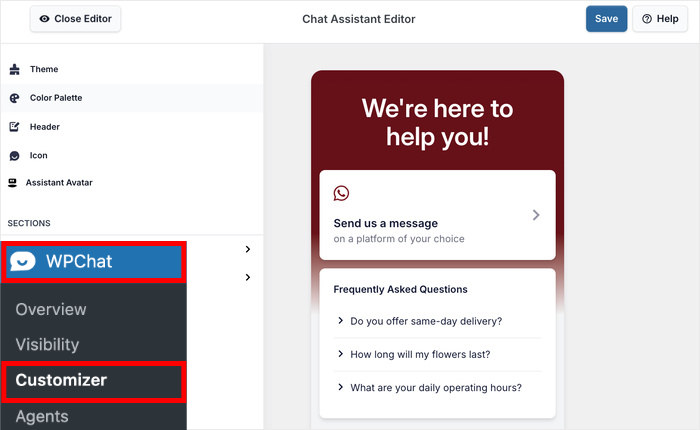
Una vez que se abra el editor, puedes ver las diferentes opciones de personalización a la izquierda.
Veamos cómo funciona la personalización con una demostración rápida.
Para empezar, haz clic en el Icono en el panel izquierdo.
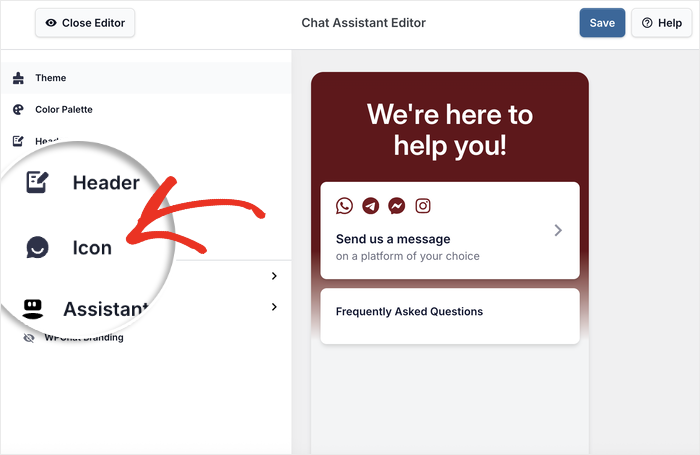
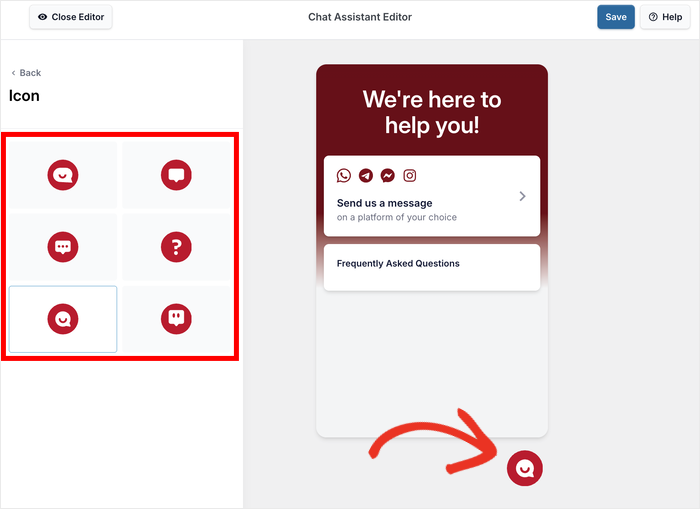
Verás una cuadrícula de opciones de iconos para elegir.
Haz clic en el icono que deseas usar y verás cómo la vista previa en la derecha se actualiza también.
Cuando estés satisfecho con tu elección, haz clic en Guardar en la barra superior.
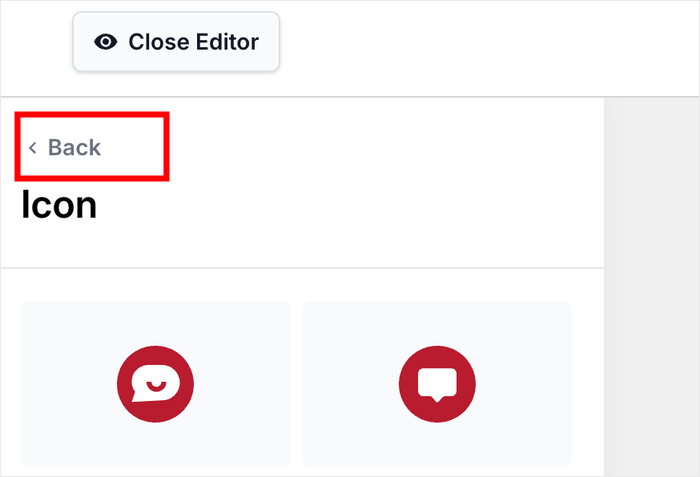
Después de eso, haz clic en el botón Atrás para volver a las opciones principales.
Así de fácil, puedes usar las opciones de personalización restantes para diseñar diferentes partes de tu botón de chat.
Dado que la marca de una tienda WooCommerce es realmente importante, hay suficientes opciones aquí para que el botón se sienta como parte de tu sitio.
Con eso, puedes abrir tu sitio web y comprobar cómo se ve y funciona la opción de chat para tus visitantes.
Dónde mostrar tu botón de WhatsApp en WooCommerce (Guía de ubicación)
Añadir el botón de chat es solo la mitad del trabajo. Dónde lo coloques importa tanto como eso.
Un visitante en tu página de producto tiene una pregunta de compra. Alguien en tu página de carrito podría estar a punto de abandonarlo.
Mostrar tu botón de chat en esos momentos exactos convierte una posible salida en una conversación.
Aquí tienes una guía sencilla para ayudarte a decidir:
| Página de WooCommerce | ¿Mostrar botón de chat? | ¿Por qué? |
|---|---|---|
| Páginas de producto | Sí | Las preguntas de compra ocurren aquí |
| Página de carrito | Sí | El riesgo de abandono es mayor aquí |
| Página de pago | Sí | La ansiedad por el pago alcanza su punto máximo aquí |
| Páginas de tienda / categoría | Opcional | Menor intención, así que prueba antes de comprometerte |
| Publicaciones de blog | Opcional | Están leyendo pero podrían querer más información |
| Página "Acerca de" | No | Intención baja aquí también |
| Página de agradecimiento / confirmación de pedido | No | La compra se ha realizado, por lo que no es necesaria ninguna acción. |
Las páginas de sus productos son donde se toman la mayoría de las decisiones de compra. Una pregunta rápida respondida aquí puede ser la diferencia entre un pedido completado y un abandono.
Las páginas del carrito y de pago son donde la duda alcanza su punto álgido. Un botón de chat visible en estas etapas le indica al cliente que la ayuda está a un toque de distancia.
¿WPChat ralentizará mi tienda WooCommerce?
No, WPChat está diseñado para ser ligero y garantiza que su tienda cargue tan rápido como siempre.
Carga un pequeño script que simplemente conecta a los visitantes con una plataforma de chat completa con la que ya están familiarizados.
Esto es lo que diferencia a WPChat de los plugins de chat en vivo completos. Estos a menudo agregan scripts de seguimiento, sistemas de identificación de usuarios y marcos JS completos en cada página.
WPChat simplemente redirige a los clientes a una aplicación externa y mantiene su sitio ligero.
Preguntas frecuentes
¿WPChat funciona con WooCommerce de inmediato?
Sí, WPChat funciona con WooCommerce de inmediato sin necesidad de configuración adicional para que ambos funcionen juntos.
Puede controlar exactamente en qué páginas de WooCommerce aparece el botón directamente desde la configuración de WPChat.
¿Puedo mostrar el botón de WhatsApp solo en las páginas de productos?
Sí, las reglas de visualización de WPChat le permiten elegir exactamente en qué páginas aparece su botón, incluidas solo las páginas de productos si eso es lo que desea.
Consulte la guía de ubicación anterior en esta publicación para obtener un desglose completo de las páginas a las que dirigirse y por qué.
¿Qué pasa si no estoy disponible para responder en tiempo real?
Los mensajes seguirán estando en su bandeja de entrada, lo que le permitirá responder cuando esté libre.
Además de eso, WPChat también le permite configurar horarios de inactividad. Puede ocultar el botón por completo o redirigir a los usuarios de chat a otro agente cuando esté fuera de línea.
¿Puedo rastrear las conversaciones de WhatsApp que provienen de WooCommerce?
WPChat viene con análisis integrados que le permiten ver exactamente cuántas conversaciones se están llevando a cabo y cuánto está convirtiendo.
De esa manera, puede ajustar su botón de chat y mejorar constantemente su rendimiento.
Empieza a añadir chat de WhatsApp a tu tienda WooCommerce ahora
Agregar chat de WhatsApp toma alrededor de diez minutos y puede convertir preguntas sin respuesta en pedidos completados.
Simplemente instale WPChat, configure sus horarios de disponibilidad y coloque el botón en sus páginas de productos y carrito.
Todo el proceso solo toma unos minutos y puede comenzar a recuperar ventas que actualmente está perdiendo por el silencio.
¡Añada WhatsApp a su tienda WooCommerce con WPChat!
Más tutoriales y guías de marketing online
- Cómo capturar clientes potenciales antes de que abandonen su sitio web
- Ubicaciones del botón de WhatsApp que funcionan: dónde colocarlos en su sitio web
- Cómo configurar respuestas automáticas de WhatsApp para tu negocio (con ejemplos)
- Marketing de WhatsApp Business: La guía completa para principiantes