Most visitors who leave your site without making contact are gone for good. They had a question, didn’t want to fill out a form, and just moved on.
Adding a Facebook Messenger chat button changes that: one click and they’re talking to you in a conversation they can pick back up any time, on any device.
I’ve set this up on multiple WordPress sites using WPChat, the WordPress click-to-chat plugin from Smash Balloon, and it takes about 5 minutes from install to a live chat button on your site.
Quick answer: Install WPChat, enable Messenger as a platform, enter your Facebook Messenger username in the agent settings, and your chat button is live. Full steps below.
One thing to know before we start:
WPChat is not an in-dashboard live chat tool. There’s no inbox to manage and no team chat to staff. When a visitor clicks your Messenger button, the conversation happens in Facebook Messenger, where your customer already is. That’s the whole point.
How Do I Add a Facebook Messenger Chat Button to WordPress?
Install WPChat, enable Facebook Messenger in the agent settings, enter your Messenger page username, and your chat button is live. No coding required. The whole setup takes about 5 minutes.
Here’s what you need before you start:
- A published Facebook Business Page (personal profiles won’t work)
- The WPChat plugin (free version gets you started)
- About 5 minutes
The button appears as a floating icon in the corner of your site. Visitors click it, and the conversation opens in Facebook Messenger on their phone or browser.
2 Ways to Add Facebook Messenger to WordPress
There are two ways to do this: manually paste JavaScript into your WordPress theme, or use a plugin. Here’s how they compare.
| WPChat (Recommended) | Manual code | |
|---|---|---|
| Do you need a developer? | No, the plugin handles everything | Yes, or at least comfort with theme files |
| Will it break when WordPress updates? | No, the plugin updates automatically | Possibly, theme file edits can get overwritten |
| Can you control which pages show the button? | Yes, per page/category/tag (WPChat Pro) | No, shows site-wide unless you add conditional logic |
| Can you add WhatsApp and Messenger together? | Yes, from one dashboard | No, requires separate scripts |
| Setup time | About 5 minutes | 20 to 30 minutes minimum |
| Best for | Any WordPress site owner | Developers who want full code control |
If you’re not a developer, use WPChat. Manual embeds work but break easily, and you lose display rules without extra coding. I’ve tried both and WPChat is the one I use.
Messenger Chat vs Other Website Chat Options
Before adding Messenger to your WordPress site, it helps to understand how it compares to other communication tools.
- Facebook Messenger vs WhatsApp: Messenger works well if your audience is already active on Facebook. WhatsApp may be more effective in regions where it’s the primary messaging app.
- Messenger vs Live Chat: Traditional live chat tools keep conversations on your site. Messenger allows conversations to continue even after visitors leave.
- Messenger vs Contact Forms: Forms create delays between question and response. Messenger removes friction by allowing instant communication.
If maintaining ongoing conversations and reducing response delays are priorities, Messenger chat can be a strong choice for WordPress websites.
When Facebook Messenger Chat Makes Sense
Facebook Messenger chat works best for businesses that rely on quick, conversational responses. It’s a good fit if:
- Visitors often ask pre-purchase or support questions
- Your audience already uses Facebook or Instagram
- You manage customer conversations inside Messenger today
Messenger chat may not be the best option for businesses that require strict internal ticketing systems or enterprise-level reporting.
Getting Started with Facebook Messenger Chat
There are two common ways to add Facebook Messenger chat to a WordPress website.
You can manually copy code from Facebook and add it to your site, or you can use a plugin that handles the connection for you.
I don’t recommend the manual method for beginners. Pasting code directly into your theme can cause conflicts, and you might lose your changes if you switch themes later.
For most site owners, using a plugin is the more reliable option.
In this guide, we’ll use WPChat, which connects your Facebook Page to WordPress through an API and handles the technical setup automatically without requiring any code.
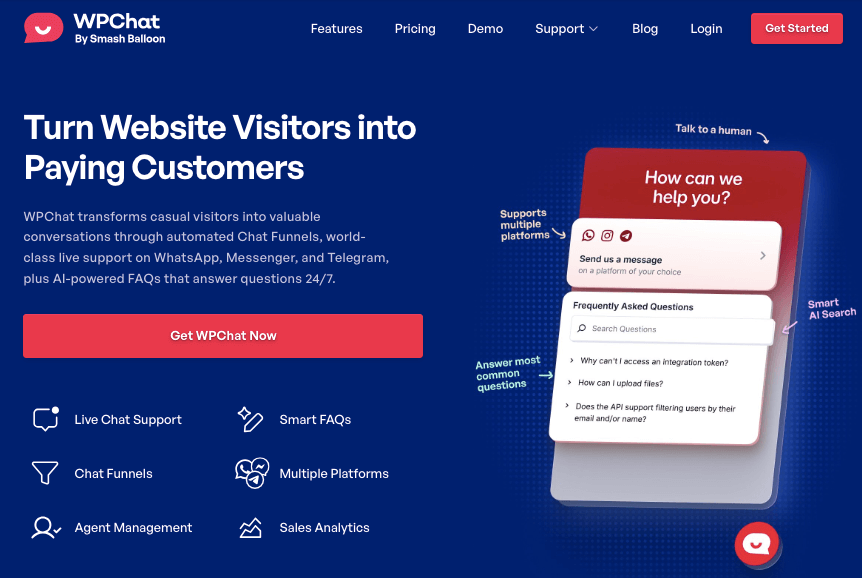
To help boost your reach, you can instantly add chat options for Facebook Messenger, Telegram, Instagram, and WhatsApp.
As a result, it means you’re meeting your customers on whichever platform they want.
What I like the most about WPChat is that WPChat handles the technical connection to Facebook Messenger so you can focus on responding to conversations instead of configuring widgets.
You can create chat assistants, connect them to different messaging platforms, customize their design, and display them on your website. All without touching a single line of code.
How Messenger Chat Works on WordPress
On WordPress websites, Messenger chat typically appears as a floating button or assistant in the corner of the screen. When a visitor clicks the button:
- A short prompt appears on your site
- The visitor is redirected to Facebook Messenger
- The conversation continues inside Messenger on mobile or desktop
This setup allows you to communicate through a platform your customers already use, without requiring them to install anything new or stay on your website during the conversation.
What You Need to Get Started
Before beginning the setup, ensure you have the following items ready:
- Administrator Access – You must be logged in to your WordPress dashboard to install plugins
- A Facebook Business Page – You must have a published Facebook Page. This feature does not work with personal Facebook profiles
- WPChat Plugin – The free version works for basic setups, or use WPChat Pro for more powerful features
- Time Required: Approximately 5 minutes for configuration
Start getting Messenger conversations from your site
WPChat adds a Messenger chat button to any WordPress site in under 5 minutes. No coding required, and a 14-day money-back guarantee if it’s not right for you.
Add WPChat to My SiteStep-by-Step Guide on Adding Messenger Chat to Your WordPress Site
Here’s how the setup works: install WPChat, enable Messenger as one of your chat channels, connect it to your Facebook Business Page by entering your Messenger username, and optionally customise the button appearance. Four steps, no coding. Here’s each one.
Step 1: Install and Activate WPChat on Your Website
First, you’ll need to get a copy of the WPChat plugin and install it on your WordPress site. Then, log in to your WordPress dashboard.
Go to Plugins » Add New, upload the WPChat plugin file, and click Install Now. Once installation is complete, click Activate.
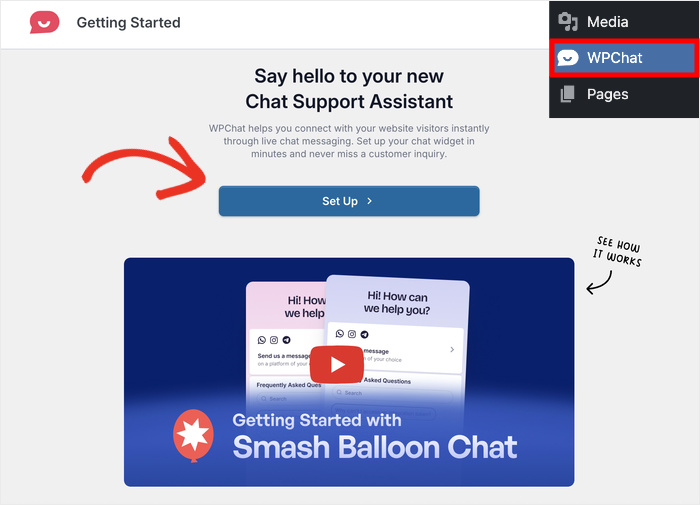
After activation, you’ll see a new WPChat menu item in your dashboard. This is where all Messenger settings will be configured.
Open the WPChat menu in your dashboard and click on Set Up to proceed.
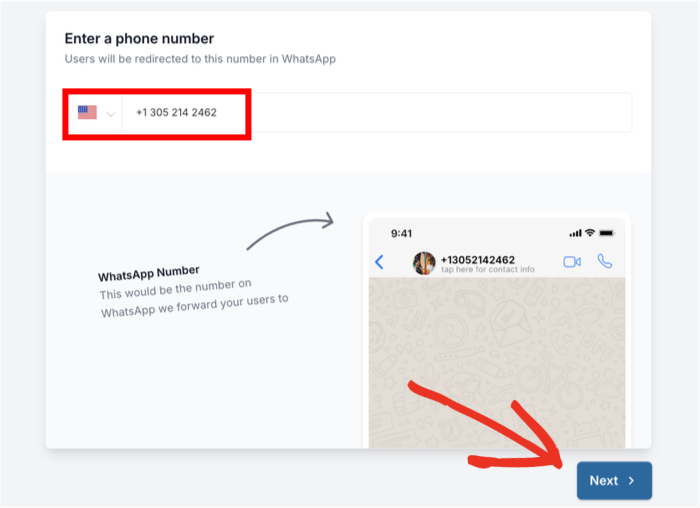
After that, you can enter your WhatsApp number so visitors will have another way to reach your business. Enter your WhatsApp number in the field and click on the Next button to proceed.
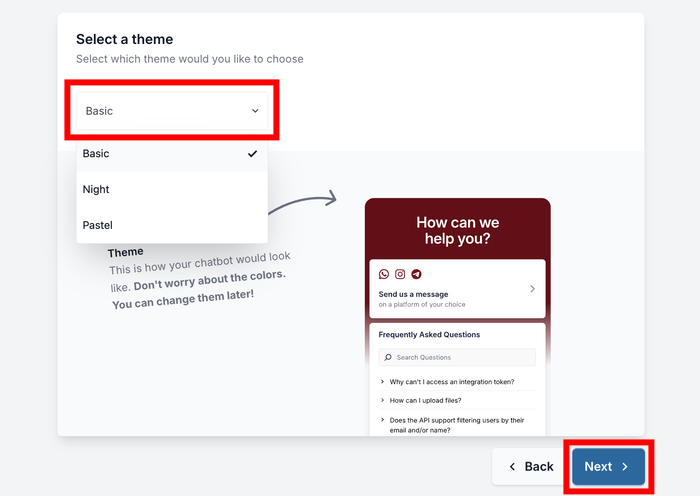
Pick a theme that you prefer from the options and click on Next.
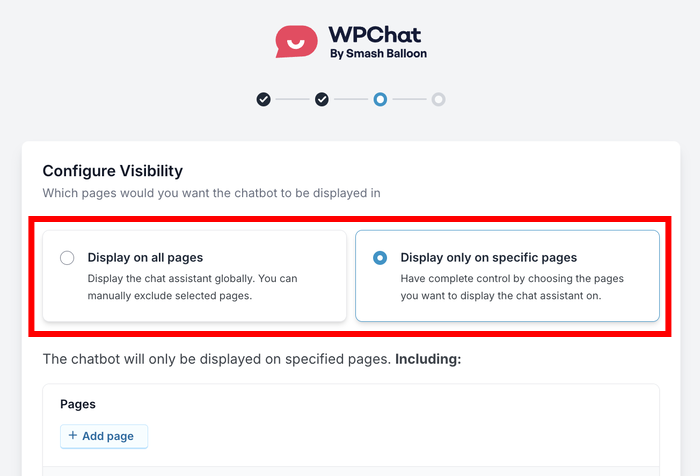
Once you do that, you can choose where your Facebook chat assistant appears on your site. You have 2 visibility options: Display on all pages or Display only on specific pages.
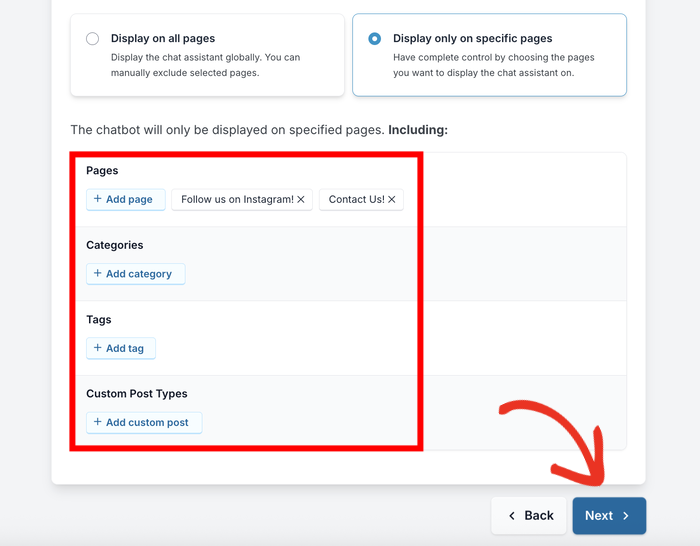
Next, you can scroll down and pick the parts of your website to include or exclude. Pick the Pages, Tags, Categories, and Custom Post Types using the filters below and click on Next.
Finally, enter your WPChat license key in the provided field. This activates all the premium features of the plugin.
After entering your license key, click on Finish Setup to complete this stage.
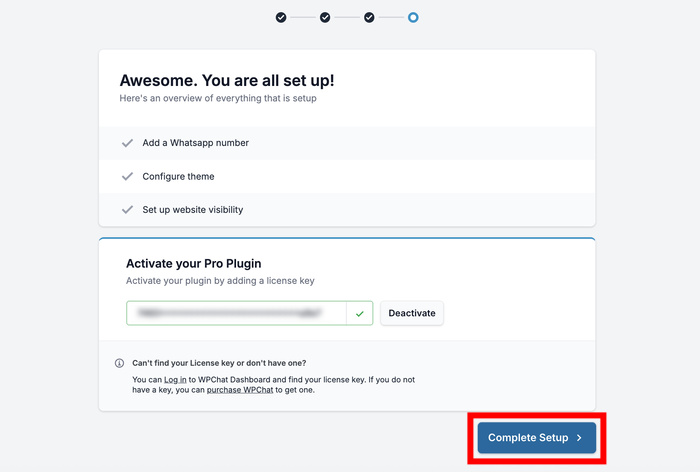
Step 2: Enable Facebook Messenger as a Platform
Next, we’ll activate Messenger inside WPChat. Go to WPChat » Agents. In the top-right corner, click Agent Settings.
Under the Platforms section, turn on the toggle for Facebook Messenger. This tells WPChat that you want to allow conversations through Messenger.
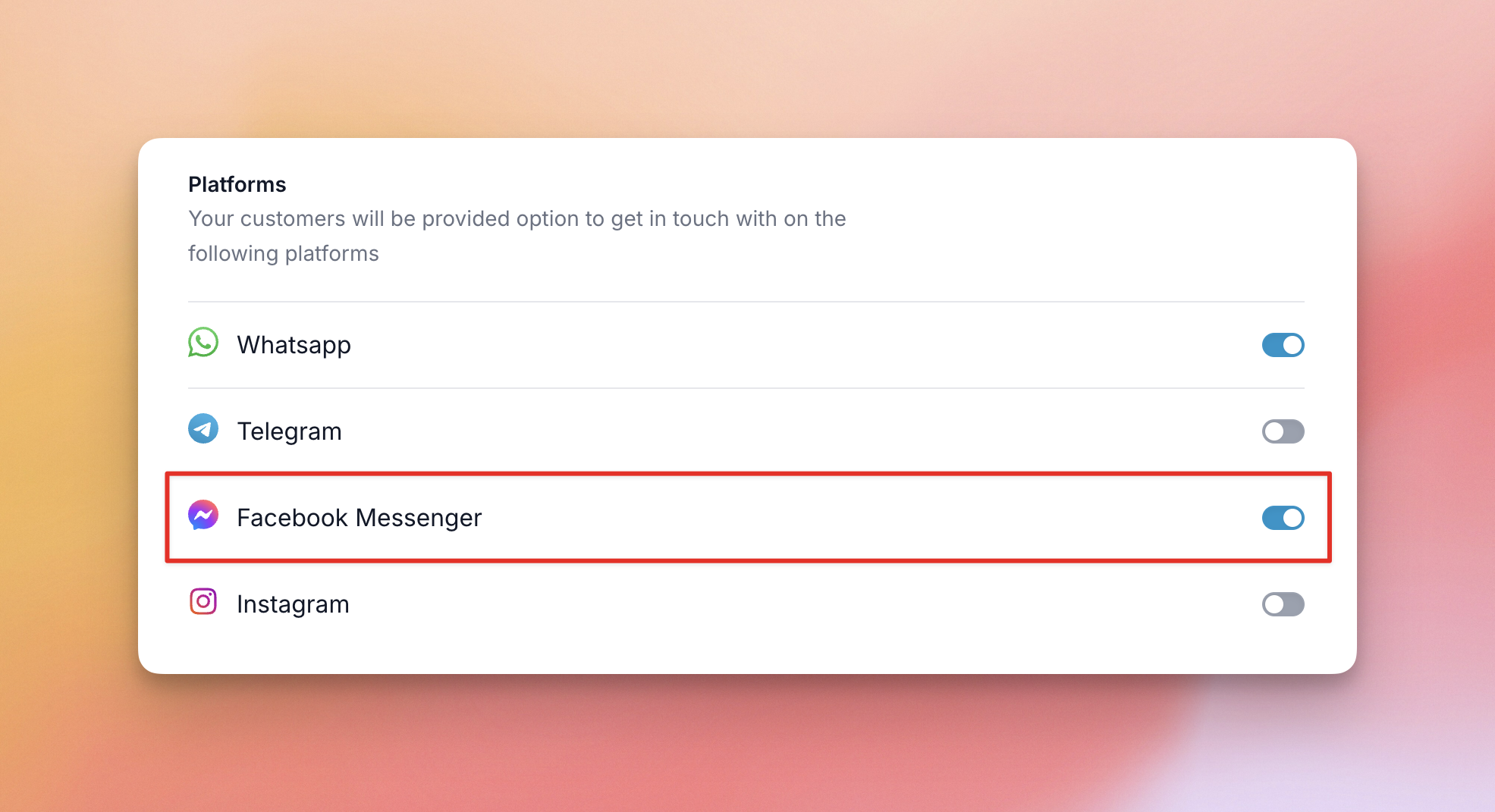
Once enabled, click Save if prompted.
Step 3: Connect Facebook Messenger to an Agent
From your WordPress dashboard, navigate to WPChat » Agents to see a list of chat agents. Then click on Edit to customize the default agent that WPChat created for you.
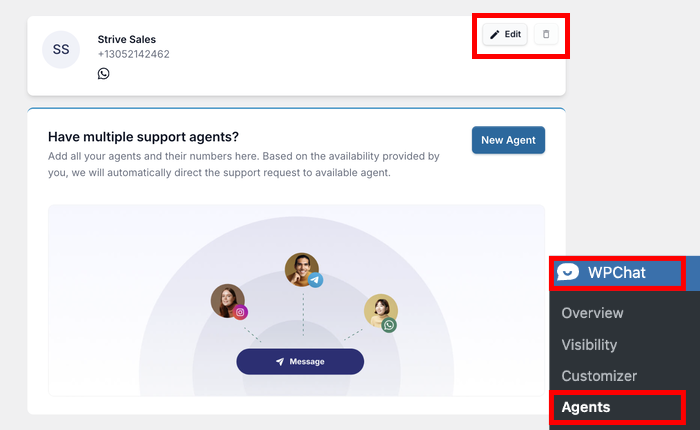
Before we continue, you can edit your agent’s name and click on Upload to select a fitting image for your agent.
This should be a professional photo that represents who visitors will be talking to – it could be your headshot, your team, or your company logo.
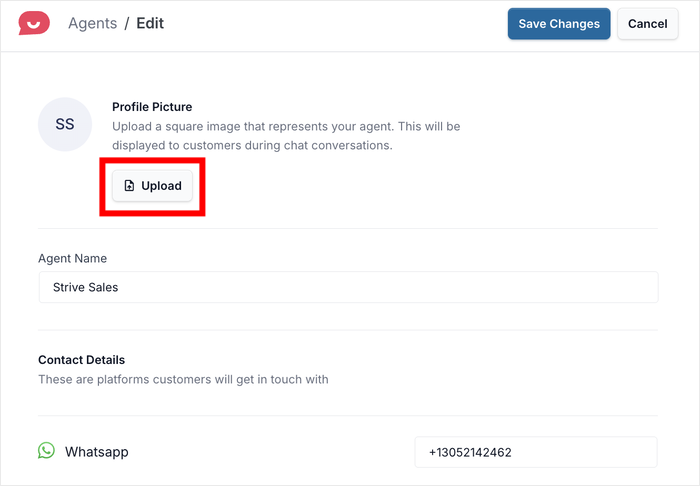
Scroll down to find the Facebook Messenger section. Here, you’ll just need to enter your Facebook Messenger ID or username in the provided field.
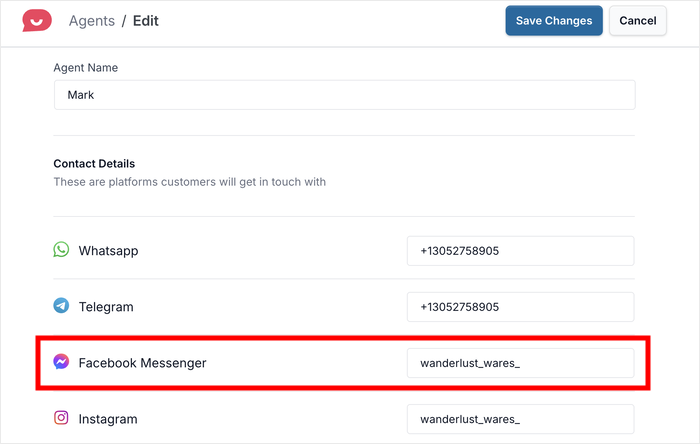
Click on Save Changes, and you’ve now connected your chat agent to Facebook Messenger.
You can open your website in a new browser tab and check how the chat widget looks to your visitors.
Step 4: Customize Your Messenger Chat Assistant’s Appearance (Optional)
WPChat includes a visual customizer that lets you adjust the design of your chat button.
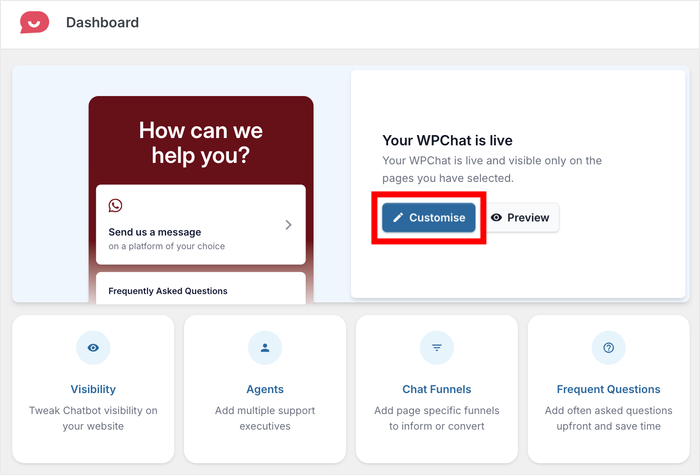
Click Customize from the WPChat dashboard to:
- Change the greeting text
- Select a theme
- Adjust colors
- Customize the assistant avatar
These changes are optional. Your Messenger chat will work even if you leave the default settings.
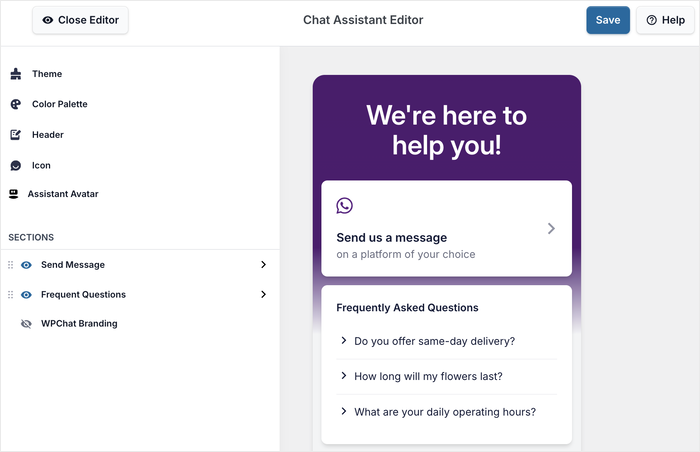
Feel free to try out the available WPChat customization options to change your colors, icon, visible sections, and much more. Just make sure to click on Save at the top of the editor to preserve all your changes.
Each change you make will instantly appear in the preview, so you can see exactly how it will look to your visitors.
Why Adding a Messenger Chat to WordPress Is Worth It
Adding a chat button to your site removes the main reason visitors leave without making contact.
- Visitors use Messenger on their phone anyway. When someone clicks your chat button on mobile, Facebook Messenger opens automatically. They’re already in the app. The conversation starts without friction and continues even after they close your site.
- You reply from where you already work. Every Messenger conversation lands in your existing Facebook Business Suite inbox. No new dashboard to check, no separate tool to manage. If you’re already responding to Facebook comments and DMs, this fits right into the same workflow.
- It removes the response delay that kills leads. Contact forms create a gap: visitor submits, you reply hours later, they’ve moved on. Messenger conversations feel immediate. Even if you reply later, the visitor gets a push notification and can pick up right where they left off.
- It works best for pre-purchase questions. The most effective use case I’ve seen is businesses where visitors have one specific question before buying. A quick exchange over Messenger and they’re ready to convert. That’s the kind of conversation a contact form almost never produces.
Common Questions About Facebook Messenger on WordPress
Does Facebook still have an official chat plugin for WordPress?
No. Meta deprecated the official Facebook Chat Plugin in May 2024. It used a heavy JavaScript SDK that caused GDPR issues and broke frequently with API updates. WPChat uses a direct Messenger link instead, so there’s no SDK, no tracking cookies, and nothing that expires when Facebook changes its API.
Do visitors need a Facebook account to use Messenger chat?
Yes, they need to be logged into Facebook or the Messenger app to start a conversation. This is a Facebook requirement, not a WPChat limitation. For visitors who don’t use Facebook, WPChat lets you add WhatsApp, Telegram, or Instagram as additional channels alongside Messenger so you’re still reachable either way. Here’s how WhatsApp and Messenger compare if you’re deciding which to prioritise.
Will adding a Messenger chat button slow down my WordPress site?
No. WPChat loads asynchronously, meaning the chat button loads after your main page content finishes rendering. It has zero impact on your page speed or Core Web Vitals.
Can I show the Messenger button on some pages but not others?
Yes, with WPChat Pro. The free version lets you show or hide the widget globally across your whole site. WPChat Pro adds advanced targeting so you can show it only on specific pages, categories, tags, or custom post types — useful for keeping it on product pages and off your blog, for example.
Can I add WhatsApp and Messenger to the same site?
Yes. WPChat supports multiple channels from one dashboard. Most sites add at least WhatsApp and Messenger together so visitors can reach you on whichever platform they prefer.
What Happens After You Connect Messenger?
Once you’ve completed the setup, the Messenger button becomes active on your website according to the visibility rules you selected.
Visitors will notice a small chat icon on the screen. It stays accessible as they move through your pages, so they can reach out whenever they’re ready.
When someone clicks the button, they’ll see a short prompt and then be directed to Facebook Messenger to continue the conversation.
If they’re browsing on mobile, the Messenger app opens automatically. On desktop, the conversation opens in their browser.
From your perspective, new messages appear inside your existing Messenger inbox. You can reply using the Messenger app, through Facebook, or from your desktop, whichever is most convenient.
You don’t need to log into WordPress each time someone sends a message. After the initial connection, everything runs through Messenger itself.
If you have multiple team members handling inquiries, you can assign Messenger access to different agents so conversations can be managed more efficiently.
From this point on, your website becomes another entry point into your Messenger conversations, without adding another tool to manage.
Start Getting Messenger Conversations Now
Adding a Messenger chat button to your WordPress site is one of the fastest wins you can make this week. The setup takes 5 minutes, conversations land in your existing Messenger inbox, and visitors can reach you in one click from any page on your site.
That’s precisely where WPChat shines.
- Install WPChat and connect your Facebook Business Page
- Set visibility rules so the button shows where it matters most
- Optionally customise the appearance to match your site
- Start receiving Messenger conversations directly from WordPress
If you’re weighing Messenger against other live chat alternatives for WordPress, WPChat supports WhatsApp, Telegram, and Instagram from the same dashboard, so you’re not locked into one channel.
What’s the first question you think your visitors will ask? Drop it in the comments.
Get WPChat today and start connecting with your visitors instantly.