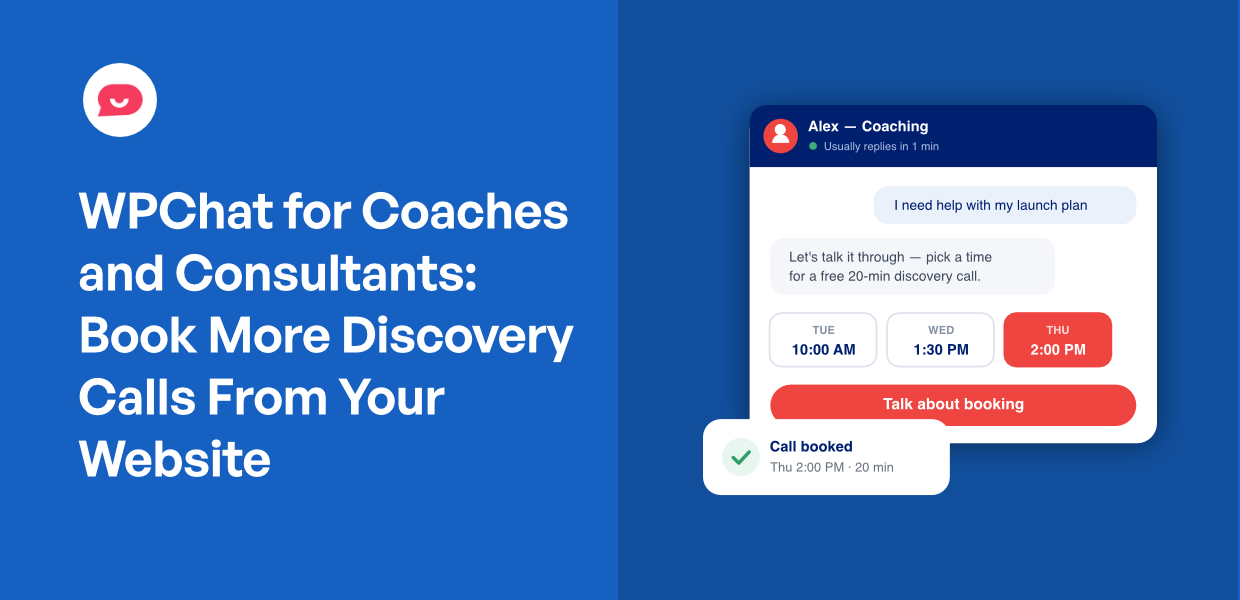
If you’ve ever watched your website traffic look healthy while your calendar stays empty, you know the specific frustration this post is about.
Referrals come in. Your Instagram bio link sends people over. That one blog post finally ranks. And then they land on your “Book a Call” page, fill in a contact form, and disappear.
By the time you write back, they’ve cooled off, priced a competitor, or decided to revisit it next quarter.
That fear is why most coaches install a chat button and rip it back off within a month. It’s also solvable with two settings and one automated sequence.
In this guide, I’ll share how a chat performs on service sites rather than e-commerce stores, and the difference between a widget that burns you out and one that quietly books calls.
In this Guide:
- Can You Use Chat to Book Discovery Calls From Your Website?
- Why Contact Forms Kill Coaching Leads
- Where Chat Actually Converts on a Coaching Site
- How to Use Chat Without Being On Call 24/7
- Set Up Chat for Discovery Call Booking
- A Discovery Call Funnel You Can Copy
- Answer the Same Five Questions Once
- Frequent Questions
- Turn Your Traffic Into Booked Calls
Can You Use Chat to Book Discovery Calls From Your Website?
Yes. You add a chat widget that lets prospects message you on WhatsApp or Messenger straight from your site, then build an automated chat funnel that asks a few qualifying questions and hands over your booking link.
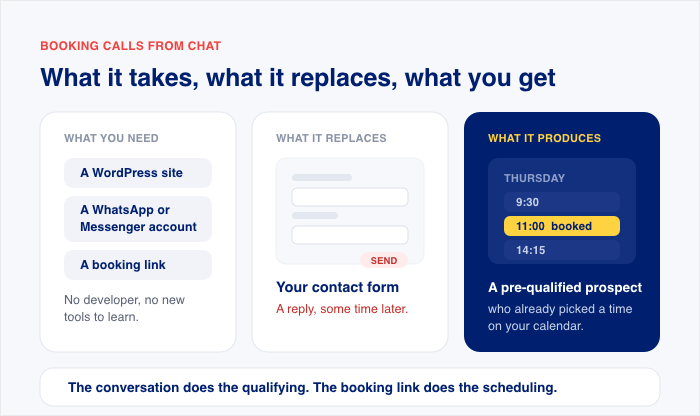
A plugin like WPChat runs that funnel whether you are online or not. Here is the short version:
- What you need: a WordPress site, a WhatsApp or Messenger account, and a booking link.
- What it replaces: your contact form.
- What it produces: a pre-qualified prospect who has already picked a time on your calendar.
Why Contact Forms Kill Coaching Leads
A contact form is a delay machine. Someone reads your about page and feels that flicker of “maybe this person can actually help me.” Then they land on a form that promises a reply within 48 hours.
The person who submits that form and the person who reads your response two days later are not the same person. The second one has already talked themselves out of it, compared prices with another coach, or decided to revisit it in Q1.
Chat catches decision-readiness at its peak instead of scheduling it for later.
People also tell you which channel they want:
- 41% of consumers prefer live chat
- 32% prefer phone
- 23% prefer email
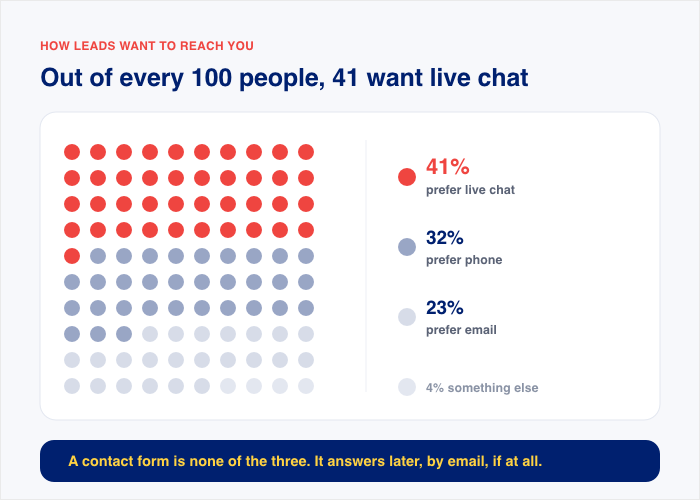
If you only offer the third-place option, you are asking most of your visitors to use their least favorite way of reaching you.
There is a second problem, and it is about tone. You sell a relationship built on conversation. The first interaction you offer is a set of blank fields and an automated confirmation message.
Nothing about that feels like the person who is going to sit with someone through a career change or a business rebuild.
I hear the objection here a lot: chat is an e-commerce thing, and coaching is different.
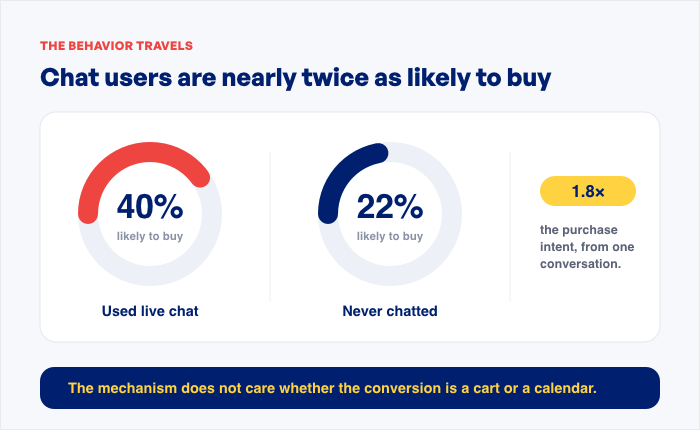
The numbers say the behavior travels. 40% of live chat users are likely to buy online, versus 22% of people who have never chatted with a business. The mechanism does not care whether the conversion is a cart or a calendar.
Someone who gets their question answered while they are still interested acts on it. Someone who waits does not.
Where Chat Actually Converts on a Coaching Site
Chat works best on the pages where someone is already close to booking and stuck on one specific thing. Here is what they are actually thinking on each one:
| Page | What they’re doing there | The question in their head |
|---|---|---|
| Services or packages | Comparing your three tiers and unable to tell which one fits | “Which package is right for someone in my situation?” |
| Pricing | One unanswered question is usually the entire reason they have not clicked Book a Call | “Is there a payment plan?” or “Is this per month or for the whole program?” |
| About | Not evaluating your offer, evaluating you | “Have you worked with someone like me before?” |
| Homepage | Cold traffic from an Instagram bio link or a referral text, no idea what to click first | “Where do I even begin with you?” |
Every one of those is a question a form answers in two days and a chat answers in two minutes.
How to Use Chat Without Being On Call 24/7
Here is how this usually goes wrong.
A coach installs a chat widget, skips the settings, and leaves it running around the clock. A message lands mid-session. They reply four hours later, feel rude about it, and start dreading the notification sound. Within a month, the widget is gone.
The tool did not fail. The configuration did. A chat widget with no availability hours and no automation is just a pager with your logo on it.
The fix is two settings and one principle.
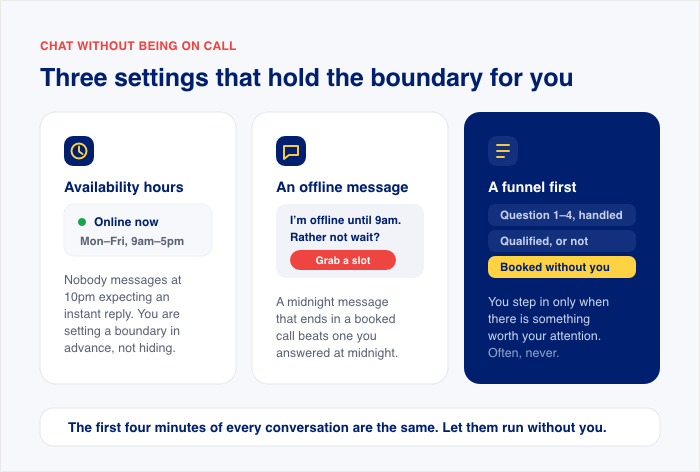
- Availability hours. The widget shows your real working hours, so nobody messages you at 10pm expecting an instant reply. You are not hiding, you are setting a boundary in advance.
- An offline message that still captures. Someone messaging at midnight does not get ignored. They get an honest note: “I’m offline until 9am. If you’d rather not wait, grab a slot on my calendar here.” A midnight message that ends in a booked call beats one you answered personally at midnight.
- A funnel doing the first four minutes. An automated sequence handles the opening of every conversation, the same four questions you answer over and over. You only step into the thread when there is something worth your attention. Often you never step in at all, because they already booked.
Set up this way, chat is less work than your contact form.
Think about what a form submission actually costs you. You read it, you write a reply, you wait, you follow up. Every lead is a small writing task.
The funnel does that part once and then repeats it forever, whether you are in a session, asleep, or on a plane. If you want more ideas along these lines, we have a full guide on ways to offer instant support with WPChat.
One more objection worth naming: a WhatsApp button will not cheapen a premium program. WhatsApp is the default business channel across most of Europe, Latin America, and Asia, and a fast, direct answer reads as an accessible expert.
Set Up Chat for Discovery Call Booking
Here is the full setup, start to finish. It takes about twenty minutes, and you only do it once.
Step 1: Install WPChat and Connect Your Channel
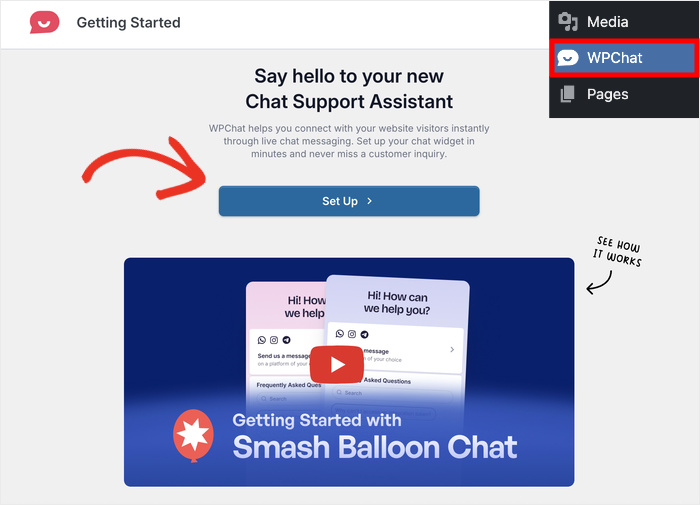
First, get a copy of WPChat and install it on your website. Once you activate the plugin, click on the WPChat menu on the sidebar.
From here, click on Set Up to start connecting your channels.
WPChat is multi-channel, so you can connect WhatsApp, Facebook Messenger, or both from the same widget.
Consultants running WordPress sites usually start with WhatsApp, because that is where their clients already are and messages get read in minutes instead of days.
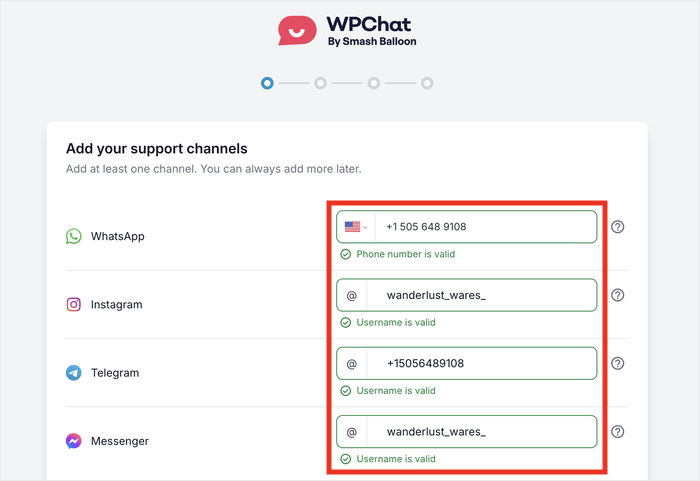
You will need to connect a WhatsApp Business number, not your personal one. That means your private mobile number never appears anywhere on your site, and client conversations stay separate from your family group chat.
If your audience is mostly in the US or lives on Facebook and Instagram, add Messenger too. Visitors pick the channel they prefer, and both threads land in apps you already have open.
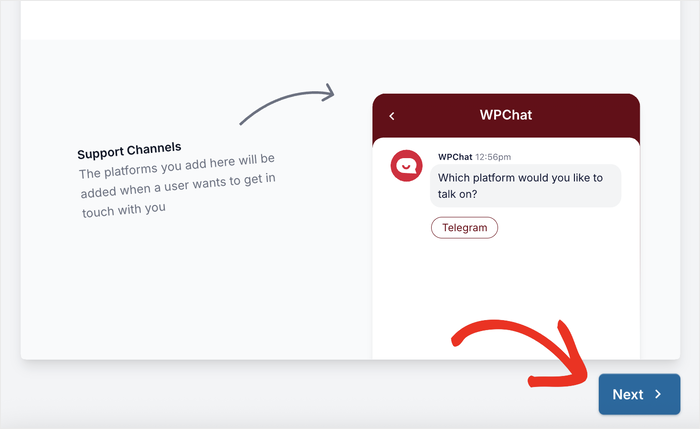
After setting up your channels, scroll down and click on Next.
Step 2: Choose Which Pages the Widget Appears On
During setup, WPChat asks where the chat button should appear.
Choose Display only on specific pages from the options.
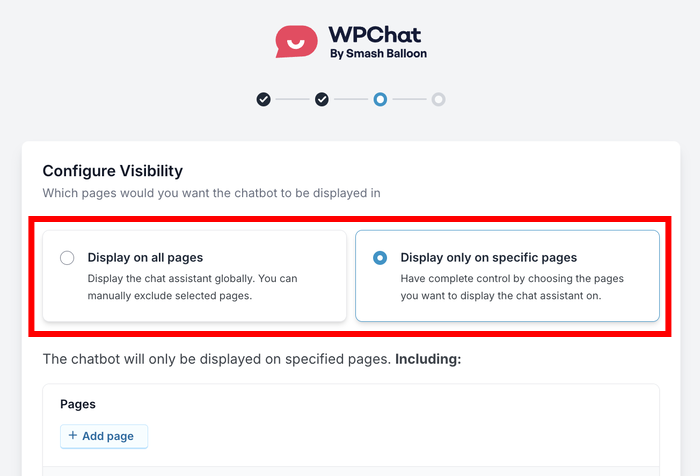
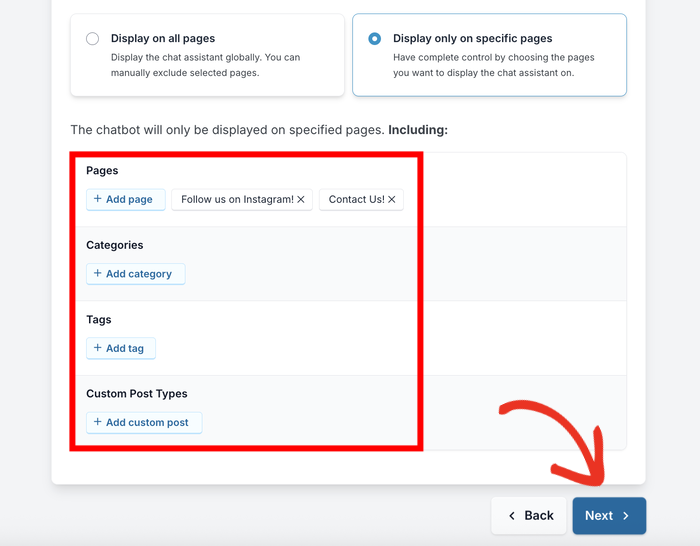
Then pick your services, pricing, about, and home pages. Those are the four from the table above, and they are where a question is the only thing standing between someone and your calendar.
Skip your blog for now. You can add posts later once you know which ones bring buyers rather than browsers.
Click Next once you’re done.
Step 3: Customize Your Chat Widget
After you’ve set up the connections and visibility, you can enter your license key and click on Complete Setup.
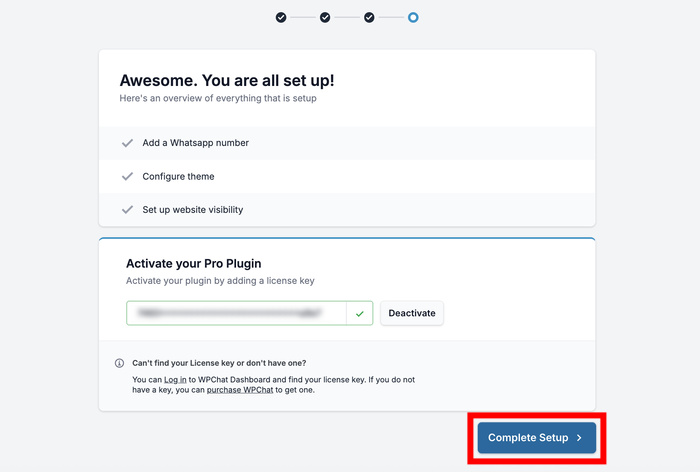
Just like that, your chat widget is now on your website. While it’s ready to connect your visitors, for best results, we can customize it to fit your brand.
First, click on the WPChat » Customizer menu from your dashboard.
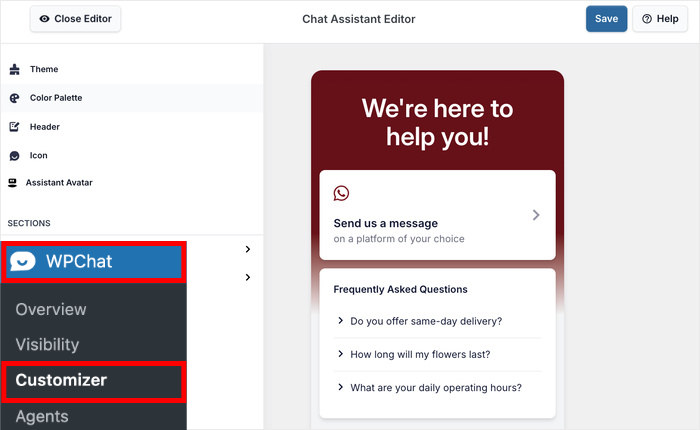
You can change the theme, assistant avatar, header, colors, and more from here. The best fit depends on your branding and site design, so feel free to experiment with the options.
Whenever you make changes, you can use the live preview on the right to check how the widget will look on your site.
Once you’re happy with the design, click on Save to confirm your changes.
Step 4: Set Your Timings
This is the setting that stops the widget from being a pager.
Go to WPChat » Agents and click Agent Settings.
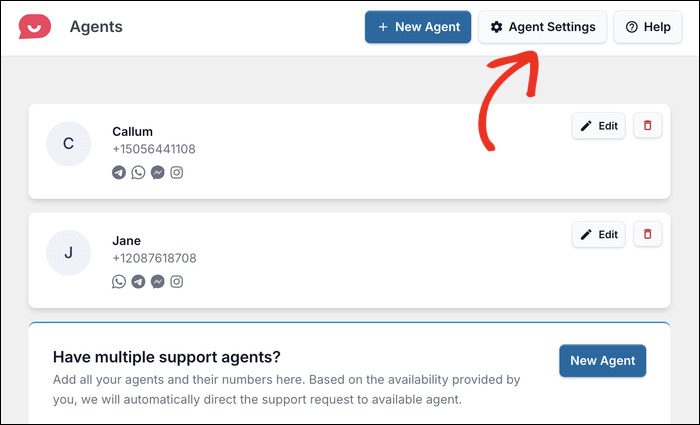
Open the Timings dropdown and choose Enable.
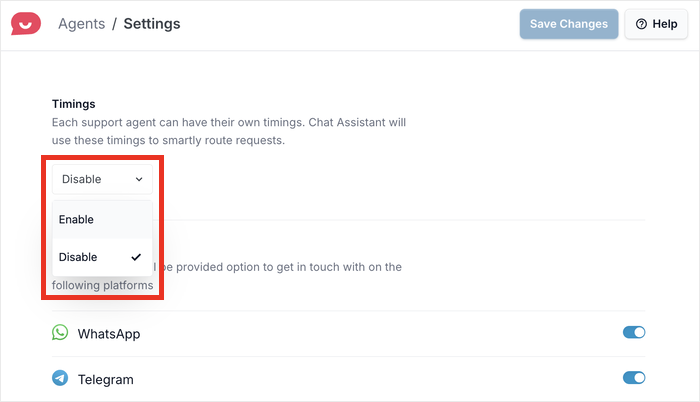
An Off hours rules section appears underneath, with two options:
- Disable contact option hides your contact methods outside your hours and shows your business hours instead. Visitors know when you are back rather than messaging into silence.
- Redirect to an off-hours agent sends those conversations to another agent you nominate. Useful if you have an assistant, a VA, or a second coach covering evenings.
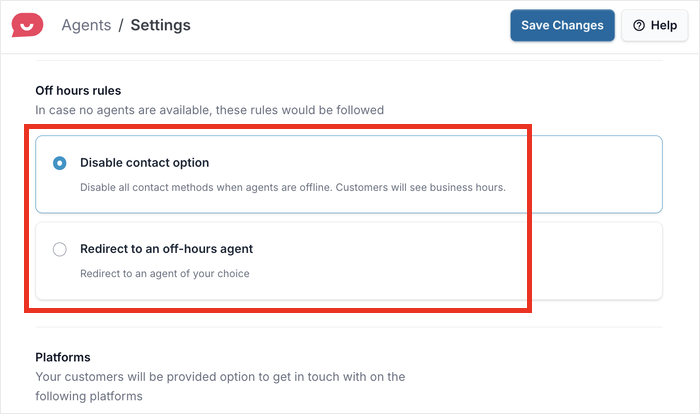
Pick the one that matches how you work, then click Save Changes.
Now go back to WPChat » Agents and click Edit on your agent.
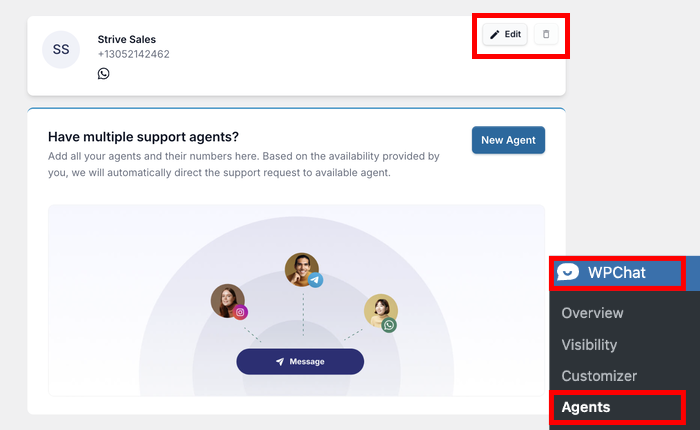
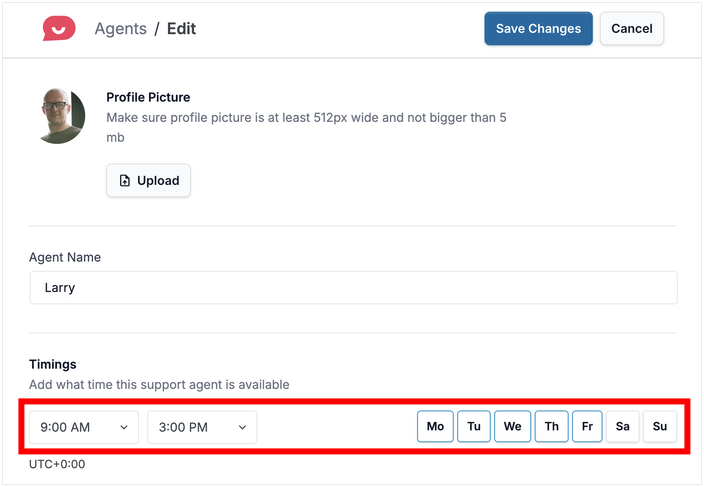
Scroll to Timings and set your Start time, End time, and Days using the day toggles.
Click on Save Changes and your new online hours will be set up.
Step 5: Build the Qualification Funnel
The funnel builder in WPChat Pro is what makes this work while you are in a session.
You build a branching sequence of questions with tappable reply buttons, and it runs automatically the moment someone opens the chat.
Structurally, it does three things. It collects the context you would otherwise ask for by email, it routes the conversation based on which button they tap, and it ends by handing over your booking link.
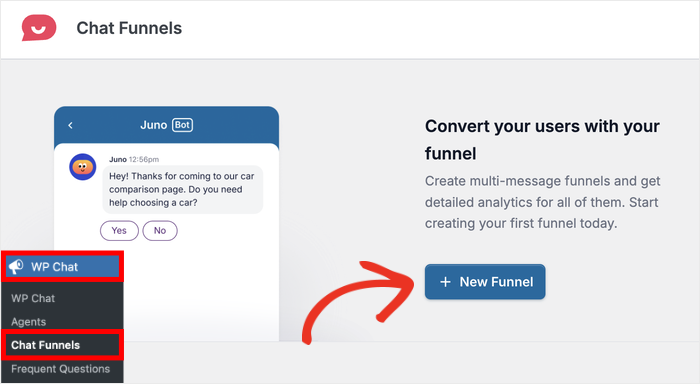
To get started, open the WPChat » Chat Funnels menu from your dashboard and click on New Funnel.
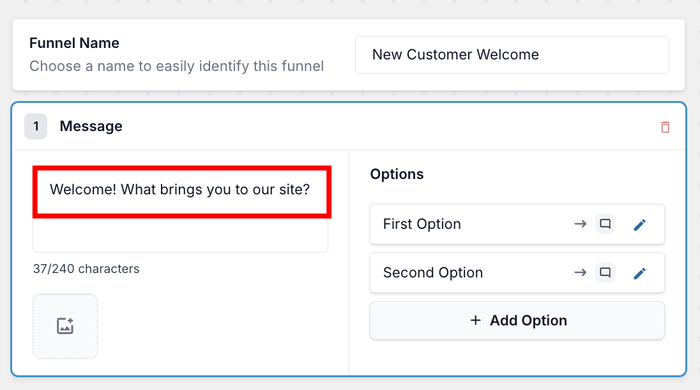
From here, you can name it, write your opening question, then add each follow-up message, and connect the reply buttons to it.
Remember that every path should end at your booking link.
If you need help with the questions and answers for the funnel, you can check out the section below.
Just remember that the aim is that they reach your calendar having already told you what you would otherwise have asked by email.
You can build these for any goal, and our guide to WhatsApp chat funnels walks through the builder in more detail.
A Discovery Call Funnel You Can Copy
Here is the exact sequence. Four questions, tappable answers, ending in your calendar link. Use these for the WPChat Pro funnel builder tonight, and it runs tomorrow.
Bot: Hi! Interested in working together, or just have a quick question?
Prospect: [ Interested in working together ] [ I have a question ]
Bot: Great — what’s the main thing you’re trying to work through right now?
Bot: Have you worked with a coach before?
Prospect: [ Yes ] [ No, this would be my first time ]
Bot: And what’s your timeline for making a decision?
Prospect: [ Ready now ] [ Next month or two ] [ Just exploring ]
Bot: Perfect. Here’s my calendar — grab a free 30-minute discovery call and we’ll dig into it: [booking link]. Looking forward to it.
That is the whole thing. It takes a visitor about forty seconds to get through, and you were in a session the entire time.
The script matters less than the reasoning behind it, so here is why each question earns its spot.
- “What’s the main thing you’re trying to work through?” You walk into the call already knowing the problem. That skips the first ten minutes of discovery, and the prospect feels heard before you have even met.
- “Have you worked with a coach before?” First-timers need reassurance that this is normal and safe. People who have done it before need to hear how you are different from the last one. Same call, two completely different openings.
- “What’s your timeline?” This is the highest-value filter in the sequence. “Ready now” and “just exploring” both get the booking link, but you know which one to prepare for and how hard to push at the end.
- Ending on the link, not a promise to follow up. The funnel closes its own loop. Nothing lands in your inbox waiting for you to write a reply, and nobody sits in limbo wondering whether you got their message.
Those answers are also lead data worth keeping. Every conversation gives you a problem statement, an experience level, and a buying timeline in the prospect’s own words, which is more than most forms collect.
Our guide on how to capture leads from website visitors covers what to do with that information once you have it.
Swap the questions for your own niche. A career coach asks about the current role. A business consultant asks about team size and revenue stage. A health coach asks what they have already tried.
Should the funnel talk about price?
Coaches genuinely disagree on this one, so here is my recommendation: give a starting range, not a full price list.
A line like “Programs start at £X” placed just before the booking link does two jobs. It filters out people who were never going to buy at your level, and it stops you burning a 30-minute discovery call on a budget mismatch you could have caught in one sentence.
Holding pricing back entirely reads as evasive. Someone who is already halfway to trusting you asks what it costs, gets a non-answer, and quietly reconsiders how straight you are being with them. A range answers the question without turning the chat into a checkout.
Answer the Same Five Questions Once
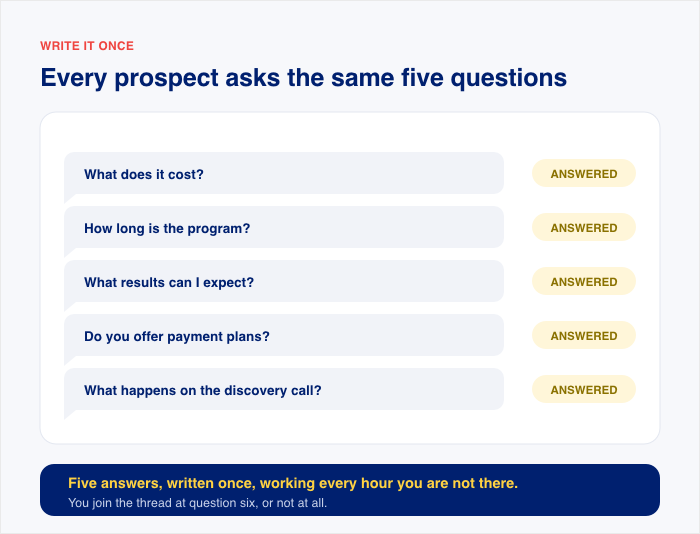
Every coaching prospect asks roughly the same things before they book. Not similar things. The same five things, in the same order, forever.
- What does it cost?
- How long is the program?
- What results can I expect?
- Do you offer payment plans?
- What actually happens on the discovery call?
Here is the thing worth noticing: none of those are conversations. They are lookups. The prospect is not opening a dialogue with you, they are checking a fact before deciding whether to spend thirty minutes on a call.
You have been treating lookups like conversations. That is why you have typed the same four sentences about your payment plan forty times this year.
An FAQ section fixes it. Build the five questions as tappable buttons, write the answer to each one once, and end every branch by handing the prospect back to your booking link. They get the fact they came for, then a clear next step.
The payoff is not just your time back. It is that someone reading your site at 11pm gets a real answer at 11pm, from a business that is closed, without you being awake for it.
That timing matters more than it sounds. Research shows that 63% of consumers are more likely to return to a site that offers live chat, and around 60% want their answers immediately.
A prospect who got an instant answer comes back. One who filled in a form and waited does not.
Frequent Questions
Do I need to be online to respond to chat?
No. The funnel runs the moment someone opens the chat, asks the qualifying questions, and hands over your booking link. Most conversations end at the calendar and never reach you. You step in only when someone taps through to WhatsApp with something the funnel could not answer.
Can I connect chat to Calendly or my booking tool?
Yes, and you do not need an integration. Paste your booking URL into the funnel’s final message once, and every prospect who reaches the end taps through to your normal booking page. Works with Calendly, TidyCal, Acuity, Amelia, or whatever you already use.
Will a WhatsApp button make my coaching brand look less premium?
No. WhatsApp is the default business channel in Spain, Italy, Germany, Brazil, India, and much of Africa, so for many of your prospects it is more normal than email. Connect a WhatsApp Business number rather than your personal one, and your private mobile never appears on your site.
What if I get more messages than I can handle?
The number reaching you personally does not go up with the total. The funnel handles the opening questions and the FAQ section answers pricing and logistics, both ending at your booking link rather than in your inbox. If it still feels like too much, add a qualifying question rather than removing the widget.
Should I put the widget on my blog?
Not at first. Start with services, pricing, about, and home. After a few weeks, add your highest-traffic posts and see whether the messages sound like potential clients or like requests for free advice.
Turn Your Traffic Into Booked Calls
Your traffic is already warm. Referrals, your Instagram link, a post that finally ranks. Those people arrive half-convinced.
The gap is not visibility. It is the 48 hours between someone deciding they are interested and you being free to reply.
So close it with the setup above. Put the widget on the four pages where people are deciding, write the greeting in your own voice, and build the four-question funnel that ends at your calendar. It runs while you are in a session.
The first version does not need to be right. Ship it, read the first ten conversations, and change the questions that nobody answers well.
Add a Discovery Call Chat to Your Coaching Site