تعد معظم روبوتات الأسئلة الشائعة بأنها تجيب على أسئلة الزوار تلقائيًا.
المشكلة هي أن الروبوتات المدعومة بالذكاء الاصطناعي غالبًا ما تخطئ. فهي تستخلص الإجابات من محتوى موقعك وأحيانًا تخترع تفاصيل يتصرف بناءً عليها عملاؤك.
هناك نهج أبسط. باستخدام روبوت أسئلة شائعة مُعد مسبقًا، يمكنك كتابة الأسئلة والأجوبة بنفسك. كل استجابة هي بالضبط ما قصدته. لا يتطلب تدريبًا، ولا مراقبة للانحراف، ولا رسائل احتياطية محرجة.
سأوضح لك كيفية إعداد واحد باستخدام WPChat، وهو إضافة ووردبريس للنقر للدردشة من Smash Balloon. إفصاح كامل: أعمل في Smash Balloon، لذلك أوصي بـ WPChat هنا. لكنني سأشرح أيضًا متى يكون روبوت الأسئلة الشائعة المُعد مسبقًا هو الخيار الصحيح مقابل روبوت الدردشة بالذكاء الاصطناعي، حتى تتمكن من اتخاذ قرارك بنفسك.
ما هي أسرع طريقة لإضافة روبوت أسئلة شائعة إلى موقع ويب؟
أسرع طريقة لإضافة روبوت أسئلة شائعة إلى موقع ووردبريس هي باستخدام WPChat. قم بتثبيت الإضافة، وإنشاء روبوت أسئلة شائعة جديد، وإضافة أسئلتك وأجوبتك، وتحديد الصفحات التي يظهر عليها. تستغرق العملية بأكملها حوالي 10 دقائق، ويعمل الروبوت على مدار الساعة طوال أيام الأسبوع دون أي صيانة مستمرة.
تجدر الإشارة إلى توقعات: WPChat ليس روبوت دردشة بالذكاء الاصطناعي. لا يقوم بالزحف إلى موقعك وإنشاء إجابات بنفسه. ما يفعله هو السماح لك ببناء مجموعة دقيقة من الأسئلة والأجوبة التي يمكن للزوار تصفحها في زر دردشة عائم. عندما ينقرون على سؤال، يحصلون على الإجابة الدقيقة التي كتبتها، في كل مرة. بالنسبة للشركات التي تكون فيها الدقة أكثر أهمية من الشمول، فهذا هو المقايضة الأفضل.
- لماذا يحتاج موقعك الإلكتروني إلى روبوت أسئلة شائعة (حالة العمل)
- طريقتان لإضافة روبوت الأسئلة الشائعة إلى موقعك
- روبوت الأسئلة الشائعة مقابل صفحة الأسئلة الشائعة: أيهما يجب أن تستخدم؟
- ما الذي يجعل WPChat أفضل حل لروبوت الأسئلة الشائعة
- أفضل الممارسات لنجاح روبوت الأسئلة الشائعة (نصائح احترافية)
- كيفية إضافة روبوت أسئلة شائعة إلى ووردبريس (خطوة بخطوة)
- ابدأ في الإجابة على أسئلة الزوار الآن
لماذا يحتاج موقعك الإلكتروني إلى روبوت أسئلة شائعة (حالة العمل)
لقد رأيت عددًا لا يحصى من أصحاب الأعمال الصغيرة يخسرون المبيعات لمجرد أن الزائر لم يتمكن من العثور على إجابة لسؤال بسيط حول الشحن أو التسعير.
يهبط شخص ما على موقعهم في الساعة 11 مساءً، ولديه سؤال سريع حول المرتجعات، ويغادر لأنه لا يوجد أحد متاح للمساعدة.
تخبر الإحصائيات نفس القصة. وفقًا للأبحاث، فإن 53٪ من العملاء عبر الإنترنت من المرجح أن يتخلوا عن عملية الشراء إذا لم يتمكنوا من العثور على إجابة سريعة لسؤالهم.
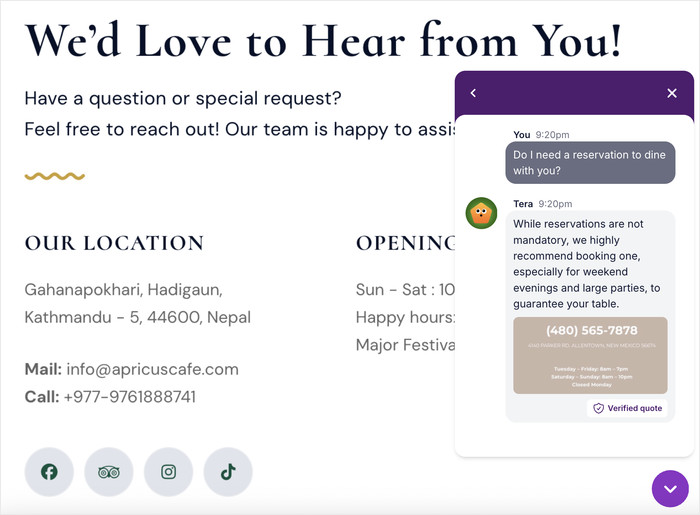
إليك كيف تعزز روبوتات الأسئلة الشائعة إيراداتك بشكل مباشر:
- يعمل روبوتك على مدار الساعة طوال أيام الأسبوع، ويجيب على الأسئلة ويجمع معلومات الاتصال حتى عندما تكون غير متصل بالإنترنت، لذلك لا تفوت أي عميل محتمل.
- يمكن للروبوت طرح أسئلة رئيسية مقدمًا لتحديد ما إذا كان الزوار مشترين جادين، مما يوفر عليك الوقت في العملاء المحتملين غير المؤهلين.
- يمكن للإجابات الفورية على المخاوف الشائعة بشأن الشحن أو المرتجعات أو المنتجات أن تشجع المزيد من الزوار على الشراء منك.
- عندما يتعامل روبوتك مع الأسئلة المتكررة، يمكنك التركيز على إتمام صفقات أكبر وبناء علاقات مع أفضل عملائك.
- يشعر العملاء بالتقدير عندما يحصلون على مساعدة فورية، مما يزيد من ثقتهم في عملك ويجعلهم أكثر عرضة للشراء.
طريقتان لإضافة روبوت الأسئلة الشائعة إلى موقعك
| روبوت أسئلة شائعة بالذكاء الاصطناعي (WPBot، Tidio، Ultimo Bots) | روبوت أسئلة شائعة مُعد مسبقًا (WPChat) موصى به | |
|---|---|---|
| هل يتعلم من موقعك تلقائيًا؟ | نعم. يقوم بالزحف إلى المحتوى الخاص بك وإنشاء إجابات. | لا. أنت تكتب الأسئلة والأجوبة بنفسك. |
| هل الإجابات دقيقة دائمًا؟ | ليس دائمًا. يمكن للذكاء الاصطناعي اختلاق معلومات أو استخلاص محتوى قديم. | نعم. كل إجابة هي بالضبط ما كتبته. |
| هل تحتاج إلى مراقبته؟ | نعم. يمكن أن تنحرف إجابات الذكاء الاصطناعي مع تغير موقعك. | لا. تظل الإجابات متسقة حتى تقوم بتحريرها. |
| ماذا يحدث عندما ينقر الزائر على إجابة؟ | يفتح الدردشة في أداة مصغرة على الشاشة. | يمكن للزائر متابعة المحادثة على WhatsApp أو Messenger أو Telegram بنقرة واحدة. |
| كم من الوقت يستغرق الإعداد؟ | أكثر من 30 دقيقة من التدريب والتكوين. | حوالي 10 دقائق. |
| الأفضل لـ | المواقع ذات الاحتياجات المعقدة والمتغيرة باستمرار للأسئلة الشائعة. | المواقع التي تريد إجابات موثوقة ومتسقة دون صيانة مستمرة. |
إذا كانت قائمة الأسئلة الشائعة لديك تتغير بشكل متكرر وتفضل عدم تحديثها يدويًا، فقد يكون روبوت الدردشة بالذكاء الاصطناعي مناسبًا بشكل أفضل.
إذا كنت تريد مجموعة من الإجابات القوية التي تعمل بشكل مثالي في كل مرة وتوجه الزوار مباشرة إلى محادثة حقيقية عندما يحتاجون إلى مزيد من المساعدة، فإن WPChat هو الخيار الأسرع والأكثر موثوقية.
روبوت الأسئلة الشائعة مقابل صفحة الأسئلة الشائعة: أيهما يجب أن تستخدم؟
معظم مواقع ووردبريس لديها بالفعل صفحة أسئلة شائعة ثابتة.
إذًا، لماذا تضيف روبوتًا فوقها؟
تعمل صفحة الأسئلة الشائعة الثابتة بشكل جيد للزوار الذين يعرفون البحث عنها.
المشكلة هي أن معظم الزوار لا يبحثون عن الإجابات. يصلون إلى صفحة منتج، ويواجهون سؤالًا، ويغادرون إذا لم يتمكنوا من العثور على الإجابة بسرعة. يلتقي بهم روبوت الأسئلة الشائعة بالضبط حيث يحدث هذا الاحتكاك.
| صفحة الأسئلة الشائعة الثابتة | روبوت الأسئلة الشائعة (WPChat) موصى به | |
|---|---|---|
| أين يجب على الزائر الذهاب للعثور على الإجابات؟ | يجب عليهم الابتعاد عن الصفحة التي يتواجدون عليها. | يظهر الروبوت على الصفحة التي يقرأونها بالفعل. |
| هل يعمل على الهاتف المحمول؟ | نعم، ولكن قد يكون من الصعب مسح صفحات الأسئلة الشائعة الطويلة على الشاشات الصغيرة. | نعم. زر الدردشة مدمج ومصمم للهواتف المحمولة. |
| هل يمكنك عرض أسئلة مختلفة على صفحات مختلفة؟ | لا. صفحة واحدة، قائمة واحدة. | نعم. يتيح لك WPChat تعيين روبوتات أسئلة شائعة مختلفة لكل صفحة أو فئة أو نوع منشور. |
| ماذا يحدث عندما يحتاج الزائر إلى مزيد من المساعدة؟ | يجب عليهم العثور على معلومات الاتصال الخاصة بك بشكل منفصل. | نقرة واحدة تأخذهم إلى WhatsApp أو Messenger أو Telegram لمواصلة المحادثة. |
| الأفضل لـ | محتوى مرجعي يبحث عنه الزوار عن قصد. | دعم سياقي يلتقط الزوار في اللحظة التي لديهم فيها سؤال. |
ليس عليك الاختيار بين هذا أو ذاك.
الكثير من المواقع تشغل كليهما: صفحة أسئلة شائعة كاملة لتحسين محركات البحث والمرجع، وروبوت أسئلة شائعة على الصفحات ذات النية العالية مثل صفحات التسعير والمنتجات حيث من المرجح أن تمنع الأسئلة التحويل.
ما الذي يجعل WPChat أفضل حل لروبوت الأسئلة الشائعة
WPChat هو مكون إضافي لروبوت الدردشة الخاص بووردبريس يعرض روبوت أسئلة شائعة عائمًا على موقعك الإلكتروني.
عندما ينقر الزوار عليه، يمكنهم تصفح أسئلتك المتداولة والحصول على إجابات فورية.
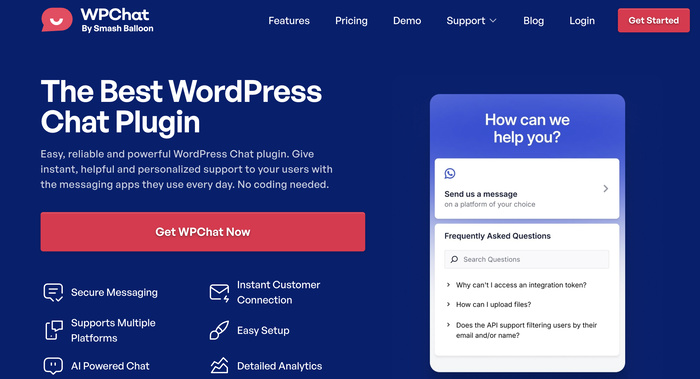
تم تصميم المكون الإضافي خصيصًا للمستخدمين غير التقنيين الذين يريدون ميزات روبوت دردشة قوية دون الحاجة إلى لمس التعليمات البرمجية.
الميزات الرئيسية التي تميز WPChat
- دعم تطبيقات المراسلة: اسمح للزوار بمواصلة المحادثات على أكبر تطبيقات المراسلة المتاحة: WhatsApp و Instagram و Facebook و Telegram.
- سمات قابلة للتخصيص: اختر من بين سمات تصميم متعددة (أساسي، ليلي، أو باستيل) تتطابق تلقائيًا مع أسلوب موقعك دون الحاجة إلى أي برمجة.
- منشئ روبوت مرئي: أنشئ تدفقات محادثة ببساطة السحب والإفلات، حتى تتمكن من بناء روبوت الأسئلة الشائعة الخاص بك في دقائق.
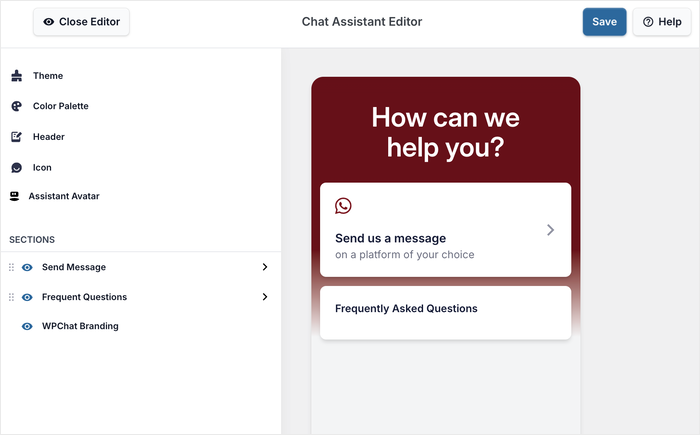
- عرض الأسئلة الشائعة الذكي: اعرض الأسئلة المتداولة في روبوت منظم وقابل للبحث يظهر بالضبط حيث يحتاجه زوارك أكثر.
- التحكم على مستوى الصفحة: اعرض روبوت الأسئلة الشائعة الخاص بك على صفحات محددة فقط، أو اعرضه على مستوى الموقع بأكمله مع استثناءات، مما يمنحك تحكمًا كاملاً في المكان الذي يراه فيه الزوار.
- دعم الإجابات المرئية: قم بتحميل الصور، لقطات الشاشة، والمخططات مباشرة في إجابات الأسئلة الشائعة لتقديم شروحات أوضح للمتعلمين المرئيين.
أكثر ما أحبه في WPChat هو أنه يمكنك تشغيل روبوت الأسئلة الشائعة الخاص بك في أقل من 15 دقيقة.
لا يوجد منحنى تعلم، ولا إعدادات معقدة، ولا حاجة لتوظيف مطور. تتعامل الإضافة مع جميع التفاصيل الفنية تلقائيًا، حتى تتمكن من التركيز على كتابة إجابات مفيدة لأسئلة عملائك.
هل أنت مستعد لإضافة روبوت أسئلة شائعة إلى موقعك؟ احصل على WPChat هنا وابدأ في الإجابة على أسئلة العملاء تلقائيًا.
أفضل الممارسات لنجاح روبوت الأسئلة الشائعة (نصائح احترافية)
بمجرد تشغيل روبوت الأسئلة الشائعة الخاص بك، ستساعدك هذه الاستراتيجيات في الحصول على نتائج أفضل والحفاظ على تفاعل الزوار.
- اكتب ردودًا حوارية: اكتب كما لو كنت تتحدث إلى صديق طرح عليك سؤالاً، باستخدام كلمات بسيطة ونبرة ودية تجعل الزوار يشعرون بالراحة.
- حافظ على تحديث قاعدة بيانات الأسئلة الشائعة الخاصة بك: راجع إجابات الأسئلة الشائعة كل بضعة أشهر للتأكد من أن المعلومات المتعلقة بالأسعار وأوقات الشحن وتفاصيل المنتج لا تزال دقيقة.
- استخدم روبوتك لتأهيل العملاء المحتملين مسبقًا: استفد من ميزة مسارات الدردشة في WPChat لطرح أسئلة تأهيلية تساعدك في تحديد المشترين الجادين.
- لا تفرط في إرهاق الزوار: ابدأ بـ 3-6 من أسئلتك الأكثر شيوعًا بدلاً من محاولة الإجابة على كل شيء دفعة واحدة.
كيفية إضافة روبوت أسئلة شائعة إلى ووردبريس (خطوة بخطوة)
الآن سأرشدك خلال العملية الكاملة لإعداد روبوت الأسئلة الشائعة الخاص بك باستخدام WPChat. يجب أن يستغرق هذا حوالي 15 دقيقة من البداية إلى النهاية.
الخطوة 1: تثبيت وتفعيل إضافة WPChat
أولاً، ستحتاج إلى تنزيل ملف الإضافة من موقع WPChat هنا.
بمجرد حصولك على الملف، قم بتثبيت وتفعيل الإضافة على موقع ووردبريس الخاص بك (راجع دليل المبتدئين الخاص بنا).
الخطوة 2: إنشاء روبوت أسئلة شائعة جديد
انتقل إلى قائمة WPChat في لوحة تحكم ووردبريس الخاصة بك.
سترى زر إعداد على شاشة الترحيب - انقر عليه لبدء تكوين روبوت الأسئلة الشائعة الخاص بك.
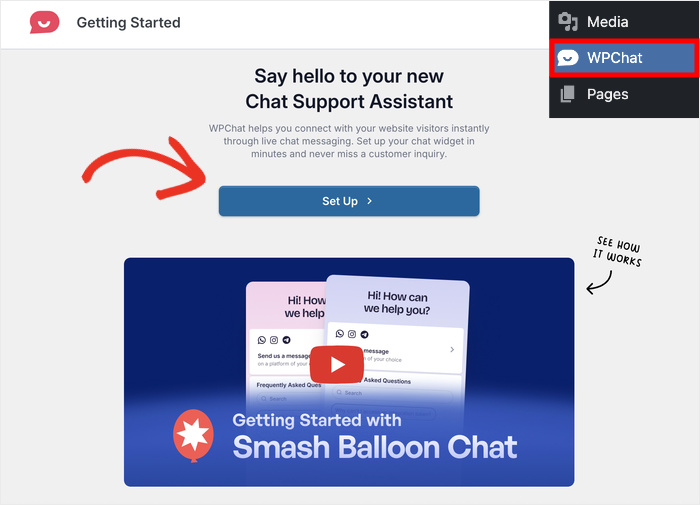
سيطلب منك معالج الإعداد أولاً إدخال معلومات الاتصال الخاصة بك. يتيح هذا لزوارك اختيار تطبيق المراسلة الذي يفضلونه والبدء في الدردشة معك مباشرة.
لذلك، أدخل معلومات الاتصال لتطبيقات المراسلة التي ترغب في استخدامها:
- واتساب
- إنستغرام
- تليجرام
- ماسنجر
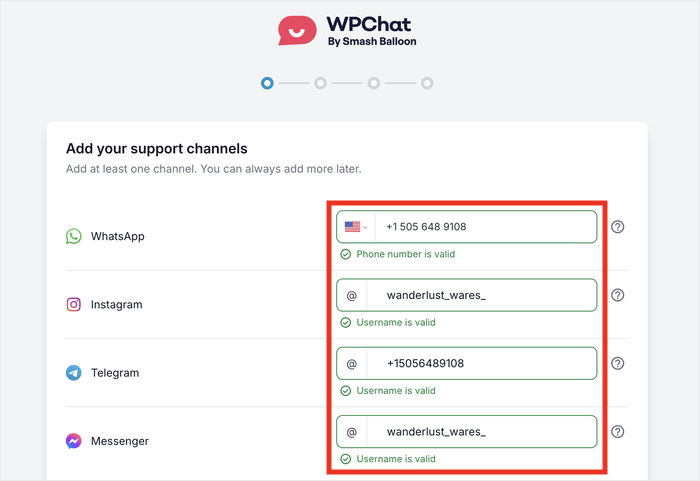
يمكنك إضافة رقم هاتفك لـ Telegram و WhatsApp، واسم المستخدم لـ Facebook و Messenger.
بعد الانتهاء من ذلك، قم بالتمرير لأسفل وانقر على التالي.
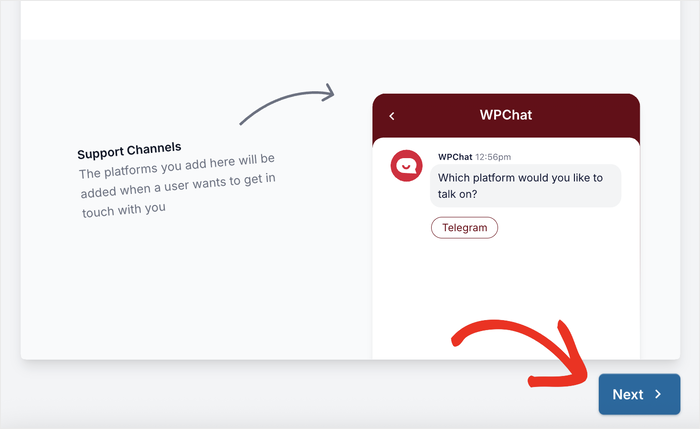
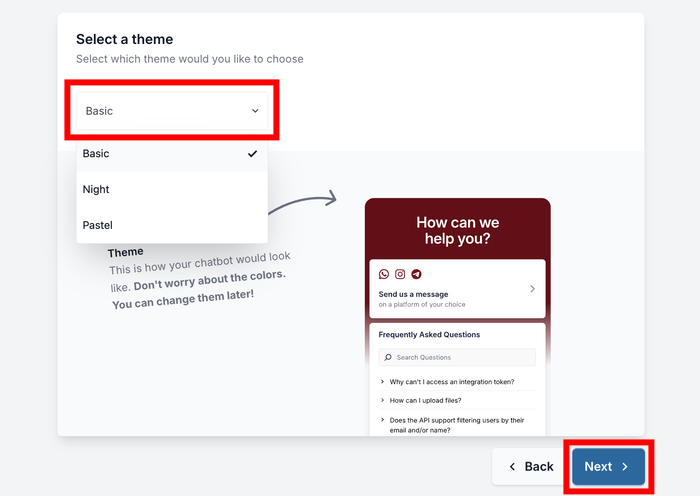
في الشاشة التالية، ستختار سمة لروبوت الأسئلة الشائعة الخاص بك.
يقدم WPChat ثلاث سمات تصميم: أساسي (نظيف وبسيط)، ليلي (وضع مظلم)، و باستيل (ألوان ناعمة).
اختر السمة التي تتناسب بشكل أفضل مع أسلوب موقعك وانقر على التالي.
روبوت الأسئلة الشائعة الخاص بك مباشر. هل أنت مستعد للقيام بالمزيد؟
يفتح WPChat Pro أسئلة أسئلة شائعة غير محدودة، وتحليلات متقدمة، وملفات تعريف وكلاء متعددة، وباني مسار الدردشة الكامل. مدعوم بضمان استعادة الأموال لمدة 14 يومًا.
عرض أسعار WPChat Proالخطوة 3: تعيين رؤية لروبوت الأسئلة الشائعة الخاص بك
الآن تحتاج إلى تحديد مكان ظهور روبوت الأسئلة الشائعة الخاص بك على موقعك.
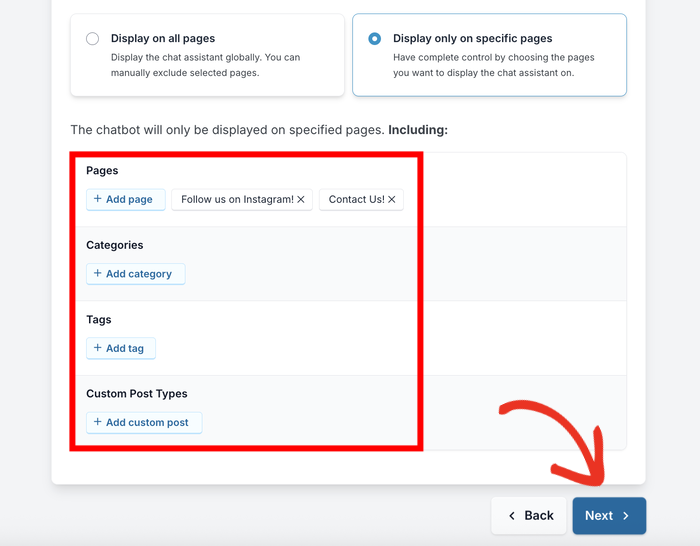
يمنحك WPChat خيارين: العرض على جميع الصفحات (مع خيار إخفائه من صفحات معينة) أو العرض على صفحات معينة فقط.
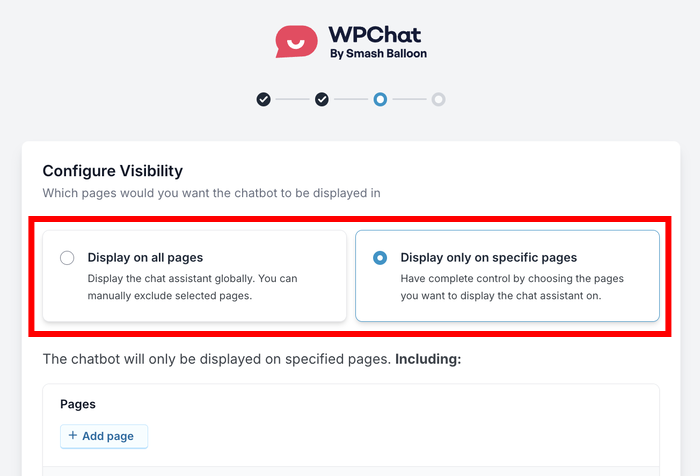
بالنسبة لمعظم مواقع الويب، أوصي باختيار العرض على جميع الصفحات حتى يتمكن الزوار من الوصول إلى المساعدة في أي مكان على موقعك. يمكنك دائمًا استبعاد صفحات معينة لاحقًا إذا لزم الأمر.
إذا اخترت العرض على جميع الصفحات، يمكنك بعد ذلك تحديد الصفحات، الفئات، العلامات، وأنواع النشر المخصصة التي تريد استبعادها.
على سبيل المثال، قد ترغب في إخفاء الروبوت من صفحة الدفع الخاصة بك لتجنب التشتيت أثناء الشراء.
بدلاً من ذلك، إذا اخترت العرض على صفحات معينة فقط، يمكنك اختيار الصفحات، الفئات، العلامات، وأنواع النشر المخصصة التي يجب أن يظهر فيها الروبوت بالضبط.
يعمل هذا بشكل جيد إذا كنت تريد روبوت الأسئلة الشائعة فقط على صفحات المنتجات أو صفحة الاتصال الخاصة بك.
بعد إعداد عوامل التصفية الخاصة بك، انقر على زر التالي للمتابعة.
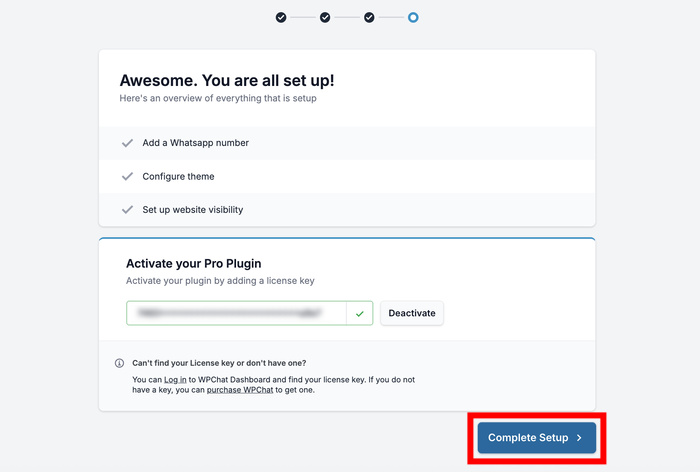
في الشاشة النهائية، الصق مفتاح الترخيص الخاص بك، وانقر على إكمال الإعداد لإنهاء التكوين الأولي.
الخطوة 4: إضافة الأسئلة والأجوبة
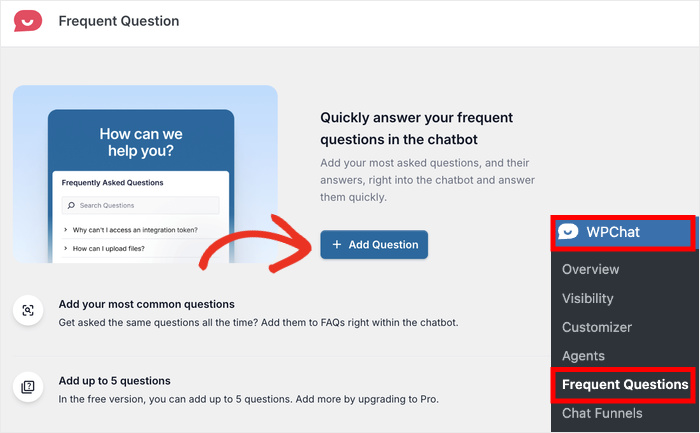
انتقل إلى WPChat » الأسئلة المتكررة في لوحة تحكم WordPress الخاصة بك.
هنا ستضيف جميع الأسئلة والأجوبة التي سيراها الزوار في روبوت الأسئلة الشائعة الخاص بك.
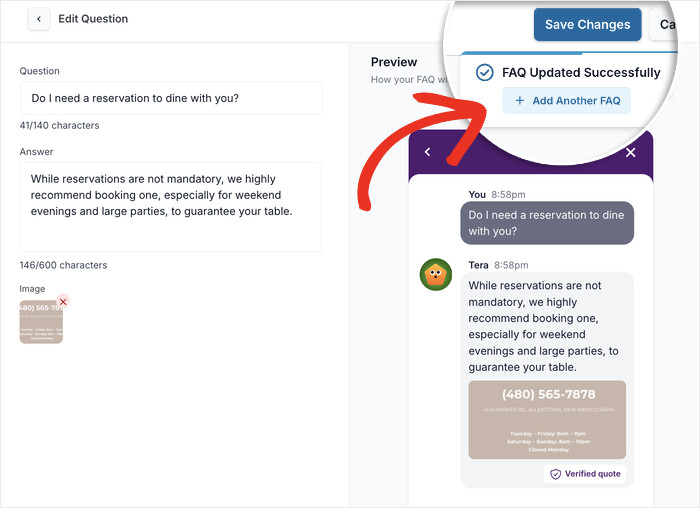
انقر على زر إضافة سؤال لإنشاء أول إدخال للأسئلة الشائعة.
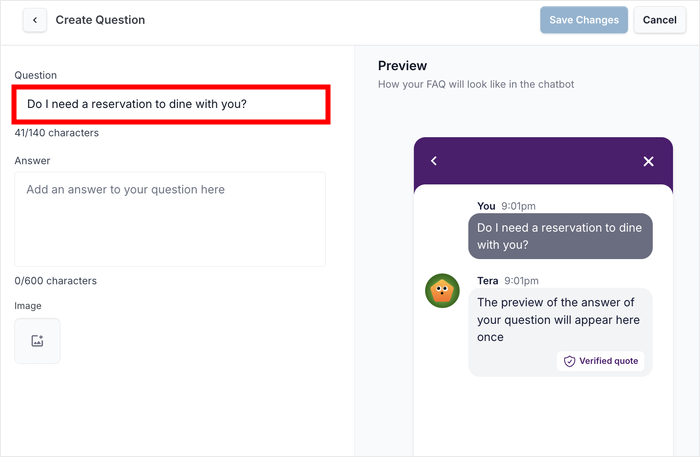
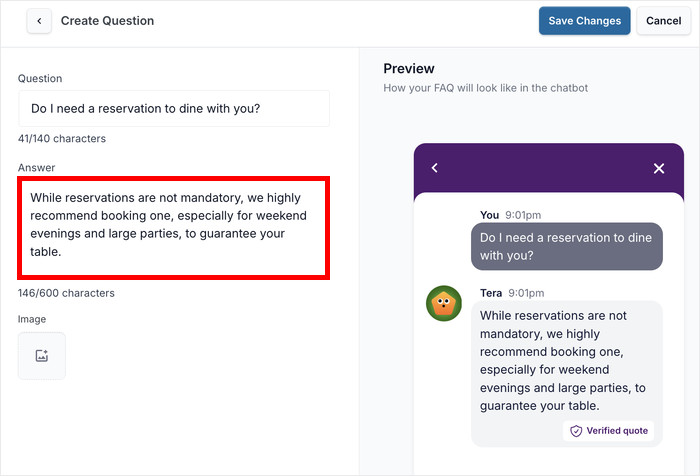
سترى نموذجًا بسيطًا يحتوي على حقلين رئيسيين: السؤال و الإجابة.
على اليمين، يمكنك رؤية معاينة مباشرة لروبوت الأسئلة الشائعة الخاص بك. يتيح لك هذا التحقق من كيف سيبدو الروبوت لزوار موقعك.

في حقل السؤال، أدخل السؤال بالضبط كما سيطرحه عملاؤك.
استخدم لغة طبيعية مثل "كم يستغرق الشحن؟" أو "ما هي سياسة الإرجاع الخاصة بك؟" بدلاً من الصياغة الرسمية.
بعد ذلك، انتقل إلى حقل الإجابة واكتب ردك.
اجعل إجابتك واضحة ومركزة، وقسّم الردود الأطول إلى فقرات قصيرة من جملة إلى جملتين لكل منها لتسهيل القراءة.
إذا كانت إجابتك ستستفيد من شرح مرئي، فانقر على أيقونة الصورة لتحميل لقطات شاشة أو رسوم بيانية أو صور.
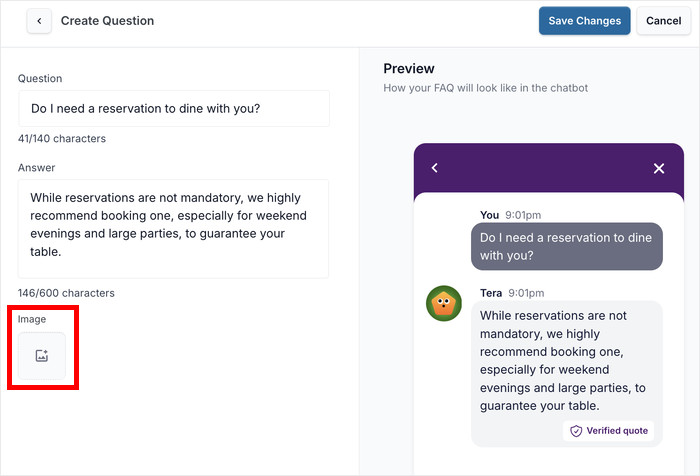
على سبيل المثال، يمكن لمخطط زمني للشحن أو لقطة شاشة خطوة بخطوة أن تجعل المعلومات المعقدة أسهل بكثير في الفهم.
يمكنك حتى تقديم معلومات مهمة مثل أرقام الهواتف في صورة يمكن للزوار حفظها بسهولة.
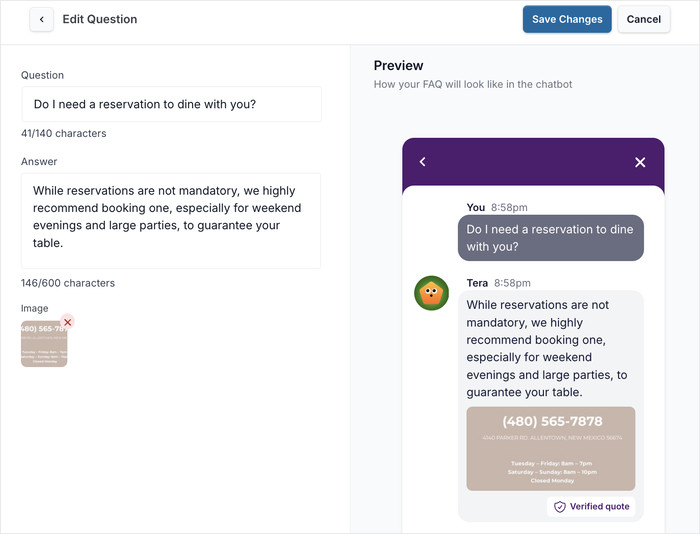
أثناء الكتابة، استخدم المعاينة في الوقت الفعلي على الجانب الأيمن من الشاشة لمعرفة كيف سيظهر إدخال الأسئلة الشائعة الخاص بك بالضبط للزوار.
يساعدك هذا في اكتشاف مشكلات التنسيق والتأكد من أن إجابتك تبدو احترافية.
بمجرد رضاك عن سؤالك وإجابتك، انقر فوق حفظ التغييرات لنشر إدخال الأسئلة الشائعة في روبوتك الجديد.
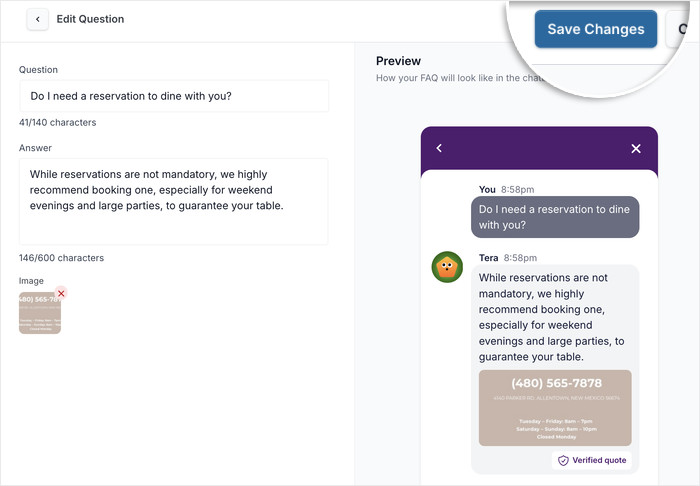
يمكنك بعد ذلك النقر فوق نافذة إضافة سؤال شائع آخر المنبثقة لإضافة المزيد من الأسئلة الشائعة إلى هذا الروبوت.
أوصي بالبدء بأسئلتك الأكثر شيوعًا من 3 إلى 6 أسئلة قبل التشغيل. يمكنك دائمًا توسيع مكتبة الأسئلة الشائعة الخاصة بك لاحقًا.
الخطوة 5: إدارة الأسئلة والأجوبة الخاصة بك
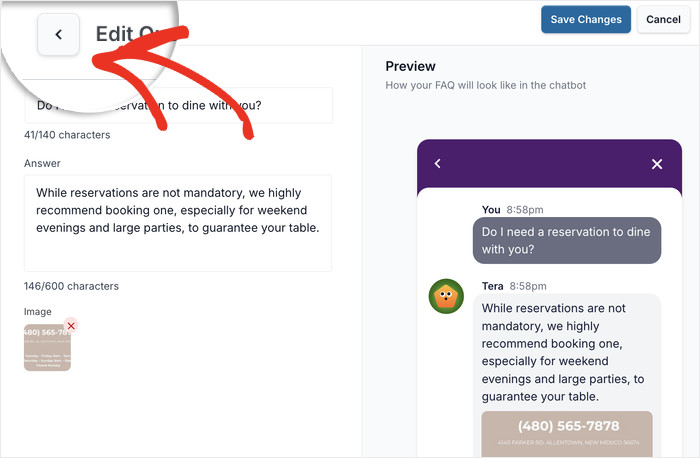
لبدء إدارة إدخالات الأسئلة الشائعة الخاصة بك، يمكنك النقر فوق الزر رجوع في أعلى اليسار.
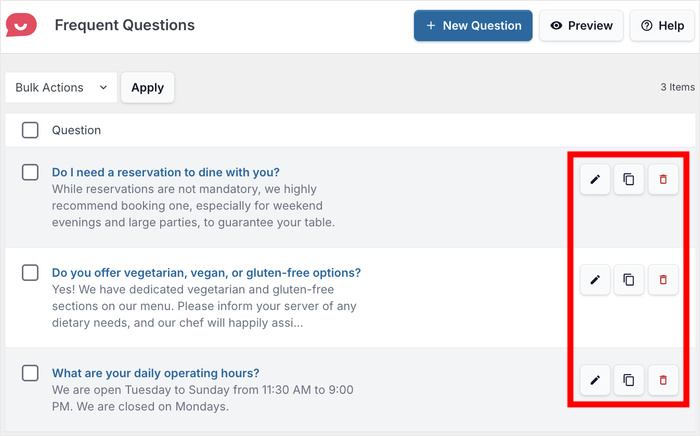
يجعل WPChat من السهل صيانة إدخالات الأسئلة الشائعة الخاصة بك بمرور الوقت. لكل إدخال سؤال شائع، لديك 3 طرق لإدارته:
- استخدم خيار تحرير لتحديث الإجابات عند تغيير المعلومات
- حدد خيار استنساخ لنسخ الأسئلة المتشابهة وتعديلها
- انقر فوق خيار حذف لإزالة الإدخالات القديمة.
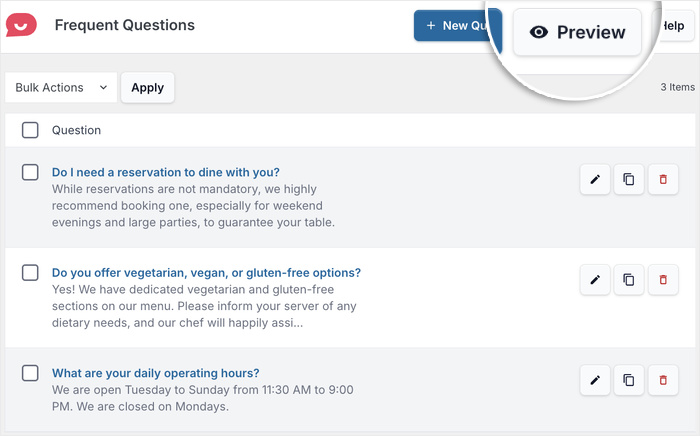
قبل جعل روبوت الأسئلة الشائعة الخاص بك عامًا، انقر فوق الزر معاينة لرؤية الروبوت النهائي تمامًا كما سيراه الزوار على موقعك.
يتيح لك هذا اختبار التجربة وتصحيح أي أخطاء إملائية وأخطاء قبل التشغيل.
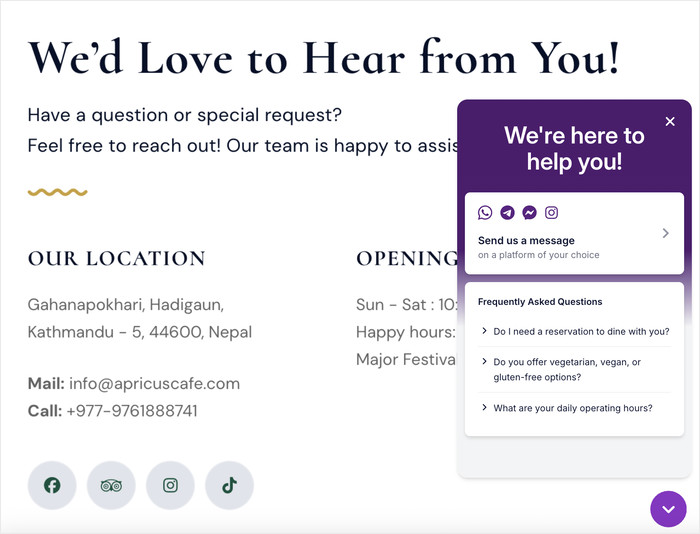
مع ذلك، كل ما تبقى هو فتح موقعك على الويب ورؤية كيف يبدو روبوت الأسئلة الشائعة الخاص بك لزوارك.
كما ترى، يمكنك تقديم إجابات فورية للأسئلة المهمة بمساعدة روبوتك الجديد.
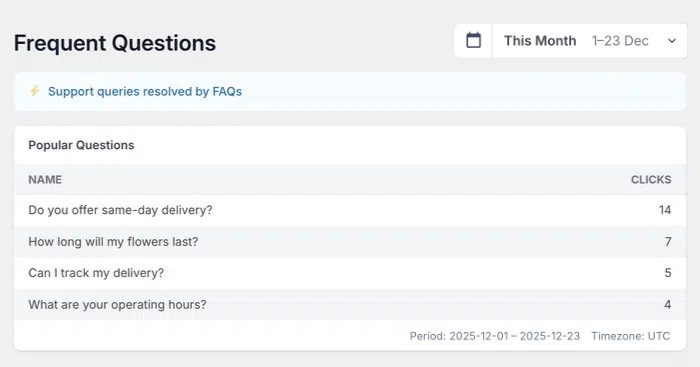
في المستقبل، يمكنك استخدام ميزة التحليلات المضمنة في WPChat للتحقق من أداء روبوت الأسئلة الشائعة الجديد الخاص بك.
بهذه الطريقة، يمكنك رؤية الأسئلة التي تحصل على المزيد من الاستجابات وتعديل منتجاتك وروبوتات الأسئلة الشائعة حسب حاجتك.
ابدأ في الإجابة على أسئلة الزوار الآن
يغادر معظم الزوار موقعًا دون الحصول على الإجابة التي جاءوا من أجلها. يقوم روبوت الأسئلة الشائعة بإصلاح ذلك دون الحاجة إلى فريق دعم أو اشتراك ذكاء اصطناعي أو مطور. تكتب الأسئلة مرة واحدة ويتولى الروبوت الباقي، على مدار الساعة.
هذا بالضبط حيث يتألق WPChat. إجابات معدة مسبقًا، تسليم فوري، ومسار مباشر إلى WhatsApp أو Messenger عندما يريد الزائر مواصلة الحديث.
احصل على نسختك من WPChat هنا واجعل روبوت الأسئلة الشائعة الأول الخاص بك مباشرًا في حوالي 10 دقائق.
- قم بتثبيت WPChat وقم بتشغيل الإعداد السريع
- أنشئ أول روبوت للأسئلة الشائعة لديك بأكثر 5 أسئلة شيوعًا لزوارك
- قم بتعيينه ليظهر أولاً في صفحاتك ذات الزيارات الأعلى
- تحقق من لوحة تحكم المشاركة بعد أسبوع وأضف أسئلة بناءً على ما ينقر عليه الزوار
هل تستخدم بالفعل روبوت الأسئلة الشائعة من WPChat؟ شارك كيف قمت بإعداده في التعليقات. أقرأ كل تعليق.