Tu widget de chat está activo y funciona. Luego abres la tienda en un teléfono, te desplazas hasta un producto y el lanzador está sobre la barra "Añadir al carrito". Tocas "Comprar" y se abre la ventana de chat.
El consejo habitual es reducir el tamaño del widget, configurarlo como cerrado por defecto y diferir el script. Todo eso se refiere al peso, y el peso vale la pena comprobarlo, así que lo probé. Mismo sitio, widget activado y desactivado, y las puntuaciones de velocidad fueron las mismas en ambas ocasiones.
Algunos widgets son realmente pesados y vale la pena optimizarlos. Pero un widget que se coloca sobre tu botón "Añadir al carrito" te cuesta la venta directamente, y ese no es un problema de peso.
Es un problema de posición, y la franja inferior de la pantalla de un teléfono es donde tu barra de carrito, tu banner de cookies y tu lanzador terminan compitiendo.
A continuación, he revisado los resultados de las pruebas, cómo medir la barra de carrito de tu propio tema y a qué configurar el widget para que la evite.
En este artículo:
- Tu widget de chat no es demasiado pesado, está en el lugar equivocado
- Qué sucedió cuando medimos un widget activado y desactivado
- Cómo averiguar la altura real de la barra de carrito pegajosa
- El bucle de adivinar píxeles y la configuración que lo terminan
- Preguntas comunes sobre widgets de chat en dispositivos móviles
- Optimización móvil del widget de chat: a qué se reduce
Tu widget de chat no es demasiado pesado, está en el lugar equivocado
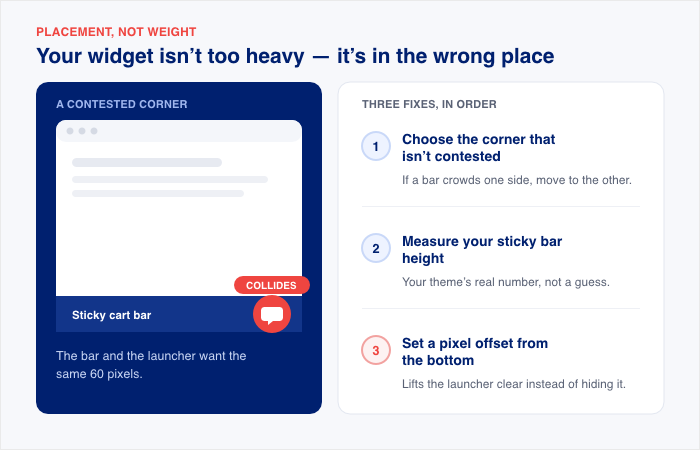
En un teléfono, la parte inferior de la pantalla es un espacio disputado. Tu barra "Añadir al carrito" pegajosa vive allí. También lo hace tu banner de cookies. Y también lo hace tu lanzador de chat, normalmente en la esquina inferior derecha por defecto.
Cuando el lanzador cae sobre el botón "Comprar", el comprador toca el chat en lugar de comprar. Eso te cuesta la venta de una manera que unos pocos kilobytes adicionales nunca lo harán.
Ejecuté una auditoría de Lighthouse en el mismo sitio con el widget activado y desactivado. La versión corta: el widget añadió aproximadamente 148 KiB de activos y no movió ningún Core Web Vital.
Así que la solución no es un proyecto de tamaño de archivo. Son tres pasos, en este orden:
- Elige la esquina que no esté disputada. Si tu barra de carrito o banner abarrotan un lado, mueve el lanzador al otro.
- Mide la altura de tu barra pegajosa. Necesitas el número real de tu propio tema, no uno adivinado.
- Establece un desplazamiento de píxeles desde la parte inferior. Esto eleva el lanzador para que evite la barra en lugar de ocultarla.
Trabaja en ellos en ese orden, y la colisión desaparecerá antes de que abras un informe de rendimiento.
Qué sucedió cuando medimos un widget activado y desactivado
Configuré cuatro páginas idénticas en el mismo sitio de WordPress. Dos ejecutaron WPChat, dos no tenían ningún widget de chat.
Luego probé cada una en PageSpeed Insights en un Android de gama media simulado con una conexión lenta, dos veces por página, y promedié los resultados.
Aquí está lo que salió.
| Métrica | Sin widget | Con widget |
|---|---|---|
| Rendimiento | 96.5 | 96.5 |
| First Contentful Paint | 2,0 s | 2,0 s |
| Largest Contentful Paint | 2,30 s | 2,35 s |
| Total Blocking Time | 0 ms | 0 ms |
| Cumulative Layout Shift | 0 | 0 |
| Speed Index | 2,05 s | 2,20 s |
- Largest Contentful Paint, el momento en que el elemento más grande de la pantalla termina de cargarse, se ha movido 0,05 segundos.
- Speed Index, aproximadamente la velocidad a la que la página se rellena visualmente, se ha movido 0,15 segundos.
Ambos se encuentran dentro de la varianza normal de ejecución a ejecución en configuraciones idénticas, por lo que ninguno representa una diferencia real.
Total Blocking Time y Cumulative Layout Shift se mantuvieron en cero. Eso significa que el widget no bloqueó nada en el hilo principal ni desplazó nada en la página mientras se cargaba.
El coste se refleja en los diagnósticos. La página pasó de 33 KiB de archivos cacheados a 181 KiB, lo que supone aproximadamente 148 KiB de activos del widget, o el tamaño de una foto de tamaño mediano.
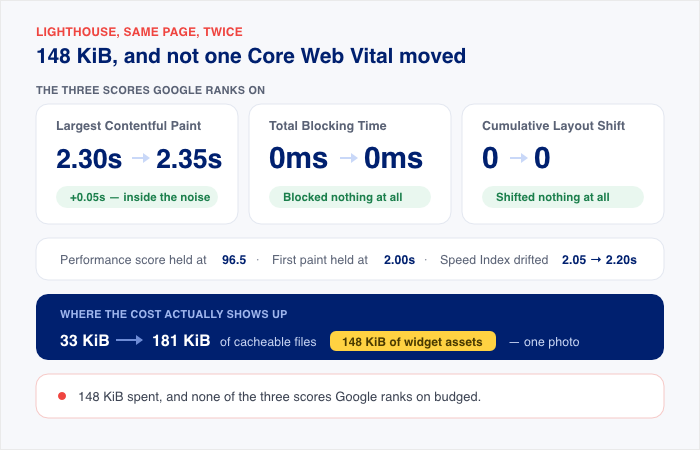
Así que la versión simple es esta: el widget costó unos 148 KiB y no movió ningún Core Web Vital, lo que significa que ninguna de las tres puntuaciones de carga y estabilidad que Google utiliza realmente para la clasificación.
Siempre que utilices un plugin bien codificado como WPChat para tu widget de chat, la velocidad del sitio no será un problema para tus visitantes móviles.
Cómo averiguar la altura real de la barra de carrito pegajosa
Cada tema construye su barra fija "Añadir al carrito" de forma diferente, por lo que no hay un número que pueda darte. Tienes que leer el tuyo. Lleva unos dos minutos en tu navegador de escritorio.
Aquí te explicamos cómo conseguirlo.
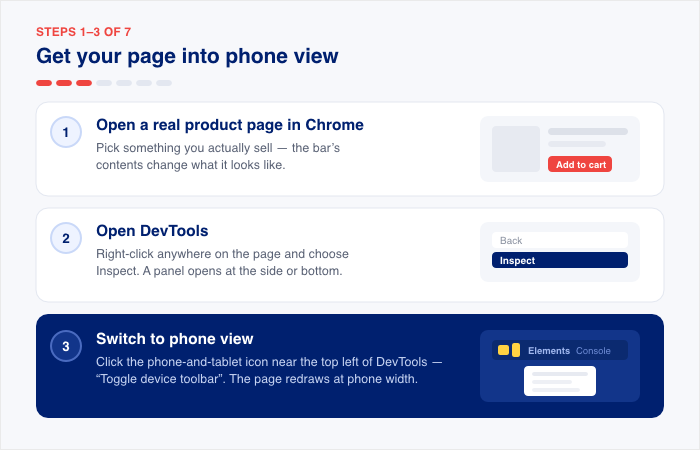
- Abre una de tus páginas de producto en Chrome en tu ordenador. Elige un producto que vendas realmente, no uno de muestra, porque el contenido de la barra cambia su aspecto.
- Abre DevTools. Haz clic derecho en cualquier lugar de la página y selecciona "Inspeccionar". Se abrirá un panel en un lado o en la parte inferior de tu pantalla.
- Cambia a la vista del teléfono. Haz clic en el pequeño icono de teléfono y tableta cerca de la parte superior izquierda del panel de DevTools, etiquetado como "Activar barra de herramientas de dispositivo". La página se redibuja al ancho de un teléfono.
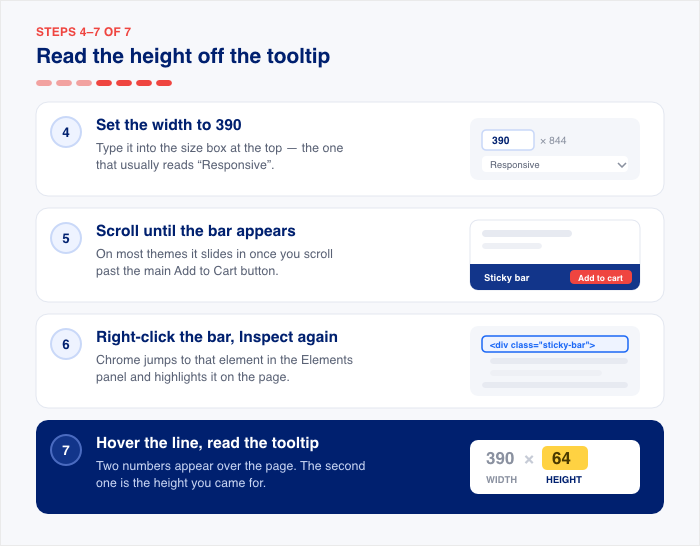
- Establécelo a un ancho de teléfono, 390 es uno común. En la parte superior de la página verás un cuadro de tamaño con un menú desplegable al lado, que normalmente dice "Responsivo". Escribe 390 en el campo de ancho. Tu barra se apila y se dimensiona de forma diferente a los anchos de teléfono que en una pantalla de escritorio.
- Desplázate hacia abajo hasta que aparezca la barra fija. En la mayoría de los temas, se desliza una vez que te desplazas más allá del botón principal "Añadir al carrito".
- Haz clic derecho en la propia barra y selecciona "Inspeccionar" de nuevo. Chrome salta a ese elemento en el panel "Elementos" y lo resalta en la página.
- Pasa el ratón por encima de la línea resaltada en el panel Elementos. Aparece una pequeña etiqueta informativa sobre la página mostrando dos números, algo como 390 × 64. El primero es el ancho, el segundo es la altura. Ese segundo número es lo que buscabas.
Anótalo. Esa es la altura de tu barra en píxeles.
Aquí tienes algunas cosas a considerar a partir de aquí:
- Si el número parece demasiado pequeño, has seleccionado el botón en lugar de la barra. En el panel Elementos, haz clic en la línea justo encima de la que te encuentras y observa el resaltado. Sigue subiendo hasta que cubra toda la tira, de borde a borde, y luego lee la altura de nuevo.
- Comprueba un segundo producto. Un producto simple con un botón suele dar una barra más corta que un producto variable, donde un selector de cantidad o un menú desplegable de variación lo hacen más alto.
- Quédate con el número más grande. El widget solo puede estar a una altura.
Ahora tienes un número. La siguiente pregunta es dónde lo escribes, porque muchos widgets no te dan ningún lugar para ponerlo y te entregan CSS en su lugar.
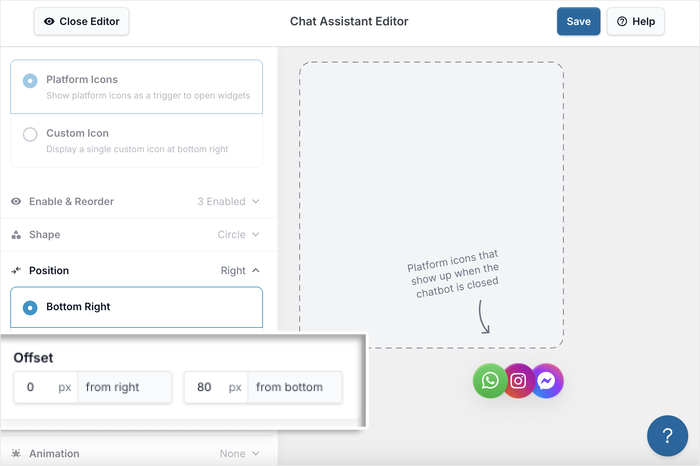
WPChat tiene campos para exactamente esto: una configuración de posición y compensaciones de píxeles separadas desde la parte inferior y la derecha.
Convertir ese número en un desplazamiento
Tu compensación es la altura de la barra más un espacio. Si tu barra mide 64px, no establezcas la compensación en 64px.
Establece algo como 80px en su lugar. El espacio importa porque los objetivos táctiles no tienen que superponerse para causar problemas.
La yema de un dedo cubre mucha más pantalla que un cursor de ratón, por lo que dos controles uno al lado del otro producirán toques erróneos incluso cuando el diseño parezca limpio. Un espacio de 16px por encima de la barra es suficiente para separarlos.
Así que la fórmula de trabajo es: altura de la barra + 16px = tu compensación inferior.
Una advertencia antes de confiar en ese número
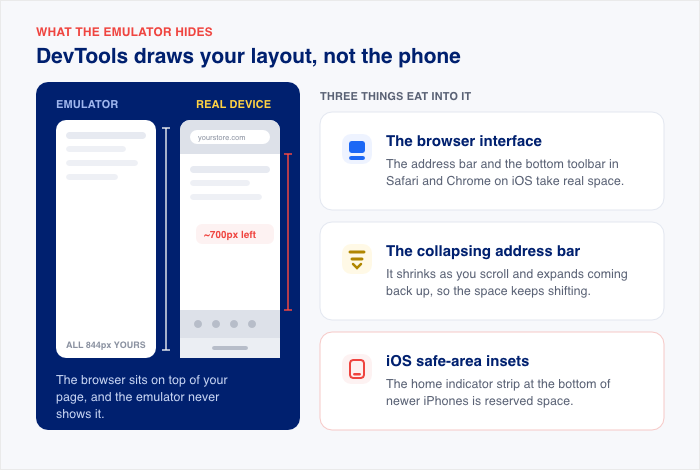
DevTools dibuja tu diseño, pero no dibuja el teléfono. La propia interfaz del navegador se superpone a la página en un dispositivo real, y eso te cuesta altura que el emulador nunca te muestra.
Tres cosas se lo comen:
- La interfaz del navegador. La barra de direcciones y la barra de herramientas en la parte inferior de Safari y Chrome en iOS ocupan espacio real.
- La barra de direcciones que se colapsa. Se encoge al desplazarte y se expande al volver a subir, por lo que el espacio disponible cambia mientras el comprador usa la página.
- Los márgenes de seguridad de iOS. La tira del indicador de inicio en la parte inferior de los iPhones más nuevos es espacio reservado que tu diseño tiene que evitar.
No olvides que las alturas de las barras difieren entre temas como Astra, Botiga, Woostify y los demás, y no los he probado todos.
Por eso elegiría una compensación con margen superior a una perfecta en píxeles.
Establece tu número, luego abre la página del producto en un teléfono real una vez y toca el botón Comprar. Si está limpio, has terminado. Si está justo, añade otros 10px y vuelve a comprobar.
El bucle de adivinar píxeles y la configuración que lo terminan
Dos hilos de soporte público en WordPress.org muestran lo que sucede cuando un widget no te da una opción para esto.
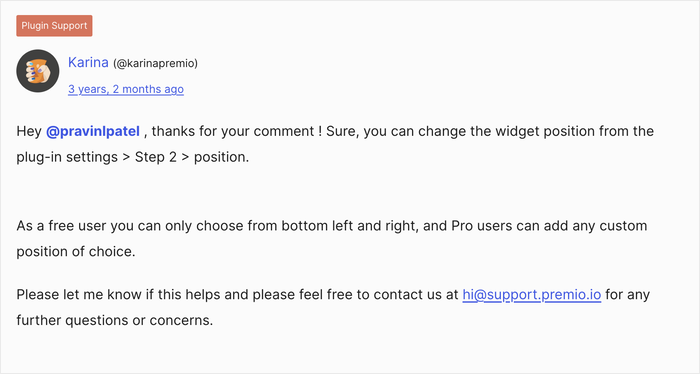
En el primer hilo, el propietario de una tienda informa que el widget de chat cubre el botón Añadir al carrito de WooCommerce en el móvil. La solución es corta: mover la posición del widget en la configuración del plugin. Esa es toda la resolución.
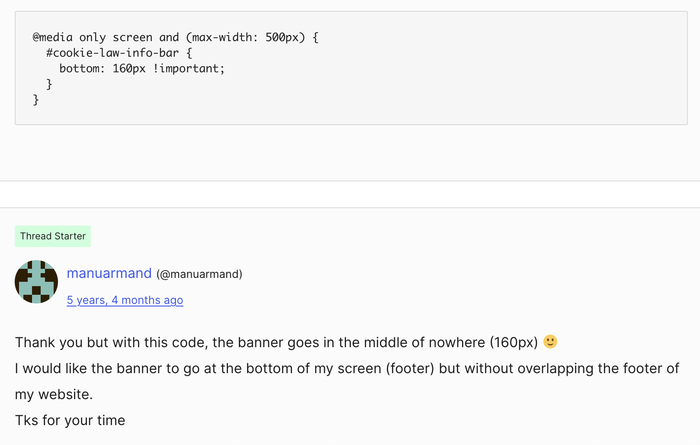
El segundo hilo va en la dirección opuesta. Una barra de cookies está aterrizando encima de los botones de un widget de chat en el móvil, y no hay una opción para ello.
Así que, soporte entrega CSS personalizado que eleva la barra 100px en pantallas de menos de 479px de ancho.
Eso no es suficiente, así que el número sube a 160px. El usuario vuelve e informa que el banner ahora está en medio de la nada.
Nadie en ese hilo hizo nada malo. El bucle ocurre porque un valor de píxel adivinado se está probando contra una altura de barra que nunca se midió, dentro de una consulta de medios, el propietario de la tienda no tiene forma de depurar en su propio teléfono.
Cambias el número, recargas, entrecierras los ojos, lo cambias de nuevo. No hay ninguna medida en ese proceso, por eso no converge.
La configuración que reemplaza la suposición
Dónde se asienta esa barra depende de tu tema, que es exactamente por qué WPChat te da controles de posición en lugar de asumir que una esquina funciona en todas partes.

Los controles se corresponden con el orden de corrección de este artículo.
- Posición: El lanzador se asienta en la parte inferior derecha por defecto, con la parte inferior izquierda disponible. Este es el movimiento horizontal, para cuando tu botón Añadir al carrito ocupa un lado de la barra.
- Desplazamiento: Campos de píxeles separados para la distancia desde la derecha y la distancia desde la parte inferior. El número que mediste antes va en el campo inferior: la altura de tu barra más el espacio de 16px.
- Segmentación de páginas: Esto te permite desactivar el widget en páginas específicas, que es cómo lo mantienes alejado de las páginas donde no lo necesitas.
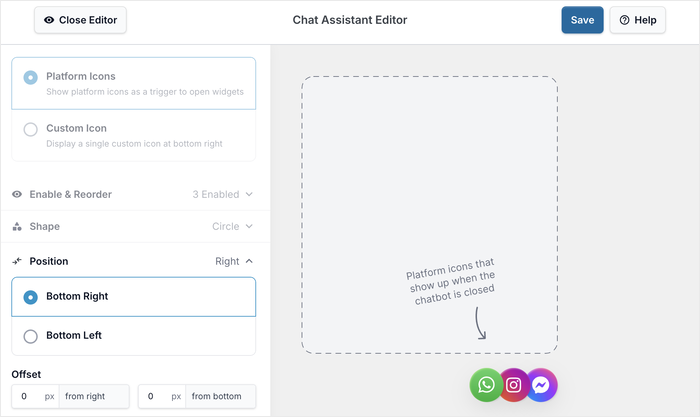
Vale la pena saber sobre la segmentación de páginas: cuando el widget se desactiva en una página, WPChat no lo carga y luego lo oculta. Primero comprueba, por lo que los archivos ni siquiera se descargan.
¿Listo para empezar? Consulta nuestra guía paso a paso para añadir un widget de chat en línea a tu sitio web.
Preguntas comunes sobre widgets de chat en dispositivos móviles
¿Cómo mido la altura de la barra fija "Añadir al carrito" de mi tema?
Mídelo en Chrome DevTools con la barra de herramientas del dispositivo activada. Pulsa F12, haz clic en "Activar barra de herramientas del dispositivo", ajusta el ancho a un tamaño de teléfono como 390, luego desplázate hasta que aparezca la barra fija. Haz clic derecho en la barra, elige "Inspeccionar" y pasa el ratón sobre la línea resaltada en el panel "Elementos". La información emergente muestra dos números, y el segundo es tu altura en píxeles.
¿Abajo a la izquierda o abajo a la derecha cuando tengo una barra de carrito fija?
Elige la esquina opuesta al botón principal de la barra, para que un error de pulsación no te cueste nada. Si tu botón Añadir al carrito está a la derecha, pon el lanzador abajo a la izquierda. Cuando la barra abarca todo el ancho de la pantalla, tampoco hay una esquina libre en ningún caso, así que deja la posición como está y levanta el lanzador con un desplazamiento inferior en su lugar.
¿Un widget de chat perjudica mi puntuación de PageSpeed?
En mi prueba, no. Ejecutando el mismo sitio con el widget activado y desactivado, añadió unos 148 KiB de activos y no movió ningún Core Web Vital. TBT y CLS se mantuvieron en cero. Una advertencia: esa era una página de prueba limpia, que es un caso ideal, por lo que una página de producto con muchas imágenes no se comportará de manera idéntica.
¿Por qué un desplazamiento de píxeles recomendado no funciona en todos los temas?
Porque la barra fija "Añadir al carrito" no es una característica de WooCommerce. Proviene de tu tema o de un plugin separado, y cada uno construye esa barra a una altura diferente. Cualquier número que copies de un hilo de soporte se midió en el tema de otra persona, por eso necesitas medir el tuyo.
Optimización móvil del widget de chat: a qué se reduce
Un widget bien construido no tiene por qué lastrar tu sitio. WPChat añadió unos 148 KiB en mi prueba y no afectó a ningún Core Web Vital, así que el peso nunca fue lo que hizo perder la venta. La posición era: el lanzador sentado sobre el único botón que tu comprador vino a tocar.
Esto es lo que puedes hacer:
- Mide tu barra fija en Chrome DevTools a un ancho de teléfono, y toma la altura del tooltip.
- Añade un margen de 16px a ese número. Ese es tu desplazamiento inferior.
- Establece la posición y el desplazamiento en la configuración de tu widget, no en una media query.
- Desactiva el widget para el carrito y la página de pago, si quieres que el foco esté completamente en la venta.
- Compruébalo en un teléfono real una vez, porque las propias barras del navegador y la franja reservada en la parte inferior de los iPhones más nuevos consumen altura que el emulador nunca te muestra.
El número que obtengas pertenece a tu tema, no a los widgets de chat en general. Los diferentes temas construyen esa barra de forma diferente, por eso un campo en el que puedas escribir tu propia medida es mejor que cualquier número que yo pueda imprimir aquí.
Ahora tienes una medida. WPChat te da un lugar donde escribirla: posición, desplazamientos de píxeles separados y segmentación de página.
Consigue WPChat y empieza a conectar con los visitantes en todos los dispositivos y haz crecer tu negocio.